

Schoolwork in Singapore now leans heavily on devices. Children submit assignments online, use learning portals, join video lessons when needed and research projects at home. Choosing a student laptop in Singapore is less about buying the most powerful machine and more about matching the device to your child’s age, school requirements and daily routine.
This guide is for parents weighing up a study device. It covers what to check with the school first, which specs actually matter for homework, and how to set the laptop up so it helps rather than distracts.
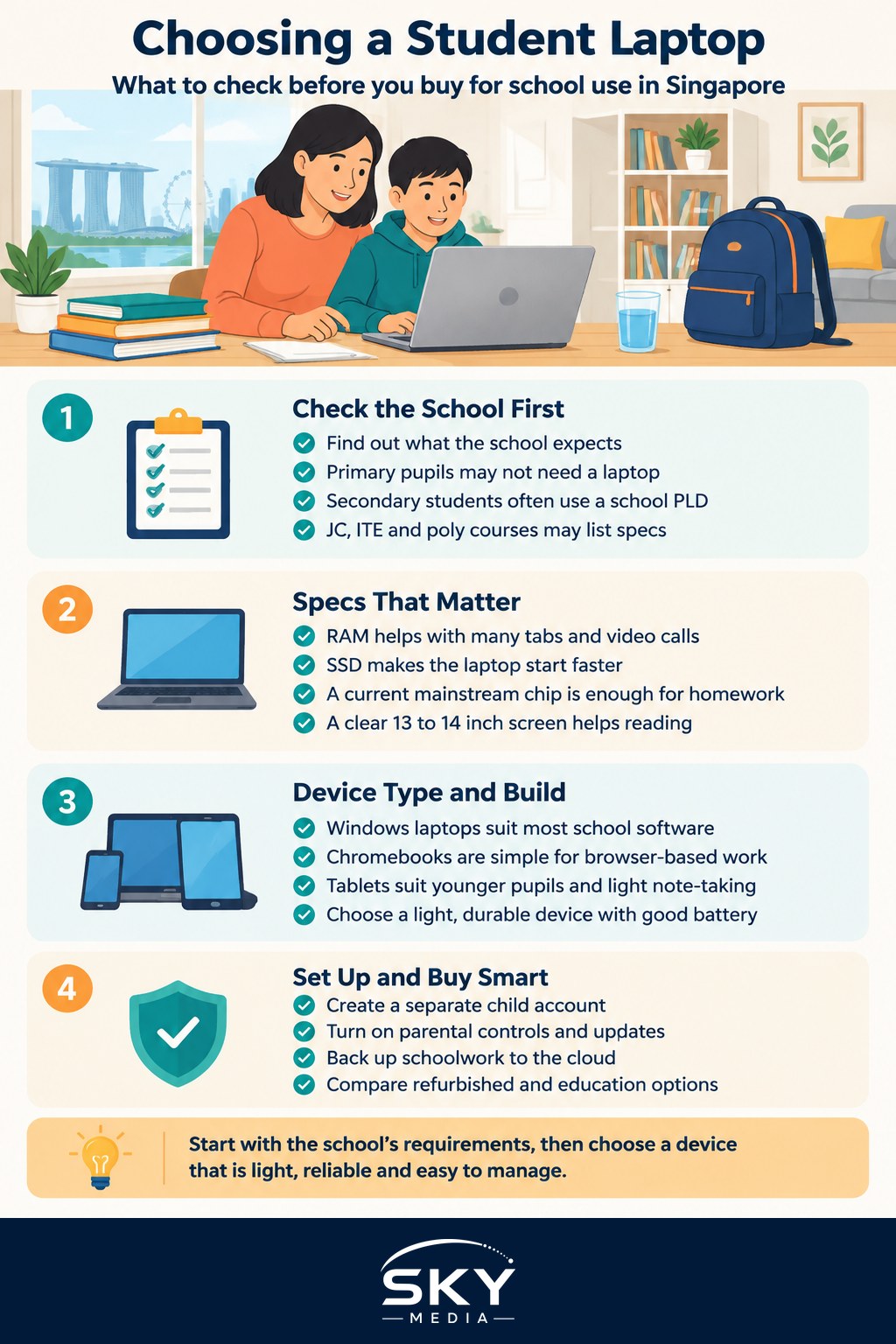
Check With the School Before You Buy
Before you spend anything, find out what your child’s school expects. Requirements differ by level and school, and they change over time.
- Primary school: most primary pupils do not need a dedicated laptop. A shared family computer or tablet is often enough for online homework and learning portals such as the Singapore Student Learning Space (SLS). Check the school’s letters or parent portal for any specific requests.
- Secondary school: under MOE’s National Digital Literacy Programme, secondary students typically use a personal learning device (PLD) arranged through their school. The school usually specifies the model and bundles it with device management software, insurance and warranty. Edusave and financial assistance may be available to help eligible families with the cost. Ask the school for the current arrangement before buying your own.
- Junior college, ITE and polytechnic: students usually have more freedom to choose, but some courses list minimum specs or need particular software. Check the course page or ask the department.
If the school provides or prescribes a device, you may only need a second machine for siblings or family use, or nothing at all. Buying an extra laptop “just in case” is a common and avoidable expense.
Specs That Matter for Schoolwork
Most schoolwork involves a web browser, documents, slides, video calls and the occasional spreadsheet. That is light work, so you do not need top-end hardware. Focus on these:
- Memory (RAM): this has the biggest effect on whether the laptop feels smooth when a child has many browser tabs and a video call open. Aim for a comfortable amount rather than the bare minimum.
- Storage: an SSD (solid-state drive) makes the laptop start quickly and feel responsive. Size depends on how much is saved locally versus in the cloud.
- Processor: a mainstream, current-generation chip is plenty for homework. You only need more power for courses involving video editing, 3D design or programming heavy projects.
- Screen: a clear screen with decent brightness reduces eye strain. Around 13 to 14 inches balances portability with readability.
- Keyboard and trackpad: easy to overlook, but children type a lot. A comfortable, full-sized keyboard matters more than thinness.
- Webcam and microphone: good enough for online lessons and recorded presentations.
If the terms confuse you, our guide to understanding laptop specs before you buy explains each one in plain language.
Laptop, Chromebook, Tablet or Convertible?
The right form factor depends on your child’s age and the software their school uses.
| Device type | Suits | Strengths | Watch out for |
|---|---|---|---|
| Windows laptop | Upper secondary, JC, ITE, poly | Runs most school and course software | Needs more setup and updates |
| MacBook | Older students, creative courses | Long battery life, solid build | Some school or exam software may be Windows only |
| Chromebook | Younger students, browser-based work | Simple, fast to start, easy to manage | Limited offline use and app support |
| Tablet with keyboard | Primary pupils, reading and drawing | Light, touch and stylus friendly | Less comfortable for long typing tasks |
| 2-in-1 convertible | Students who take handwritten notes | Laptop and tablet in one | Hinges and screens can be fragile |
Before choosing an operating system, check which platforms the school’s learning tools and any course software support. A device that cannot run a required app is no bargain.
Build, Battery and Weight for Daily Use
A school device gets carried in bags, used on canteen tables and shared between rooms at home. Practical points to weigh:
- Weight: if your child brings the laptop to school daily, a lighter model reduces strain on top of textbooks and files. Try lifting it with a full bag in mind.
- Battery life: look for real-world reviews rather than the headline figure. A device that lasts a school day without hunting for a power point is far less stressful.
- Durability: sturdy hinges, a spill-resistant keyboard and a protective sleeve or hard case are worth more than a slim profile.
- Charger: a compact charger, ideally USB-C, is easier to carry and replace.
- Warranty and accidental damage cover: consider extended warranty or accidental damage protection for younger users. Read what is and is not covered, as policies differ.
Teach basic care early: no food or drinks next to the keyboard, close the lid gently, and avoid leaving the laptop in a hot car or in direct sun.
Set It Up for Focus and Safety
The setup matters as much as the hardware. Before handing the device over:
- Create a separate user account for your child rather than sharing an admin account.
- Turn on parental controls built into the operating system, which can filter content, limit screen time and restrict app installs. School-managed devices usually come with their own controls, so do not layer on conflicting tools without checking with the school.
- Install updates and security software and set updates to install automatically.
- Set up cloud backup for schoolwork so a broken or lost laptop does not mean lost assignments.
- Agree on house rules, such as where the laptop is used, when it gets put away and whether games are allowed on school nights.
Physical setup counts too. A laptop on a low table encourages hunching. A simple stand with an external keyboard and mouse can help older students who study for long stretches.
Buying Smart Without Overspending
- Buy for the next two to four years, not just the current school year, but do not pay for power your child will not use.
- Compare refurbished and education options. Some brands and retailers offer student pricing or certified refurbished units with warranty.
- Avoid gaming laptops for school use unless your child truly needs the graphics power. They tend to be heavier with shorter battery life.
- Keep the box and receipt for warranty claims and resale later.
- Plan for maintenance. Battery wear and slowdowns happen with heavy daily use, so learn the basics of upkeep.
When a device starts to lag after a year or two, simple steps often help. See how to speed up a slow laptop before deciding to replace it.
Questions to Ask Before Paying
Run through this short list in the shop or before you click “buy”:
- Has the school prescribed or provided a device already?
- Does it run every app and portal my child needs?
- Will it last a full school day on battery?
- Is it light and tough enough to carry daily?
- What does the warranty cover, and where is the service centre?
- Can I set up parental controls and backups easily?
A good student laptop is one your child can carry, rely on and use without fuss. Getting the school requirements right first, then choosing sensible specs and a careful setup, will serve them far better than the flashiest machine on the shelf.
Explore more: Choosing a Laptop: A Guide
Frequently Asked Questions
Can my child use a personal laptop instead of the school-prescribed device? Ask the school before buying anything. Secondary schools usually arrange a specific personal learning device with management software, insurance and a warranty, and may not allow substitutes. Check with the school what is permitted, since arrangements can change. A personal laptop is more likely to suit tertiary students.
Is a refurbished laptop a good choice for a student? It can be, and it often saves money, provided it comes from a seller offering a proper warranty and you check the battery condition and ports. Test the keyboard and screen, and ask what was replaced. Certified refurbished units are usually safer than private sales for school use.
What if the laptop gets damaged or lost at school? If it is a school-arranged device, ask the school about its insurance, repair process and who to inform. For a personal laptop, check any accidental damage cover or home insurance. In either case, report the loss promptly, and back up schoolwork to the cloud so assignments are safe.
Does a student need a printer at home? Not always, since many assignments are submitted online and schools often provide printing. A home printer is useful if your child regularly prints notes or worksheets, but consider the ongoing cost of ink and paper first. You can print occasionally at a library or shop instead.
How long should a student laptop last? With sensible care, a laptop can often serve for several years, though battery wear and slowdowns appear with heavy daily use. Simple maintenance, enough storage and regular updates help. Before replacing it, see whether a cleanup or battery replacement would fix the problem.