

Many parents only discover in-app purchases when a card statement arrives with a string of small charges for game gems, coins or subscriptions. Children are not usually being sneaky. Games are designed to make buying feel like part of play, and a saved card with a quick fingerprint or face scan makes it very easy.
This is where app store parental approval comes in. Both Apple and Google let a parent sit between the child and the store, so that downloads and purchases need a parent’s yes before they go through. This guide focuses on those approval and purchase features, rather than general screen time limits, so you can stop accidental spending and stay aware of what your children install.
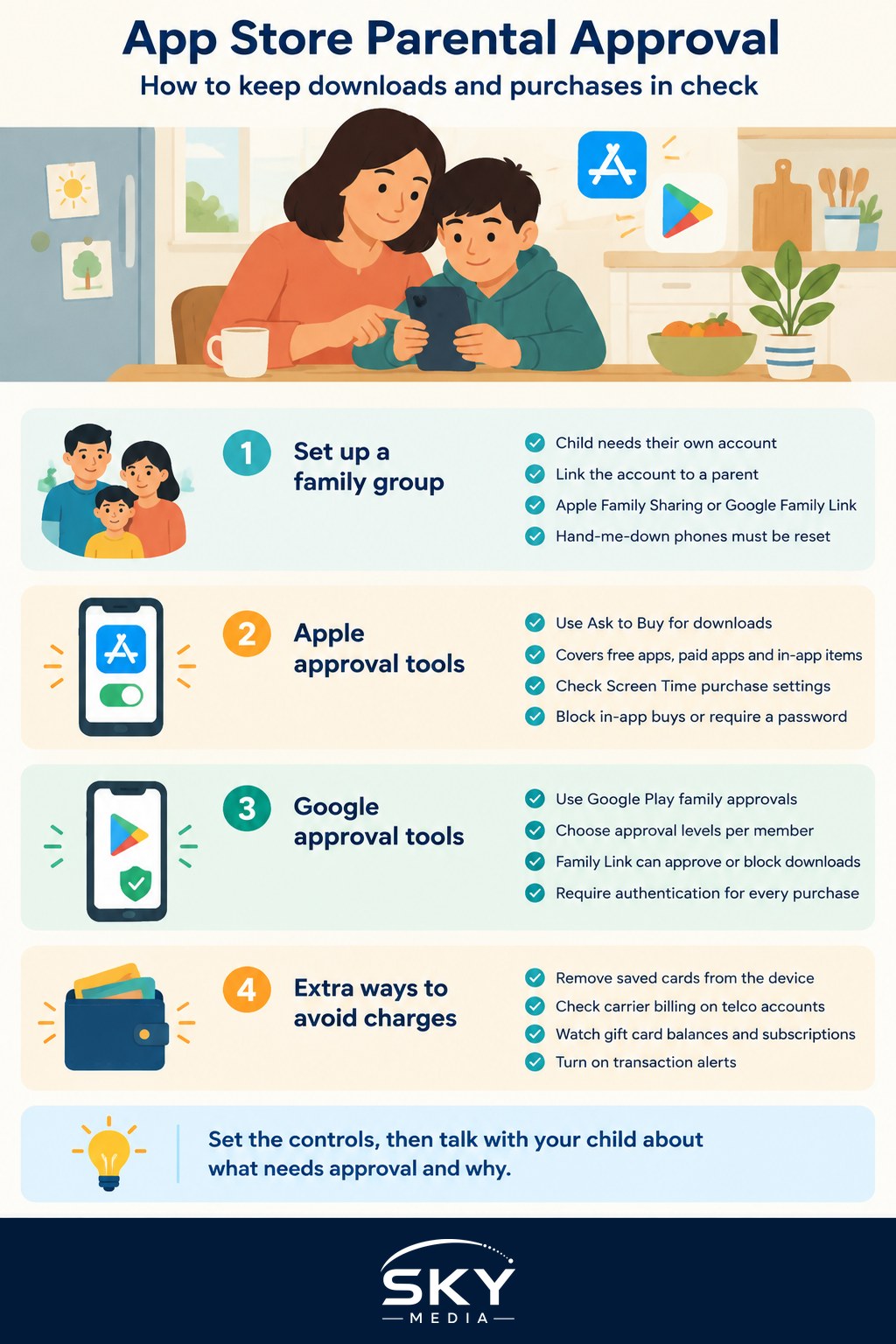
How Family Groups Make Approval Possible
Approval features only work when the child has their own account linked to a parent’s account in a family group.
- Apple Family Sharing. One adult sets up a family group as the organiser and invites or creates accounts for family members. Children get their own Apple Account managed within the family. The organiser can also make another adult a parent or guardian with approval rights.
- Google Family Link and Google families. A parent creates a family group and can set up a supervised Google Account for a child. The parent who manages the family can then control Google Play settings for family members.
The child’s account is the key. If your child uses a hand-me-down phone that is still signed in with your account, no approval feature will protect you, because the store sees every purchase as yours. Before handing over any old device, sign out of your own account, reset it, and set it up with the child’s account.
If your family uses more than one Apple region, for example a mainland China account and a Singapore account, see managing China and Singapore Apple IDs and app stores. Family Sharing members generally need to share the same country or region setting, which affects how you set this up.
Apple: Ask to Buy and Screen Time Purchase Settings
On Apple devices, the main tool is Ask to Buy.
- On the organiser’s iPhone or iPad, open Settings, tap your name, then Family.
- Select your child’s name and look for Ask to Buy.
- Turn it on.
Once it is on, when your child tries to download an app, buy an in-app item or start a subscription, a request is sent to the organiser (and any parent or guardian with approval rights). You see what they want and can approve or decline from your own device. This applies to free apps as well, so you can check what your child is installing even when no money is involved.
Apple may switch Ask to Buy on by default for younger children’s accounts, but always check, as defaults and age thresholds can change.
For an extra layer, use Screen Time on the child’s device under Content & Privacy Restrictions. Under the App Store or purchase settings, you can block in-app purchases entirely, stop the child installing or deleting apps, and require a password for purchases. Set a Screen Time passcode that your child does not know, and do not use the same one as your phone unlock code.
Google Play: Purchase Approvals and Family Link
On Android, approvals are handled through Google Play settings for family members and through Family Link.
- Purchase approvals. The family manager can open Google Play, go to the family settings and choose an approval level for each member. Options typically include approving all content, approving only paid content, or no approval. For young children, “all content” is the safest choice.
- Family Link app approvals. For supervised accounts, parents can use the Family Link app to approve or block app downloads and set content ratings for apps, games and other content in Google Play.
- Authentication on the device. In the Play Store settings on the child’s phone, set purchases to require authentication every time. This stops a single approved purchase from opening the door to more.
Approval requests appear in Family Link or as notifications on the parent’s device. Menu names and steps change from time to time, so follow Google’s current help pages if your screen looks different.
Comparing the Main Approval Tools
| Feature | Apple | |
|---|---|---|
| Family group | Family Sharing, with an organiser and optional parent or guardian | Google family group, with a family manager |
| Approval for downloads and purchases | Ask to Buy, covering free apps, paid apps and in-app items | Purchase approvals in Google Play, with levels you choose per member |
| Blocking in-app purchases completely | Screen Time Content & Privacy Restrictions | Purchase approvals set to all content, plus Family Link controls |
| Where the parent approves | Notification on the organiser’s or guardian’s device | Family Link app or Google Play notification on the parent’s device |
| Extra safeguard | Screen Time passcode the child does not know | Require authentication for every purchase |
Other Ways to Prevent Accidental Spending
Approvals are the main defence, but a few habits close the remaining gaps.
- Remove saved cards from the child’s device. If the child does not need to buy anything, there is no reason for a card to be attached to their account.
- Check carrier billing. Some phone plans allow app purchases to be charged to the mobile bill. Check your telco account settings and turn this off for children’s lines if you do not want it.
- Watch gift card balances. Store credit from gift cards can sometimes be spent differently from card payments. Talk to your child about how they use any balance they receive.
- Turn on transaction alerts. Most Singapore banks let you set SMS or app notifications for card transactions, so a small charge does not go unnoticed for weeks.
- Review subscriptions regularly. Both stores show active subscriptions in account settings. Free trials often renew automatically.
- Cover consoles too. PlayStation, Xbox and Nintendo systems have their own spending controls. See setting up parental controls on consoles for those devices.
If an unwanted purchase does go through, both Apple and Google offer official ways to report a problem or request a refund. Act quickly and use the store’s own help pages. Refunds are at the store’s discretion and are not guaranteed.
Talking to Your Child About Approvals
Technical settings work best alongside a simple conversation. Explain that approval is about family money and safety, not about distrust. Agree on what kinds of apps are fine, whether there is a monthly budget for game purchases, and what happens when a request is declined.
Older children may value having some say. You might approve free educational apps quickly but discuss paid items or new social apps together first. Review your settings each year as children grow, loosening controls step by step as they show they can manage spending sensibly.
Set up thoughtfully, app store parental approval turns a surprise card bill into a quick tap on your phone, and gives you a clear view of what your children are installing.
Frequently Asked Questions
What age should a child get their own app store account? There is no single answer, because Apple and Google set their own age rules for accounts and these can differ by country. Check each company’s current family account guidance. A child’s account linked to a parent’s family group is safer than letting them use yours.
Can my child get around Ask to Buy or purchase approvals? They can if they learn your passcode, use a device still signed in as you or sign in with another account. Keep passcodes private, use a Screen Time passcode they do not know and make sure their device only has their own account.
How do I see what my child has bought or downloaded? Both stores keep a purchase history in account settings, and family organisers can usually review family members’ activity through the family settings. Subscriptions are listed separately, so check them regularly, since free trials often renew automatically.
Do approval features also block unsuitable games and apps? Approval stops purchases and installs without your yes, but age ratings are a separate setting. Use Screen Time content restrictions on Apple or content ratings in Family Link and Google Play to limit what appears. Neither is perfect, so keep talking with your child.
Further reading: Why App Stores Now Check Your Age in Singapore · Best Apps for Couples and Families · Getting Refunds for Accidental In-App Purchases by Kids