

It usually starts with an email receipt you do not recognise. Then another. Then you discover your seven-year-old has bought a stack of gems, coins or skins in a “free” game on your phone or tablet. If this has happened to you, an in-app purchase refund is often possible, but you need to act quickly and go through the right channel.
This guide explains how to ask Apple and Google for a refund when a child made the purchase, what to say, what to do if the request is refused, and how to set up your devices so it does not happen again. Refund policies belong to Apple, Google and the app developers, and they change, so check the current terms on their official help pages.
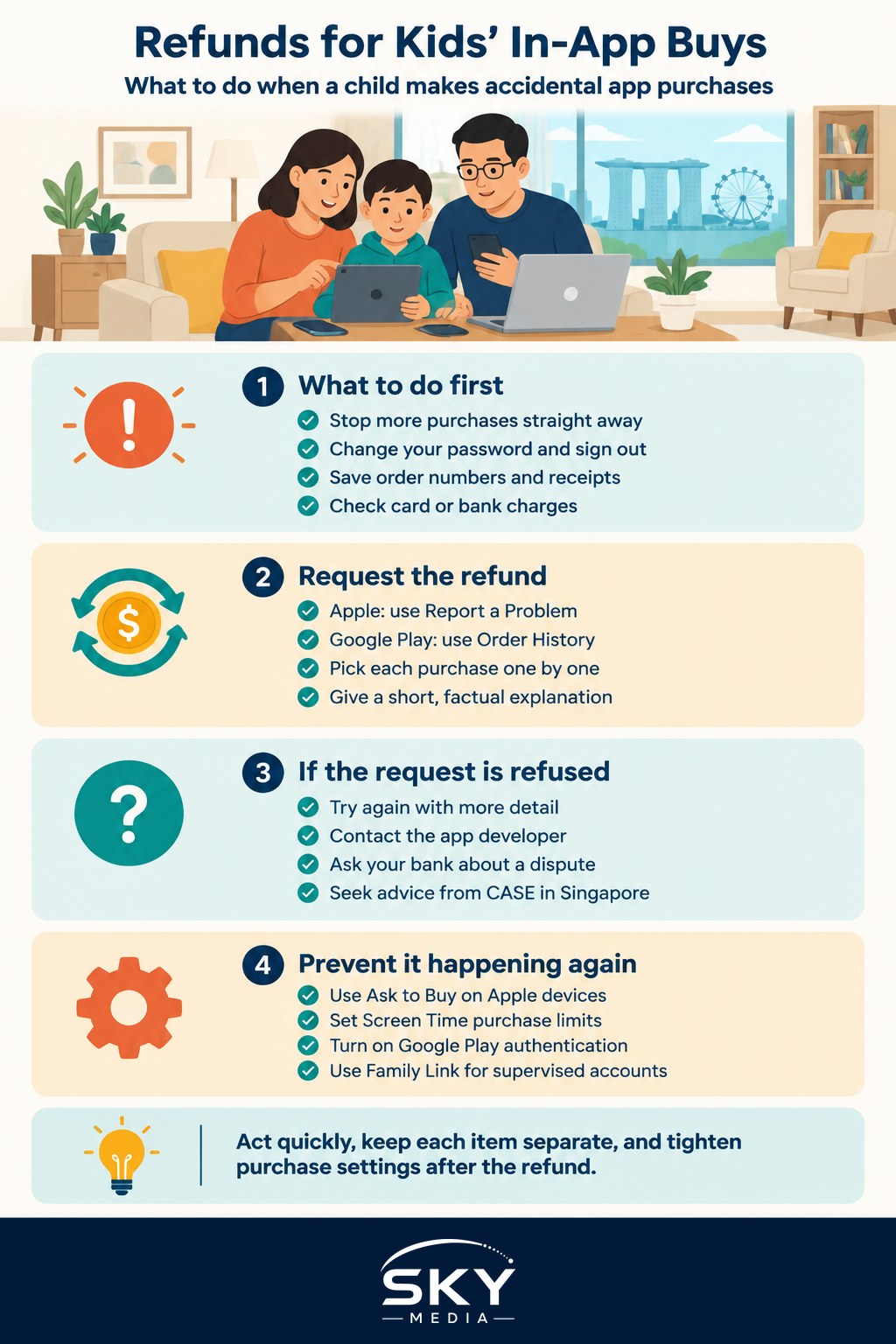
Act Fast: First Steps When You Spot the Charges
Speed matters. Some refund windows are short, and a long list of charges is harder to dispute.
- Stop further purchases now. Change your device or store password, sign your child out of your account, and turn on purchase approval (see the settings section below).
- Gather the evidence. Find the order numbers in your email receipts or your App Store or Google Play purchase history. Note dates, times, item names and amounts.
- Check your card or bank statement. Confirm which charges went through and whether any are still pending.
- Request refunds item by item. Both stores ask you to pick the specific purchases. Do this for every item, not just the largest.
Avoid going straight to your bank for a chargeback before trying the store. A chargeback can sometimes lead to your app store account being restricted while it is investigated.
How to Request a Refund From Apple
For purchases on an iPhone, iPad or Mac, Apple handles refunds, not the game developer.
- Go to Apple’s “Report a Problem” page (reportaproblem.apple.com) and sign in with the Apple Account that was charged.
- Find the purchase, choose “Request a refund”, and select the reason that fits, such as a purchase you did not intend to make or one made by a minor.
- Add a short, factual explanation, then submit. Repeat for each item.
- Apple usually replies by email. Some requests are approved quickly; others are reviewed for longer.
If you cannot find the option, use the Purchase History in your Apple Account settings, or contact Apple Support through its official website or the Apple Support app.
How to Request a Refund From Google Play
For Android phones and tablets, start in Google Play.
- Open play.google.com, sign in, and go to your Order History, or open the Google Play app and find Payments and subscriptions.
- Select the purchase and choose the option to request a refund or report a problem. Pick the reason that explains a child made it without permission.
- Google’s help pages describe a short window after purchase when refunds can be requested directly, and a longer process after that. Check the current timeframes on Google Play Help.
- If Google declines, you can contact the app developer through the contact details on the app’s Play Store page. Some developers refund directly.
Families using Google Family Link have extra options, since purchases from a child’s supervised account can be reviewed by the parent.
Apple vs Google: Quick Comparison
| Step | Apple (iPhone, iPad) | Google Play (Android) |
|---|---|---|
| Where to request | reportaproblem.apple.com or Purchase History | Google Play Order History or Payments and subscriptions |
| Who decides | Apple | Google first, then possibly the developer |
| Key reason to choose | Purchase made by a minor or not intended | Purchase made by a child without permission |
| How to prevent repeats | Family Sharing with Ask to Buy, Screen Time restrictions | Require authentication for purchases, Family Link approvals |
What to Write in Your Request
Keep it short, honest and specific. A clear request is easier to approve.
- State that the purchase was made by your child, give their age, and say you did not authorise it.
- Mention when you discovered it and what you have done to stop it happening again.
- Do not exaggerate or claim fraud if it was simply your child using an unlocked device.
Example: “These purchases were made by my 7-year-old on my iPad without my knowledge. I did not approve them. I have now turned on purchase restrictions and changed my password. I would like to request a refund.”
Stores generally look more kindly on a first-time request than on repeated incidents on the same account, so fixing your settings matters.
If Your Request Is Refused
A refusal is not always final.
- Ask again with more detail. Some parents succeed on a second, clearer request or by contacting support directly rather than through the online form.
- Contact the developer. Especially on Android, the game company may have its own refund policy.
- Talk to your bank. If the store will not help, your card issuer can explain whether a dispute is possible. Be aware of the account restriction risk mentioned above.
- Seek consumer advice. In Singapore, the Consumers Association of Singapore (CASE) offers advice on consumer disputes. Read Consumer Rights, Returns and Refunds in Singapore for the bigger picture.
For refund rules on games you bought yourself, see How to Get a Refund on a Game.
Settings That Stop Surprise Charges
Once the refund is sorted, lock things down so it does not happen again.
On Apple devices
- Family Sharing with Ask to Buy. Give your child their own Apple Account as part of your family group. When they try to buy something, you get a request to approve or decline.
- Screen Time restrictions. Under Content and Privacy Restrictions, you can block in-app purchases entirely, or require a password for every purchase.
- Turn off biometric purchasing on shared devices. If your child knows how to use your face or fingerprint, reconsider using them to approve purchases.
On Android devices
- Require authentication for all purchases. In Google Play settings, set purchases to always ask for your password or biometrics.
- Google Family Link. Set up a supervised account for your child and require your approval for purchases and downloads.
- Remove saved cards from a child’s device. Consider using a store gift card balance instead, so spending is capped.
Habits that help
- Do not hand over an unlocked phone with your main payment method attached.
- Talk to your child about virtual currencies, and explain that gems and coins cost real money.
- Check your email receipts and statements regularly, rather than only at month end.
- Review the in-app purchase information on a game’s store page before allowing a download.
Kids are not trying to cheat anyone. Games are designed to make buying easy. A few minutes setting up approvals is the best protection.
Further reading: Why App Stores Now Check Your Age in Singapore · How to Use Parental Approval Features in App Stores