

Long flights, ferry rides to Batam, MRT tunnels with patchy signal and holidays with expensive roaming data all have one thing in common: they are better with something to watch. Netflix lets you download movies and shows to watch offline, so you are not relying on Wi-Fi or burning through your mobile plan. This guide explains how to download Netflix movies step by step, which devices support it, the limits you may run into and how to fix the problems that tend to appear just before you leave for the airport.
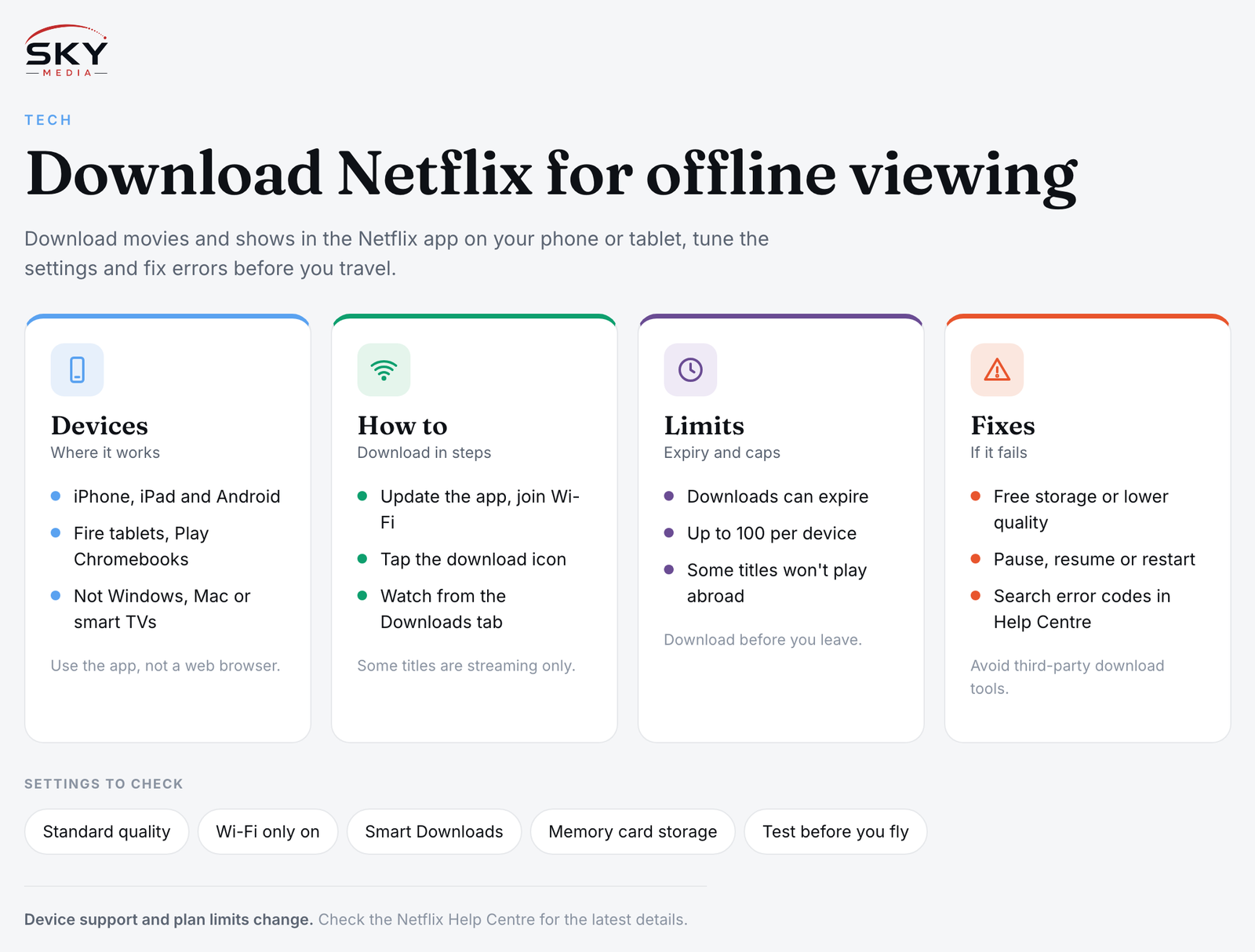
Which Devices Can Download Netflix
Downloading works through the official Netflix app, not through a web browser. Support has changed over the years, so it is worth checking the Netflix Help Centre for the latest list, but as a general guide:
- iPhone and iPad. Supported through the Netflix app from the App Store.
- Android phones and tablets. Supported through the Netflix app from Google Play, including the option to store downloads on a memory card on some devices.
- Amazon Fire tablets. Supported through the Netflix app.
- Chromebooks. Supported on Chromebooks that have the Google Play Store, using the Android Netflix app.
- Windows and Mac computers. Not currently supported. The Windows app dropped downloads in 2024, there is no Mac app, and watching in a web browser always needs an internet connection.
- Smart TVs and streaming boxes. These stream only and do not offer downloads.
Your Netflix plan also matters. Plans differ in how many devices can hold downloads at once, and each device can hold up to 100 active downloads. Some plans may also have limits on downloads per month. Check your plan details under Account in the app or on the Netflix website.
Step by Step: How to Download Netflix Movies and Shows
The process is almost identical on iPhone, iPad and Android.
- Update the app. Open the App Store or Google Play and install any Netflix update. Older versions can fail to download.
- Connect to Wi-Fi. Downloads are large, and the app is often set to download only on Wi-Fi by default.
- Find the title. Search for the movie or show and open its page.
- Tap the download icon. For a movie, tap Download. For a series, tap the download icon next to each episode, or use the option to download a whole season if it appears.
- Wait for it to finish. Progress shows on the title and in the Downloads section. Keep the app open if downloads seem to stall.
- Watch offline. Open the Downloads tab (often under My Netflix) and tap play. You do not need a connection to watch.
Not every title can be downloaded. Licensing deals mean some movies and shows are streaming only. If you do not see a download icon, that title is not available offline. You can browse titles marked as available for download from the app.
Download Settings Worth Changing
A few settings make a big difference to storage and convenience. Find them in the app under App Settings.
| Setting | What it does | When to change it |
|---|---|---|
| Download video quality | Chooses Standard or Higher quality | Pick Standard to save space, Higher for tablets and long flights |
| Wi-Fi only | Blocks downloads over mobile data | Turn off only if you have a large data plan |
| Smart Downloads | Deletes watched episodes and downloads the next one when on Wi-Fi | Turn on for series you binge, off if storage is tight |
| Download location | Chooses internal storage or memory card on supported Android devices | Switch to the card if your phone is running low on space |
Higher quality files look sharper on bigger screens but use much more storage. On a phone, Standard quality is usually fine.
Download Limits and Expiry Dates
Downloaded titles do not stay on your device forever. Several limits apply, and they vary by title and plan.
- Expiry. Many downloads expire after a period. Some expire within a set time once you press play. The app shows how much time is left on each download.
- Renewals. When a download expires, you can usually renew it when you are back online. Some titles limit how many times they can be downloaded in a year.
- Device limits. If you have reached your plan’s limit of devices with downloads, you will need to remove downloads from another device first.
- Leaving the catalogue. If a title leaves Netflix in your region, its download stops working.
- Region. If you travel, some titles available in Singapore may not be available to download or play in another country. Download before you leave.
Netflix also asks devices to go online from time to time to confirm your account. If you plan a long trip off the grid, open the app on Wi-Fi shortly before you leave.
Fixing Common Download Problems
If a download fails, work through these checks in order.
- Not enough storage. Delete old downloads, clear space on your phone or lower the download quality.
- Download stuck or failed. Pause and resume, toggle Wi-Fi off and on, or restart the device. Slow Wi-Fi at home can also cause stalls. Some of the tips in our guide to fixing slow game downloads apply to large video files too.
- “Download limit reached” message. Remove downloads on other devices signed in to your account, or wait for the monthly limit to reset if your plan has one.
- Downloads disappeared. They may have expired, the title may have left Netflix, or the app may have been reinstalled. Signing out also removes downloads on that device.
- Error codes. Search the exact code in the Netflix Help Centre, which lists specific fixes.
A Note on Third-Party Download Tools
You will find websites and apps that claim to save Netflix movies as regular video files. Avoid them. They break Netflix’s terms of use, may infringe copyright and often come bundled with malware or adware. They can also put your Netflix account at risk. The official download feature is the safe and legitimate way to watch offline.
Planning Your Offline Watch List
Before a trip, a little planning helps. Download a mix of short episodes and one or two films, check each one plays correctly while you are still on Wi-Fi, and charge your device and earphones. If you need ideas, our guide to finding the best movies on Netflix Singapore can help you build a list, and fans of local cinema can look out for titles in our Singapore film and local movies guide.
Frequently Asked Questions
Can I download Netflix movies on my laptop? Not on a Windows laptop or Mac at the moment, as Netflix no longer supports downloads on either. Chromebooks with the Google Play Store can use the Android app. Phones and tablets are the most reliable option.
Do Netflix downloads use mobile data? Watching a download uses no data. Downloading it does, unless you are on Wi-Fi, which is why the Wi-Fi only setting is on by default.
How many Netflix movies can I download? It depends on your plan, your device storage and the title’s own limits. Check your plan details in your account.
Will my downloads work overseas? Usually yes, but some titles may not play in certain countries because of licensing. Download and test before you fly.
How much storage does a downloaded Netflix movie take? It depends on the film’s length and the download quality you choose. Higher quality files look sharper on tablets but use much more space than Standard. If your phone is short on storage, switch to Standard in App Settings or, on supported Android devices, save downloads to a memory card.
Why can’t I download some Netflix titles? Licensing deals mean some movies and shows are streaming only, so they never show a download icon. Titles can also stop being available offline if they leave Netflix in your region. Browse the section of titles marked available for download in the app to see what you can save.
How long do Netflix downloads last before they expire? There is no single period, because expiry varies by title. Some downloads expire after a set time, and some start a shorter countdown once you press play. The app shows how much time is left on each download, and you can usually renew it when you are back online.
Can I watch Netflix downloads on a plane in flight mode? Yes, downloads play without any connection, so flight mode is fine. Before you board, open the app on Wi-Fi so it can confirm your account, check each title plays properly and look at the remaining expiry time. Charge your device and earphones too.
Are apps that save Netflix videos as MP4 files safe to use? No. Third-party tools that convert Netflix titles into regular video files break Netflix’s terms of use, may infringe copyright and often come bundled with malware or adware. They can also put your account at risk. Stick to the official download button in the app.