

Buying the same game twice for two children in one household feels wasteful, and it usually is. The big gaming platforms all offer some form of game sharing family library, so that games bought on one account can be played by others at home. Each system works differently, though, and the rules about which consoles, how many people and what can be played at the same time trip up many parents.
This guide explains how sharing works on Steam, PlayStation and Nintendo Switch, how to set it up, and how to pair it with parental controls. Platforms update these features regularly, so treat the steps as a guide and check the current help pages from Valve, Sony and Nintendo before you start.
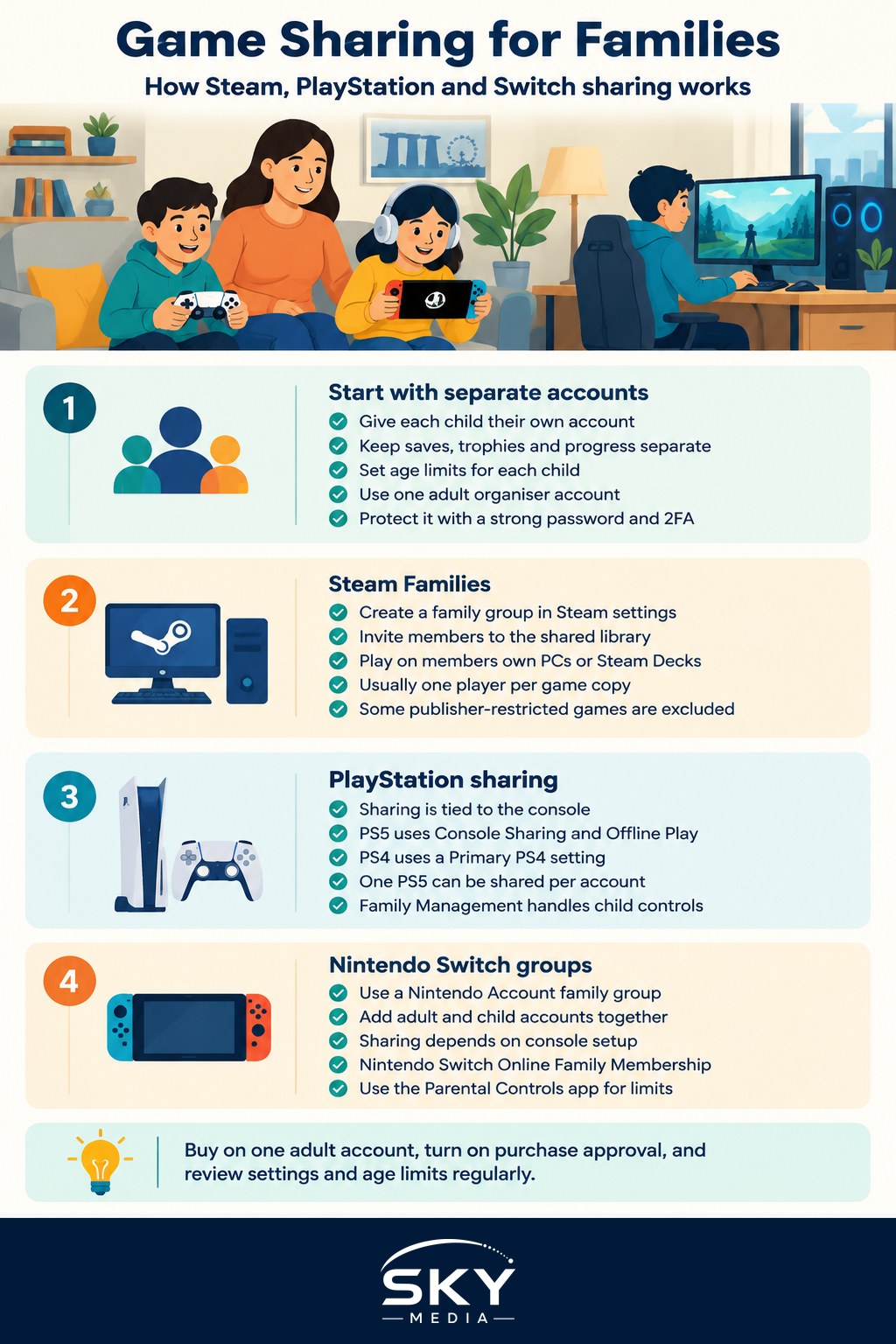
Before You Start: Accounts for Every Child
Every system works best when each family member has their own account rather than everyone using a parent’s login. Separate accounts mean:
- Each child keeps their own saves, trophies and achievements.
- You can set age-appropriate limits per child.
- Purchases stay under your control, with spending approval where the platform offers it.
Most platforms let a parent create child accounts under a family group. Keep your own adult account as the organiser, and use a strong password with two-factor authentication, since that account usually holds the payment card.
Steam Families
Valve combined its older Family Sharing and Family View features into Steam Families. The basic idea:
- One adult creates a family group in Steam settings and invites up to a set number of members (check Steam’s support page for the current limit).
- Members can then see and play most games from the shared family library, on their own accounts and their own PCs or Steam Decks.
- Each copy of a game can generally be played by one person at a time. If two children want the same game simultaneously, you may need a second copy.
- Some games are excluded from sharing by their publishers, often those needing a separate account or subscription.
- Parents can set controls on child accounts, such as which games are visible, playtime limits and purchase requests that need approval.
To set up: sign in on the Steam app or website, go to the Family section in settings, create a family, invite members, and mark children’s accounts as child members. Note that Steam limits how often members can join or leave families, so plan your group before inviting people.
PlayStation Console Sharing
PlayStation sharing is tied to the console rather than to a family library.
- On the PS5, a setting called Console Sharing and Offline Play (the PS4 equivalent is setting a console as your Primary PS4) lets every user on that console play the games and use the PlayStation Plus benefits you bought.
- You can enable this on one PS5 at a time for your account.
- If you sign in on a second console, you can still play your own games there while signed in, which is how some households cover two consoles.
To set up: on the console, go to Settings, then Users and Accounts, then Other, and turn on Console Sharing and Offline Play. Then add each child as a user on that console.
Family management is separate. Through your PlayStation account’s Family Management settings, you can create child accounts, set age ratings for games and apps, limit playtime, restrict communication and set monthly spending limits.
Nintendo Switch Family Groups
Nintendo uses a family group linked to Nintendo Accounts, managed through the Nintendo Account website.
- An adult creates the family group and adds other accounts, including child accounts.
- Games bought digitally are tied to your Nintendo Account, and sharing depends on how your consoles are set up. Traditionally, a console registered as the primary console for your account lets any user on it play your digital games.
- Nintendo has added newer ways to share digital games between family members’ consoles, such as lending games within a family group for a limited period. Check Nintendo’s support site for how this works on your console model.
- A Nintendo Switch Online Family Membership can cover several accounts in the same family group, which is often cheaper than individual memberships for online play.
Parental controls are handled through the free Nintendo Switch Parental Controls app on your phone, where you can set daily play limits, restrict games by age rating and view play activity.
How the Three Platforms Compare
| Feature | Steam Families | PlayStation | Nintendo Switch |
|---|---|---|---|
| How sharing works | Shared library across members’ accounts | Console-based sharing on one PS5 | Family group plus console setup or game lending |
| Play on different devices | Yes, on members’ own PCs | Limited, mainly the shared console | Depends on method and console model |
| Same game at once | Generally one player per copy | Possible on different consoles in some setups | Depends on method |
| Parental controls | Built into Steam Families | Family Management via account | Parental Controls app |
Practical Tips for Parents
- Decide who owns the library. Buy games on one adult account so ownership stays clear. Avoid buying shared games on a child’s account.
- Turn on purchase approval. On every platform, set purchases to need parental consent or cap spending, and remove saved card details from shared consoles.
- Mind the in-game currency. Shared libraries do not usually share in-game items or currency, which are tied to individual accounts. Agree family rules about microtransactions.
- Check age ratings together. All three platforms let you filter by age rating, which is a useful starting point, but watch a few minutes of a game yourself to judge if it suits your child.
- Stagger popular games. If one copy is shared, a simple schedule saves arguments.
- Review settings every few months. As children grow, loosen or tighten limits. Platforms also change features, so revisit help pages occasionally.
- Keep the organiser account secure. If it is compromised, the whole family library and payment card are at risk.
Game sharing is a simple way to stretch your gaming budget while keeping an eye on what your children play.
Explore more: Setting Up Apple Family Sharing and Google Family Groups and Organising Your Game Library.
Further reading: Are Cheap Game Key Sites Safe? Grey Market Game Keys Explained · Digital vs Physical Games: Which Should You Buy? · How to Protect Your Gaming Accounts From Hackers