
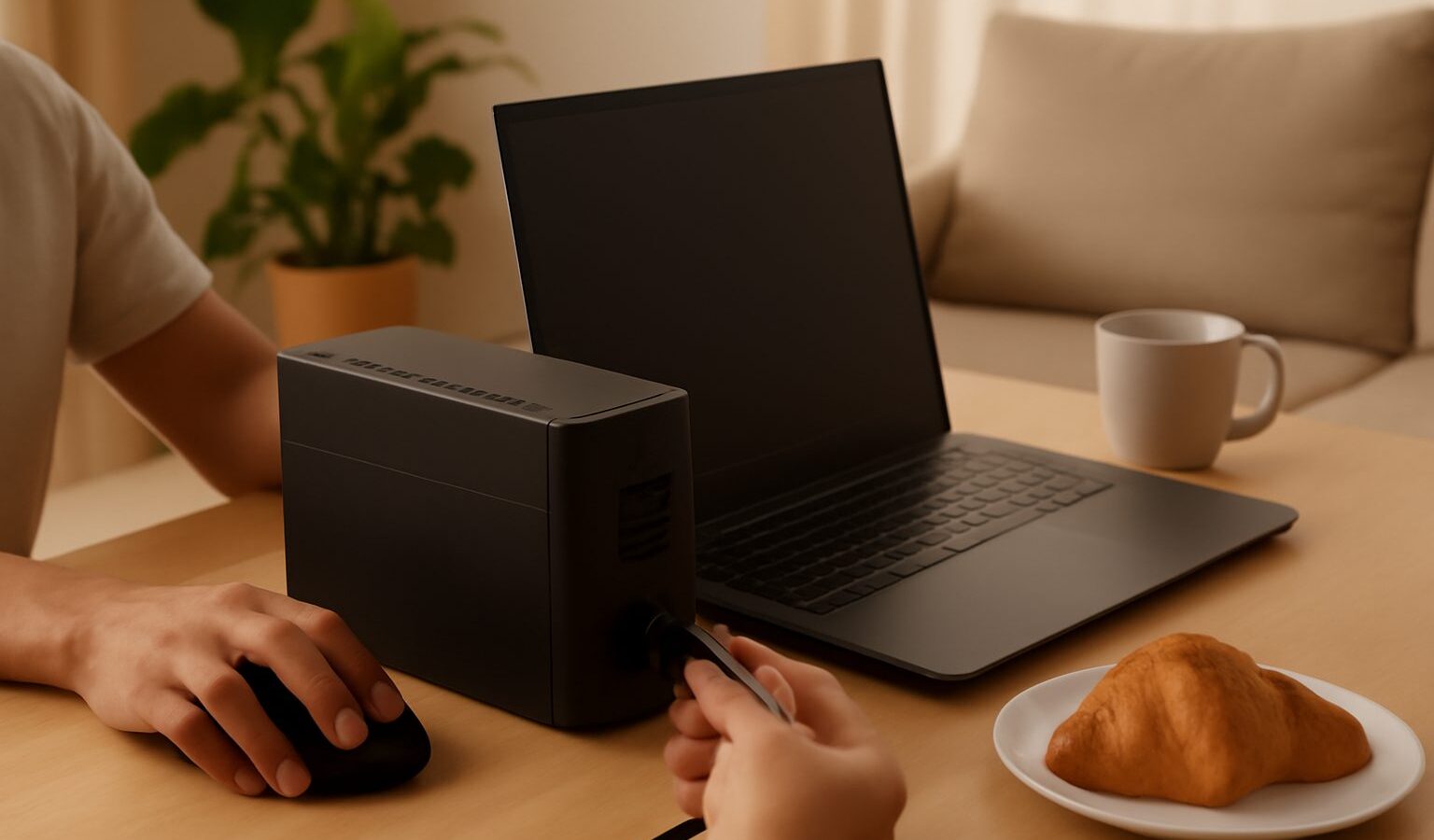
Singapore’s power grid is very reliable, but home power interruptions still happen. A breaker trips when the kettle and air-conditioner run together, a faulty appliance knocks out the RCCB, or there is a brief outage in your block. If you work from home, even a short drop can cut you off mid-call and send your router through a slow reboot.
A UPS for WiFi (uninterruptible power supply) bridges those gaps. This guide stays practical and narrow: how to keep your internet connection and essential work devices running for long enough to finish a meeting, save your work or switch to mobile data. It is not a guide to backing up a whole home office or a server room.
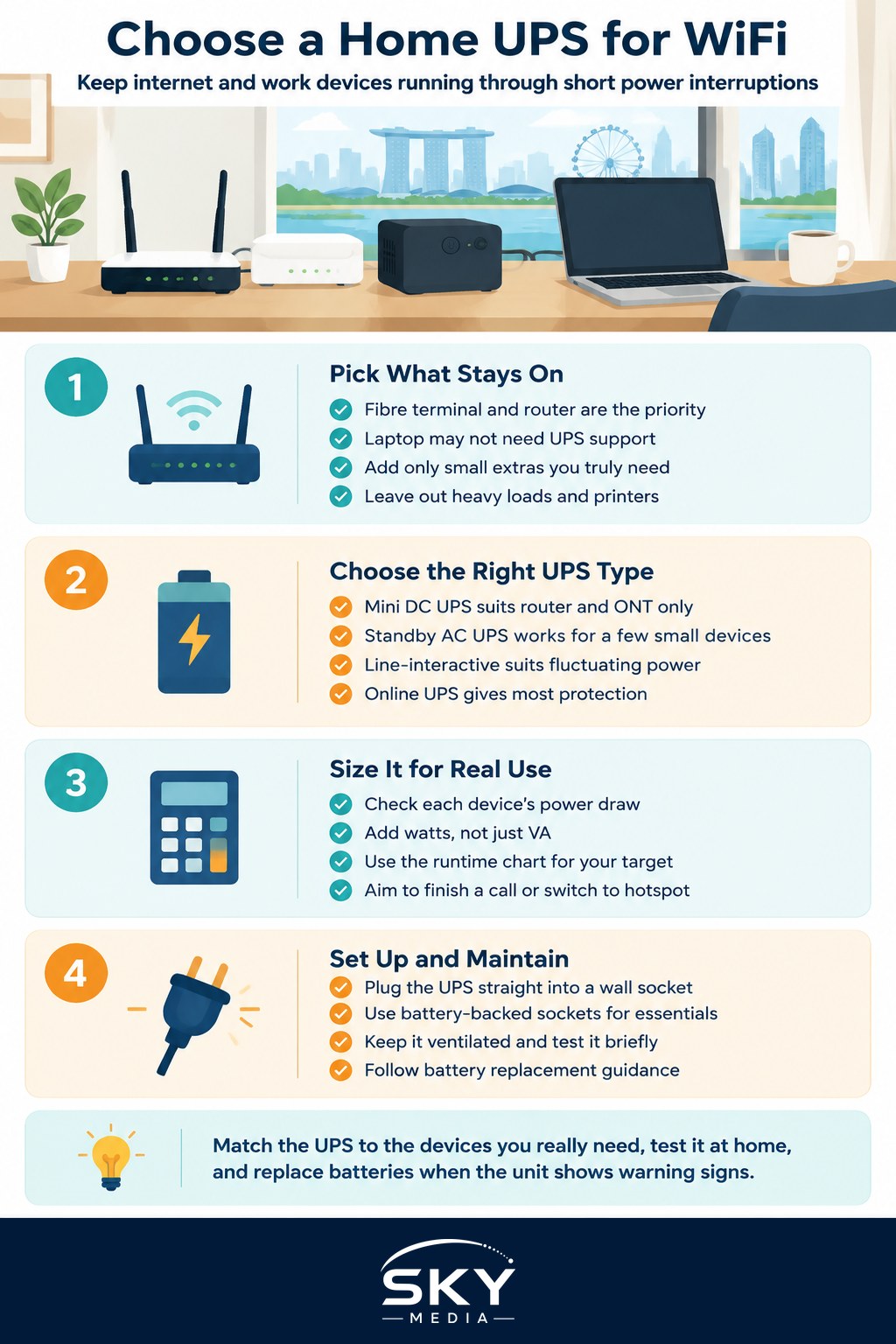
Decide What Actually Needs to Stay On
Start by listing the devices you truly need during an interruption. For most remote workers, that is a short list.
- Fibre terminal (ONT): the small box where the fibre line enters your home. Without it, there is no internet.
- Router or mesh base unit: the device that creates your WiFi network.
- Laptop: usually already has its own battery, so it may not need the UPS at all.
- Optional extras: a desk phone, a small network switch or one external monitor.
Leave out heavy loads such as desktop towers with powerful graphics cards, printers, heaters and air-conditioners. They drain a home UPS quickly and are rarely essential for a short outage.
Check where your ONT and router are plugged in. In many flats they sit in a utility cabinet or near the TV console, and you will want the UPS close by.
The Main Types of Home UPS
There are a few common options, each suited to a different setup.
| Type | Best for | Things to know |
|---|---|---|
| Mini DC UPS | Router and ONT only | Plugs into the devices’ DC inputs; compact and quiet, check voltage matches |
| Standby (offline) AC UPS | Router, ONT and a few small devices | Affordable, switches to battery when power drops |
| Line-interactive AC UPS | Home offices with fluctuating power | Smooths minor voltage changes as well as outages |
| Online (double conversion) UPS | Sensitive or critical equipment | Most protection, but larger, louder and pricier |
Mini DC UPS for Router and Fibre Terminal
For pure WiFi uptime, a mini DC UPS is often the neatest choice. It sits between the device’s power adapter and the device itself, supplying power directly at the low voltage routers and ONTs use. Because there is no conversion back to mains power, it runs efficiently and can often keep a router going far longer than a similarly sized AC unit.
Check the output voltages carefully. Many routers use 12V, but some use other voltages, and the connector size must match. The label on your power adapter shows the voltage and current your device needs.
AC UPS for Several Devices
If you want to power the router, ONT and a monitor or small switch together, an AC UPS with standard sockets is simpler. Look for models that use Singapore’s three-pin plug type, or that come with a suitable lead, and avoid relying on travel adapters for a permanent setup.
For home offices, a line-interactive model is usually a good balance. Some UPS units produce a stepped (simulated) sine wave on battery, which most small electronics handle fine. A pure sine wave model is a safer choice for devices with active power factor correction power supplies, which is common on modern desktops and some monitors.
How to Size It Without Overbuying
UPS capacity is shown in VA (volt-amperes) and watts. Watts matter more for planning.
- Find each device’s power draw. Check the label or adapter. Routers and ONTs typically draw very little compared with a monitor or desktop.
- Add them up and choose a UPS whose watt rating is comfortably above the total, leaving headroom.
- Look at the runtime chart in the manual or product page. Manufacturers usually show how long the UPS lasts at different loads. A lightly loaded UPS runs much longer than one near its limit.
- Decide on your target. For most home workers, enough runtime to finish a call and switch to a phone hotspot is the realistic goal.
Do not guess power figures or rely on marketing claims alone. Read the specifications for the exact model, since runtimes vary a lot between brands and battery types.
Practical Setup Tips
A UPS only helps if it is set up properly.
- Plug the UPS straight into a wall socket, not into a power strip or extension cord.
- Use the battery-backed sockets for essentials. Many AC units also have surge-only sockets that do not stay on during an outage.
- Keep it ventilated and away from direct sun, since heat shortens battery life.
- Test it by switching off the wall socket briefly while nothing critical is running.
- Check for a Safety Mark on electrical products sold in Singapore where it applies, and buy from established retailers.
Remember that the UPS only protects the devices it powers. If your internet goes down because of a wider service outage, the UPS cannot fix that. Our guide on how to fix slow home WiFi covers how to tell whether a problem is inside your home or with your provider.
Battery Care and Replacement
Most home UPS units use sealed lead-acid batteries, while some newer models use lithium-based batteries that typically last longer. Either way, batteries wear out over time.
- Note the purchase date on the unit with a label.
- Pay attention to warnings such as beeping or a battery fault light.
- Replace batteries according to the manufacturer’s guidance, using the specified type.
- Dispose of old batteries properly through e-waste collection points rather than general rubbish. NEA (the National Environment Agency) publishes information on where to recycle them.
Fitting a UPS Into a Wider Plan
A UPS works best as one part of a simple resilience plan for remote work.
- Keep your phone charged and know how to turn on its hotspot quickly.
- If you use a mesh system, decide whether only the main node needs backup power. Our guide to home WiFi and mesh networks explains how nodes connect.
- Save work frequently and keep files synced to the cloud.
- Tell your team how you will reconnect if your home internet drops.
A modest UPS for WiFi and a charged phone will cover most of the short interruptions a Singapore home office actually faces, without the cost and bulk of a full backup system.