
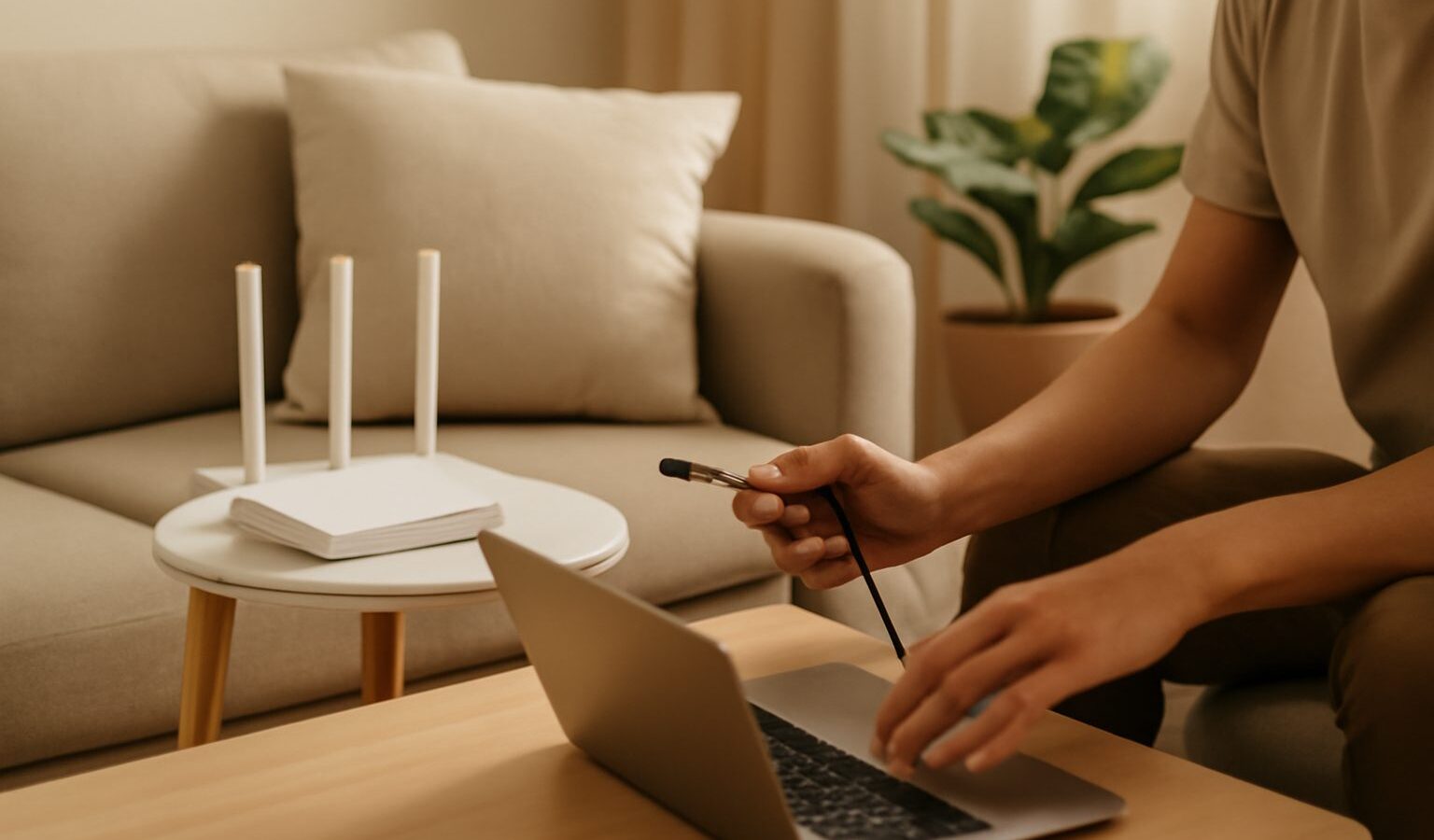
Slow wifi at home is one of the most common tech complaints in Singapore, and the good news is that you can usually fix it yourself in an afternoon. Most of the time the problem is not your broadband plan at all. It is where the router sits, what is crowding the airwaves, and a few settings nobody ever touched. This guide walks you through how to fix slow home wifi in Singapore step by step, from the quick five minute checks to the bigger decisions about mesh systems and extenders. No jargon, no gadgets to buy first, just a calm order of things to try.
Start With the Quick Wins
Before you blame your provider, run through the basics. These take a few minutes and solve a surprising number of cases.
- Restart the router. Switch it off at the wall, wait about thirty seconds, then switch it back on. This clears jams and lets it reconnect cleanly. Do this once a month as a habit.
- Restart the device that feels slow too. A phone or laptop that has been on for days can hold a bad connection.
- Check whether the whole home is slow or just one room. If only one corner struggles, it is a coverage problem, not a plan problem.
- Test on more than one device. If every device is slow at the same time, the issue is the router or the line. If only your phone is slow, the phone is the suspect.
- Look at how many things are connected. Video calls, streaming, downloads, and a house full of smart plugs all share the same pipe.
If restarting fixes it for a while but the problem keeps coming back, the router is likely overheating or overloaded, which we cover further down.
Move the Router to a Better Spot
Placement is the single biggest free upgrade you can make. Wifi signals spread out from the router in every direction and get weaker through walls, mirrors, and metal. In a typical HDB flat, many people leave the router in the store room or a corner near the main door, which is often the worst possible place.
Aim for these:
- Put the router out in the open, not inside a cabinet or behind the TV.
- Raise it off the floor. On a shelf or mounted higher on the wall is better than on the ground.
- Move it closer to the centre of your home, or at least closer to where you use wifi most.
- Keep it away from the microwave, cordless phone base, fish tank, and large mirrors, which all interfere with or block the signal.
- Point any external antennas upward for coverage on the same floor.
Humidity and heat matter in our climate. A router stuffed in a warm, closed cabinet runs hot and slows down. Give it air to breathe. If your fibre termination point is fixed in an awkward corner, a longer network cable to reposition the router, or a mesh node, solves the reach problem.
Reduce Interference and Congestion
HDB living means your neighbours’ routers are often just a wall away, and everyone is shouting on the same channels. Modern routers usually broadcast two bands. The lower frequency band travels further and passes through walls better but is slower and more crowded. The higher frequency band is much faster but has shorter range. Many routers combine both under one network name and pick the best automatically, which is fine for most homes.
A few things that help:
- Sit close to the router when you need top speed, and use the higher frequency band there.
- For devices far from the router, or in another room, the lower frequency band will hold a steadier connection even if it is slower.
- If your router lets you change the wifi channel, switching away from a crowded one can help in dense blocks. Some routers do this automatically.
- Update the router firmware. Log in to the router settings from a browser or the provider app and check for updates, which often fix speed and stability bugs.
- Secure your wifi with a strong password so neighbours are not quietly using your line.
Match the Problem to the Fix
Different symptoms point to different causes. Use this table to jump to the likely fix instead of guessing.
| Symptom | Likely cause | First thing to try |
|---|---|---|
| Whole home slow at once | Router overloaded or line issue | Restart router, then test the line with your provider app |
| One room or corner is weak | Distance and walls | Move router, or add a mesh node or extender |
| Fast near router, drops far away | Range limit of the fast band | Use the lower band far off, add mesh for full coverage |
| Slows down every evening | Neighbourhood congestion, many devices | Change channel, limit heavy downloads at peak |
| Was fine, now suddenly bad | Firmware, overheating, or a faulty device | Update firmware, cool the router, restart devices |
Mesh, Extender, or a New Router
If placement and settings still leave you with dead spots, it is time to extend coverage. There are two main routes, and they suit different homes.
An extender, sometimes called a booster, repeats the existing signal to reach a far room. It is cheaper and simple to set up, but it often halves speed on the extended side and creates a second network name you have to switch between. It works best for one stubborn dead spot, like a back bedroom or the yard.
A mesh system uses two or more units that blanket the whole home under one network name, and your devices hand over smoothly as you walk around. It costs more but gives a far better experience in a larger or long, narrow flat where the signal has to pass through several walls. For most multi room homes in Singapore, mesh is the better long term answer.
Also consider the age of your router. If it is many years old, or came free with an older plan, a newer unit that supports current wifi standards can lift speeds across every device at once. Many providers will supply or upgrade the router as part of your plan, so ask before buying your own.
When to Call Your Provider
Some problems are not yours to fix. Contact your telco or broadband provider if the whole line drops repeatedly, if speeds are far below what your plan promises even right next to the router, or if the connection dies at set times each day. Run a wired test first by plugging a laptop straight into the router with a cable. If the wired speed is also poor, the issue is the line or the plan, not your wifi, and that is a clear case to raise with them. Keep a note of when the slowdowns happen, since patterns help the support team a lot.
Explore more
Once your speed is stable, keep improving your setup. If a single far room still lags, read our guide on how to extend your wifi range at home. If your router is old and struggling, our walkthrough on choosing a wifi router will help you pick the right one. And to get more from your living room, see how to get better TV picture and sound.