

You do not need a bulky machine or a trip to a print shop to digitise your paperwork any more. The phone in your pocket is a capable scanner, and with a little care it produces clean, sharp copies that are easy to store and find. Scanning documents in Singapore at home is one of the most useful habits you can build, whether you are keeping warranties, saving tax papers, submitting a claim, or simply clearing out damp, yellowing files from a crowded HDB cupboard.
This guide covers the whole process, from getting a clear scan on your phone to naming, organising, and backing up your files so you can pull up any document in seconds. It works across Android and iPhone, and none of it requires technical skill.
What You Need Before You Start
The good news is that you probably already have everything. Your phone camera, a scanning tool, and a place to store the files are enough for almost any home.
Most phones include a built in document scanner, often hidden inside the notes app, the files app, or the camera. It automatically detects the edges of a page, straightens it, and sharpens the text. If yours does not have one, a free scanning app from your official app store does the same job. Avoid loading up on several scanning apps, since one good tool is plenty.
You also want somewhere to keep the results, ideally a cloud storage account so your documents are safe even if your phone is lost or damaged. Set that up first so your scans have a home from the very start rather than sitting loose in your camera roll.
Finally, find a well lit spot. Good light is the single biggest factor in a readable scan, and it costs nothing.
How to Get a Clear, Readable Scan
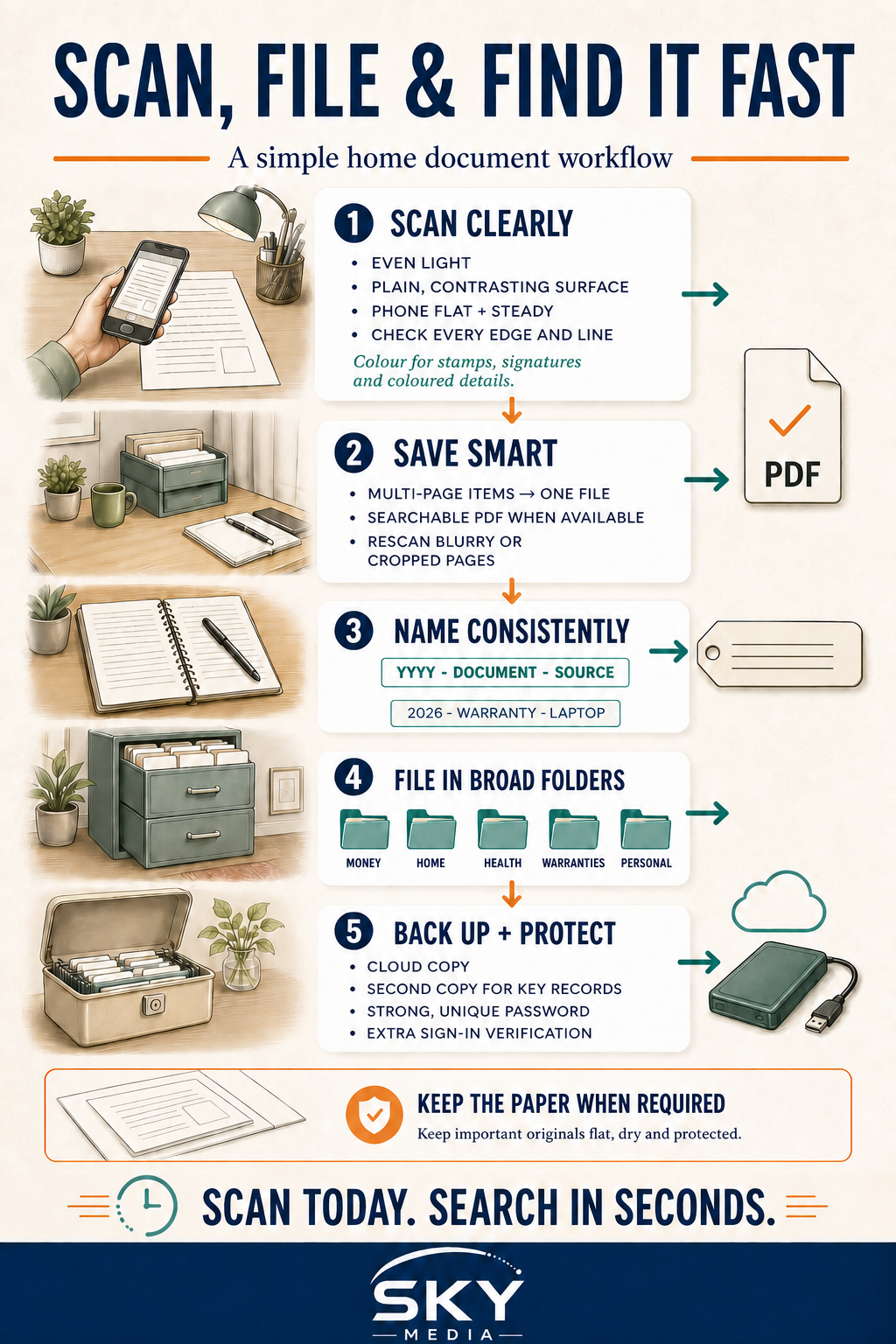
A blurry, shadowed scan is almost as useless as no scan at all, so a few simple habits make a big difference. Follow these and your copies will look sharp and professional.
- Use good, even light. Natural daylight near a window works best. Avoid harsh overhead light directly above, which casts your own shadow onto the page.
- Use a plain background. Place the document on a flat, contrasting surface, such as a dark table for white paper, so the scanner finds the edges easily.
- Hold the phone flat and steady. Keep the camera parallel to the page and directly above the centre. Steady hands or resting your elbows on the table reduce blur.
- Let the app do the work. Allow it to detect the edges and straighten the page automatically, then adjust the corners by hand if needed.
- Choose the right mode. Use colour for anything with stamps, signatures, or coloured details, and a document or black and white mode for plain text pages, which keeps files smaller and crisper.
- Check before you save. Zoom in to confirm the text is sharp and nothing is cut off. Rescan any page that is fuzzy rather than settling for it.
Save each finished document as a searchable file so you can later find it by its contents, not just its name. Multi page items such as contracts should be saved as a single file, not a scatter of separate images.
Name and Organise Files So You Can Find Them
A folder full of files called Scan001 and Image_4432 is no better than a messy drawer. The magic of going digital is instant search, and that only works if you name things sensibly.
Give each file a clear name that your future self will understand at a glance. A simple, consistent pattern works well, such as the year, the type of document, and who it is from. That way a quick search brings up exactly what you need. Keep the naming style the same across all your files so searching stays predictable.
For folders, a few broad categories beat dozens of tiny ones. Something like Money, Home, Health, Warranties, and Personal covers most households. Broad folders are easier to search and harder to lose things in.
Here is a simple comparison of common document types and how to handle them.
| Document type | Scan setting | Suggested folder | How long to keep |
|---|---|---|---|
| Bills and statements | Document mode | Money | Until settled, then as records |
| Warranties and receipts | Colour | Warranties | For the full warranty period |
| Contracts and letters | Colour, multi page | Home or Personal | Long term, keep the original too |
| Medical records | Colour | Health | Long term |
| ID and certificates | Colour | Personal, extra protected | Permanently, keep the original |
Take special care with anything containing your identity or account numbers. Keep those files in a well protected folder and never share them casually over chat.
Back Up Your Scans So They Are Never Lost
A scan that exists only on your phone is one accident away from gone. Backing up is what turns scanning from a nice idea into real peace of mind.
Turn on automatic backup to your cloud account so every new scan copies itself without you remembering to. For your most important records, such as certificates and key contracts, keep a second copy somewhere else, for example on an external drive stored in a dry place away from our humidity. This two place rule means no single fault ever wipes out your documents.
Protect the accounts holding these files with a strong, unique password and the extra verification step your cloud service offers. Your digital filing cabinet is only as secure as its login.
For the small number of originals you must keep on paper, such as certain legal, property, or identity documents, store them flat in a sealed folder or box with a moisture absorber. Scanning does not replace those originals, but it does give you an instant reference copy and a safety net if the paper is ever damaged.
Build a Simple Scanning Habit
The households that stay organised are not the ones that scan everything once. They are the ones that scan a little, often.
When an important letter or receipt arrives, scan it that same day and then decide whether the paper still needs keeping. Handling each item once stops a backlog from ever forming. Once a year, spend a short session clearing duplicates and confirming your key files are still backed up in two places.
Do that, and your documents stop being a source of stress. Instead of digging through drawers before an appointment or a claim, you simply search, find, and get on with your day.
Explore more
Scanning is the practical heart of a wider goal, so read our guide on going paperless at home for the full picture. Once your files are digital, keep them tidy with our walkthrough on decluttering your digital life. And since a phone camera is now your scanner, our tips on taking better photos with your phone will sharpen every capture.