
You queue for a match with friends and the game cannot connect, voice chat drops out, or the lobby says you have a “Strict” connection. On a fast fibre plan in Singapore, that feels baffling. The cause is usually not your internet speed at all but your NAT type, and NAT type gaming problems are among the most common headaches for PlayStation, Xbox and Nintendo Switch players.
This guide explains what NAT type is, how each console reports it, and the fixes to try in order, from simple router settings to a call with your internet service provider (ISP). Router menus differ by brand and firmware, so the steps are described generally; check your router’s manual or your ISP’s support pages for the exact menu names.
What NAT Type Means and Why It Matters
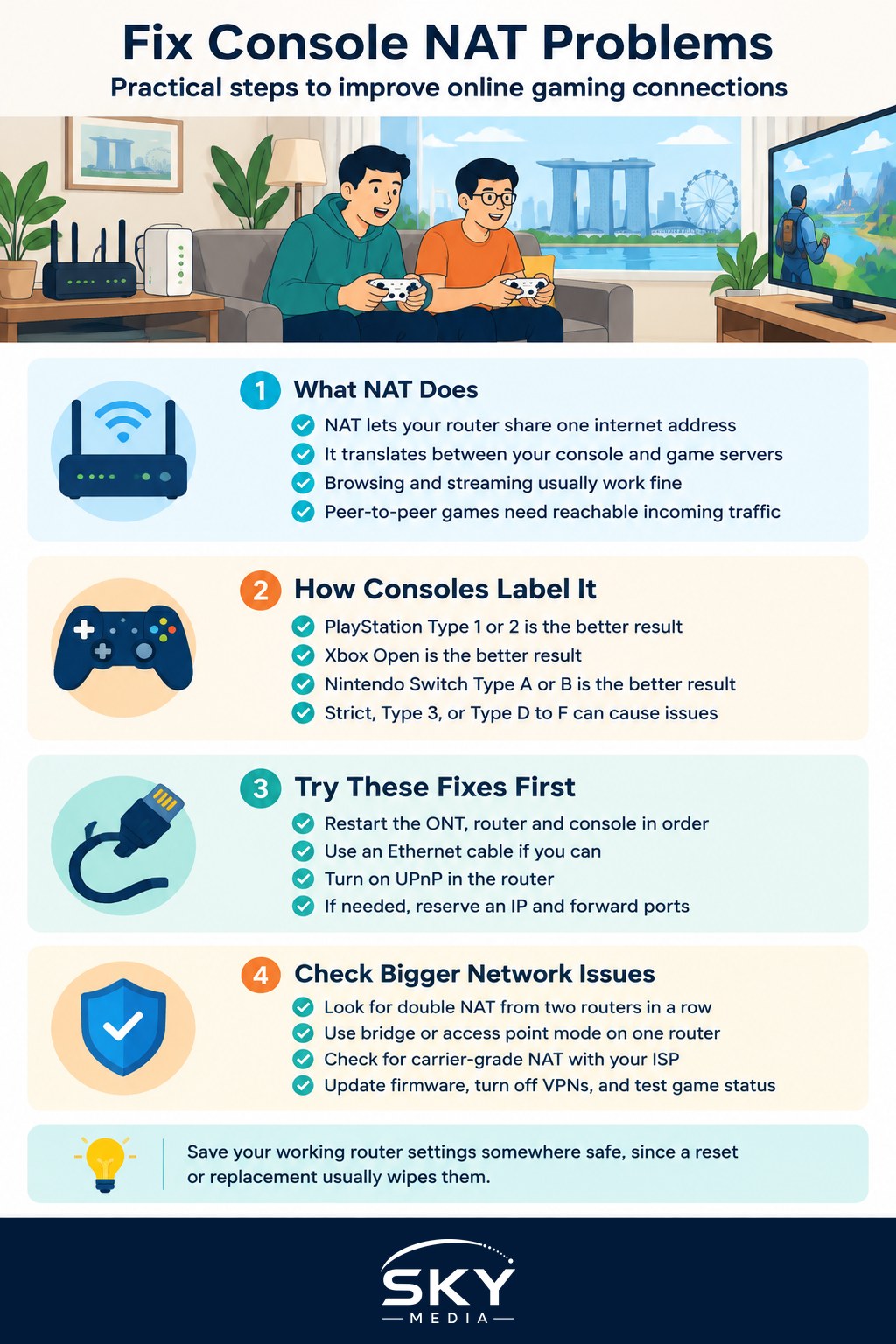
NAT stands for Network Address Translation. Your home router has one public internet address and shares it with every device in the flat by giving each one a private address. When your console talks to a game server, the router translates between the two.
That works fine for browsing and streaming. Peer-to-peer gaming is different: many games connect players directly to each other for matchmaking, party chat or hosting lobbies. For that to work, other players’ consoles must be able to reach yours. If your router blocks unsolicited incoming connections, your console gets a restrictive NAT type, and you can only connect with players whose networks are more open.
Typical symptoms of a restrictive NAT type:
- Unable to join or host lobbies with friends
- Party or voice chat that cuts out or never connects
- Long matchmaking times
- Being disconnected from peer-to-peer matches
- Error messages mentioning “NAT”, “Teredo” or “connection type”
How Each Console Labels NAT Type
Each platform uses its own names, which adds to the confusion. The table below lines them up.
| Openness | PlayStation (PS4 / PS5) | Xbox (One / Series X and S) | Nintendo Switch | What it means in practice |
|---|---|---|---|---|
| Most open | Type 1 | Open | Type A | Directly connected or fully reachable; rare at home |
| Good | Type 2 | Open | Type B | Behind a router that allows incoming game traffic; the target for most players |
| Limited | No exact equivalent | Moderate | Type C | Can play, but cannot connect to some players or host |
| Restrictive | Type 3 | Strict | Type D, E or F | Frequent lobby and chat failures |
To check yours:
- PS5: Settings, then Network, then Connection Status, then View Connection Status.
- Xbox: Settings, then General, then Network settings. Use “Test NAT type”.
- Switch: System Settings, then Internet, then Test Connection.
Menu wording can change with system updates, so look for “connection status” or “test connection” if the path above has moved.
Fix 1: Restart and Use a Wired Connection
Start simple. Power off the console, router and fibre modem (often called the ONT, or Optical Network Terminal, the small box where the fibre enters your flat). Wait a minute, turn on the ONT and router first, then the console, and test again.
Next, plug the console into the router with an Ethernet cable if you can. A wired connection does not change NAT type by itself, but it removes Wi-Fi drops from the picture, so you know any remaining problem is truly NAT.
Fix 2: Turn On UPnP in Your Router
UPnP (Universal Plug and Play) lets the console ask the router to open the ports it needs automatically. It is the single most common fix.
- Log in to your router’s admin page, usually by typing its address into a browser. The address and login are often printed on a sticker on the router.
- Find UPnP, which is often under Advanced, NAT, or Network settings.
- Enable it, save, and restart the router.
- Restart the console and run the NAT test again.
UPnP is convenient, but some people prefer to keep it off for security reasons. If that is you, use port forwarding instead.
Fix 3: Give the Console a Fixed Address and Forward Ports
Port forwarding tells the router to send specific incoming traffic straight to your console.
- Reserve an IP address for the console in the router’s DHCP or LAN settings, so its private address never changes.
- Look up the official port list. Sony, Microsoft and Nintendo each publish the ports their consoles use on their support websites. Use those official lists rather than ports copied from forums, since they can change.
- Create port forwarding rules in the router pointing those ports to the console’s reserved address.
- Save, restart and test.
Some routers offer a DMZ (demilitarised zone) option that forwards everything to one device. It can work as a quick test, but it exposes the console more fully, so many people use it only briefly to confirm the problem.
Fix 4: Solve Double NAT
Double NAT is a very common culprit in Singapore homes. It happens when there are two routers in a row, for example the router supplied by your ISP plus a mesh system or gaming router you bought yourself. Each one performs NAT, and the console ends up stuck behind both.
Signs of double NAT:
- Your own router’s admin page shows a WAN (internet) address that starts with 192.168, 10. or 172.16 to 172.31, which are private ranges.
- Enabling UPnP on one router makes no difference.
Ways to fix it:
- Put one router in bridge or access point mode so only one device handles NAT. Mesh systems usually have an “access point” or “bridge” option.
- Remove the extra router if you do not need it.
- Ask your ISP whether their supplied router can be set to bridge mode, or whether you can connect your own router directly to the ONT. Policies differ between providers and plans.
Fix 5: Check for Carrier-Grade NAT With Your ISP
If your router’s WAN address is in the range 100.64 to 100.127, your ISP may be using carrier-grade NAT (CGNAT), which shares one public address among many customers. No router setting at home can fully fix that.
Contact your ISP’s support and explain that you need a public IP address for console gaming. Some providers offer it on request, some include it on certain plans, and some may charge for it. Practices change, so ask them directly about your current plan rather than relying on older forum posts.
Fix 6: Console Settings and Other Checks
- Update everything. Install the latest console system software and router firmware.
- Check DNS settings. Changing DNS does not fix NAT type, so do not rely on it, but resetting to automatic rules out a misconfiguration.
- Turn off VPNs on the router or console while testing, since they can affect NAT results.
- Remember the game’s own servers. Some titles use dedicated servers, and a game-side outage can look like a NAT problem. Check the game’s official status page.
If you are still choosing between platforms, our guide on how to choose a gaming console in Singapore compares online services and multiplayer features. If wired and wireless connections both fail even with a good NAT result, the console’s network hardware may be at fault, and our guide to where to repair a gaming console in Singapore explains your options.
A Quick Order of Attack
- Restart everything and test on Ethernet.
- Enable UPnP and retest.
- Reserve an IP address and forward the official ports.
- Look for double NAT and switch one router to bridge or access point mode.
- If the WAN address is in the 100.64 range, ask your ISP about a public IP address.
Most players reach an Open or Type 2 connection by step 2 or 4. Once you have a good NAT type, note your router settings somewhere safe, because a router reset or replacement will usually wipe them.
Frequently Asked Questions
Does a wired connection change my console’s NAT type? Not by itself. A cable will not turn a Strict NAT into an Open one, but it removes Wi-Fi drops from the picture so you can tell whether the remaining problem is truly NAT. That makes it a sensible first step before touching router settings.
Is it safe to turn on UPnP on my router? UPnP is convenient and is the most common fix, but some people keep it off because it lets devices open ports automatically. If you prefer that, reserve a fixed address for the console and forward the ports listed on the console maker’s official support pages.
Why is my NAT strict even though I have fast fibre? Speed and NAT type are separate things. A common cause is double NAT, where a second router or mesh system sits behind the ISP’s router. Putting one device in bridge or access point mode, or removing the extra router, often solves it.
What should I ask my ISP if my router shows a 100.64 address? An address in the 100.64 to 100.127 range suggests carrier-grade NAT, which no home setting can fully fix. Ask your ISP for a public IP address for console gaming, and check whether it is free or chargeable on your current plan, as practices change.
Will port forwarding or DMZ work better for my console? Port forwarding is the safer choice, since it sends only the ports your console needs, taken from the official lists. DMZ forwards everything to one device and exposes it more, so use it only briefly to confirm whether the router is the cause.
Further reading: How to Fix Slow Game Downloads on Steam and Consoles · How to Forward Ports for Gaming Safely at Home · How to Choose a Gaming ISP Plan in Singapore