
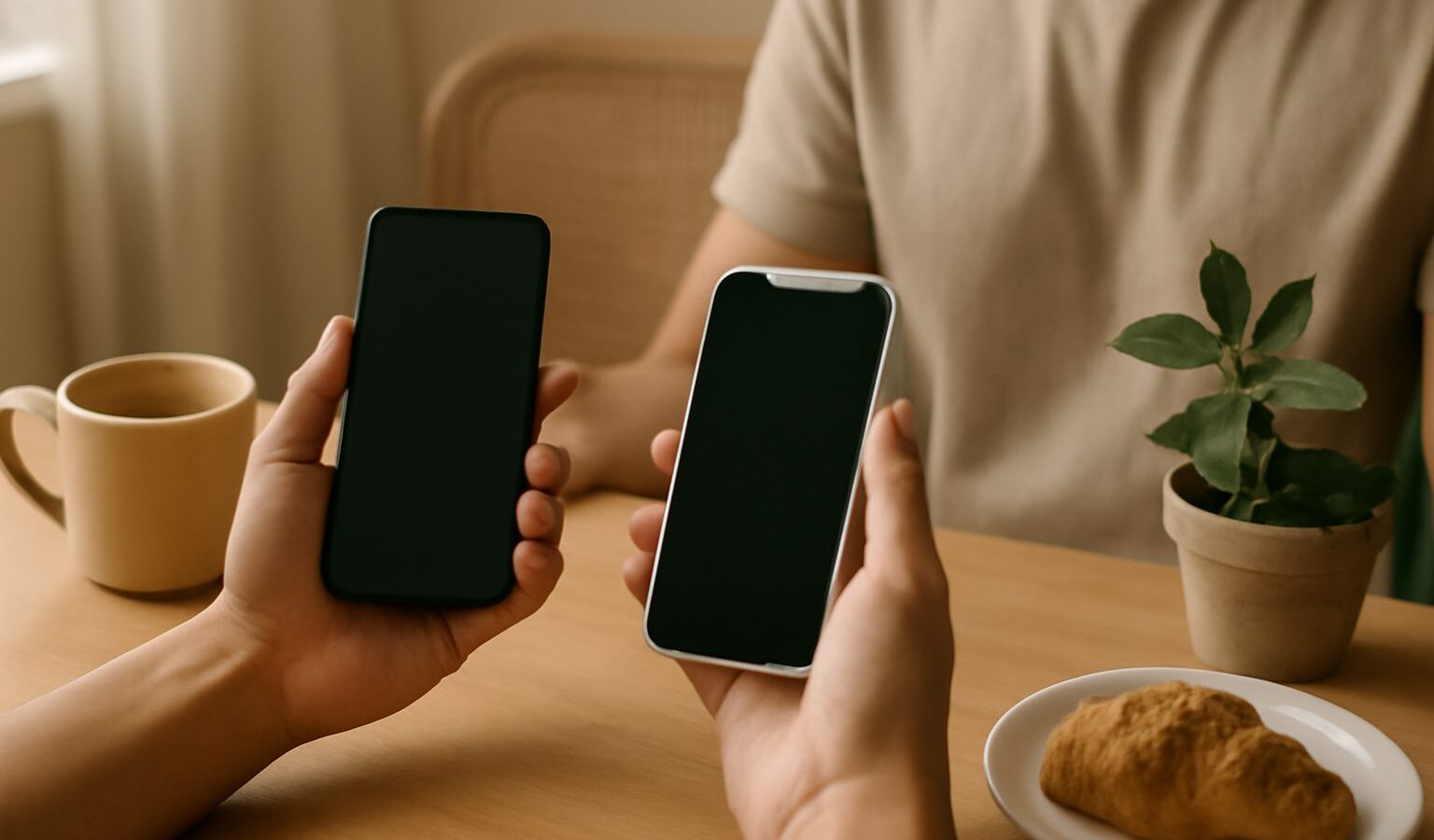
Moving to a new phone should feel like an upgrade, not a headache. If you are switching Android to iPhone in Singapore, the good news is that the process is far smoother than it was a few years ago. With a bit of planning, you can carry over your contacts, photos, messages and most of your daily apps in an afternoon, without losing anything important along the way.
This guide walks you through it in plain steps. It works across brands and phone models, so you do not need to worry about the exact make of your old Android or which iPhone you picked up at an IT fair or online. The ideas are the same. Take it slowly, keep your old phone until you are sure everything landed, and you will be fine.
Before You Start: Back Up and Charge Both Phones
The single most important step happens before you touch the new phone. Back up your old Android fully, so that if anything goes sideways you still have a clean copy of your life.
- Charge both phones to at least half battery, or keep them plugged in. A transfer that dies halfway is a hassle to restart.
- Connect both to a stable wifi network. In a typical HDB flat, sit near the router rather than in a back bedroom dead spot, because large photo libraries move faster on a strong signal.
- On your Android, open the settings and run the built-in cloud backup for contacts, photos and app data. Let it finish completely.
- Note down the passwords for your main accounts, especially your email, your bank apps and your chat apps. You will re-enter some of these on the iPhone.
Keep your old phone switched on and untouched until the move is done. Think of it as your safety net.
The Easiest Way to Move Your Data
Apple provides a free “move to iOS” style tool designed exactly for this switch. When you first switch on a new iPhone, the setup screens will ask if you are coming from an Android device. Say yes, and it will guide you through connecting the two phones so your data copies across directly.
Here is what that tool typically brings over:
- Contacts and call history
- Photos and videos from your camera roll
- Text messages
- Your web bookmarks and mail accounts
- Your calendar
- Some free apps that exist on both platforms, which it will offer to redownload
Keep both phones close together and awake during the transfer. Large photo and video libraries take the longest, so start when you have a free hour and are not rushing out the door.
If you have already set up your iPhone and skipped this screen, you can still move most things manually using your cloud accounts, which we cover below. You do not need to erase and start over unless you want the cleanest possible result.
What Carries Over, and What You Rebuild by Hand
Not everything transfers automatically, and it helps to know that upfront so you are not caught out. Here is a clear picture.
| Item | Moves automatically | What you do |
|---|---|---|
| Contacts and calendar | Yes | Sign in to your account and let it sync |
| Photos and videos | Yes | Use the transfer tool or a cloud photo library |
| Chat app history | Sometimes | Use the app’s own built-in chat transfer feature |
| Paid apps | No | Repurchase or resubscribe if needed on the App Store |
| Bank and government apps | No | Reinstall and re-verify your identity from scratch |
| Two-factor codes | No | Move your authenticator before wiping the old phone |
The two rows that trip people up most are chat history and two-factor codes.
For your main messaging app, do not rely on the general transfer tool. Most popular chat apps have their own move feature that shifts your conversation history from Android to iPhone. Look inside the app settings for a chat transfer or migrate option and follow its steps before you retire the old device. If you skip this, your contacts survive but your old conversations may not.
For two-factor authentication, the short codes that protect your logins, treat your authenticator app as precious. Many people wipe their old Android, then find they are locked out of an account because the codes lived only on that phone. Move or re-register your authenticator on the iPhone first, while the old phone still works.
Messaging, SIM and Getting Set Up
Your phone number moves with your SIM, and this part is straightforward in Singapore.
If your Android used a physical SIM card and your iPhone takes one too, simply pop it out and slot it in. Many newer iPhones use an eSIM, which is a SIM built into the phone with no physical card. If that is your situation, contact your telco to transfer your line to an eSIM. Major telcos handle this routinely, and you can usually start the request through their app or a service counter. Do this near the end of the move, once your data is safely across, so you keep mobile signal on the old phone for as long as possible.
A few messaging notes specific to switching platforms:
- Group chats you belong to will simply continue once your chat app is set up and verified with your number.
- If friends message you through an Android-only feature, remind them your number is unchanged, so nothing on their end needs to change.
- Turn off any Android-linked messaging service on your old phone after the move, so messages are not silently held there instead of reaching your iPhone.
Give yourself a day of overlap. Send a test message, make a test call, and open your most-used apps to confirm they log in properly.
Settling Into Your New iPhone
Once your data has landed, spend twenty minutes making the phone feel like yours. Rearrange your home screen so your daily apps sit where your thumb naturally rests. Reinstall the banking, transport and government apps you use in Singapore, and re-verify each one, since these deliberately do not transfer for security reasons.
Check that your photos have fully synced before you delete anything from the old phone. Open the photo app and scroll right back to your oldest pictures to confirm the whole library came across, not just recent shots. Only when you are completely satisfied should you factory reset your Android.
Finally, keep the old phone somewhere safe and unwiped for a couple of weeks. Our humidity can be unkind to devices left in drawers, so store it dry, but resist the urge to wipe it immediately. That cautious overlap is what turns a stressful switch into a calm one.
Explore more
Getting a fresh start is the perfect time to build good habits. Learn how to back up your phone properly so your next switch is painless, and read up on how to protect your phone from damage in our climate. If your new device ever feels sluggish, our guide on how to speed up a slow phone will help you keep it running smoothly.