
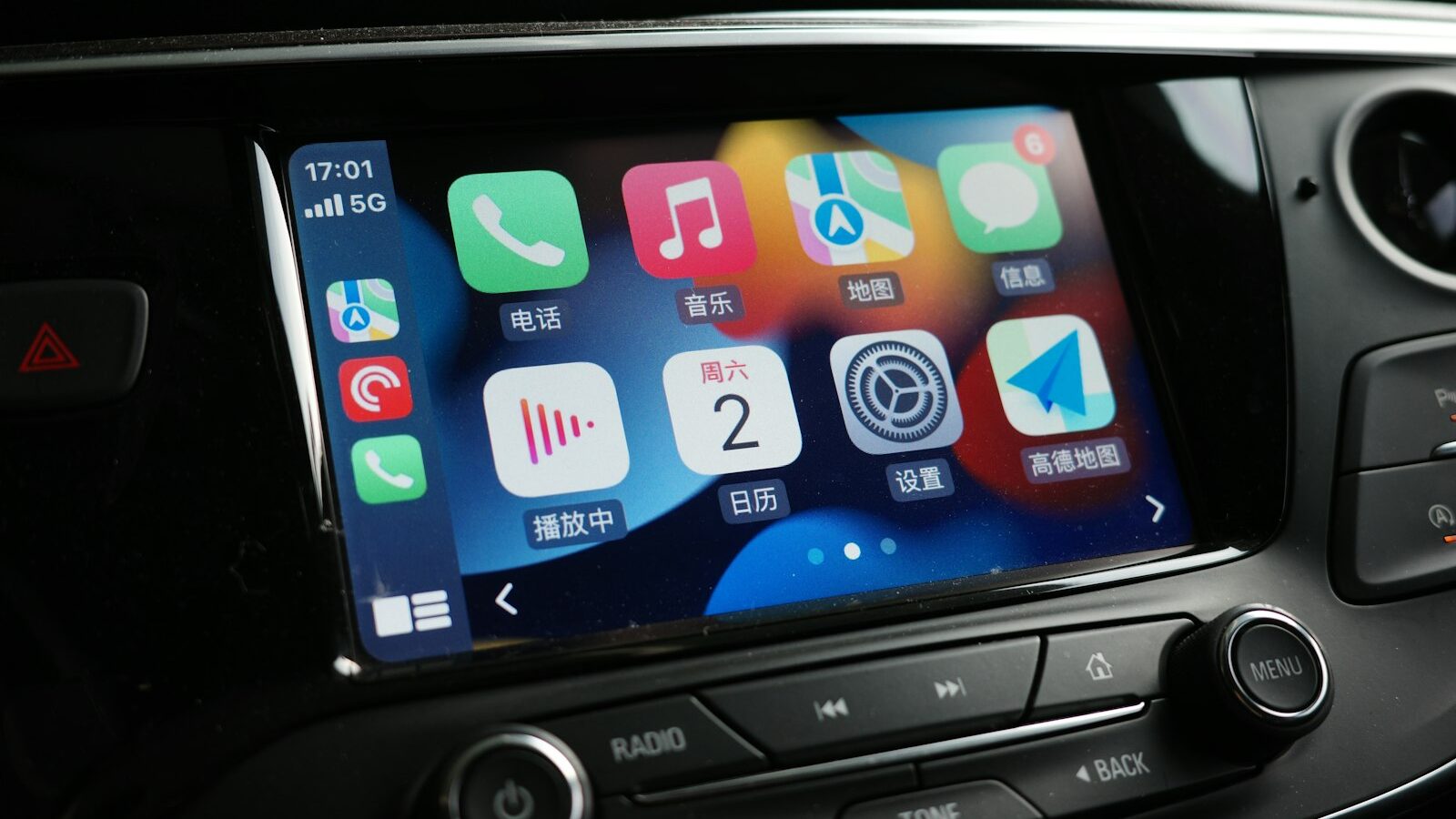
If your car has a touchscreen but you still glance at your phone for directions or music, you are missing the point of it. Apple CarPlay and Android Auto mirror the useful parts of your phone onto the car’s built-in display, so maps, messages and playlists appear on a bigger screen with larger buttons and a proper voice assistant. On Singapore’s stop-start expressways and busy carparks, that means fewer reasons to pick the phone up. This is a general guide to what the two systems do, how to connect them, and how to use them without letting the screen pull your eyes off the road.
What CarPlay and Android Auto Actually Do
Both systems are made by phone companies, not car makers. CarPlay comes from Apple and works with an iPhone; Android Auto comes from Google and works with an Android phone. They do the same job in slightly different clothes: your phone does the thinking, and the car’s screen and speakers become the display and sound system.
Once connected, the car screen shows a simplified, driving-friendly layout of your phone’s key apps. You get navigation, calls, messages, music and podcasts, all controlled through the touchscreen, the steering-wheel buttons or your voice. The phone stays in your pocket or a cradle, its own screen usually dark.
The appeal is threefold. The display is bigger and mounted at a sensible height, so a glance takes less time. The apps are stripped back to reduce distraction. And the voice assistant, Siri or Google Assistant, lets you ask for directions or send a text without touching anything. It is worth stressing early that these are convenience and safety aids, not a licence to multitask; the Highway Code and Traffic Police rules on distracted driving still apply.
Wired Versus Wireless: Which Setup You Have
The oldest and most reliable way to connect is with a cable. You plug the phone into the car’s data USB port, and the system launches within a few seconds. Wireless versions do the same job over Wi-Fi and Bluetooth, with the phone staying in your bag, but they need both the car and the phone to support it.
Knowing which you have saves a lot of guesswork at the roadside.
| Feature | Wired | Wireless |
|---|---|---|
| Connection | USB cable to the data port | Bluetooth pairing plus Wi-Fi |
| Reliability | Very stable, rarely drops | Can occasionally lag or disconnect |
| Charging | Charges the phone as you drive | Phone drains unless on a wireless pad |
| Setup effort | Plug in and go each time | One-time pairing, then automatic |
| Best for | Older or budget head units | Newer cars and quick hops in and out |
A common trap with wired setups is the cable itself. Use a good-quality data cable, not a cheap charge-only one, and plug into the USB port marked with a phone or the system logo rather than a plain charging socket. In Singapore’s heat, a phone running wireless navigation can get warm, so a vent-mounted cradle or the car’s cooled charging tray helps keep it stable on a long drive up north.
Getting Connected the First Time
The first pairing is the fiddly part; after that it usually starts on its own. Do the setup while parked, never while moving.
- Check the car is compatible. Look for the CarPlay or Android Auto logo on the infotainment settings, or check the owner’s manual.
- Switch on the phone side. On an iPhone, enable CarPlay under Settings and Bluetooth; on Android, install or open the Android Auto app and allow its permissions.
- For wired, plug the phone into the data USB port with the engine on. For wireless, turn on Bluetooth on the phone, then select the car from the phone’s list or the car’s pairing menu.
- Accept the prompts on both screens. You may need to confirm on the phone that you trust the car.
- Wait for the home screen of tiles to appear on the car display. Rearrange the app tiles later if the system allows it.
If it refuses to connect, the usual fixes are simple: restart the phone, try a different cable or USB port, make sure the phone software is up to date, and delete then re-add the Bluetooth pairing. Some cars need the head unit updated by the workshop or dealer before wireless will work, so ask if yours is stubborn.
The Features Worth Using Every Drive
Navigation is the headline. You can run your preferred maps app on the car screen with clear, spoken, turn-by-turn directions, live traffic and lane guidance, which is genuinely useful on unfamiliar interchanges or when the app reroutes you around a jam. Set the destination before you move off, or ask the voice assistant to do it.
Music and podcasts come through the car speakers with cover art and large skip buttons, and you can browse by voice. Calls run hands-free through the car’s microphone and speakers, with your contacts and recent calls on screen.
Messages are handled by voice on purpose. The system reads incoming texts aloud and lets you dictate a reply, so you never type. Lean on the voice assistant for all of this: a simple “navigate home”, “play my drive playlist” or “reply I am five minutes away” keeps your hands on the wheel and eyes forward. Learn the steering-wheel button that triggers the assistant, as it is faster and safer than reaching for the screen.
Using It Safely and Knowing the Limits
The technology is designed to reduce distraction, but only if you use it that way. A screen at arm’s length is still a screen, and staring at a moving map or scrolling a playlist takes your attention off the road just as surely as a handheld phone. Keep every interaction to a quick glance or a voice command.
Set yourself a few firm habits:
- Enter your destination, playlist and any settings before you drive off, while parked.
- Use voice or the steering-wheel controls for anything you need on the move.
- If something needs real attention, pull over safely and stop first.
- Do not read long messages or watch the map obsessively; listen to the spoken cues instead.
Be realistic about the limits too. The systems only run apps that have been approved for driving, so video, games and full web browsing are deliberately blocked while moving. A patchy mobile signal in a basement carpark or a tunnel can interrupt navigation, and wireless connections drop more often than wired ones. Older cars may support only wired mode, or neither, in which case a phone cradle and Bluetooth audio remain a perfectly safe alternative.
Used sensibly, Apple CarPlay and Android Auto make everyday driving in Singapore calmer and less cluttered. Treat them as tools that keep your phone out of your hands, follow the Traffic Police rules on distraction, and set everything up before you turn the key rather than at the traffic light.