
When an old phone, tablet, or laptop finally retires, it is tempting to just toss it in a drawer or drop it at a recycling point and move on. But that device still holds a surprising amount of you: photos, messages, saved passwords, banking apps, and accounts. Wiping data before disposal singapore residents should treat as a must-do step, not an optional one, because a device that is not properly cleared can expose your private life to whoever ends up with it. This guide walks through the safe order of steps.
Why This Matters So Much
Simply deleting files or dragging photos to the bin does not truly remove them, and it certainly does not sign you out of your accounts. A device that still has your Google, Apple, or banking logins active is a serious risk. Someone could access your email, reset other passwords, or make purchases. Even a factory reset done in the wrong order can leave an account lock or leftover data behind.
The good news is that doing it properly is not hard. It just needs to be done in the right sequence, and calmly.
The Safe Order of Steps
Follow these steps in order. Do not skip ahead.
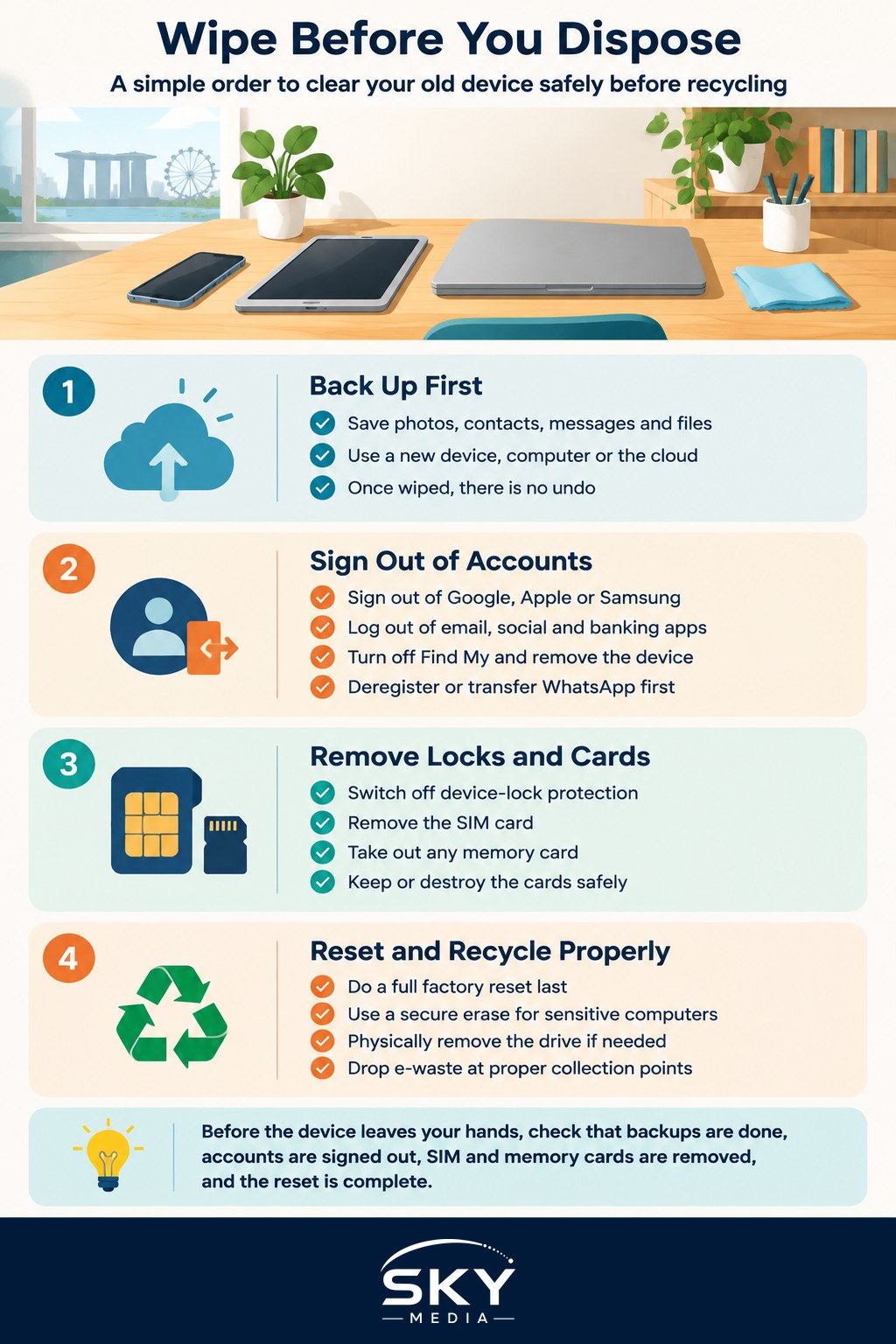
1. Back up everything first. Before you erase anything, make sure your photos, contacts, messages, and files are safely saved somewhere else, whether that is a new device, a computer, or the cloud. Our guides on how to back up your phone properly and how to back up your computer cover this in detail. Once the device is wiped, there is no undo.
2. Sign out of all your accounts. This is the step people forget, and it is critical. Sign out of your Google account and your Apple ID or Samsung account. On Apple devices, turn off “Find My” and remove the device from your account, or it may stay locked to you. Sign out of email, social media, banking, and messaging apps. On WhatsApp, deregister or transfer your number to the new phone first.
3. Turn off any device-lock protection. Many phones have a feature that ties the device to your account so a thief cannot reset it. This is great for security, but you must switch it off before wiping, or the next owner (or recycler) will hit a lock screen they cannot pass.
4. Remove the SIM card and any memory card. Your SIM holds your phone number and sometimes contacts, and a microSD card can hold photos and files. Physically pop both out and keep or destroy them. Never leave them inside a device you are giving away.
5. Do a full factory reset. Only now, once you have backed up and signed out, perform a factory reset. This returns the device to its “out of the box” state and removes your data and settings. If you want a step-by-step walkthrough, see how to factory reset a device safely.
Extra Care for Computers
Laptops and desktops deserve a little more attention because they often hold years of documents. After backing up and signing out, use the built-in reset or reinstall option, which on modern systems includes an option to erase everything. For an older computer with a traditional hard drive, a standard reset may leave data recoverable by determined people. If the device held very sensitive information, you can use a secure-erase tool, or physically remove and destroy the drive before recycling the rest.
If you are selling rather than throwing away, take even more care, since the extra checks around signing out and removing personal data matter even more when a stranger buys the device.
Disposing of the Device Properly
Once your data is wiped, do not put electronics into the general rubbish. Electronic waste contains materials that should be recovered and others that are harmful if they end up in a landfill. Singapore has a national e-waste scheme with collection points at many shopping malls, community centres, and electronics retailers. You can find your nearest drop-off and learn what is accepted through e-waste recycling.
A quick checklist before the device leaves your hands:
- Photos, contacts, and files backed up and confirmed on the new device
- Signed out of Google, Apple, Samsung, email, banking, and messaging apps
- Device-lock or “Find My” protection switched off
- SIM card and memory card removed
- Full factory reset completed
- Device dropped at a proper e-waste point
Peace of Mind, Every Time
Making this a routine takes the worry out of upgrading. The core rule is easy to remember: back up, sign out, remove the SIM and card, reset, then recycle. Do those in order and your old device leaves your hands clean, with none of your personal life still inside it. A few careful minutes now can save you real trouble later.
Further reading: How to Encrypt Your Laptop With BitLocker or FileVault