
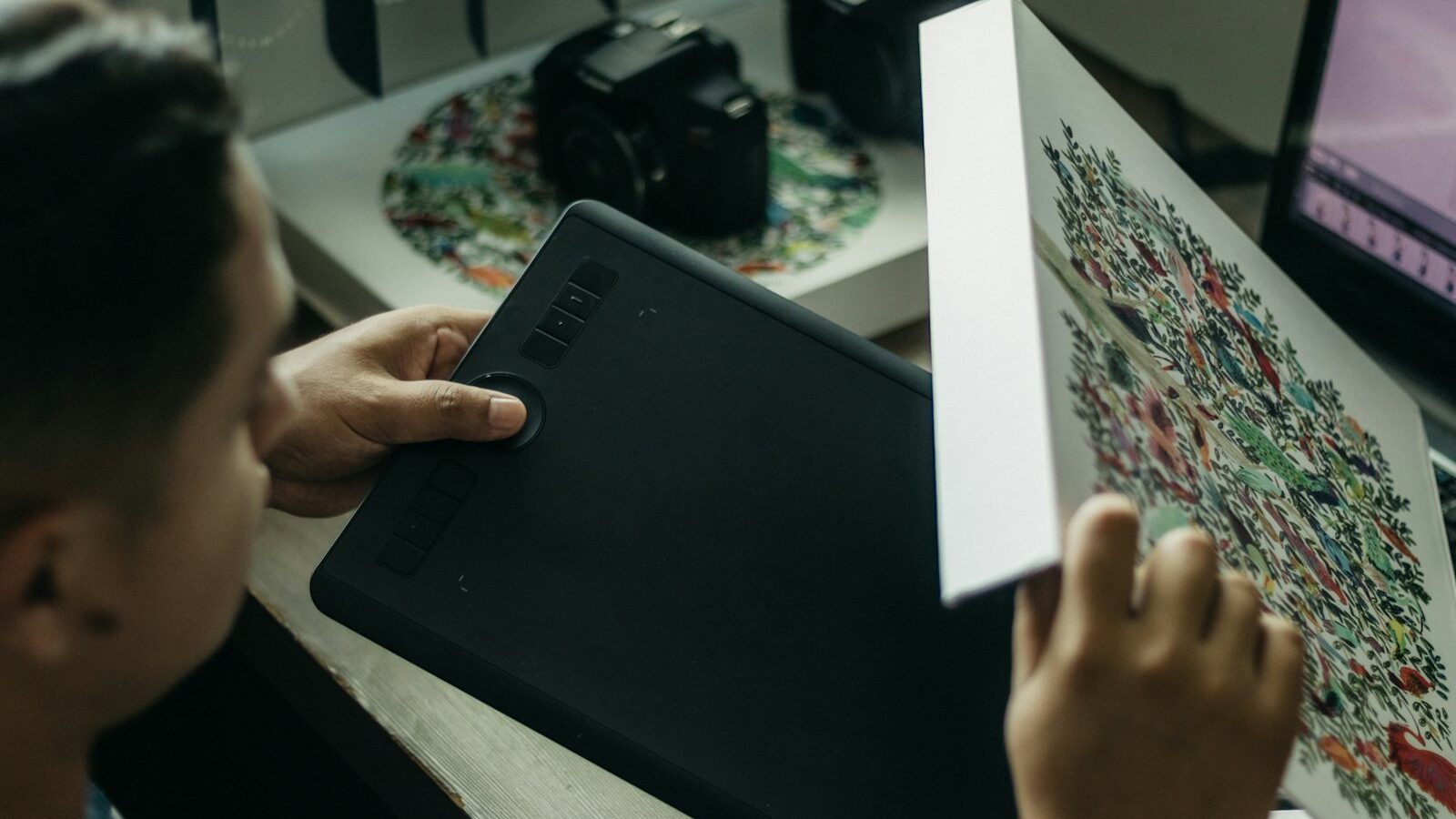
Digital drawing has never been more accessible, and choosing a graphics tablet in Singapore is really about matching the tool to how you like to work and how much you want to spend. Whether you are a hobbyist doodling on weekends, a student building a portfolio, or a working illustrator, the right tablet feels like a natural extension of your hand. This guide explains the main choices so you can pick one you will actually enjoy using.
Screen versus non-screen tablets
The most important decision is whether the tablet has its own display.
A non-screen tablet, sometimes called a pen tablet, is a flat pad you draw on while looking at your computer monitor. Your hand moves on the pad and the strokes appear on the screen in front of you. This takes a little getting used to, because your eyes and hand are in different places, but many artists adapt within days and never look back. These tablets are affordable, light, durable and reliable, which makes them a superb starting point and a common choice even among professionals.
A screen tablet, or pen display, has a screen you draw directly onto, so your pen strokes appear right under the nib. This feels the most natural and intuitive, much like drawing on paper. The trade-off is a higher price, more weight, and the need to connect it to a computer for power and video, along with a few more cables to manage.
There is also a third path: a standalone drawing tablet or a general tablet computer with a good stylus, which runs drawing apps on its own without a separate PC. This is portable and self-contained, ideal if you want to sketch on the sofa or while travelling, though the professional software choices can be more limited than on a full computer.
Pen pressure, tilt and the nib
The pen is the heart of the experience, so it deserves attention.
Pressure sensitivity lets the tablet detect how hard you press, so a light touch gives a thin, faint line and a firm press gives a bold, dark one. More pressure levels mean smoother control over line weight, and today’s pens offer plenty for expressive work. Tilt recognition detects the angle of the pen, which lets you shade with the side of a virtual pencil or brush the way you would in real life.
Most good pens today are battery-free, drawing their power from the tablet itself, which means you never charge the pen and it stays light in the hand. Check that spare nibs are included and easy to buy locally, since nibs wear down with use. Programmable buttons on the pen and on the tablet body let you map shortcuts such as undo or brush size, which speeds up your workflow once you get used to them.
Size, resolution and your desk
Bigger is not automatically better with tablets, and the right size depends on your space and your style.
A smaller tablet is portable, fits a cramped desk, and suits people who draw mostly with finger and wrist movements. A larger tablet gives you more room for sweeping arm movements and can feel more comfortable for big, flowing strokes, but it takes up desk space and costs more. For a screen tablet, screen size also affects how much of your artwork you see at once, and features like a laminated screen reduce the small gap between the glass and the drawing surface so your line feels closer to the nib.
Think about your actual desk in a typical flat. A medium non-screen tablet is a comfortable, versatile choice for most people, offering enough drawing area without dominating your workspace.
| Type | Feel | Portability | Best for |
|---|---|---|---|
| Non-screen pen tablet | Draw on pad, look at monitor | Very portable | Beginners and budget-minded artists |
| Pen display (screen) | Draw directly on screen | Needs a computer nearby | Artists wanting the most natural feel |
| Standalone drawing tablet | Draw on screen, runs apps itself | Highly portable | Sketching on the go |
Software and compatibility
A tablet is only as good as the software you run on it, so plan the two together.
Check that the tablet works with your computer’s operating system and that reliable drivers are available. For drawing itself, there is a wide range of programs, from free and open-source painting apps to subscription-based professional suites and one-time-purchase favourites popular with illustrators and comic artists. Many drawing apps offer a free trial, so you can test how the tablet feels with your preferred software before committing.
If you draw on a standalone or general tablet computer, confirm that the specific apps you want are available for that device, since the selection differs from a desktop computer. It is also worth checking that the pen is supported natively by the apps you plan to use, so pressure and tilt work properly out of the box.
Getting comfortable and building a workflow
The first week with a new tablet is an adjustment, and a little patience pays off.
Give yourself time to learn hand-eye coordination on a non-screen tablet, or to get used to your hand resting on a warm, smooth screen on a pen display. Set up a comfortable posture, since drawing for hours can strain your neck, wrist and back. A stand that tilts a screen tablet to a natural angle makes a real difference, as does taking regular breaks.
Map a few shortcuts to the pen and tablet buttons early on, such as undo and switching between brush and eraser, and your speed will climb quickly. Keep your work backed up as you go, because losing hours of drawing to a crash is a painful lesson. Above all, start drawing rather than endlessly tweaking settings, because skill grows through practice far more than through gear.
Pick screen or non-screen based on the feel you want and your budget, make sure the pen offers the pressure and tilt you need, and pair it with software you enjoy. Do that and your graphics tablet becomes a tool you reach for happily, day after day.
Explore more
How to Choose the Right Gadget for You
How to Read Tech Specs and Jargon
Tech Accessories Worth Buying
Cloud Storage and Backup