
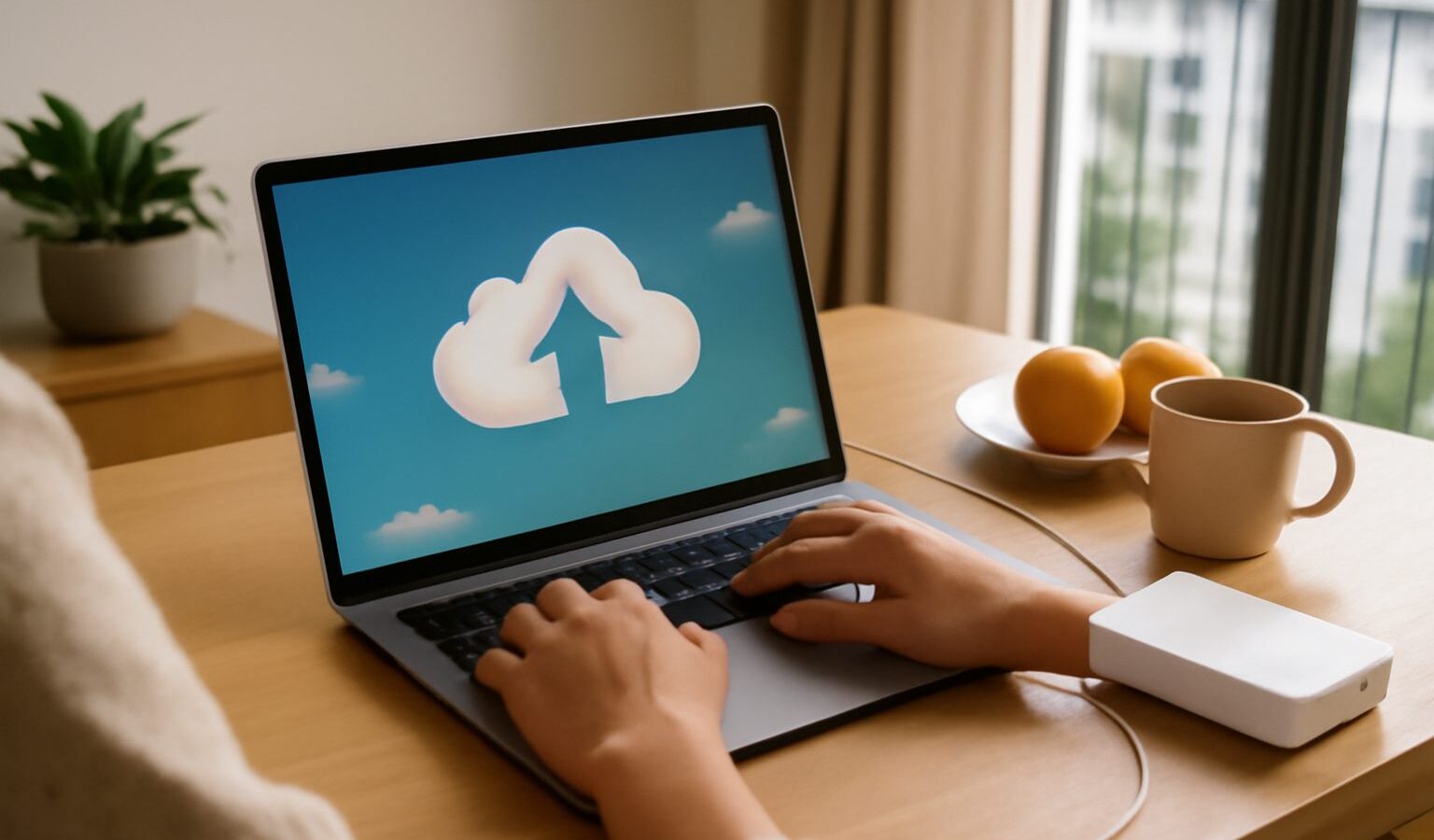
Losing a phone, having a laptop hard drive fail, or getting locked out by ransomware can wipe out years of photos, documents and messages in an instant. A sensible cloud backup Singapore residents can set up in an afternoon is the single best insurance against that kind of loss. This guide explains the difference between cloud storage and true backup, which services suit everyday use here, how to think about privacy and cost, and how to build a routine that keeps working without you having to remember it.
Cloud Storage Is Not the Same as Backup
The two terms get used interchangeably, but they solve different problems, and mixing them up is how people end up thinking they are protected when they are not.
Cloud storage is a folder that lives online and syncs across your devices. Google Drive, iCloud Drive, OneDrive and Dropbox all work this way. The convenience is real, but sync cuts both ways. If you delete a file or a virus corrupts it, that change syncs everywhere, and the damaged version replaces the good one on every device.
Backup is a separate copy made on a schedule, kept apart from your live files, and ideally kept in versions so you can roll back to how a file looked last week or last month. A proper backup service keeps deleted and previous versions for a set period, which is exactly what saves you after an accidental delete or a malware attack.
A safe setup usually uses both. You keep working files in cloud storage for convenience, and you run a genuine backup underneath so there is always a second, independent copy you can recover from.
The 3-2-1 Rule in Plain English
Data professionals lean on a simple habit called the 3-2-1 rule, and it scales down neatly for home use.
- Keep 3 copies of anything you care about, the original plus two backups.
- Store them on 2 different types of media, for example your laptop plus the cloud, or an external drive plus an online service.
- Keep 1 copy off-site, which for most people means in the cloud, safely away from the flat that could be burgled or flooded.
The point is independence. If one copy fails or is stolen, the others are unaffected. Cloud backup handles the off-site copy for you automatically, which is why it has largely replaced the old routine of burning discs or shuffling thumb drives.
Choosing a Service That Fits Your Life Here
Most people in Singapore already sit inside one ecosystem. iPhone users lean on iCloud, Android users on Google, and anyone heavy on Microsoft Office gravitates to OneDrive. Starting with what you already have is usually the least painful path. The bigger question is whether you need pure sync storage, a dedicated backup tool, or both.
Here is how the common options compare for everyday use.
| Service type | Best for | Keeps old versions | Notes for local users |
|---|---|---|---|
| iCloud | iPhone and Mac photo and device backup | Limited | Seamless on Apple gear; free tier fills up fast |
| Google Drive / Google One | Android phones, documents, shared files | Some, for a set window | Works well with Gmail and Android photo backup |
| OneDrive | Microsoft Office users, Windows PCs | Yes, with ransomware recovery | Bundled with Microsoft 365 subscriptions |
| Dedicated backup app | Whole-computer, set-and-forget backup | Yes, longer history | Runs quietly in the background; true backup, not sync |
| External SSD or NAS | Fast local copy, large photo and video libraries | Depends on setup | Off-line copy; combine with a cloud copy for 3-2-1 |
Prices, free allowances and plan tiers change often, so confirm the current storage sizes and monthly costs on each provider’s own site before you commit. Many households find that one paid family plan covers everyone’s phones and laptops more cheaply than several individual plans.
Getting Backup Working on Your Phone and Laptop
The strength of cloud backup is that once it is switched on, it runs on its own. A few minutes of setup covers most of what an ordinary household needs.
On your phone, turn on automatic photo and video backup and let it upload over Wi-Fi so you do not burn through mobile data. Both major phone platforms also back up app data, messages and settings, which makes moving to a new handset far less painful. If you are about to switch devices, our guide on setting up a new phone walks through restoring from these backups cleanly.
On your computer, decide what actually matters. For most people that is the Documents, Desktop and Photos folders rather than the whole system. Point your chosen service or backup app at those folders and let the first upload run overnight, since the initial copy can be large. After that, only changes upload, which is quick.
Two habits make the difference between a backup that saves you and one that quietly fails:
- Check it occasionally. Once a month, open the service and confirm recent files are actually there. A backup you never verify is a guess, not a safety net.
- Do a test restore. Try recovering one file. If you can get a document back easily, you know the whole system works when it counts.
Privacy, Security and Staying Safe
Your backup holds your most personal data, so the account guarding it deserves your strongest protection. The most common way people lose cloud data is not a technical failure but a hijacked account, so treat this as a security decision as much as a storage one.
- Use a long, unique password for your cloud account and never reuse it elsewhere. Our password security guide covers how to manage this without memorising dozens of logins.
- Turn on two-factor authentication, which stops an attacker who has only your password. See our two-factor authentication guide for the setup steps.
- Be alert to phishing. Scammers impersonate Apple, Google and Microsoft to steal cloud logins, so learn the warning signs in our overview of avoiding scams in Singapore.
On the question of where your data physically sits, the major providers store data across global data centres and encrypt it in transit and at rest. If you handle sensitive personal or business information, read the provider’s terms and consider a service that offers end-to-end encryption, where only you hold the key. For a wider view of digital privacy, our guide to VPNs and online privacy is a useful companion.
This article is general information and services, storage sizes and prices change over time, so verify current details on each provider’s official website before you subscribe.
Explore more
Backup sits inside a wider set of digital habits worth getting right. Start with our cybersecurity basics for the essentials, then read our digital legacy and online accounts guide to plan what happens to your files and photos in the long run. If the worst happens, recovering a hacked account explains how to get back in and secure what remains.