
If you have ever tried to send a long video on WhatsApp, email holiday photos to your parents or upload documents to a government portal, you will know the frustration of “file too large”. Learning to compress video without losing quality, and to shrink photos sensibly, saves storage, data and a lot of retrying.
This guide explains what compression actually does, then walks through practical steps on phones and computers for the most common situations in Singapore: WhatsApp and Telegram, email attachments and online form uploads.
What “Without Losing Quality” Really Means
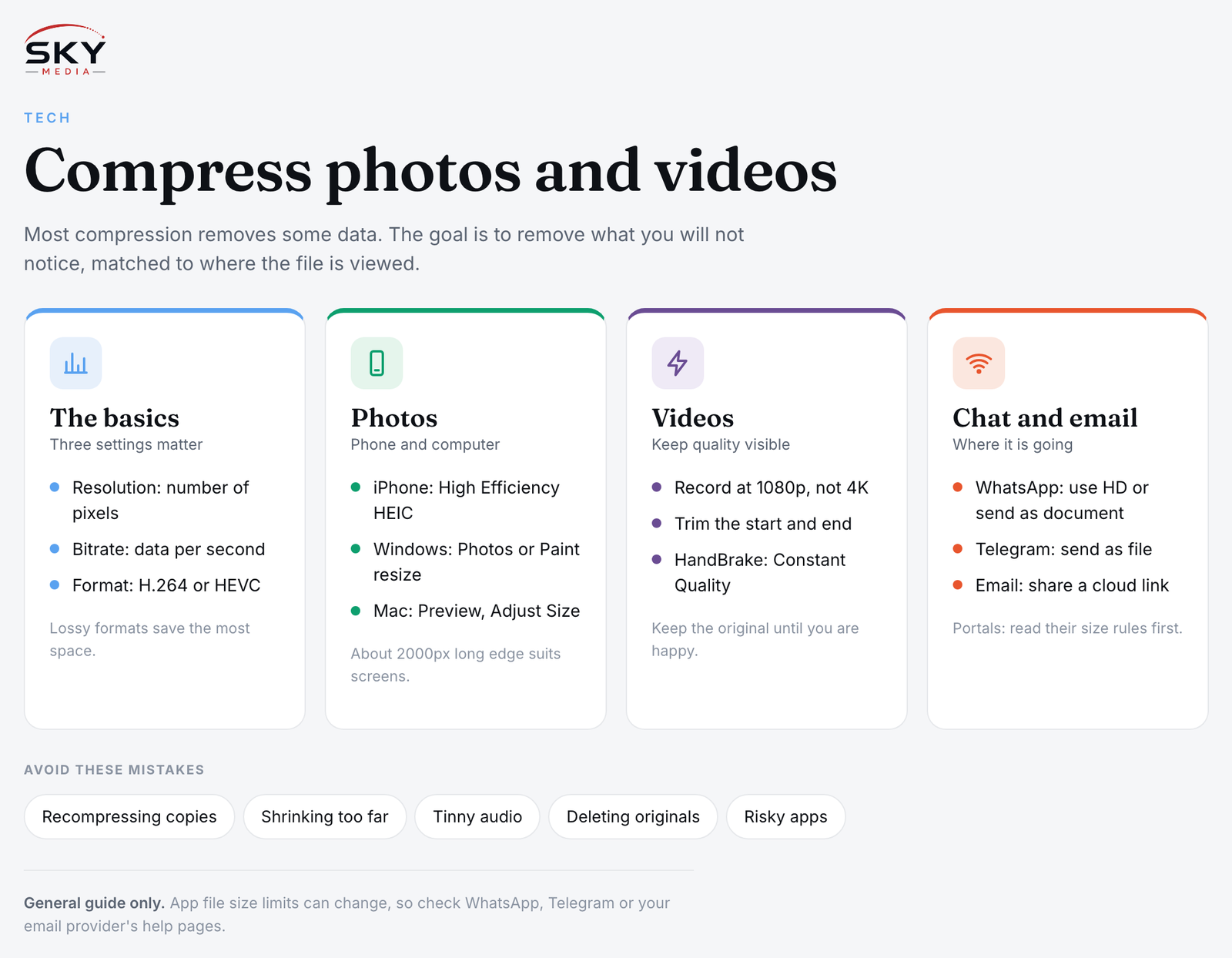
Strictly speaking, most compression removes some data. The goal is to remove data you will not notice. There are two main approaches:
- Lossless compression keeps every bit of the original. ZIP files and PNG images work this way. Savings are usually small for photos and videos.
- Lossy compression throws away detail the eye is unlikely to notice. JPEG, HEIC, MP4 (H.264) and HEVC (H.265) are lossy formats. Savings can be large.
Three settings matter most:
- Resolution: the number of pixels. A 4K video is far larger than 1080p, and most phone screens cannot show the difference in a chat.
- Bitrate: how much data is used per second of video. Lower bitrate means smaller files, but too low causes blocky images.
- Format (codec): newer formats like HEVC can produce smaller files at similar quality, but some older devices and websites may not play them.
The trick is matching these settings to where the file will be viewed.
Compressing Photos on Your Phone and Computer
Modern phone cameras produce large images. For most sharing, you can shrink them substantially with no visible difference on screen.
On iPhone:
- In the Settings app under Camera, the “High Efficiency” format saves photos as HEIC, which is usually smaller than JPEG.
- When sharing to email from Photos, Mail may offer options to send a smaller image size.
- The built-in Shortcuts app can create a simple “resize image” shortcut if you do this often.
On Android:
- Many gallery apps include a resize or “save as copy” option when editing. Options vary by phone brand.
- Google Photos lets you choose backup quality settings, which affect storage use in your account.
On Windows:
- The Photos app has a resize option for saving a smaller copy.
- Microsoft Paint lets you resize by percentage or pixels, then save as JPEG.
On Mac:
- Open the photo in Preview, choose Tools then Adjust Size, and enter a smaller width. Export as JPEG and use the quality slider.
A useful rule of thumb: for screen viewing, a long edge of around 2000 pixels is plenty. For printing, keep the original.
Compressing Videos Without Visible Quality Loss
Video is where size really adds up. A few minutes of 4K footage can take up gigabytes.
On your phone:
- Change the default recording resolution in Camera settings. Recording at 1080p instead of 4K for everyday clips makes files much smaller from the start.
- Trim unwanted footage at the start and end using the built-in editor before sending.
- Many phone video editors let you export at a lower resolution.
On a computer with HandBrake:
HandBrake is a free, open-source video converter for Windows, Mac and Linux. It is widely used for this exact task. A simple workflow:
- Open your video in HandBrake.
- Choose a preset such as “Fast 1080p30” as a starting point.
- Under Video, choose H.264 for maximum compatibility, or H.265 for smaller files if your devices support it.
- Use the “Constant Quality” setting rather than a fixed bitrate. A lower RF number means higher quality and a larger file. Try a value around the preset’s default and adjust after checking the result.
- Start the encode, then compare the result to the original on the screen it will be watched on.
Always keep your original file until you are happy with the compressed copy.
Online compressors: There are many websites that compress files for you, but be careful with private videos, IDs or work files, as you are uploading them to someone else’s server. Read the privacy terms, and avoid uploading sensitive content.
Choosing Settings for Common Situations
The best settings depend on where your file is going. This table offers a starting point.
| Destination | What usually works | Tips |
|---|---|---|
| WhatsApp or Telegram chat | 1080p or 720p video, standard photo quality | Apps compress again on their own; send as a document if you need the original |
| Email attachment | Photos resized to about 2000 pixels on the long edge; short trimmed videos | Many email services limit attachment size; share a cloud link for bigger files |
| Government or school portal uploads | JPEG or PDF under the stated size limit | Read the portal’s file type and size rules before you start |
| Social media posts | 1080p video in H.264, JPEG photos | Platforms recompress uploads; upload a good-quality source |
| Archiving family memories | Keep originals, compress only copies | Store originals on a backup drive or cloud |
WhatsApp, Telegram and Email Specifics
WhatsApp: By default, WhatsApp compresses photos and videos you send in chat. Newer versions offer an HD option when sending media, which keeps more detail. If you need the untouched original, send the file as a document instead of a photo or video. File size limits apply and can change, so check WhatsApp’s help pages if a file will not send.
Telegram: Similar to WhatsApp, Telegram compresses media sent as photos, but sending as a file keeps the original.
Email: Most providers limit attachment sizes. If your file is still too big after compression, share it through a cloud storage link instead. Our guide on digitising old photos and videos also covers sensible file formats for sharing family archives.
Avoiding Common Mistakes
- Compressing a compressed file repeatedly. Each lossy save loses a little more detail. Always go back to the original.
- Shrinking too far. If faces look smudgy or text becomes unreadable, raise the quality.
- Forgetting about audio. Some tools let you lower audio bitrate too, but voices can sound tinny if you go too low.
- Deleting originals too soon. Back up first, then delete.
- Using unknown apps with heavy permissions. Prefer built-in tools or well-known, reputable software.
If you are also editing before you compress, our guides on how to sharpen photos without ruining them and making a photo slideshow video help you get a clean result before you shrink it.
A Quick Checklist
- Decide where the file will be viewed.
- Pick a sensible resolution for that screen.
- Trim unnecessary footage.
- Use built-in tools or a trusted program like HandBrake.
- Compare the result before sending.
- Keep the original safely backed up.
Once you understand resolution, bitrate and format, it becomes easy to compress video without losing quality that anyone will notice, and your phone storage will thank you.
Frequently Asked Questions
Why do my WhatsApp videos look blurry after sending? WhatsApp compresses photos and videos sent in chat by default. Newer versions offer an HD option when sending media, which keeps more detail. If you need the untouched original, send the file as a document instead of as a photo or video.
Is it safe to use online video compressors for private files? Be careful. You are uploading the file to someone else’s server, so avoid sending private videos, IDs or work files. Read the site’s privacy terms first, or use built-in tools or well-known software such as HandBrake on your own computer.
Will videos in H.265 play on older phones and websites? Not always. HEVC (H.265) can make smaller files at similar quality, but some older devices and websites may not play it. For maximum compatibility, choose H.264, especially if you are not sure what the viewer is using.
Does compressing the same video twice ruin the quality? Yes, in effect. Each lossy save loses a little more detail, so repeated compression makes things worse. Always go back to the original file for each new version, and keep the original safely backed up until you are happy with the copy.
What if my photo upload to a portal is still over the size limit? Read the portal’s file type and size rules first, then resize the image by reducing its width, or lower the JPEG quality a little. For screen viewing, a long edge of around 2000 pixels is plenty. Check the result is still readable before you upload.