

In many Singapore homes, one person ends up as the unofficial IT department. It might be the adult child who gets every WhatsApp message about a frozen phone, or the parent who knows the Wi-Fi password and nobody else does. Family tech support works much better when it is a system rather than a single overworked person. With a few shared lists, clear rules and a regular routine, everyone in a multigenerational household can get help faster and stay safer online.
This guide focuses on setting up that system: what to record, how to handle logins safely, how to protect important files, and how to make asking for help easy for grandparents and children alike.
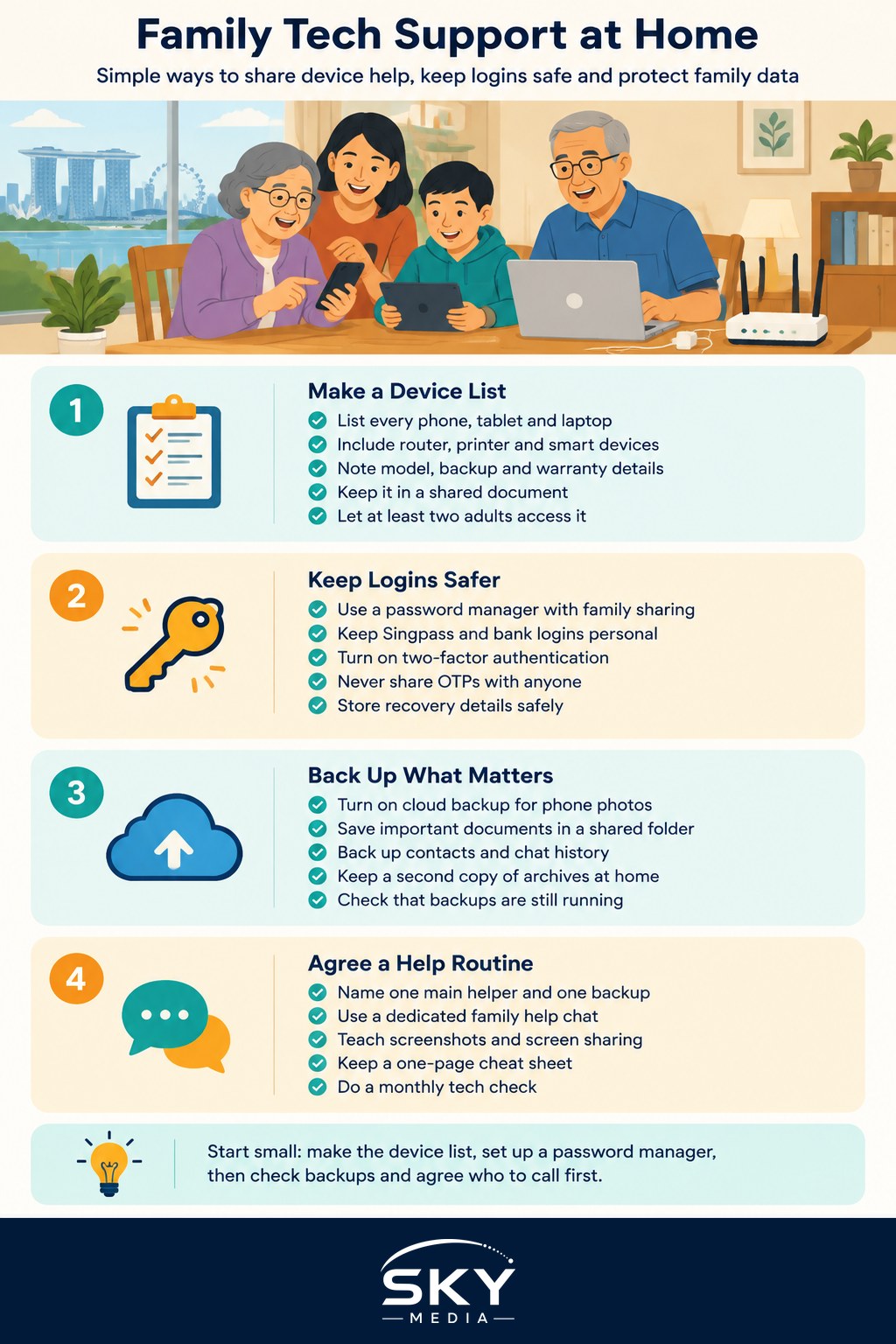
Start With a Household Device List
You cannot support what you do not know about. A device list is the foundation of any family tech support setup.
Record, for each device:
- Owner and main user, for example “Ah Ma’s phone” or “shared living room tablet”.
- Type and model, which you will need when looking up help or warranty details.
- Operating system and whether automatic updates are switched on.
- Where it is backed up, such as a cloud account or an external drive.
- Purchase date and warranty, with the receipt stored digitally.
- Who to contact, whether that is a family member, the retailer or the brand’s service centre.
Include the less obvious items too: the router, smart TV, CCTV camera, printer and any smart home devices. Keep the list in a shared document or note that at least two adults can access.
Handle Shared Logins Without Sharing Risk
Families often share passwords by writing them on paper or sending them in chat. That works until a phone is lost or a scam message arrives. A safer approach:
- Use a password manager with family sharing. Many offer a shared vault for household accounts such as Wi-Fi, streaming and utilities, while each person keeps a private vault.
- Never share personal government or banking logins. Singpass, the national digital identity used for government services, and bank logins should stay personal. Instead, help family members set them up properly on their own devices.
- Turn on two-factor authentication for email and key accounts, and make sure the second factor is on a device the account owner keeps.
- Agree a family rule on one-time passwords. Nobody shares an OTP with anyone who calls or messages, even if the caller claims to be a bank, a government officer or a family member using a new number.
- Record recovery details safely. Note which email and phone number each important account uses for recovery, stored in the password manager rather than on a sticky note.
For elderly relatives, consider installing ScamShield, the government-backed anti-scam app, and walking through common scam signs together.
Set Backup Rules Everyone Can Follow
Lost photos are one of the most upsetting tech problems for families. Agree simple rules:
| What to protect | Suggested approach | Who checks |
|---|---|---|
| Phone photos and videos | Automatic cloud backup switched on for every phone | Each owner, with a quarterly check by the family helper |
| Important documents | Scanned copies in a shared, access-controlled folder | Two adults who know where it is |
| Contacts and chat history | Built-in backup settings on each phone and chat app | Each owner, checked after any phone change |
| Shared family archives | A second copy on an external drive kept at home | The family helper, updated a few times a year |
The principle is to keep at least one copy that does not depend on a single phone. Check that backups actually run. A cloud account that ran out of space months ago is a common surprise.
Create a Help Routine That Suits Every Generation
The most useful part of the system is a simple way to ask for help and a clear sense of who does what.
- Name a main helper and a backup. One person should not carry everything. If the main helper is overseas or busy, the backup steps in.
- Set up a family help chat. A dedicated group keeps tech questions out of busy family chats. Encourage people to send a screenshot or photo of the problem.
- Teach screenshots and screen sharing. Showing elderly relatives how to take a screenshot saves a lot of back and forth. Remote screen-sharing tools can also help, but only set them up with trusted family members.
- Write a short cheat sheet. Put the most common fixes, such as restarting the router or connecting to Wi-Fi, on one page. Our guide on how to create a family tech support cheat sheet shows what to include.
- Hold a monthly tech check. Fifteen minutes during a family meal or weekend visit to install updates, clear storage and check backups prevents many problems.
- Use plain language. Avoid jargon. Explain “update” as “the phone fixing itself” and show rather than tell.
Keep Emergency Basics Ready
Every household should know what to do when the internet goes down or a device breaks:
- Keep the router model, internet provider account number and support contact in the device list.
- Store spare chargers and cables in one known spot.
- Keep a power bank charged for emergencies.
- Know how to restart the router and where it is.
Our guide to setting up a basic tech emergency kit at home covers the physical items worth keeping, and if your connection itself is the weak point, see how to set up home internet in Singapore smoothly.
Common Mistakes to Avoid
- Relying on one person to remember every password.
- Sharing banking or Singpass details “to help”.
- Assuming backups work without checking.
- Leaving old phones and tablets unwiped when passing them on.
- Skipping updates on devices that elderly relatives use rarely.
- Setting up remote access tools for anyone outside the trusted family circle.
When a Device Changes Hands
Phones and tablets often move around a family, with a teenager inheriting a parent’s old phone or a grandparent receiving a hand-me-down tablet. Treat each handover as a small project. Back up the old owner’s data, sign out of their accounts, reset the device to factory settings, then set it up fresh for the new user with their own accounts. Update the device list at the same time so it reflects who uses what. When a device is finally retired, wipe it before recycling or trading it in, and remove it from any accounts that still list it as trusted.
Putting It All Together
Building a family tech support system takes an afternoon to set up and a little time each month to maintain. Start with the device list, move shared logins into a password manager, switch on backups, and agree who helps whom. The result is fewer panicked calls, safer accounts and a household where everyone, from grandparents to teenagers, feels more confident with their devices.
Frequently Asked Questions
Is it safe to give a relative my Singpass or banking login so I can help? No. Singpass and bank logins should stay personal. Instead, help family members set them up properly on their own devices, and agree a rule that nobody shares a one-time password with anyone who calls or messages, even if the caller claims to be from a bank or the government.
How can I protect my elderly parents from scam calls and messages? Install ScamShield, the government-backed anti-scam app, on their phones and walk through common scam signs together. Turn on two-factor authentication for email and key accounts, and make sure the second factor stays on a device the account owner keeps.
What should I do before giving an old phone to a family member? Back up the old owner’s data, sign out of their accounts, and reset the device to factory settings. Then set it up fresh with the new user’s own accounts, and update your device list. Remove the old device from any accounts that still list it as trusted.
How often should a family check phone backups and updates? A short monthly tech check works well, for example fifteen minutes during a family meal or weekend visit to install updates, clear storage and confirm backups run. A cloud account that ran out of space months ago is a common surprise, so check rather than assume.
Is it okay to set up remote screen-sharing for relatives? It can help, particularly for elderly relatives, but only set up remote access tools with trusted family members. Teaching screenshots first saves a lot of back and forth, and never allow remote access for anyone outside the trusted family circle.
Further reading: How to Set Up a Child’s Smartwatch in Singapore · How to Set Up a Shared Family Calendar Without the Chaos · Essential Tech Skills Everyone Should Know