

Getting home internet in Singapore is usually straightforward, because almost every flat, condo and landed house is already wired for fibre broadband. Most of the frustration comes from small things: booking installation too late, choosing a speed you do not need, or placing the router in the worst corner of the home. This guide covers choosing a plan, getting it activated and fixing the common problems that crop up in the first few weeks.
If you are also sorting out electricity, water and gas, our guide to setting up utilities in your new Singapore home covers those separately. Here we focus only on broadband.
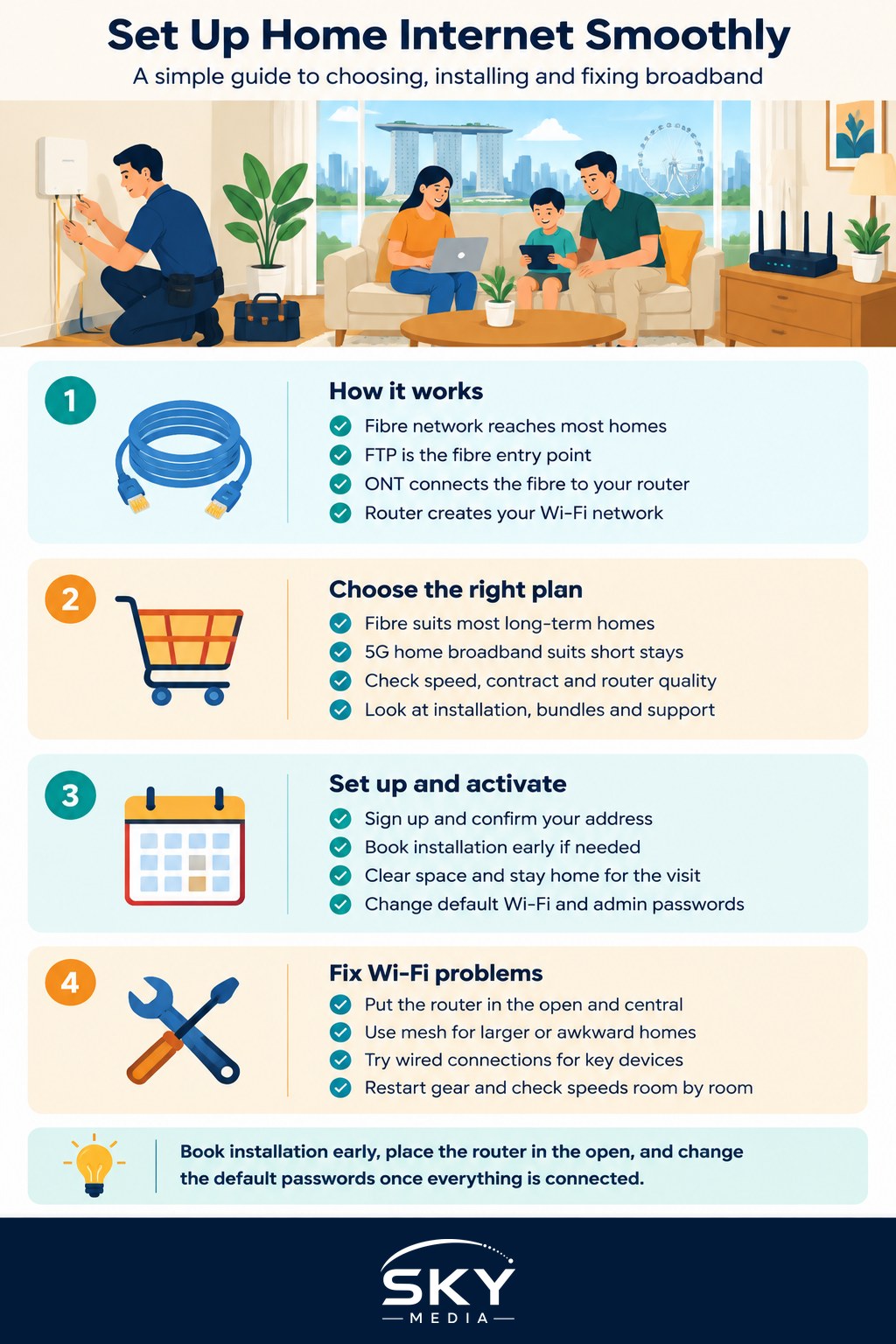
How Home Broadband Works in Singapore
Understanding the basic setup makes the rest much easier.
- The fibre network. Singapore has a nationwide fibre network that reaches homes across the island. Retail service providers (RSPs), the telcos and internet companies you buy plans from, sell services over this network.
- The fibre termination point (FTP). This is a small wall-mounted box in your home, often near the living room, a bedroom or the distribution board, where the fibre cable enters. Your internet connection starts here.
- The optical network terminal (ONT). This device connects to the FTP and converts the fibre signal for your router. In many homes, one is already installed; in others, the installer brings one.
- The router. It creates your Wi-Fi network and connects to the ONT with a network cable. Many plans include a router, though you can often use your own.
IMDA (the Infocomm Media Development Authority) regulates the telecoms sector and publishes consumer guidance on broadband contracts and switching, which is worth reading if you hit a dispute.
Choosing the Right Type of Connection
Most households choose fibre, but it is not the only option, especially for short stays.
| Connection type | Best for | Pros | Things to check |
|---|---|---|---|
| Fibre broadband | Most homes, long stays, working from home | Fast, stable, handles many devices | Contract length, installation lead time |
| 5G home broadband | Renters, short stays, homes where fibre is awkward | Plug-in setup, no fibre installation | Signal strength at your unit, data policies |
| Mobile hotspot from your phone | Bridging the gap before fibre is ready | Uses your existing mobile plan | Data caps, battery drain, slower for many users |
If you only need a temporary connection while waiting for installation, see how to set up a mobile hotspot to stay online in the meantime.
Picking a Plan Without Overpaying
When comparing broadband plans, look past the headline speed:
- Speed you actually need. A household streaming video and joining video calls is usually well served by a mid-tier plan. Very high speeds help mainly if you have many heavy users or need fast uploads, and your devices and Wi-Fi must be able to use that speed.
- Contract length. Longer contracts often come with lower monthly prices or bundled gifts, but early termination charges can be significant. If you rent and may move, check whether the plan can be relocated to a new address.
- Router quality. A basic router may struggle in larger homes. Ask what model is included and whether mesh Wi-Fi units are offered.
- Installation and activation charges. These vary between providers and promotions, so read the full price breakdown.
- Bundles. Some providers bundle broadband with mobile plans or TV. Only take a bundle if you would use every part.
- Customer support. Check how faults are reported and whether technicians can be sent to your home.
Prices and promotions change often, so compare current offers directly on each provider’s website or at their retail shops.
Booking Installation and Activation
Once you have chosen a plan, the setup usually follows this order:
- Sign up and provide your address. The provider checks your unit’s fibre status.
- Book an installation slot. If an ONT needs to be installed or the FTP needs work, a technician will visit. Book early, as slots can fill up around moving season.
- Make sure someone is home. The installer needs access to the FTP. Clear the area around it beforehand.
- Connect the router. Plug the router into the ONT with a network cable, power it on and follow the setup instructions, which usually involve an app or a sticker with the default network name and password.
- Change the default Wi-Fi password and admin password. This is an easy security step that many people skip.
- Test the connection. Run a speed test near the router using a cable if possible, then on Wi-Fi in different rooms.
If you are moving into a new HDB flat, our guide on how to set up utilities in Singapore when you move in helps you line up broadband alongside your other move-in tasks.
Getting Good Wi-Fi in Every Room
Fibre may be fast, but Wi-Fi is often the weak link. Singapore homes commonly have concrete walls that block signals.
- Position the router centrally and in the open. Avoid cupboards, the floor or behind a TV.
- Consider mesh Wi-Fi for larger flats, landed homes or homes where the FTP is in a corner room. Mesh units spread the signal more evenly.
- Use cables where you can. Desktop computers, TV boxes and game consoles benefit from a wired connection.
- Use the 5 GHz or 6 GHz band for nearby devices that support it, as these bands are faster but have shorter range than 2.4 GHz.
- Keep the router firmware updated for performance and security fixes.
Gamers who need low latency can find more specific tweaks in improving your home internet for gaming.
Troubleshooting Common Problems
Most issues can be sorted out without a technician:
- No connection at all. Check the lights on the ONT and router. Restart both, starting with the ONT, then the router after a minute. Make sure cables are firmly connected.
- Slow speeds everywhere. Run a wired speed test. If the wired result is good, the problem is your Wi-Fi, not the line. If the wired result is poor, contact your provider.
- Slow in certain rooms only. This points to Wi-Fi coverage. Move the router or add mesh units.
- Frequent dropouts. Check for overheating, update firmware, and try changing the Wi-Fi channel in the router settings.
- Devices cannot connect. Forget the network on the device and reconnect, or restart the device.
If none of this works, report the fault to your provider with details of what you have already tried. This often speeds up support.
Moving House or Switching Providers
When moving, contact your provider early to relocate your service, since lines often need to be set up at the new address. If you are switching providers, check when your current contract ends to avoid early termination charges, and arrange the new service before cancelling the old one so you are not left offline.
With a little planning, home internet in Singapore can be up and running within days of moving in. Choose a sensible plan, book installation early and spend ten minutes positioning your router well.
Further reading: How to Switch Internet Providers When You Move Home