
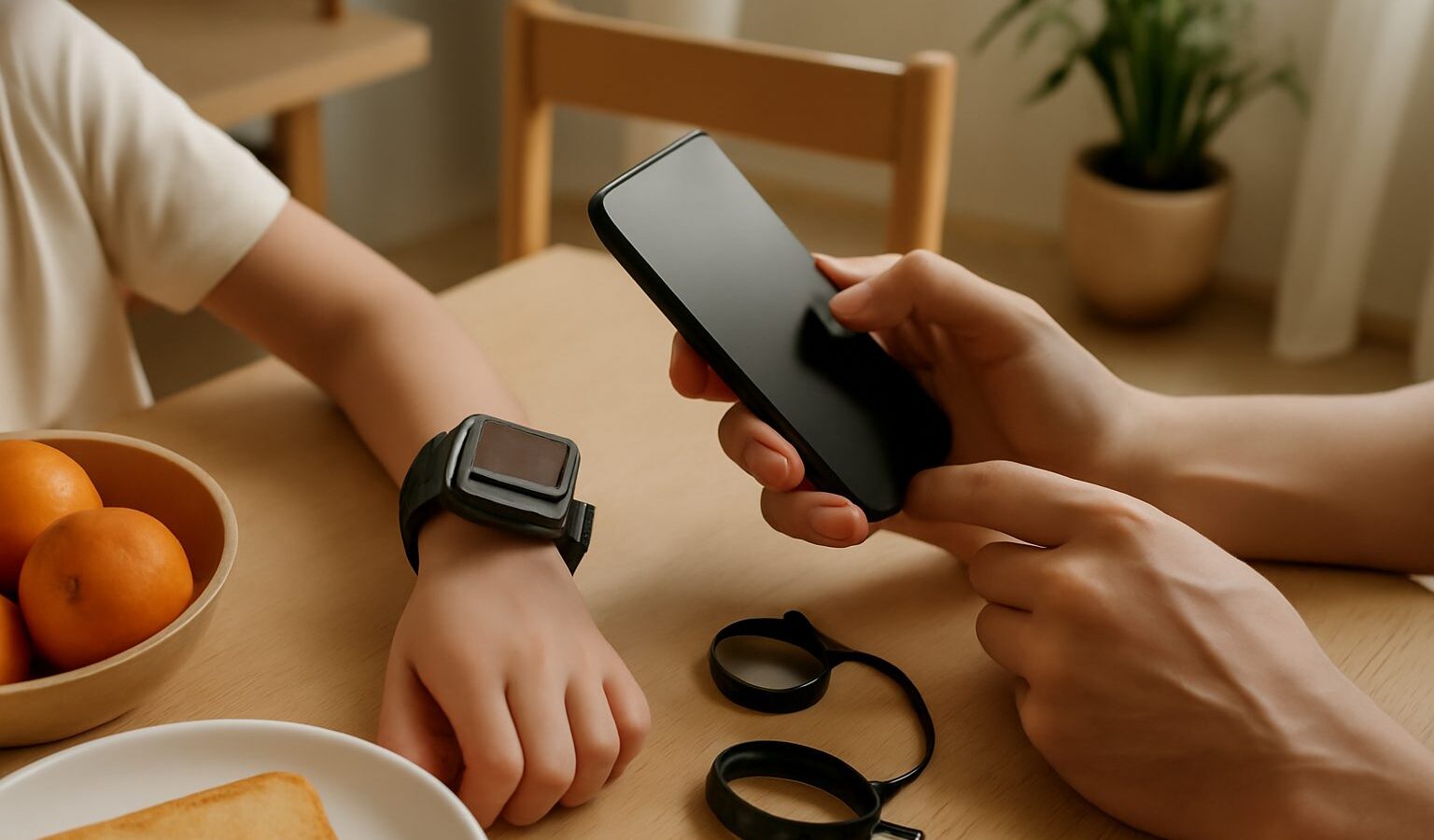
A kids smartwatch in Singapore has become a popular middle step for families who want to stay in touch with a child but are not ready to hand over a full smartphone. A good watch lets your child call a short list of trusted people, lets you see roughly where they are, and can be locked down during school hours. The catch is that the setup matters as much as the device. A watch that is configured carelessly can be distracting, leak more data than you expected, or simply not work when you need it.
This guide walks through setting one up step by step, from choosing a mobile line to agreeing family rules.
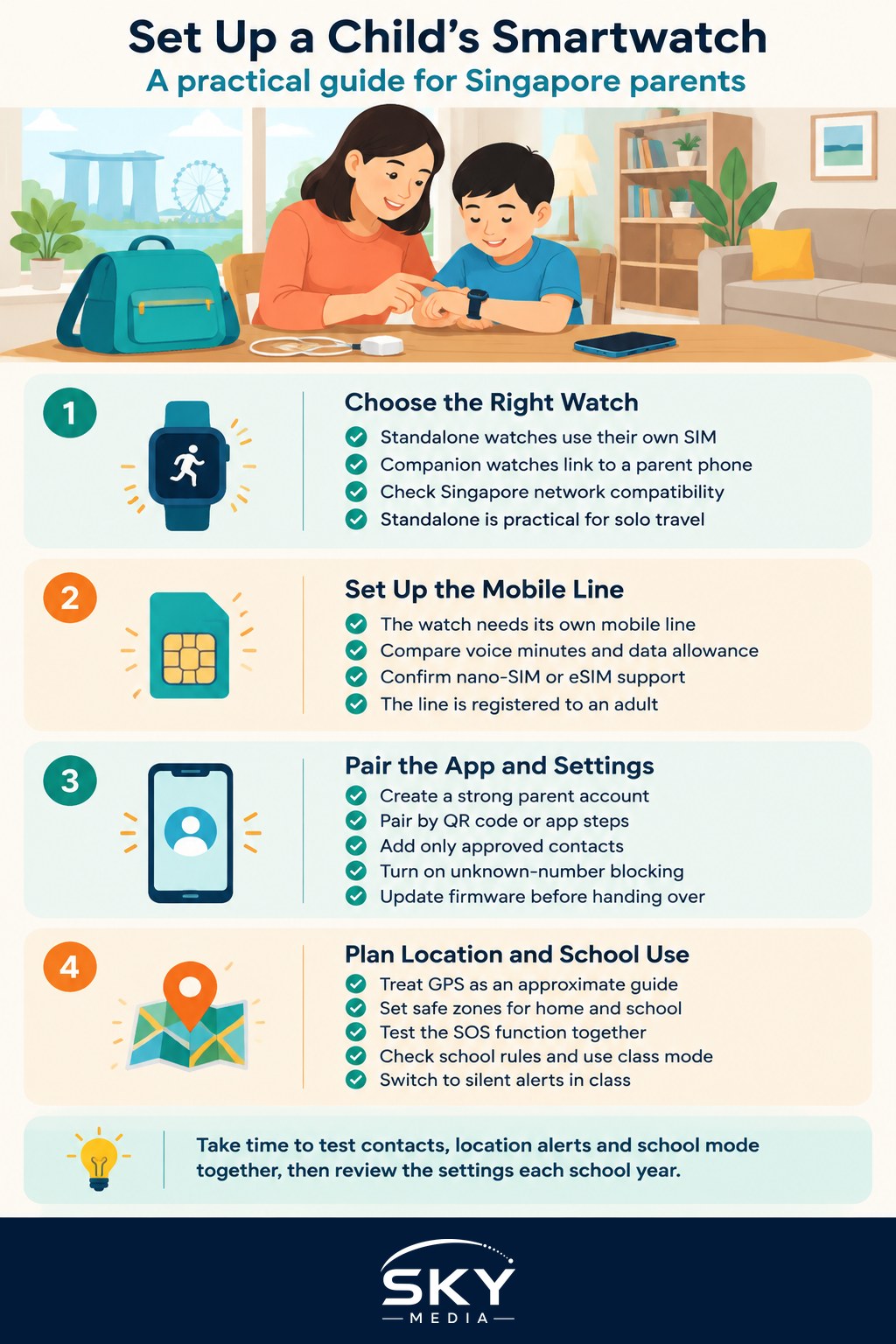
Before You Buy: Check How the Watch Connects
Children’s smartwatches generally fall into two groups, and the difference shapes your setup.
- Standalone cellular watches have their own SIM card or eSIM and phone number. Your child can call and be called without a phone nearby, and location updates work wherever there is mobile coverage.
- Companion watches pair with a parent’s phone or account and rely on it, or on Wi-Fi, for some features. Some family-sharing setups let a parent manage a child’s watch from their own phone.
For a child who travels to school or activities alone, a standalone cellular watch is usually the practical choice. Check that the watch supports the mobile networks used in Singapore, especially if you buy it overseas or online, as some imported models may not work properly on local networks.
Step 1: Get a Mobile Line for the Watch
A cellular watch needs its own mobile line. In Singapore, telcos offer a range of plans, and some offer watch-specific or low-cost plans suitable for a child’s device. When comparing, look at:
- Voice minutes and data allowance. Kids’ watches use little data, so a small allowance is often enough.
- SIM type. Confirm whether the watch takes a physical nano-SIM or an eSIM, and whether the telco supports eSIM on that model.
- Contract length and terms. Check the commitment period and what happens if you cancel.
- Registration. Mobile lines in Singapore are registered to an adult’s identity, so the line will be in a parent’s name.
Plans and prices change frequently, so compare current offers directly on telco websites.
Step 2: Set Up the Parent App and Contacts
Most kids’ watches are managed through a companion app on the parent’s phone. During setup:
- Create the parent account and secure it with a strong password and two-factor authentication if offered.
- Pair the watch by scanning the QR code or following the app’s pairing steps. Keep the watch charged and close to your phone.
- Add approved contacts only. Limit the list to parents, grandparents, caregivers and perhaps a close family friend. Most watches can block calls from unknown numbers, so switch that on.
- Name contacts clearly. Use labels your child recognises, such as “Mummy” or “Ah Ma”, and add photos if the watch supports them.
- Update the firmware. Install the latest software before handing it over. If you are setting up away from home Wi-Fi, a phone hotspot works, and our guide on how to set up a mobile hotspot covers the steps.
Step 3: Configure Location Sharing Sensibly
Location sharing is often the main reason parents buy a watch, but it is worth setting up thoughtfully.
- Understand accuracy. GPS location is approximate and can drift in tall-building areas, MRT stations, underground walkways and covered void decks. Treat the map as a guide, not an exact pinpoint.
- Set up safe zones. Many apps let you create geofences around home, school and the tuition centre, sending an alert when the watch enters or leaves.
- Agree on check-ins. Rather than watching the map constantly, agree on simple routines, such as a quick call when your child reaches school.
- Test the SOS function. Most watches have an emergency button that calls or alerts set contacts. Practise it together so your child knows when and how to use it.
- Review data settings. Check where location data is stored, how long it is kept, and who in the family can see it. Read the brand’s privacy policy before you sign up.
Step 4: Prepare the Watch for School
Every school sets its own rules on devices, so check your child’s school handbook or ask the form teacher before the first day. Many schools allow watches as long as they do not disturb lessons. Settings that help include:
- School mode or class mode. This disables calls, games and notifications during set hours while keeping the time display. Match the schedule to your child’s timetable, including CCA days.
- Silent alerts. Switch ringtones to vibrate so the watch does not interrupt class.
- Camera and games off. If the watch has a camera or games, consider disabling them, especially if school rules prohibit photography.
- Name label. Add your child’s name to the strap or back of the watch in case it is misplaced.
Setup Checklist: Do and Don’t
| Area | Do | Don’t |
|---|---|---|
| Contacts | Keep a short list of trusted adults | Allow calls from unknown numbers |
| Location | Use safe zones and agreed check-ins | Rely on the map as an exact location |
| School | Set class mode to match the timetable | Assume every school allows the same features |
| Privacy | Read the privacy policy and secure your account | Share the parent login widely |
| Charging | Build a nightly charging routine | Wait until the battery dies at school |
Agree on House Rules for the Watch
A watch works best when your child understands what it is for. Sit down together and agree a few simple rules, such as when it is worn, who to call in an emergency, and that the watch is not shared with friends. Our guide on house rules kids can remember offers useful ways to phrase rules so they stick.
A few other points to cover:
- Explain location sharing honestly. Older children should know when they can be located. Being open builds trust.
- Teach basic safety. Your child should know their home address and a parent’s number by heart, in case the watch runs out of battery.
- Plan charging. Most watches need charging every night. Put the charger in a fixed spot, such as next to the school bag.
- Review as they grow. As your child gains independence, you may relax some settings or move on to a first phone.
Getting the Most From a Kids Smartwatch
Set up carefully, a kids smartwatch in Singapore gives parents peace of mind and children a gentle introduction to responsibility with technology. Take an evening to configure the contacts, location alerts and school mode, test everything together, and revisit the settings each school year as routines change.
Further reading: Choosing a Smartwatch in Singapore