

Gaming on Mac used to be a punchline. For years, the advice was simple: if you want to play games, buy a Windows PC. That advice is now outdated, though not completely wrong. Apple Silicon chips (the M-series processors in every current Mac) brought strong graphics performance and excellent power efficiency, and more big games now ship native Mac versions. At the same time, plenty of popular titles still do not run on macOS at all. This guide explains the four main routes to playing games on a Mac, what each one is good for, and the limits you should know before relying on a Mac as your only gaming machine.
Why Mac Gaming Is Different
Three things shape what you can play on a Mac.
- Graphics API. Macs use Apple’s own graphics framework, Metal. Most Windows games are built for DirectX, which macOS does not support. A developer has to port the game to Metal, or you need a translation layer to bridge the gap.
- Processor architecture. Apple Silicon uses an ARM-based design, while most Windows PCs use x86 chips. Apple’s Rosetta 2 translation layer lets many older Intel Mac apps and games run on Apple Silicon, usually with a modest performance cost.
- No Boot Camp on Apple Silicon. Intel Macs could install Windows natively through Boot Camp. Apple Silicon Macs cannot, so dual-booting into Windows is no longer an option on current models.
If you are still deciding which platform to buy, our comparison of Mac vs Windows covers the wider trade-offs beyond gaming.
Route 1: Native Mac Games
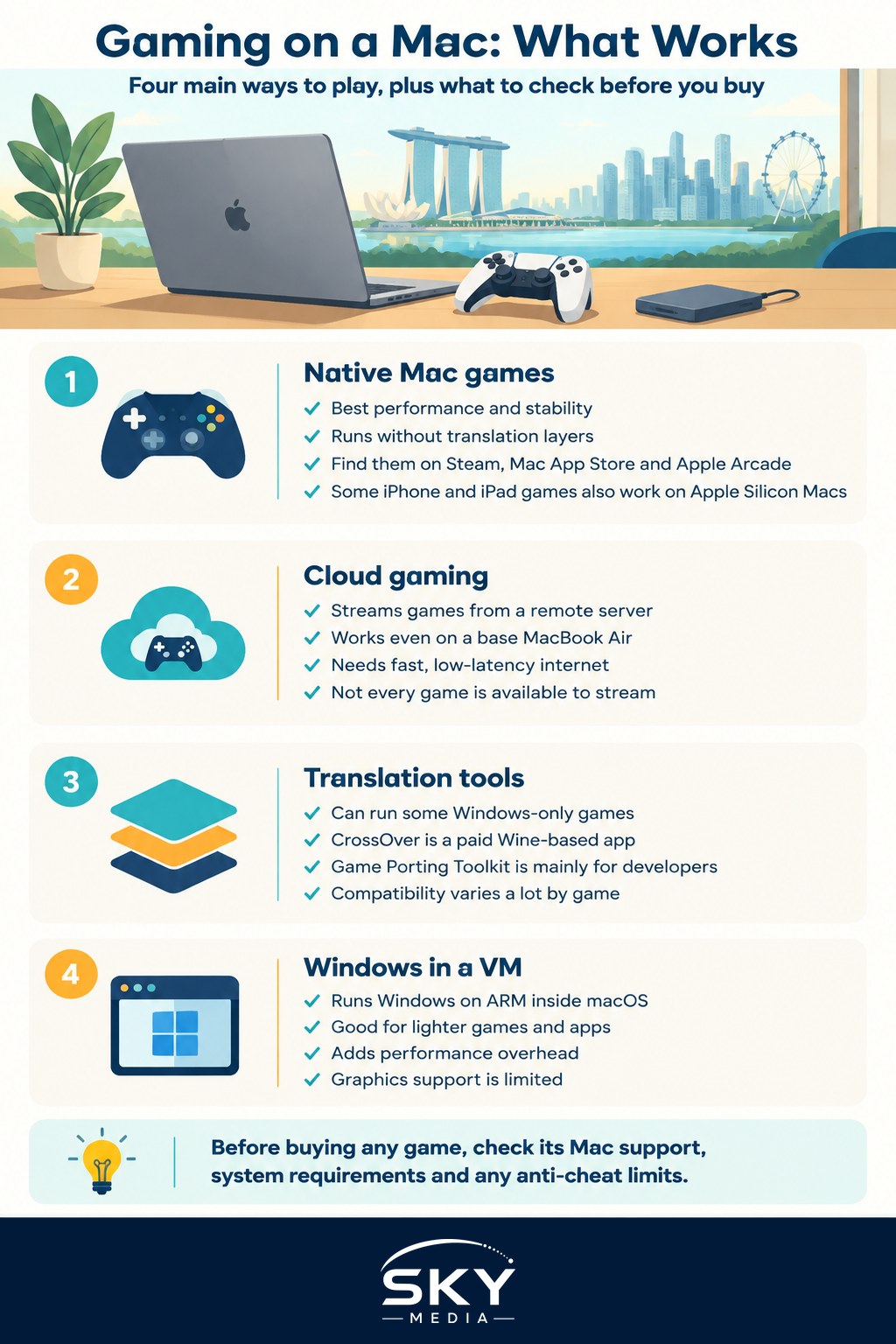
The best experience comes from games built for macOS, ideally optimised for Apple Silicon. They run without translation, tend to be stable, and make good use of the hardware.
Where to find them:
- Steam for macOS. Steam runs natively on Mac. In the store, look for the Apple logo or the macOS listing under system requirements. You can also filter by operating system.
- Mac App Store. Apple has been promoting larger releases here, and several well-known AAA titles have arrived as native Apple Silicon ports in recent years.
- Apple Arcade. A subscription service with a curated library of games that run across iPhone, iPad, Mac and Apple TV, with no ads or in-app purchases. Good for casual play and families.
- Other launchers. Some publishers offer their own Mac launchers. Battle.net, for example, has supported Mac for a long time for certain titles.
- iPhone and iPad games. On Apple Silicon Macs, many iOS and iPadOS games can be installed from the Mac App Store, although developers can choose to opt out and touch controls do not always translate well to a keyboard.
Before buying any game, check the system requirements on the store page carefully. A Mac version may exist but require a newer chip, more memory or a recent version of macOS.
Route 2: Cloud Gaming
Cloud gaming runs the game on a powerful remote server and streams the video to your Mac, while your inputs travel back. Your Mac only needs to decode video, so even a base model MacBook Air can play demanding Windows games this way.
Points to know:
- Services. The major options include NVIDIA GeForce NOW (which streams games you already own on supported stores), Xbox Cloud Gaming (part of certain Game Pass tiers, played through a browser) and others. Availability differs by country, and some services run in Singapore through regional partners or not at all. Check each provider’s website for whether it is offered here and on which plans.
- Internet quality matters most. Singapore’s fibre broadband is generally fast, but latency to the nearest server is what really decides how responsive a game feels. A wired Ethernet connection, or at least strong Wi-Fi 6 or newer close to the router, makes a noticeable difference.
- Not every game is available. Cloud libraries depend on publisher agreements, so a title you own may not be streamable.
- Competitive play. Even good streams add some delay. Casual single-player and co-op games work well. Fast competitive shooters can feel less precise.
Route 3: Compatibility Layers and Translation Tools
If a game exists only for Windows, translation tools can sometimes run it on macOS without installing Windows.
- CrossOver. A paid app built on Wine, an open-source project that translates Windows calls into macOS ones. It can run many Windows games and apps, with results that vary from smooth to unplayable.
- Apple’s Game Porting Toolkit. A developer tool designed to help studios evaluate Windows games on Mac. Enthusiasts have built free front-ends around it, but it is aimed at developers and is not a polished consumer product.
- Community front-ends. Several free tools package Wine and related translation layers for Mac gamers. They require more tinkering and troubleshooting.
Performance and stability depend on the specific game, your Mac’s chip and memory, and the tool version. Community compatibility databases, where players report which games work and which settings help, are worth checking before you spend money.
Route 4: Running Windows in a Virtual Machine
Virtualisation apps such as Parallels Desktop can run the ARM version of Windows inside macOS on Apple Silicon. Windows on ARM can, in turn, emulate many x86 programs. This works for lighter games and many everyday apps, but it adds overhead, and graphics support inside a virtual machine has limits. Check Microsoft’s current licensing terms for Windows on ARM before you set it up.
Comparing Your Options
| Route | Best for | Main limitation |
|---|---|---|
| Native Mac games | Smooth, stable play with full performance | Library is smaller than Windows |
| Cloud gaming | Big Windows titles on any Mac, including base models | Needs strong, low-latency internet; not every game streams |
| Compatibility layers | Single-player Windows games without a native port | Hit or miss; needs tinkering; anti-cheat usually blocks it |
| Windows virtual machine | Specific lighter games or Windows-only apps | Performance overhead and graphics limits |
The Anti-Cheat Problem
The single biggest reason many popular online games do not run on Mac is anti-cheat software. Many competitive multiplayer games use kernel-level anti-cheat systems that only work on Windows. These games usually refuse to run through translation layers or virtual machines, and attempting to bypass that can risk your account.
If your main games are competitive shooters, battle royales or certain online titles, check whether they officially support macOS or a cloud service before assuming a Mac will work. Games that support cross-platform play can be a nice middle ground, since you may be able to join friends on PC or console from a Mac version. Our explainer on cross-platform play covers how that works.
Setting Up a Mac for a Better Gaming Experience
- Use a controller. macOS supports popular Bluetooth controllers, including recent Xbox and PlayStation controllers. Pair them through System Settings under Bluetooth.
- Turn on Game Mode. Recent versions of macOS automatically activate Game Mode when a game runs in full screen, giving it priority for CPU and GPU resources and reducing Bluetooth latency for controllers and AirPods.
- Watch your storage. Modern games are large. External SSDs work well for game libraries if your internal storage is limited.
- Manage heat. Fanless MacBook Air models can slow down during long, demanding sessions. MacBook Pro and desktop Macs with fans sustain performance better.
- Keep macOS updated. Graphics and compatibility improvements often arrive with system updates.
Is a Mac Right for Your Gaming?
A Mac makes good sense if you play indie games, strategy titles, Apple Arcade games, a handful of native AAA releases, or are happy to stream big games from the cloud. It is a weaker choice if your heart is set on competitive online games that rely on Windows-only anti-cheat, or if you want the widest possible library and modding scene. Decide based on the specific games you actually want to play, check each one’s platform support, and you will avoid an expensive surprise.
Further reading: Gaming on an iPad or Android Tablet: What to Know