

Transitions and effects are the seasoning of video editing. Used with a light hand, they guide the viewer smoothly from one shot to the next and add a bit of polish. Pile them on and your video starts to feel like a fireworks display that gives everyone a headache. Learning to use video transitions in Singapore, whether for a travel reel around Marina Bay or a small business promo, is really about restraint and knowing which tool fits the moment. This guide keeps it simple and practical so your edits feel intentional, not busy.
Understand the Main Types of Transitions
Before reaching for flashy effects, get comfortable with the basics, because most professional videos rely on just a few.
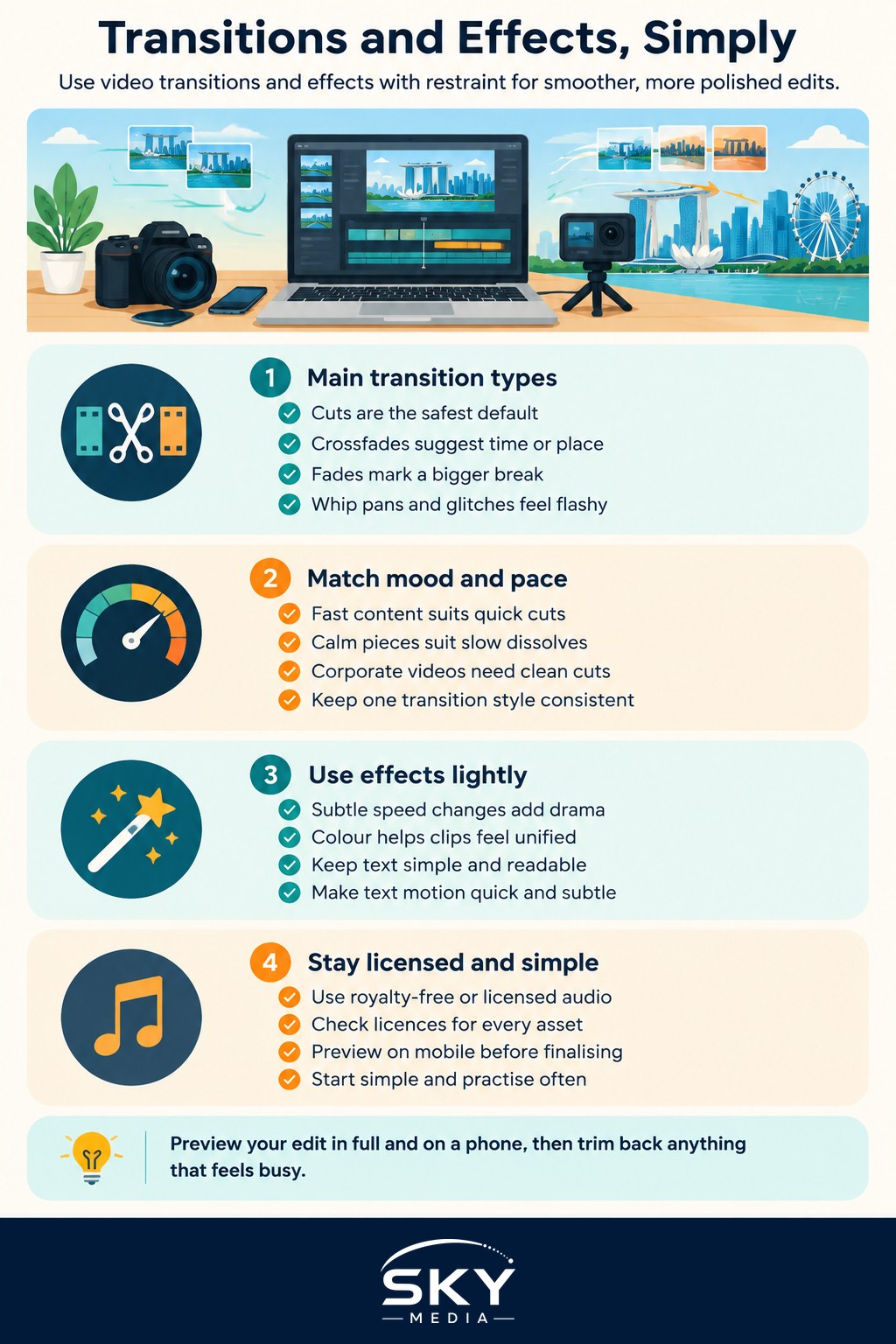
The humble cut is the most common transition of all. One shot ends, the next begins, no fancy animation. It feels natural because it mimics how our eyes jump between things in real life. When in doubt, cut. It almost always works.
The crossfade, or dissolve, gently blends one clip into the next. It suggests a passage of time or a change of place, which makes it lovely for moving from a busy hawker centre to a quiet morning at East Coast Park. Use it sparingly, as too many dissolves make a video feel dreamy and slow.
A fade to black or fade to white marks a bigger break, like the end of a chapter or the close of your video. It gives the viewer a moment to breathe.
Then there are the showy ones: whip pans, zooms, spins, and glitch effects. These can be fun for fast, energetic content like reels and short videos, but they date quickly and can feel gimmicky in longer pieces. A good rule is to ask whether the transition serves the story or just shows off. If it is the latter, cut it.
Match the Transition to the Mood
Fast, punchy content suits quick cuts and the occasional whip pan. Calm, reflective pieces suit slow dissolves and gentle fades. A corporate video wants clean, simple cuts that keep attention on the message. Consistency matters too. If you use one style of transition, stick with it throughout so the video feels like a single piece rather than a sampler of every button in your editor.
Adding Effects Without Overdoing It
Effects cover a wide range: colour grading, speed changes, text overlays, filters, and more. The best effects are often the ones viewers never consciously notice.
Speed effects are a favourite. A subtle slow motion on a splash of water or a smile can add drama, while a speed ramp can inject energy. Time-lapse and slow motion both belong in this family, and a quick read of how to shoot a time-lapse shows how planning at the filming stage makes these effects far easier in editing.
Colour work is where a lot of the magic happens. A consistent look ties your clips together, especially if you filmed across different times of day under Singapore’s changeable light. If you want to go deeper, understanding colour grading explains how to shape mood with colour rather than just slapping on a preset.
Text and titles deserve care too. Keep fonts simple and readable, hold them on screen long enough to read comfortably, and do not let them cover the important part of the shot. Motion on text should be quick and subtle.
Whatever you add, preview your video at full length and on a phone screen, since most people will watch on mobile. Effects that look clever on a big monitor can look cluttered on a small display.
Stay on the Right Side of Music and Licensing
Many transitions and effect packs come bundled with sound effects, and videos almost always want music. This is where a lot of new editors slip up. Do not simply pull a popular song or a random effect off the internet and drop it in. Use royalty-free or properly licensed music and sound effects from a legitimate library, and read the licence terms so you know what you are allowed to do, especially if the video is for a client or a business.
The same goes for downloaded transition packs, overlays, and stock footage. Check that they are free to use for your purpose, and keep a note of where each asset came from. Our guide on how to add music to videos legally walks through where to find safe tracks and what the licences actually mean, which saves you a painful takedown or dispute later.
Keep It Simple and Keep Practising
The most common beginner mistake is doing too much. Watch films and adverts you admire and notice how invisible most of their transitions are. That restraint is a skill, and it comes with practice. Start with clean cuts, add a dissolve or a fade where it genuinely helps, and reach for showy effects only when the content truly calls for it. Edit, watch, trim back, and repeat. Your video transitions will feel more confident with every project, and your viewers will stay to the end because nothing gets in the way of the story.
Frequently Asked Questions
Which transitions should a complete beginner start with? Start with plain cuts, then add a short crossfade or a fade where the story really changes. Those cover most situations and look natural. Leave spins, zooms and glitch effects until you have a clear reason for them.
Why does my video look cheap when I add lots of effects? Too many effects pull attention away from the story and make the edit feel busy. Pick one consistent transition style, use effects only where they serve a purpose, and trim back after a first watch-through.
Are the free transitions in editing apps good enough? For most social videos, yes. Built-in cuts, dissolves and fades do the job well. Paid packs mainly add variety, and they bring licence terms you need to read, so there is little reason to buy early on.
How long should a transition last? Usually brief, often well under a second for cuts-style transitions and a little longer for a gentle dissolve. Let the mood decide: fast content needs snappy moves, while calm pieces can breathe. Watch it back at normal speed to judge.
How do I make my transitions look good on a phone screen? Preview the full video on an actual phone before exporting. Busy effects and small text that look fine on a monitor can feel cluttered on a small display, so simplify wherever you feel the eye struggling.