
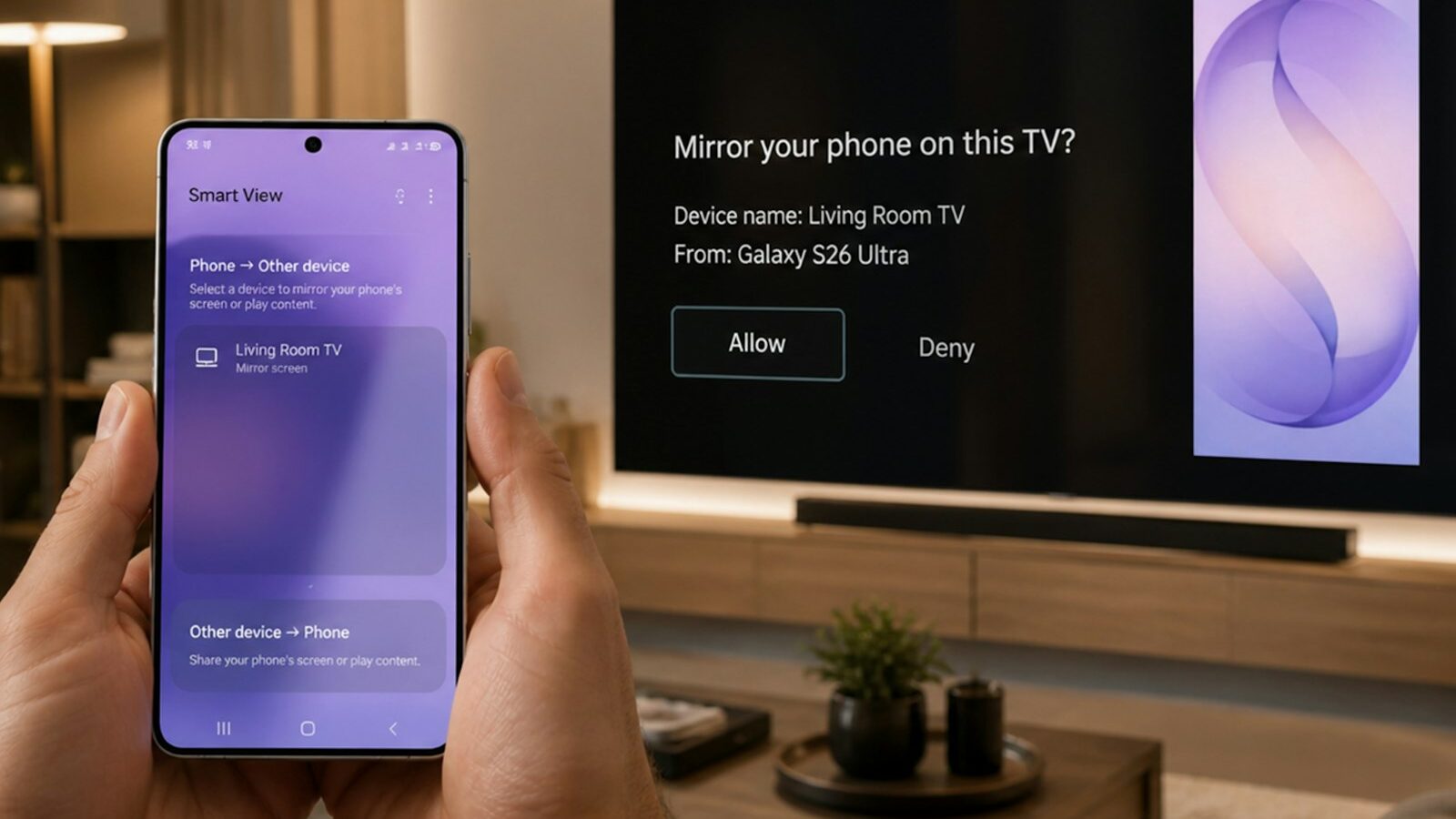
Sending a video, a holiday photo album, or a work slide deck from your small phone screen to the big TV in the living room is one of the most useful things your devices can do, yet many people never try it because it sounds technical. It is not. Screen mirroring to TV in Singapore usually takes a few taps once you know where to look, and it works over the home wifi you already pay for. This guide explains the difference between casting and mirroring, walks you through the steps in plain terms for both phones and laptops, and shows you how to fix the usual hiccups.
Before you start, know that almost every modern television sold in the last several years supports some form of wireless display. If yours is older, a small streaming device plugged into the HDMI port adds the same ability cheaply.
Casting Versus Screen Mirroring: What Is the Difference
These two terms get mixed up, but they do slightly different jobs, and knowing which you need saves frustration.
Casting sends a specific piece of content, such as a video or a song, from an app on your phone to the TV. Your phone acts as a remote after that, so you can lock it, reply to a message, or leave the room and the video keeps playing. This is the smoother option for streaming.
Screen mirroring copies your entire screen to the TV in real time, so whatever you see on your phone or laptop appears on the big screen at the same moment. It is the right choice for photos, presentations, web pages, or any app that does not have its own cast button. The trade off is that your device has to keep working the whole time, and it uses more battery.
| Task | Best method | Why |
|---|---|---|
| Watching a streaming video | Cast from the app | Frees your phone, smoother playback |
| Showing holiday photos | Screen mirror | No cast button, shows everything live |
| Giving a work presentation | Screen mirror | Slides and notes appear as you swipe |
| Playing music through the TV | Cast from the app | Audio keeps going while phone is locked |
| Browsing a website together | Screen mirror | Whole page mirrors as you scroll |
Casting From Your Phone Step by Step
Casting is built into most video and music apps. Here is the general flow, which looks similar across brands.
- Connect your phone and your TV to the same home wifi network. This is the single most important step. If they are on different networks, for example one on the main band and one on a guest network, they will not find each other.
- Open the app you want to watch or listen to, such as a video or music service.
- Look for the cast icon. It is usually a small rectangle with curved lines in one corner, sitting near the top of the screen. Tap it.
- Choose your TV from the list that appears. If your TV has a name you do not recognise, check the label on screen or in the TV settings.
- Your content jumps to the TV. Use your phone to pause, skip, or adjust the volume.
To stop, tap the same cast icon and disconnect. That is the whole process, and once you have done it once it becomes second nature.
Screen Mirroring From a Phone or Laptop
Mirroring your full screen uses a feature built into the operating system rather than a single app. The name differs by brand, but the idea is the same: a wireless display or smart view option.
On a phone, open your quick settings by swiping down from the top of the screen, then look for a tile that mentions casting, smart view, screen mirroring, or wireless display. Tap it, pick your TV, and confirm any prompt that appears on the television. Your whole screen now shows on the TV. Turn your phone sideways for photos and videos so they fill the screen properly.
On a laptop, look in the system settings or the notification area for a connect or wireless display option. Select your TV from the list and your desktop appears on the big screen. This is handy for showing a spreadsheet to the family, watching a web video that has no cast button, or working from the sofa. Some laptops also let you extend rather than mirror, so the TV becomes a second screen with different content, which is useful for presentations where you want your notes private.
If your TV is older and offers no wireless option at all, a simple HDMI cable from a laptop still works perfectly and never drops out. For phones, a small adapter can do the same, though wireless is far more convenient day to day.
Fixing the Common Problems
Most mirroring trouble comes down to a few repeat offenders. Work through these in order.
The TV does not appear in the list. This is nearly always a wifi mismatch. Make sure both devices are on the same network and the same band. In many HDB flats the router broadcasts more than one network name, so pick the same one on both. Restarting your router and the TV clears most stubborn cases.
The picture lags or stutters. Wireless mirroring leans heavily on your wifi. If the TV sits far from the router or behind thick walls, the signal weakens and video jerks. Move closer if you can, reduce the number of other devices streaming at the same time, or use a wired cable for anything important like a presentation. Our warm, crowded flats also mean many neighbours share the airwaves, which can add congestion in the evenings.
The screen mirrors but there is no sound. Check that the TV is not muted and that your phone volume is up. In some apps, sound routes back to the phone by mistake, so toggle the mirroring off and on.
It keeps disconnecting. Battery saver modes often cut wireless features to save power. Turn off battery saver while mirroring, and keep your device plugged in for long sessions. Overheating in our climate can also force a device to throttle, so give a hot phone a moment to cool.
It connects but the image looks stretched or cropped. Rotate your phone, or check the TV picture settings for a screen fit or aspect option, then set it to fit rather than zoom.
Getting the Best Results at Home
A few habits make casting and mirroring reliable rather than hit and miss. Keep your TV software and your phone software up to date, since these features improve with updates. Give the TV or streaming device a strong wifi signal, ideally in the same room as the router or with the router placed centrally in the flat. If your wifi struggles to reach the living room, a mesh point or a wired connection to the TV solves dropouts for good.
For anything that truly matters, such as a video call shown on the big screen or a presentation, a physical HDMI cable remains the most dependable choice and removes all the wireless guesswork. For everyday viewing, though, wireless casting is quick, tidy, and once set up, something the whole household will use without a second thought.
Explore more
Getting more from the screens you already own is a running theme in our Tech section. If you want to squeeze hidden tricks out of the device in your pocket, read our guide on smartphone features you are not using, and for sharper images to show off on the big screen, see taking better photos with your phone. If shared screens are for the kids, our walkthrough on setting up parental controls on devices helps keep viewing age appropriate.