

A modern phone can buzz, ping, and light up more than a hundred times a day. Work chats, family groups, delivery updates, banking alerts, news breaks, game reminders, and a dozen apps all competing for a glance. Each interruption is small, but together they scatter your attention, break your sleep, and leave you feeling permanently on call. The good news is that you are in charge, not the phone. Managing notifications in Singapore is simply a matter of deciding what deserves to reach you, and switching off the rest. This guide shows you how, in plain steps that work on any Android or iPhone.
You do not have to go silent or miss anything important. The goal is fewer, better alerts, so the buzz in your pocket means something again.
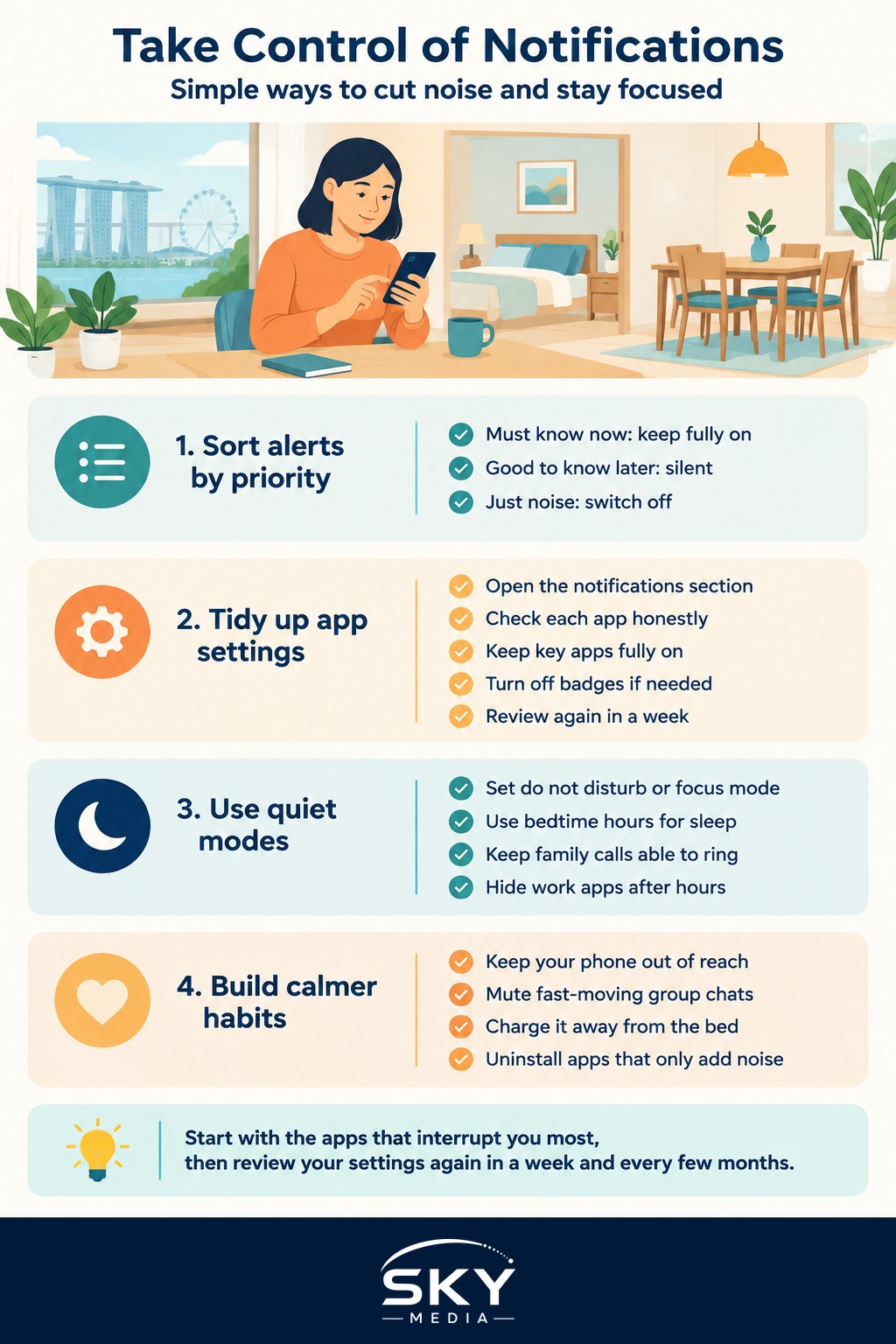
Why So Many Alerts Steal Your Focus
When you install an app, it usually asks to send notifications, and most of us tap yes without thinking. Over months and years, that adds up to dozens of apps all allowed to interrupt you whenever they like. Many of these alerts are not for you at all. They are nudges to open the app again, promotions dressed as updates, or reminders you never asked for.
The cost is real. Every time your phone lights up, your attention shifts, and it takes a moment to settle back into whatever you were doing. Do that a hundred times a day and focused work, a proper conversation, or a calm meal becomes hard. At night, a single glowing screen can pull you out of sleep. Understanding that most alerts are optional is the first step to taking back control.
Sort Your Alerts Into Three Simple Groups
Rather than wrestling with every app, it helps to picture your notifications in three tiers. This makes the clean up quick and clear.
| Tier | Examples | What to do |
|---|---|---|
| Must know now | Calls, messages from close family, banking security, work on duty | Allow sound and banner |
| Good to know later | Group chats, social replies, news you follow, shopping updates | Allow silently, check when free |
| Just noise | Games, promotions, app nudges, most marketing | Turn off completely |
Work through your apps with these three buckets in mind. Anything in the first tier keeps its full alert. Anything in the second becomes silent, so it waits quietly in your notification list without buzzing. Anything in the third gets switched off entirely. Within an evening you can transform how your phone feels.
The Practical Steps to Clean Up Notifications
Here is the hands on part. The wording differs slightly by brand, but the path is the same.
- Open your settings and find the notifications section. It lists every app and whether it can alert you.
- Go down the list honestly. For each app, ask whether its alerts genuinely help you. If not, turn them off. Games, shopping apps, and social apps are usually the biggest offenders.
- For apps you want but not urgently, set them to silent or deliver quietly. They will still appear in your list, but without a sound or a screen wake.
- Protect your key apps. Make sure calls, your main messaging app, and banking security alerts stay fully on, so you never miss something that matters.
- Turn off badges if the little red number counts stress you. Many phones let you hide the dots that make you feel behind.
- Review again in a week. You will spot a few you missed, and a few you switched off but actually want back.
Doing this once makes a lasting difference, and a quick review every few months keeps it tidy as you add new apps.
Use Focus Modes and Quiet Hours
Beyond switching alerts off one by one, your phone has powerful modes that silence everything except what you choose, on a schedule.
A do not disturb or focus mode mutes notifications during set hours or in set places. Many people set one for bedtime, so the phone goes quiet overnight but a repeated call from a family member still rings through in a true emergency. You can set another for working hours that hides social apps, and a personal one for evenings that hides work email.
Some phones switch these automatically. Your work focus can start when you reach the office and end when you leave, or a wind down mode can dim and grey the screen an hour before bed to help you sleep. Setting a bedtime schedule is one of the single most effective changes you can make, given how easily late night scrolling eats into rest in our busy, always connected city.
If you share a home with shift workers or study late, these quiet hours also keep your phone from disturbing others.
Build Habits That Keep You in Control
Settings do the heavy lifting, but a few gentle habits keep the calm going.
Keep your phone out of reach during focused work or family meals. Out of sight really does mean out of mind, and you will reach for it far less. Turn off notifications for group chats that move fast, and simply open them when you have time rather than being pulled in message by message.
Try charging your phone outside the bedroom overnight, or at least across the room, so it is not the last thing you see and the first thing you grab. Turn off vibration for low priority apps, since a buzzing phone is just a quieter interruption. And every so often, unsubscribe or uninstall apps that only ever send you noise. Fewer apps means fewer demands on your attention.
Remember too that you can leave your phone at home for a short errand or a walk. The world will not end, and the small anxiety fades quickly. Managing your notifications is really about a bigger idea: your phone is a tool that should serve you, not a boss that summons you. A few thoughtful settings and habits hand that control firmly back to you, and the quiet that follows is worth far more than any alert you switched off.
Explore more
Calmer alerts pair naturally with getting more out of your device. Our guide on smartphone features you are not using covers focus tools in more depth, and if the clutter runs deeper than notifications, see decluttering your digital life. For parents managing children’s screens, our walkthrough on setting up parental controls on devices helps everyone find a healthier balance.
Frequently Asked Questions
Is it safe to turn off notifications from my banking app? It is better not to. Banking security alerts, such as login warnings and transaction notices, are among the few you should keep fully on, because they tell you quickly if something is wrong. Silence shopping and game apps instead.
Why do I still feel anxious about the red badge numbers on my apps? Those counters are designed to make you feel behind. Most phones let you hide badges app by app in the notification settings. Removing them for social and shopping apps often reduces the urge to check, while keeping them for calls and key messages.
Can I silence a busy group chat without leaving it? Yes. Set that chat or app to deliver quietly or mute it, so messages wait in your list without a sound or screen wake. Open it when you have time, rather than being pulled in message by message.
How do I stop my phone disturbing me at night but still get emergency calls? Set a bedtime focus mode or do not disturb schedule, then allow calls from chosen family members or repeated calls to ring through. Charging the phone across the room also keeps it from being the last thing you see.
How often should I review which apps can send alerts? Check again after about a week, since you will spot a few you missed or want back, then do a quick review every few months. Reviewing whenever you install a new app keeps the list tidy, and uninstalling noisy apps helps most.
Further reading: How to Stay Focused During Online Classes