

Between weekend gatherings, kids’ milestones, and the odd overseas trip, a Singapore family can rack up thousands of photos in a year, scattered across everyone’s phones. Family photo sharing in Singapore does not have to mean endless WhatsApp forwards that clog storage and vanish into chat history. With a shared album or two and a simple backup habit, you can keep everyone’s memories in one tidy, safe place that the whole family can enjoy for years.
The trick is to set up a system once, get everyone on board, and then let it run quietly in the background. Here is how to do that without turning it into a chore.
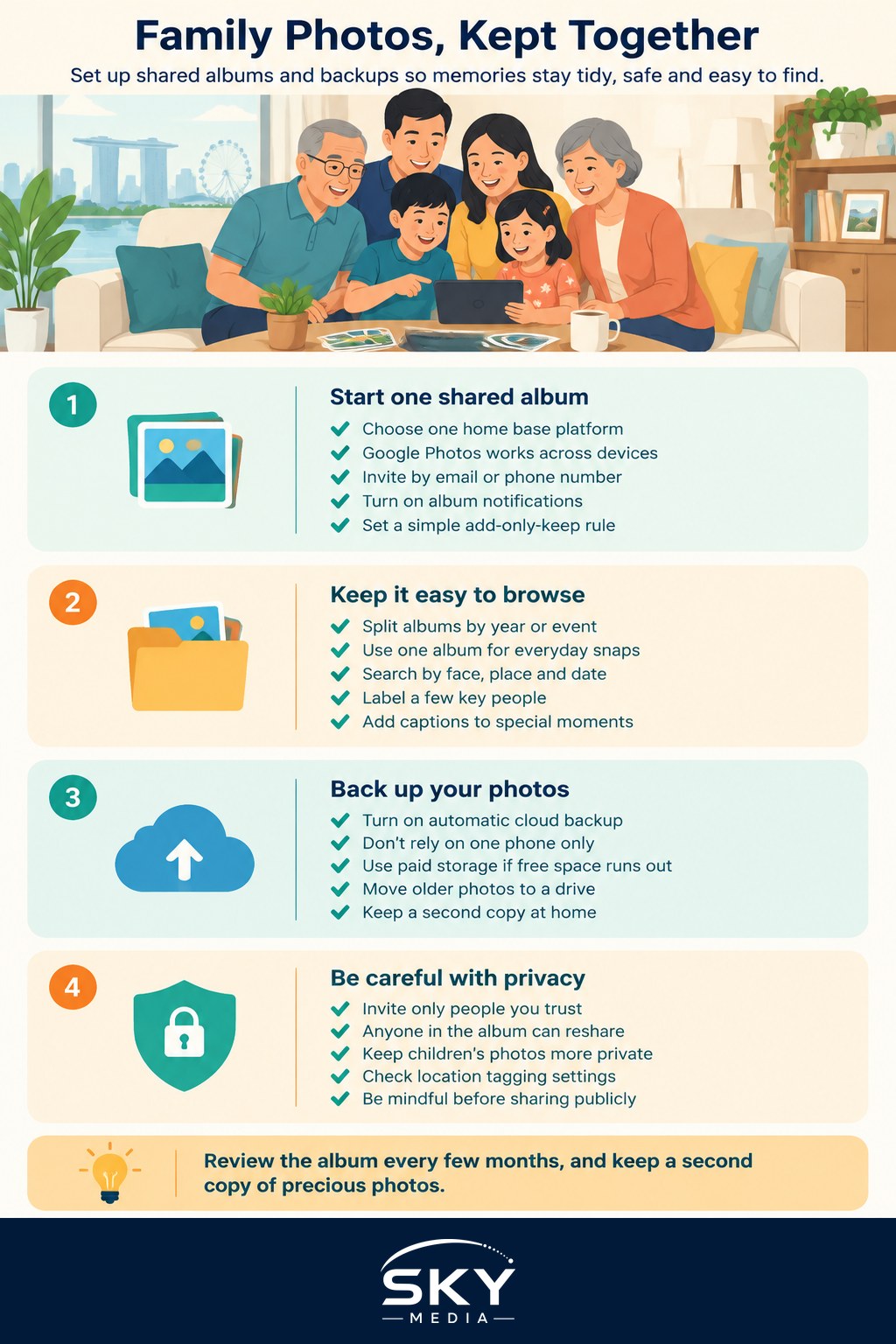
Start with a shared album everyone can add to
Most people already have the tools they need. Google Photos and Apple’s iCloud Shared Albums both let you create an album that family members can add to and view, even across different phone brands. Google Photos works on both Android and iPhone, which makes it a friendly common ground for a family with a mix of devices. Apple’s shared albums are handy if most of the household is on iPhone.
To get started, pick one platform as your family’s home base so photos are not split three ways. Then:
- Create a shared album with a clear name, such as “Tan Family 2026” or “Lim Family Trips”.
- Invite family members by their email or phone number.
- Ask everyone to turn on notifications for the album so new photos are noticed.
- Agree on a simple rule, for example only add photos worth keeping, not every screenshot.
A gentle bit of etiquette goes a long way. Encourage people to add their best shots rather than fifty near-identical ones, and to caption the truly special moments. If grandparents are joining in, a quick walkthrough helps. Our guide on helping elderly parents with tech has tips for making that first setup stick.
Organise so you can actually find things
An album full of thousands of unsorted photos is almost as bad as no album. Break things up in a way that matches how your family remembers events. You might create separate albums for each year, for big occasions like Chinese New Year or a child’s birthday, and one rolling album for everyday snaps.
Modern photo apps also search by face, place, and date, so you can find “photos of the kids at East Coast Park” by typing it in. Spend ten minutes labelling a few key people, and the app does the rest. If your library is already a mess, our walkthrough on organising your digital photos is a good companion to this piece.
Keep everything backed up and safe
Sharing is only half the job. The photos still need to be safe if a phone is lost, dropped in the pool at the condo, or stolen. This is where a proper backup matters.
Turn on automatic cloud backup in your chosen app so every new photo is copied off the phone without anyone thinking about it. Cloud storage on the free tiers fills up quickly with high-resolution photos and videos, so you may eventually need a paid plan, or you can move older photos to an external drive at home. For the bigger picture on storage options and costs, see our overview of cloud storage and backup and our guide to backing up your phone properly.
A sensible family rule of thumb is to keep memories in more than one place. That might mean the cloud plus an occasional copy to a home hard drive. Precious photos are the kind of thing you only realise you have lost when it is too late, so a second copy is cheap insurance.
Mind privacy and the little ones
Shared albums are convenient, but think about who can see them. Only invite people you trust, and remember that anyone in the album can usually save and reshare what is inside. Before posting photos of children, especially in public groups or on social media, pause and consider whether you are comfortable with that. Many families keep kids’ photos in a small private album shared only with close relatives.
Be careful with location details too. Photos can carry the place they were taken, and some apps show that on a map. If that makes you uneasy, you can usually turn location tagging off in your camera settings.
A simple routine that lasts
Family photo sharing in Singapore works best when it is almost invisible. Set up one shared album, switch on automatic backup, and do a light tidy-up every few months, perhaps deleting blurry duplicates and moving the year’s best into a highlights album. Once a year, consider printing a small photo book of the standout moments, as a physical keepsake outlives any app.
Do that, and you will have a shared family gallery that is easy to browse, safely backed up, and genuinely lovely to look back on, without the clutter and worry that come from leaving everything scattered across separate phones.
Frequently Asked Questions
How much cloud storage does a family need for photos? It depends on how many photos and videos you take and at what quality, so there is no single answer. Check how much space your library uses now, and compare plan prices on the provider’s official site. Videos fill space far faster than photos.
What is the best way to share photos with grandparents who aren’t tech-savvy? Keep it simple. A shared album with notifications, a digital photo frame, or a printed photo book can all work, depending on what they are comfortable with. Walk them through it once, in person, and write the steps in large print.
Can I stop family members from deleting photos in a shared album? Usually contributors can only remove their own additions, while the album owner controls the rest. The exact permissions vary by app, so check the sharing settings. Keeping a separate backup of the best photos protects against accidental deletions.
Should I keep original photos or let the app compress them? Keep originals for photos you want to print or treasure for years, as compression reduces quality. Compressed versions save space and are fine for everyday sharing. Check your app’s upload quality setting and choose based on how much storage you have.
How do I share photos with relatives overseas? A shared album works well across countries, as long as everyone has the same app and an internet connection. Invite them by email, and keep to one platform. For large video files, a shared link from your cloud storage is easier than messaging apps.
Further reading: Choosing a Pocket Photo Printer