

Sooner or later, someone will ask you to send a payslip, a tenancy agreement, a copy of your NRIC or passport, or a bank statement by email. Sending those as plain attachments is risky, because emails get forwarded, auto-synced and left in inboxes for years. Learning to password protect PDF files and zip archives takes five minutes and gives you a simple layer of protection whenever you share personal documents.
This guide covers the actual steps on Windows, Mac, iPhone and Android, plus the small details that decide whether the protection is strong or just for show.
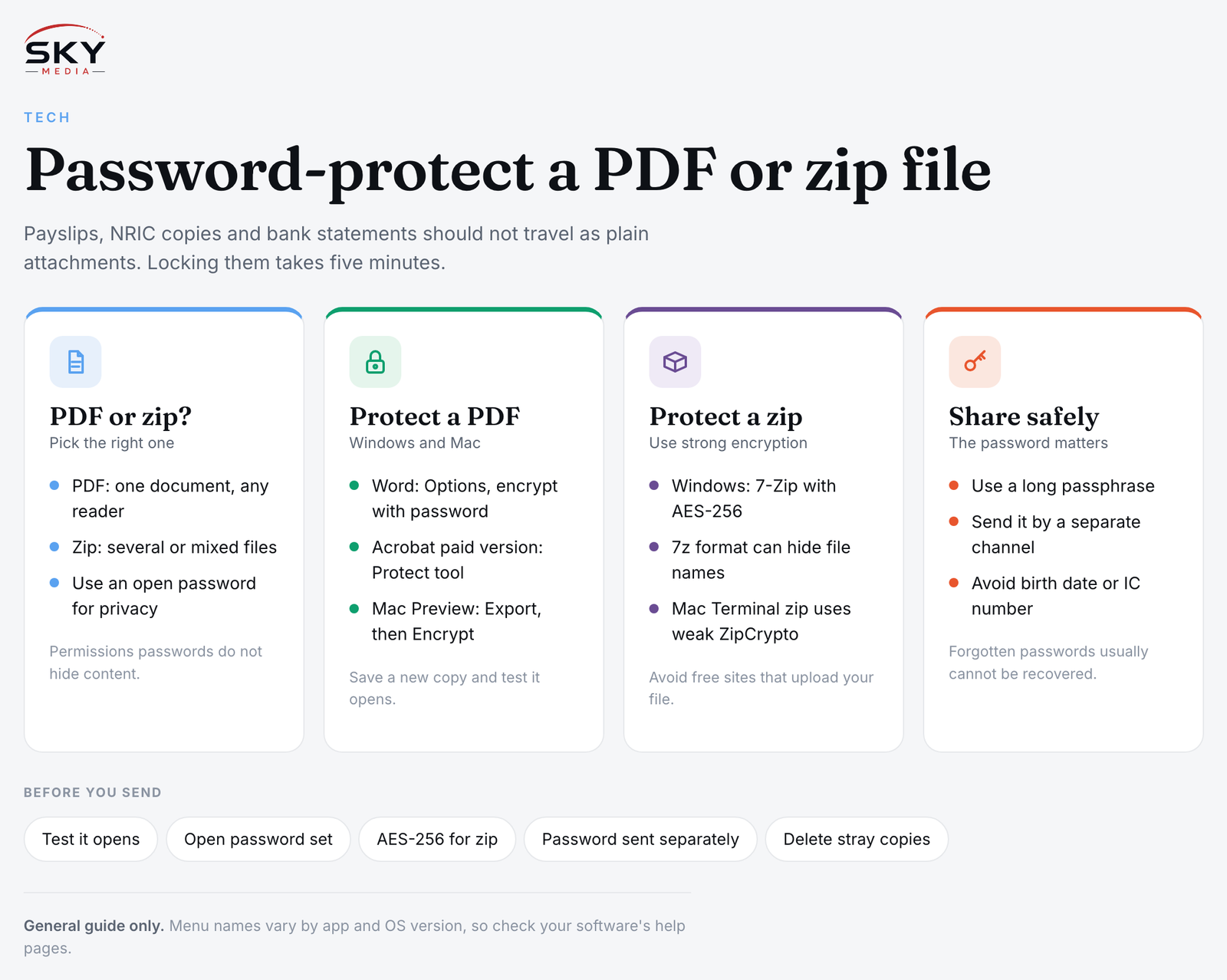
PDF Password vs Zip Password: Which to Use
Both approaches lock a file behind a password, but they suit different jobs.
- A password-protected PDF is best for a single document. The recipient opens it in any normal PDF reader and types the password. Nothing to extract.
- A password-protected zip file is best for several files at once, or for files that are not PDFs (photos, spreadsheets, scans). The recipient needs to extract the archive and enter the password.
PDFs also support two kinds of password. An open password (sometimes called a document open or user password) stops anyone from viewing the file without it. A permissions password (or owner password) only restricts actions like printing, copying or editing, and many apps can ignore it. If your goal is privacy, you need the open password.
| Method | Best for | Encryption strength | What the recipient needs |
|---|---|---|---|
| PDF open password | One document, such as a payslip or contract | Strong when the app uses AES encryption | Any PDF reader |
| PDF permissions password only | Discouraging edits or printing | Weak, does not hide content | Any PDF reader, no password to view |
| Zip with AES-256 | Several files or mixed file types | Strong | An extractor that supports AES, such as 7-Zip |
| Zip with legacy ZipCrypto | Basic compatibility | Weak, can be cracked | Almost any extractor |
How to Password-Protect a PDF on Windows
Windows does not have a built-in “lock this PDF” button, but there are reliable ways to do it.
From Microsoft Word (when the document starts in Word)
- Open your document in Word.
- Go to File, then Save As (or Save a Copy), and choose PDF as the file type.
- Click Options before saving.
- Tick Encrypt the document with a password and click OK.
- Enter and confirm your password, then save.
This is handy for letters, invoices and forms you write yourself.
With Adobe Acrobat (for existing PDFs)
If you have the paid version of Acrobat, open the PDF and look for the Protect tool, then choose the option to encrypt with a password. Set a password to open the document, choose a compatibility setting that uses AES encryption, and save. The free Acrobat Reader generally does not let you add passwords.
Other desktop PDF editors offer similar features. Our roundup of the best PDF tools and editors compares the options.
How to Password-Protect a PDF on a Mac
Macs can do this with the built-in Preview app, no extra software needed.
- Open the PDF in Preview.
- Go to File, then Export (in some macOS versions, Edit Permissions is also available under the File menu).
- Tick Encrypt, or set Require password to open document, depending on your macOS version.
- Enter and verify your password.
- Save the file with a new name so you keep an unprotected original for yourself.
Test the result by opening the new file. Preview should ask for the password before showing anything.
How to Make a Password-Protected Zip File
On Windows with 7-Zip
The zip tool built into File Explorer can create archives, but it does not offer a simple way to add a password. The free, open-source 7-Zip is the common choice.
- Download 7-Zip from its official website and install it.
- Select your files, right-click, and choose 7-Zip, then Add to archive (on Windows 11 you may need to click Show more options first).
- Set the archive format to zip if your recipient may not have 7-Zip, or 7z if they do.
- Under Encryption, enter your password and set the method to AES-256.
- Click OK.
Note that a zip file can still show its file names before the password is entered. If the names themselves are sensitive, use the 7z format and tick the option to encrypt file names.
On a Mac with Terminal
Finder’s Compress option does not add a password. You can use the built-in Terminal instead:
- Open Terminal.
- Type
zip -erfollowed by a space, then the name you want for the archive, such asdocuments.zip, then another space. - Drag the file or folder into the Terminal window to paste its path, and press Return.
- Enter and confirm your password when asked.
This built-in method uses the older ZipCrypto scheme, which is weaker than AES. For anything truly sensitive, a third-party Mac archiver that supports AES-256 is the better choice.
Doing It on Your Phone
Phone options depend on the apps you have.
- iPhone and iPad: the built-in Files app can compress files but does not add passwords. A reputable PDF app, such as the mobile version of a major PDF editor, may let you protect a PDF, though this is often a paid feature. Check the app’s privacy policy before uploading anything.
- Android: many file manager apps can create password-protected archives, and some PDF apps can add an open password. Look for an option that mentions AES encryption.
Be cautious with free websites that offer to lock your PDF online. You are uploading the unprotected document to someone else’s server first, which defeats much of the purpose for an NRIC copy or bank statement. Prefer apps that work on the device.
Choosing and Sharing the Password Safely
The encryption is only as good as the password and how you pass it on.
- Make it long. A passphrase of several unrelated words is stronger and easier to type than a short jumble of symbols.
- Never send the password in the same email as the file. Send it by a different channel, such as a phone call or a separate messaging app, so one leaked inbox does not expose both.
- Avoid obvious choices like your date of birth, IC number or phone number. Some banks and agencies use such patterns for statements they send you, but for files you create, choose something less guessable.
- Store it properly. If you need to remember many file passwords, a password manager is safer than a note on your desktop. Our password security guide explains the basics.
- Remember there is no recovery. If you forget the password to a strongly encrypted file, you generally cannot get it back. Keep your original unprotected copy in a secure place.
Quick Checks Before You Hit Send
- Open the protected file yourself to confirm it asks for a password.
- Confirm you used an open password for PDFs, not just permission restrictions.
- For zip files, confirm the method is AES-256 where possible.
- Send the password separately.
- Delete stray unprotected copies from shared folders or downloads.
These few minutes of care make a real difference whenever you share personal documents with landlords, employers, agents or schools.
Frequently Asked Questions
What happens if I forget the password to a protected PDF or zip file? With strong encryption you generally cannot get the file back, so there is no recovery. Keep an unprotected original in a secure place, and store passwords in a password manager rather than a note on your desktop.
Is it safe to use free websites that lock a PDF online? It defeats much of the purpose for sensitive files, because you upload the unprotected document to someone else’s server first. For an NRIC copy or bank statement, prefer apps that work on your device, and check any app’s privacy policy.
How should I send the password to the person receiving my file? Use a different channel from the file, such as a phone call or a separate messaging app, so one leaked inbox does not expose both. Choose a long passphrase of several unrelated words, and avoid your date of birth, IC number or phone number.
Why does my zip still show file names before I enter the password? A standard zip can display its file names even though the contents are locked. If the names themselves are sensitive, use the 7z format in 7-Zip and tick the option to encrypt file names. Choose AES-256 as the method where possible.
Can I password-protect a PDF on my iPhone or Android phone? Yes, but it depends on your apps. The iPhone Files app does not add passwords, so a reputable PDF app may be needed, often as a paid feature. On Android, look for file managers or PDF apps that mention AES encryption.
Further reading: How to Create a Fillable PDF Form