

If you moved to Singapore from mainland China, your typing life probably changed overnight. Chats with family stay in Chinese, but work emails, forms, bank apps and messages with neighbours are mostly in English. Switching back and forth dozens of times a day gets tiring, and small slips, such as a Chinese comma in an email address or a pinyin suggestion replacing an English word, add up.
A well-tuned Chinese English keyboard fixes most of this. This guide walks through input methods, switching shortcuts, punctuation, personal dictionaries and text shortcuts on both your phone and computer, so typing in two languages feels natural rather than clumsy.
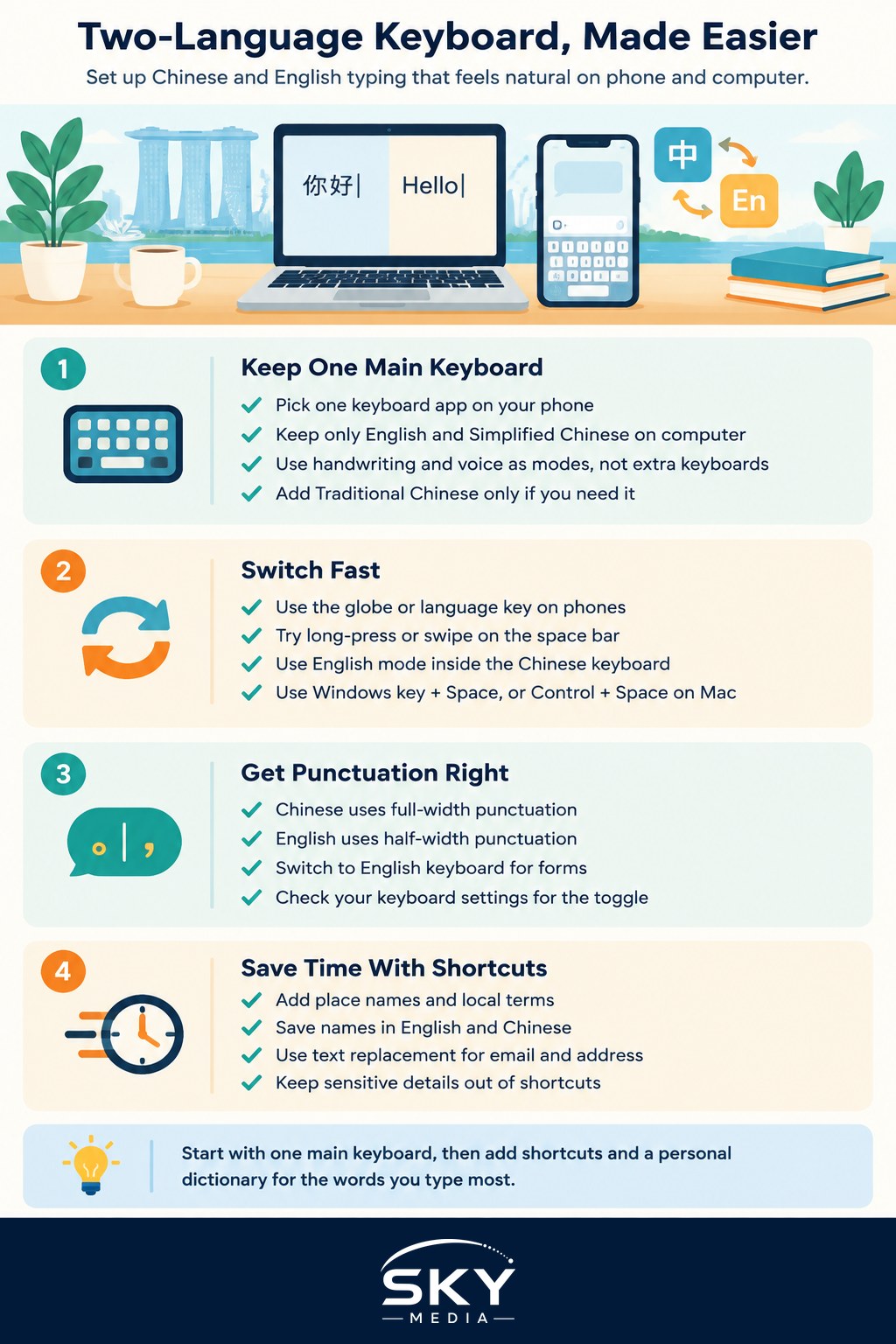
Choose One Main Input Method Per Device
The biggest improvement usually comes from simplifying. Many newcomers have three or four keyboards installed: the phone’s default, a popular Chinese input app, an English keyboard and maybe handwriting. Each has different settings and the phone keeps switching between them.
Instead:
- Phone: pick one keyboard app that supports both pinyin and English well, and remove or disable the others in the language and input settings.
- Computer: keep two input sources only, usually English (often called “ABC” or “US”) and a Simplified Chinese pinyin input. Windows and macOS both include a built-in pinyin input, so you may not need extra software.
- Handwriting and voice: add these as modes within your main keyboard if available, rather than as separate keyboards.
If your relatives use Traditional Chinese, you can still type in Simplified. Most chat apps and keyboards can convert, or you can add a Traditional input only if you genuinely need it.
Fast Switching Between Chinese and English
The goal is to switch in one quick action, without looking.
On phones:
- Most keyboards let you switch with a globe or language key, or by long-pressing or swiping on the space bar.
- Many pinyin keyboards also have an English mode inside the Chinese layout, so you can type a short English word without leaving the keyboard.
- Turn on bilingual suggestions if available, so English words still appear while typing pinyin.
On computers:
- Windows: press Windows key + Space to cycle input methods. In the built-in Microsoft Pinyin input, a single Shift press usually toggles between Chinese and English mode.
- macOS: Control + Space switches input sources, and there is an option in keyboard settings to use the Caps Lock key to switch to and from English.
Shortcuts can change between software versions, so check your system’s keyboard settings if one does not work.
| Task | Phone | Computer |
|---|---|---|
| Switch language | Globe key or swipe on space bar | Windows key + Space, or Control + Space on Mac |
| Quick English word in Chinese mode | English mode within pinyin keyboard | Shift toggle in the pinyin input |
| Add a personal word | Long-press suggestion or keyboard dictionary settings | Input method’s user dictionary or custom phrase settings |
| Expand a shortcut | Text replacement in keyboard or system settings | Text replacement (Mac) or input method custom phrases (Windows) |
| Fix punctuation | Toggle full-width and half-width in keyboard settings | Punctuation setting in the pinyin input toolbar |
Getting Punctuation Right
Punctuation trips up bilingual typists more than any other issue. Chinese input uses full-width punctuation (such as ,。:“”), which takes up more space and is technically different from English half-width punctuation (such as , . : “”).
Where this matters in Singapore:
- Email addresses and web addresses will not work with a full-width @ or full stop.
- Online forms for banks, telcos and government services may reject full-width characters or show errors.
- Passwords typed in Chinese mode may contain different characters from what you think.
- Work documents look untidy when Chinese commas appear in English sentences.
Fixes:
- Set your pinyin input to use English punctuation when in English mode, which most inputs do by default.
- Learn the toggle for full-width and half-width punctuation in your keyboard’s settings.
- When filling in forms, switch fully to the English keyboard first.
Build a Personal Dictionary for Singapore Life
Default dictionaries do not know your life here. Spend ten minutes adding words you type often:
- Place names: your estate, MRT stations, road names, your office building.
- Local terms: HDB, CPF, MOM, NRIC, EP (Employment Pass), S Pass, Singpass. Adding them stops autocorrect from “fixing” them.
- People’s names in both English and Chinese, including colleagues’ English names.
- Common mixed phrases you use with friends.
In pinyin keyboards, you can also add custom phrases so a short code produces a frequently used Chinese sentence. Over a few weeks, most keyboards also learn your habits automatically.
Text Shortcuts That Save Real Time
Text replacement turns a short code into a full phrase. It is one of the most useful features for newcomers who type the same details repeatedly.
Ideas:
@@for your email addressaddrfor your full Singapore address, including postal codemyphfor your mobile number- A short code for a polite English sign-off for work emails
- A short code for a common Chinese greeting for family
On iPhone and Mac, text replacement is in keyboard settings and can sync across devices on the same account. On Android, it depends on your keyboard app. On Windows, many pinyin inputs offer custom phrases. Avoid storing sensitive details such as passport or bank numbers as shortcuts.
Voice and Handwriting as Backups
Sometimes typing is not the best option.
- Voice input is handy for quick messages, especially in Chinese. Be aware that voice data may be processed online; check the keyboard’s privacy settings.
- Handwriting input helps when you do not know the pinyin for a character, such as an unusual name or place.
- For older parents visiting from China, setting up handwriting or voice input on their phone can make messaging much easier.
Privacy, Sync and Two Devices
Keyboard apps see everything you type, so choose carefully.
- Use keyboards from your phone maker or well-known providers, installed from official app stores.
- Review whether “cloud input” or “personalised suggestions” are switched on, and what data they send.
- If you carry a work phone and a personal phone, decide which shortcuts and dictionaries belong on which. Our guide to managing two phones for work and personal use has more ideas for keeping them separate.
If you work across both languages professionally, a careful keyboard setup is part of your toolkit; our guide to becoming a Chinese-English translator or interpreter explores that path further. Families can also use the same tips to help children practise typing pinyin, which supports keeping up your child’s Chinese at home.
With one main input method, a reliable switching shortcut, correct punctuation and a personal dictionary, your Chinese English keyboard stops getting in the way, and you can focus on what you are actually saying.