
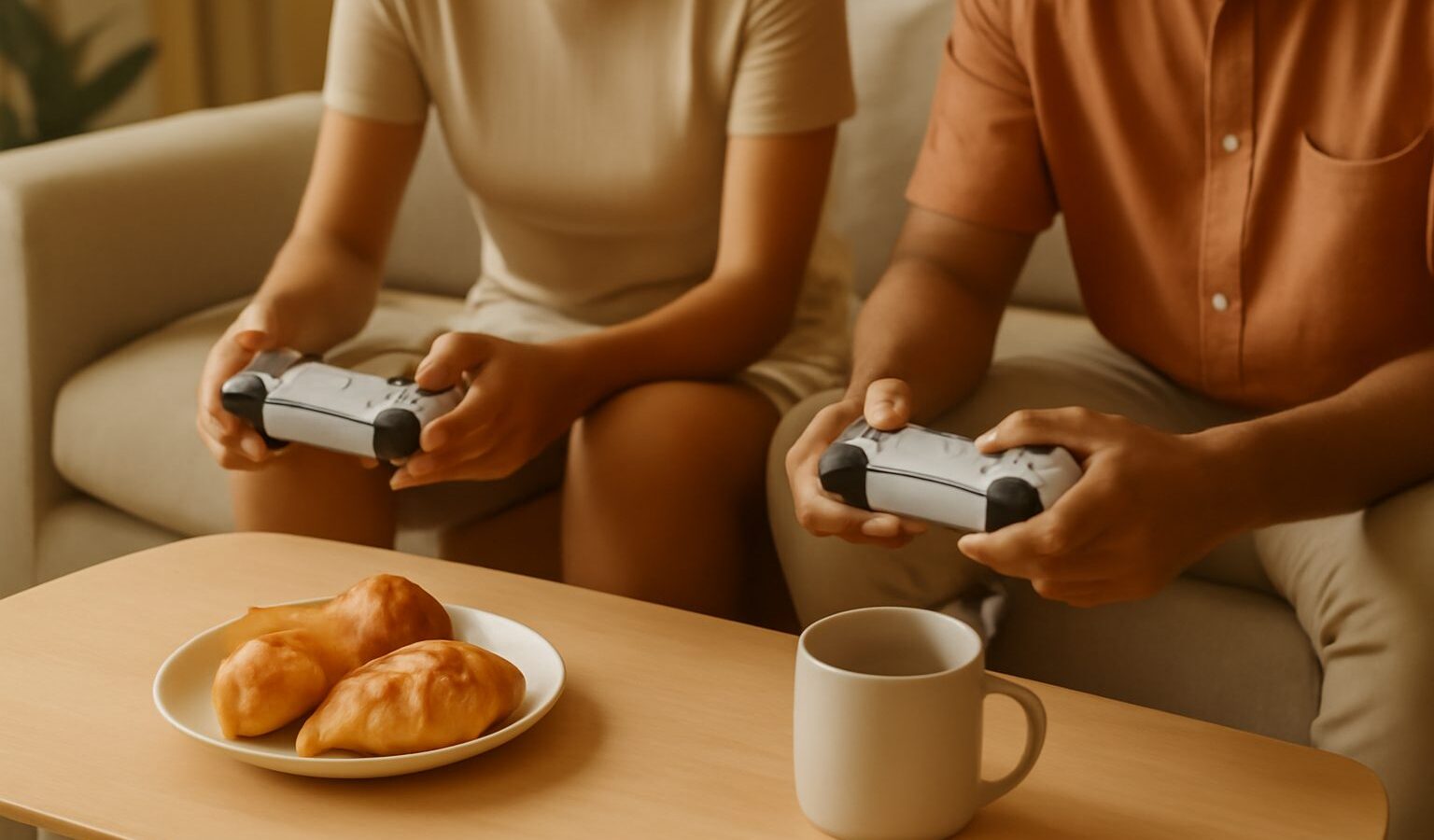
If you have ever picked up a gamepad and wondered what half the buttons do, you are in good company. Game controllers can look busy at first, with two thumbsticks, a cluster of buttons, triggers on the back and a little pad on the side, yet the logic behind them is simpler than it appears. This guide walks a complete beginner through what game controllers are, how they connect, what all those buttons actually do, and how to choose one that suits your setup and budget in Singapore, whether you play on a console, a PC or a phone.
What a Game Controller Actually Does
A game controller, sometimes called a gamepad, is the handheld device you use to tell a game what to do. It translates the way you press, hold and nudge its buttons and sticks into actions on screen, such as moving a character, aiming, jumping or selecting a menu option. It is the middle layer between you and the game, and a comfortable, responsive one makes play feel natural rather than fiddly.
Most modern controllers share a common shape because it works well for long sessions. You hold it with both hands, your thumbs rest on the sticks and face buttons, and your index fingers reach the triggers and bumpers at the top. Once your hands learn where everything sits, you stop looking down and simply play. That muscle memory is why many players stick with a familiar layout for years.
Controllers are not only for consoles. A PC happily accepts one, many mobile games support them, and the same gamepad can often serve several devices. That flexibility makes a good controller one of the more useful purchases a new player can make.
Wired or Wireless: Which to Choose
One of the first choices you will face is wired or wireless. Both work well today, and the right pick depends on how and where you play. A wired controller plugs straight into your console or PC with a cable, so it never needs charging and tends to have a very steady connection. A wireless controller frees you from the cable and lets you sit back on the sofa, but you will need to charge it or keep spare batteries handy.
For a tidy gaming corner in a compact HDB flat, wireless keeps things neat and lets you sit a comfortable distance from a TV. If you play at a desk right next to your machine, or you want to avoid ever thinking about battery levels, wired is refreshingly simple. Many players end up owning one of each over time.
| Feature | Wired controller | Wireless controller |
|---|---|---|
| Power | Draws power through the cable, never runs flat | Needs charging or batteries |
| Connection | Very steady, no pairing needed | Very good, occasional pairing or interference |
| Freedom to move | Limited by cable length | Sit anywhere in the room |
| Setup | Plug in and play | Pair once, then reconnect automatically |
| Best for | Desk play, tournaments, no fuss | Sofa and TV play, a tidy setup |
Neither option is objectively better. Decide based on your seating distance, how much you mind charging, and whether a trailing cable bothers you.
Understanding the Buttons and Sticks
The parts of a controller become far less intimidating once you know their jobs. Here is what you will find on a typical modern gamepad.
- Two thumbsticks. The left stick usually moves your character, while the right stick controls the camera or your aim. Many sticks also click inward as an extra button.
- A directional pad, or D-pad. A small four-way pad, handy for menus, quick weapon switches, or precise moves in fighting and platform games.
- Four face buttons. The main action buttons under your right thumb, used for jumping, confirming, attacking and so on. Games tell you which does what.
- Bumpers and triggers. The shoulder buttons and the longer triggers behind them, reached by your index fingers. Triggers are common for accelerating in racing games or firing in shooters.
- System and menu buttons. Small central buttons that pause the game, open menus, or return you to the home screen.
Some controllers add extras such as rear paddles, a touch-sensitive pad, motion sensors that respond when you tilt the device, or a small speaker. These are nice to have rather than essential, and a beginner does not need them to enjoy games fully.
Matching a Controller to Your Platform
Not every controller works with every device, so it pays to check compatibility before you buy. Each major console generally works best with its own brand of controller, and while third-party pads exist, sticking with the official one first avoids surprises for a newcomer.
- On a console, use the controller made for that console, or a well-reviewed licensed alternative. It will pair out of the box and support every feature.
- On a PC, many mainstream console controllers work over a cable or wirelessly, and Windows recognises the common ones automatically. Some older or niche games may need a quick settings tweak.
- On a phone or tablet, a growing number of controllers connect wirelessly for mobile games and cloud gaming, and some clip your phone into the middle so it feels like a handheld.
If you plan to play across several devices, look for a controller advertised as compatible with all of them, and confirm the details on the packaging or product page before paying. Compatibility claims change with updates, so recent buyer reviews are a useful sanity check.
Comfort, Fit and Looking After Your Controller
Because you hold a controller for long stretches, comfort matters more than flashy features. Hand sizes differ, so if you can, hold a controller in a shop before buying to see whether the grips, stick placement and button reach suit you. A pad that feels natural in your hands helps you play longer without strain, which ties into wider habits around good posture and regular breaks.
Looking after a controller keeps it feeling good for years. Wipe it with a dry or barely damp cloth now and then, keep drinks away from it, and store it somewhere cool and dry rather than in direct sun. For wireless pads, avoid leaving them on charge indefinitely if the manual advises against it, and keep the charging port free of dust. Over a long time, thumbsticks can start to drift or register movement on their own, which is normal wear, so treat the sticks gently and avoid yanking them.
Buying Your First Controller in Singapore
You can find controllers easily across Singapore, from the big electronics chains in the IT malls to online marketplaces and dedicated game shops. Prices vary widely between a basic third-party pad and a premium official model with extra features, so set a budget first and match it to how much you will play.
A sensible approach for a beginner is to start with the standard official controller for your platform, or a reputable licensed one, rather than the most expensive model with paddles and swappable parts you may never use. Buy from a seller with a clear returns policy and a genuine warranty, since a controller is something you will handle daily. Because models, features and prices change often, check current listings and recent reviews rather than relying on older recommendations, and be wary of prices that look too good to be true on unfamiliar sellers. Get the fit and the basics right, and you will barely think about the controller at all, which is exactly the point.
Explore more
Ready to round out your setup? Pair your new pad with the right desk gear in our guide to gaming keyboards and mice explained, then make your space comfortable with tips on setting up a gaming corner in your HDB flat. To keep long sessions kind to your body, read avoiding gaming strain and injury.