
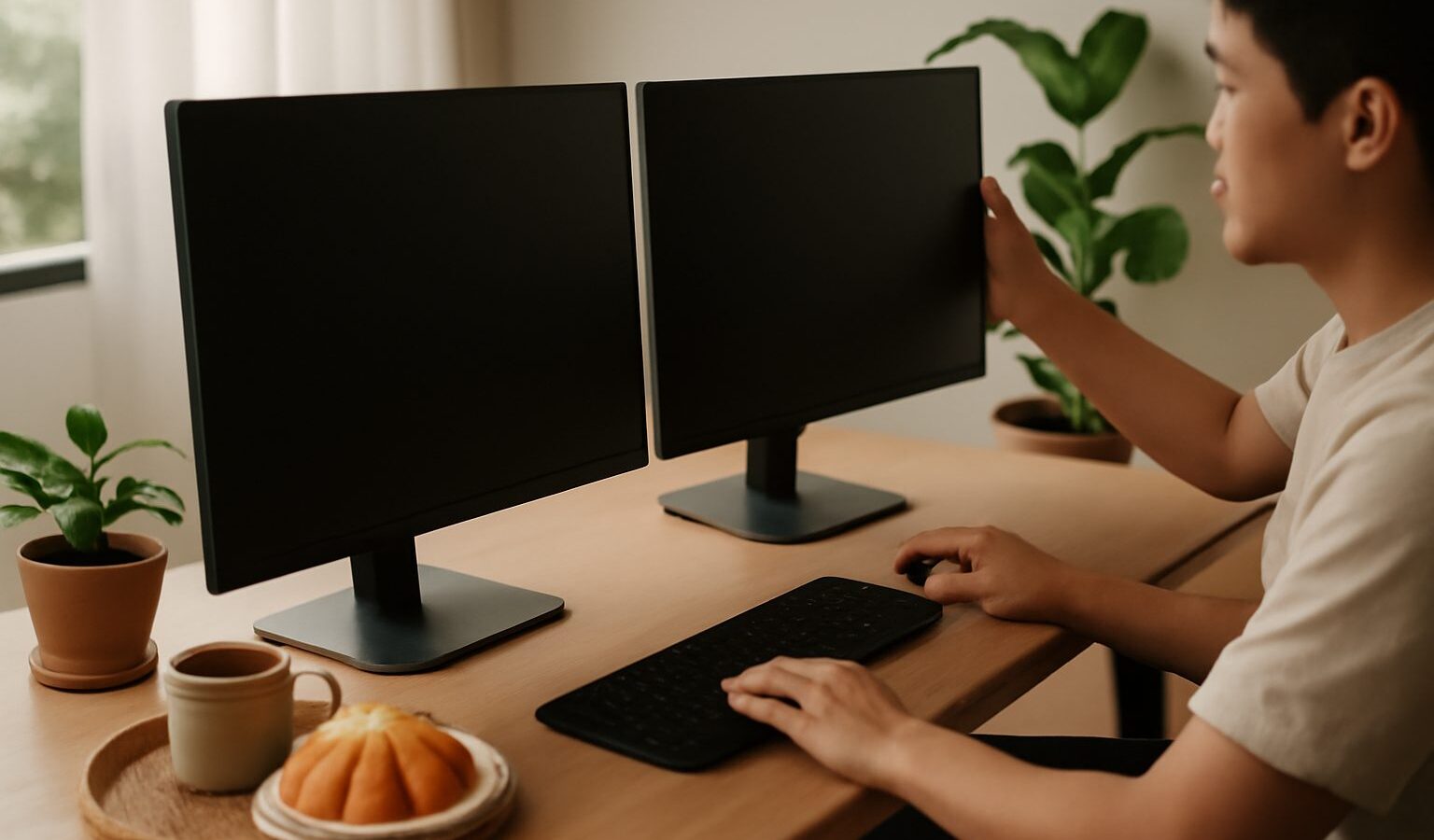
Working with one small screen means endless clicking between windows, and it quietly slows you down all day. A dual-monitor setup in Singapore is one of the cheapest, most satisfying upgrades you can make to a home office, whether you work from an HDB flat, study for exams, or juggle a side hustle after hours. Spreading your work across two screens lets you read on one while typing on the other, keep a video call open beside your notes, or compare documents side by side. This guide shows you how to plan it, connect it, and arrange it comfortably.
You do not need a fancy room or an expensive rig. You need a laptop or computer, a second screen, the right cable, and a little space to work with.
Check What Your Computer Can Drive
Before buying anything, find out how many screens your machine can support and through which connections. Most laptops and desktops can run at least one external screen, and many can run two or more.
Look at the sides or back of your computer for video ports. Common ones include a wide flat port for modern displays, a smaller port shaped like a slim oval used on many recent laptops, and an older rectangular port still found on plenty of monitors. Note which ones you have, because the cable you need depends on matching your computer’s port to your monitor’s port.
If your laptop has only one video output, you can often add another screen through a docking station or a small adapter hub that plugs into a single port and provides extra display connections. This is a common and reliable approach for slim laptops with few ports. When in doubt, check your computer maker’s support pages for the exact number of external screens your model can handle, rather than assuming.
Match Cables, Ports and Adapters
Getting the right cable is where most people stumble, so slow down here. The goal is simple: connect a video output on your computer to a video input on your monitor.
- If both devices share the same port type, use a straight cable of that type. This is the easiest case.
- If the ports differ, you need an adapter or a cable with a different plug on each end, for example one that goes from your laptop’s slim port to your monitor’s wide port.
- If your laptop is very compact, a docking station or multi-port hub lets you add screens plus power and other devices through one connection.
Buy cables and adapters from reputable electronics retailers or trusted online marketplaces, and avoid the very cheapest no-name options, which can be flaky. You do not need the most expensive cable either. A reliable mid-range one is fine for everyday work. If a picture flickers or drops out, a poor cable or loose connection is the usual culprit, so reseat it firmly or swap it before blaming the screen.
Arrange and Configure Your Screens
Once everything is plugged in, your computer should detect the second screen automatically. If not, open your display settings and choose to detect displays. Then set things up the way you like.
- Choose extend, not duplicate. Duplicate shows the same image on both screens, which is only useful for presentations. Extend treats the two as one wide desktop, which is what you want for real work.
- Set the correct positions. In display settings, drag the on-screen boxes so they match how the monitors physically sit on your desk. If the left and right are swapped, your mouse will move the wrong way, so fix this here.
- Pick your main screen. Choose which monitor holds your taskbar, clock and main menus. Usually this is the one directly in front of you.
- Adjust scaling and resolution. If text looks tiny or blurry, raise the scaling so everything is comfortable to read, and set each screen to its recommended resolution.
- Align the height. Try to keep the tops of both screens level so your eyes and neck are not forced to jump up and down.
Take a few minutes to get these settings right. A well-arranged pair of screens feels natural within a day, while a badly aligned one nags at you constantly.
Make It Fit an HDB Desk
Space is the real constraint for many of us, and a typical HDB study nook or bedroom desk is not huge. A little planning keeps two screens from taking over.
Measure your desk depth first. Screens need enough distance from your eyes, ideally about an arm’s length, so a shallow desk can feel cramped with two large monitors. In tight spaces, a laptop plus one external screen is often the sweet spot, since the laptop’s own display becomes your second screen for free.
A monitor arm that clamps to the desk edge frees up the surface underneath and lets you push screens back and adjust their height easily. If you would rather not mount anything, keep the stands close together and route cables neatly along the back with simple clips or ties, so the setup looks tidy and nothing gets yanked. Mind our climate too: leave a little airflow around the computer and avoid boxing it into a hot, closed corner, since heat is hard on electronics here.
| Setup style | Best for | Watch out for |
|---|---|---|
| Laptop plus one screen | Small HDB desks, hot-desking | Laptop screen sits lower |
| Two matching monitors | Fixed home office, long hours | Needs deeper desk space |
| Monitor arms on desk | Freeing up surface, posture | Check desk edge thickness |
| Dock plus screens | Slim laptops with few ports | Buy a reliable dock |
Work Comfortably and Avoid Strain
A bigger workspace is only a win if it does not leave you aching. Long hours at two screens make posture matter even more.
Keep the top of your main screen at roughly eye level so you look slightly down, not up. Sit back far enough that you can see both screens without craning your neck side to side. If you glance at the second screen often, angle it gently toward you rather than leaving it flat. Position the pair so the one you use most is squarely in front of you, and treat the other as your reference space.
Rest your eyes too. In our bright indoor lighting, reduce glare by facing screens away from windows and strong lamps, and lower the brightness in the evening. Follow the simple habit of looking at something far away for a short break every so often, and stand up now and then. A comfortable dual-monitor workspace should leave you more productive and less tired, not the other way around.
Explore more
A smoother workspace starts with a computer that keeps up, so if yours drags, read our guide to speeding up a slow laptop. Before adding hardware, it helps to know what your machine can handle, covered in understanding laptop specs before you buy, and to keep everything running cleanly, see maintaining and cleaning your laptop.