
If you work or study from home, the way your desk is arranged shapes how your body feels at the end of every day. A screen too low, a chair too soft, or a keyboard at the wrong height slowly builds into a stiff neck, aching shoulders, sore wrists, and a tired back. The reassuring part is that a comfortable, healthy setup does not need an expensive designer office or a spare room. Building an ergonomic workspace in Singapore is mostly about position and habit, and it works even in a compact HDB flat where the desk shares a corner with the rest of family life. This guide walks through the essentials in plain terms.
Ergonomics simply means arranging your tools and furniture so your body stays in a natural, relaxed position rather than straining to reach or hunch. Get the basics right and everything else follows.
Start With Your Chair and Sitting Position
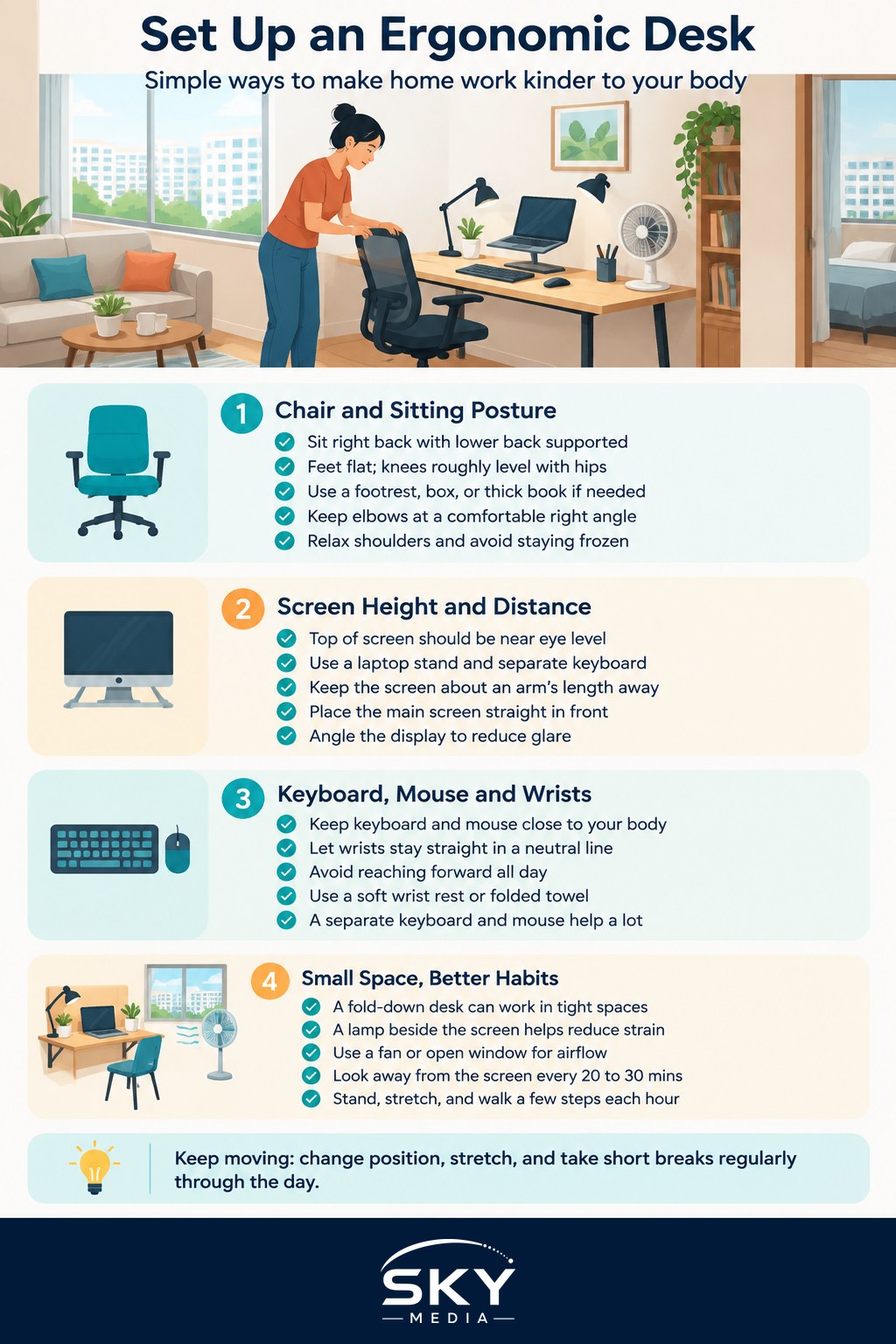
Your chair is the foundation, so set it up first. Sit right back so your lower back is supported, with your feet flat on the floor and your knees roughly level with your hips. If your feet dangle, a footrest, a sturdy box, or even a thick book brings them up. If the chair digs into the back of your knees, add a cushion behind your lower back to shift you forward.
Your elbows should rest at about a right angle when your hands are on the keyboard, with your shoulders relaxed and down rather than shrugged up. If your armrests force your shoulders up, lower them or remove them. A dining chair can work for short stints, but for long days a chair with proper back support is one of the few things genuinely worth investing in, since it protects your spine every single day.
Whatever you sit on, the most important rule is to move. No chair, however good, is healthy if you stay frozen in it for hours.
Get Your Screen to the Right Height
The single most common mistake is a screen that sits too low, which pulls your head and neck forward and down. Over a long day that posture is what leaves your neck and shoulders aching.
The fix is simple. The top of your screen should be roughly at or just below your eye level, so your gaze falls naturally onto the upper third of the display without tilting your head. If you use a laptop, its screen is almost always too low because the keyboard is attached. Raising the laptop on a stand or a stack of books, then plugging in a separate keyboard and mouse, transforms your posture instantly and cheaply. This one change helps more than almost anything else.
Position the screen about an arm’s length away, and directly in front of you rather than off to one side, so you are not twisting to see it. If you use two screens, place the main one straight ahead. Angle the display to avoid glare from windows and ceiling lights, which in our bright flats can force you to squint or lean in.
Sort Out Keyboard, Mouse, and Wrists
With the chair and screen set, turn to your hands. Your keyboard and mouse should sit close enough that your elbows stay near your body and bent at a comfortable angle, not stretched forward. Keep your wrists straight and floating in a neutral line rather than bent up or resting hard on a sharp desk edge. A soft wrist rest or even a folded towel can cushion the edge.
Using a laptop keyboard for hours tends to bunch your arms together and hunch your shoulders. A separate keyboard and mouse let you spread out and relax, and they pair perfectly with raising the laptop screen. Keep the mouse right beside the keyboard so you are not reaching sideways all day. Small, frequent adjustments here prevent the wrist strain that creeps up on heavy computer users.
Make It Work in a Small HDB Space
Most homes here do not have a dedicated study, so the workspace shares space with dining, sleeping, or family life. That is completely workable with a little planning.
| Challenge | Simple solution |
|---|---|
| No room for a desk | A fold down or wall mounted shelf desk you clear after work |
| Working at the dining table | A laptop stand plus separate keyboard, packed away at mealtimes |
| Screen too low everywhere | Books or a cheap riser to lift the display to eye level |
| Harsh overhead glare | Angle the screen and add a small task lamp to the side |
| Warm, stuffy corner | A small fan and good airflow to stay comfortable and focused |
The trick in a compact flat is a setup you can assemble and pack away quickly, so work does not permanently take over the home. Good lighting matters too. A small lamp beside your screen reduces eye strain far better than a single harsh ceiling light. Our climate adds one more factor: a warm, poorly ventilated corner makes long sessions miserable and can overheat a laptop, so keep some airflow with a fan or an open window.
Small Habits That Protect Your Body
The best ergonomic setup still fails if you sit like a statue all day. Your body is built to move, and movement is the real secret to feeling good at a desk.
Follow a simple rhythm: every twenty to thirty minutes, look away from the screen at something distant for a short while to rest your eyes, and every hour, stand up, stretch, and walk a few steps, even just to refill your water. Set a gentle reminder on your phone if you tend to forget. Roll your shoulders, tilt your head side to side, and open your chest to undo the hunch that builds over a morning.
Stay hydrated, which in our heat also keeps you alert, and try alternating between sitting and standing if you have any way to raise your work surface. None of this needs special equipment. A comfortable workspace is really a combination of sensible positioning and the simple habit of moving often. Get those right and you can work or study for hours in a small home without paying for it in aches later.
Explore more
A comfortable desk pairs well with a tidy, well run digital life. If your home office doubles as a paperwork hub, see our guides on going paperless at home and scanning and organising documents at home. And to keep focus while you work, our walkthrough on managing notifications and staying focused helps quiet the distractions around your desk.
Frequently Asked Questions
Do I really need to buy an expensive ergonomic chair? Not necessarily. A dining chair can do for short stretches, but for long days a chair with proper back support is one of the few purchases worth considering. A cushion for the lower back, a footrest and good habits can cover a lot meanwhile.
My laptop is my only computer, so how do I fix my posture? Raise the laptop on a stand or a stack of books so the screen sits near eye level, then add a separate keyboard and mouse. This cheap change helps neck and shoulders more than almost anything else on the list.
How far should my screen be from my eyes? About an arm’s length away, directly in front of you, so you are not twisting to see it. Tilt it to avoid glare from windows and ceiling lights. If you keep leaning in or squinting, the screen is probably too far or poorly lit.
How often should I take breaks when working at a desk? Every twenty to thirty minutes, look at something distant to rest your eyes, and about once an hour stand up, stretch and walk a few steps. A phone reminder helps if you forget. Moving often matters as much as the setup itself.
When should I see a doctor about desk-related aches? See a doctor or physiotherapist if pain, numbness or tingling in your neck, back or wrists persists or keeps getting worse despite adjusting your setup. Do not wait for it to become severe, and avoid self-diagnosing from the internet.
Further reading: Using a Tablet as a Second Screen · How to Set Up a Reliable Study Tech Routine for Teens