

There are plenty of moments when the Wi-Fi simply is not there. You are waiting at a void deck, sitting in a coffee shop with no usable network, or your home broadband has gone down right before an important video call. In all of these situations, a mobile hotspot singapore users can rely on turns your phone into a personal Wi-Fi source, sharing its mobile data with your laptop, tablet, or a friend’s device. It sounds technical, but the whole thing usually takes less than a minute once you know where to look.
This guide walks you through setting up a hotspot on both Android and iPhone, explains how to keep it secure, and shares a few habits that will save your data allowance and your battery. We will keep the local telcos general here, because plans and data rules change often, so always check your own plan for the current details.
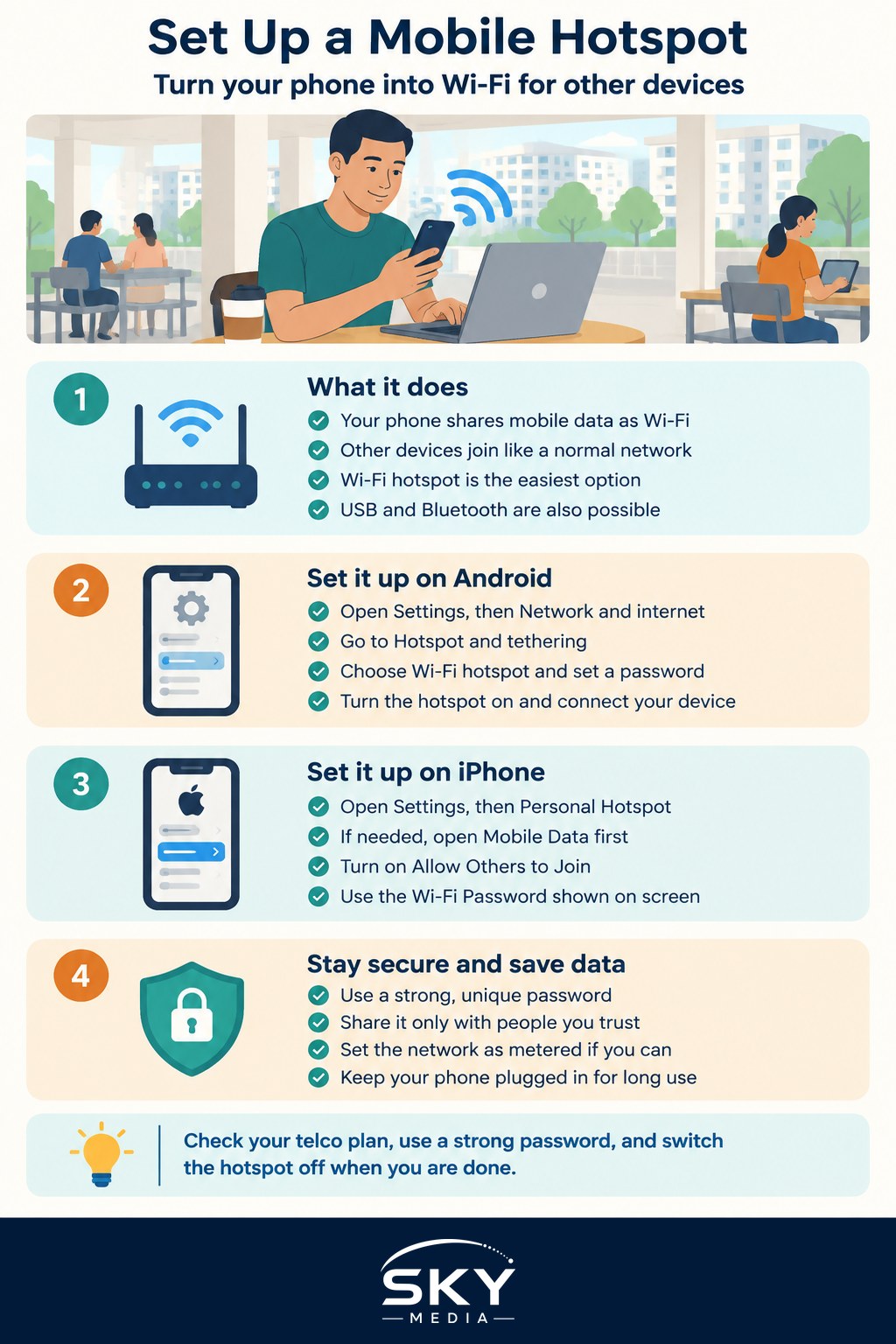
What a Mobile Hotspot Actually Does
A mobile hotspot, sometimes called tethering, lets your phone act like a small Wi-Fi router. Your phone stays connected to the mobile network, and it broadcasts a Wi-Fi signal that other devices can join. Anything those devices download or upload counts against your phone’s mobile data, not a separate line.
There are usually three ways to share the connection. Wi-Fi hotspot is the most common and lets several devices connect at once. USB tethering uses a cable, which is slower to set up but sips less battery and can be more stable. Bluetooth tethering is the slowest but uses very little power, which can be handy in a pinch. For most people, the Wi-Fi hotspot is the right choice.
One important note for Singapore users: most local telcos include hotspot or tethering as part of your normal data, but some older or cheaper plans treat it differently or set limits. Rather than assume, open your telco’s app or website and check what your specific plan allows. This saves you from a surprise later.
Setting Up on Android
Android phones vary a little by brand, but the steps are broadly the same.
- Open Settings, then look for Network and internet or Connections.
- Tap Hotspot and tethering, then Wi-Fi hotspot (sometimes called Mobile Hotspot or Portable Hotspot).
- Tap the hotspot name to change it if you like, and set a strong password. Choose WPA2 or WPA3 security if the option appears.
- Toggle the hotspot on.
On your laptop or tablet, open the Wi-Fi menu, find your hotspot name, and enter the password. That is it. Many Android phones also show a quick tile in the pull-down shade so you can switch the hotspot on and off without digging through settings each time.
Setting Up on iPhone
Apple keeps this fairly tidy.
- Open Settings, then tap Personal Hotspot (if you do not see it, tap Mobile Data first, then Personal Hotspot).
- Turn on Allow Others to Join.
- Note the Wi-Fi Password shown on screen, and tap it to set your own if you prefer something memorable.
If your other Apple devices are signed in to the same Apple ID, they can often connect without a password at all through Apple’s Instant Hotspot feature. For a Windows laptop or an Android tablet, just join the network the normal way using the password.
Keeping Your Hotspot Secure
A hotspot is a real Wi-Fi network, so treat it like one. Always set a strong, unique password rather than leaving the default in place, and share it only with people you trust. An open or weak hotspot can be spotted and joined by strangers nearby, who would then be eating your data and, worse, sharing a network with your devices.
Turn the hotspot off when you are done. Leaving it broadcasting all day drains battery and keeps a network open longer than needed. If you regularly work off your phone in public, it is worth reading up on broader habits in our cybersecurity basics guide and making sure your accounts are protected with two-factor authentication.
Saving Data and Battery
Hotspots can burn through data quickly, especially if a connected laptop decides to download system updates or sync large files. A few simple habits help. On your laptop, set the hotspot network as a metered connection so the system holds back big downloads. Pause cloud backups and streaming while tethered, and download large files later on proper Wi-Fi.
Battery is the other cost. Broadcasting Wi-Fi is demanding, so keep your phone plugged in during long sessions if you can. USB tethering both charges the phone and shares data at the same time, which is a neat trick for extended use. If you are often out and about relying on your phone, it is worth reading our guide to power banks and charging gear so you are never caught flat.
If you travel, a hotspot is also a lifeline, though roaming data can be pricey. Our eSIM and travel connectivity guide covers cheaper ways to stay online overseas before you rely on tethering abroad.
A Quick Wrap-Up
Setting up a mobile hotspot is one of those small skills that pays off again and again. Turn on tethering in your settings, set a strong password, connect your other device, and remember to switch it off when finished. Keep an eye on your data if your plan has limits, keep the phone charged during long sessions, and check your telco’s app so you know exactly what your plan allows. Once it becomes second nature, you will always have a backup way to get online.
Further reading: Mobile Data and Roaming Guide for Singapore