
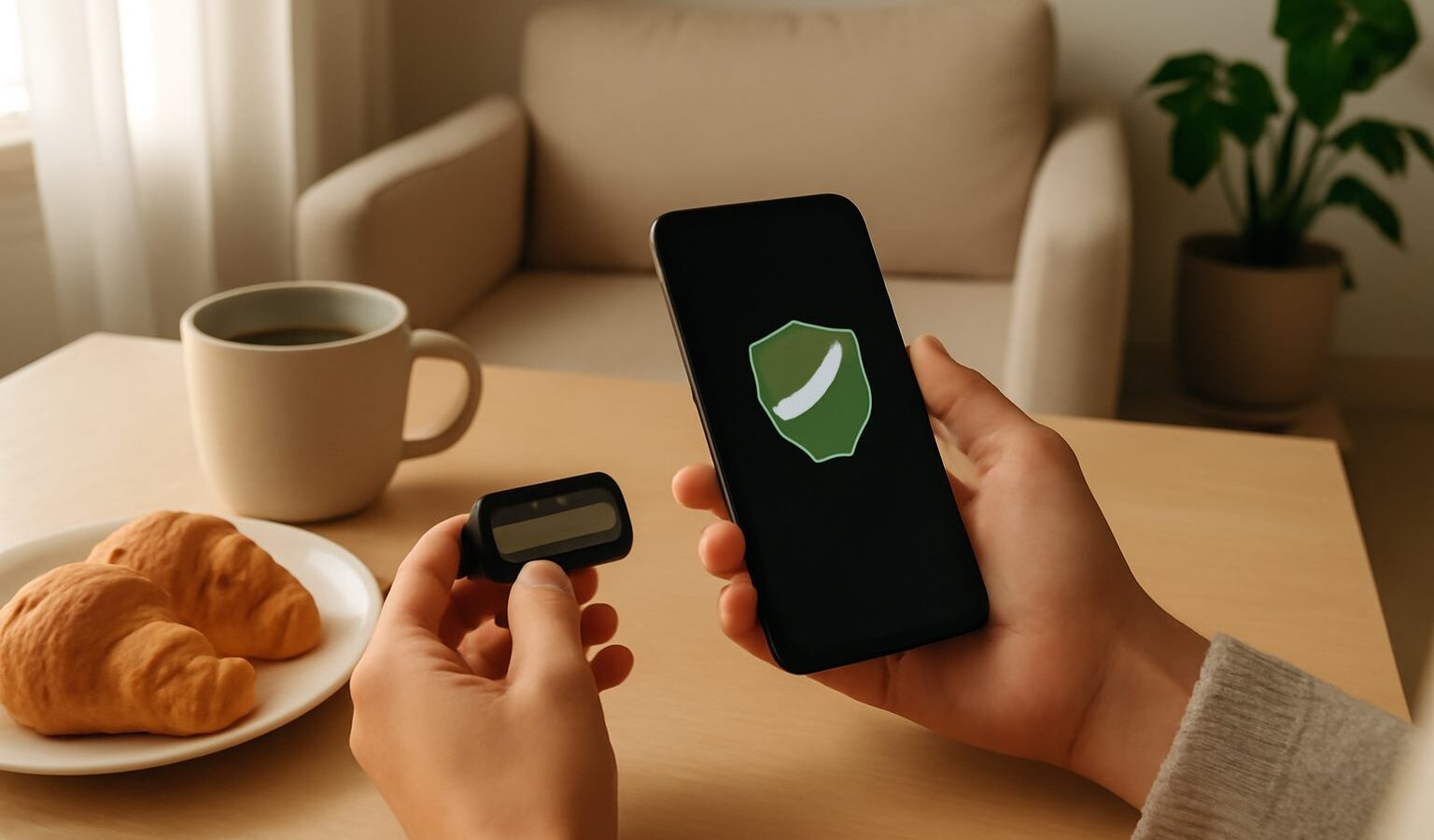
A password alone is no longer enough to keep an account safe, because a leaked or guessed password hands an attacker the keys. Two-factor authentication Singapore residents can switch on in minutes fixes this by demanding a second proof of identity before anyone gets in. This guide explains what that second factor is, the different types you can use, which accounts to protect first, and how to set it up without locking yourself out.
What Two-Factor Authentication Actually Is
Two-factor authentication, often shortened to 2FA, means proving who you are with two separate things instead of one. Security people group these proofs into three categories:
- Something you know, such as a password or PIN.
- Something you have, such as your phone, a code-generating app, or a physical security key.
- Something you are, such as your fingerprint or face.
A normal login uses only the first category. Two-factor authentication adds a second from a different category, so even if a criminal steals your password, they still cannot log in without the second factor sitting in your pocket. This is why banks, government services and email providers increasingly insist on it.
You already use this pattern more than you realise. Withdrawing cash needs your card, something you have, plus your PIN, something you know. Singpass, which secures your access to hundreds of government and private services, layers additional verification on top of your password for the same reason. Our Singpass guide covers how that system works in more detail.
The Main Types of Second Factor
Not all second factors are equally strong. They range from convenient but weaker to highly secure, and knowing the differences helps you choose well.
| Method | How it works | Security level | Best for |
|---|---|---|---|
| SMS one-time password | A code is texted to your phone number | Basic; better than nothing | Accounts with no stronger option |
| Authenticator app | An app generates a rotating 6-digit code | Strong | Most email, social and banking logins |
| Push notification | You approve a prompt in the provider’s app | Strong | Everyday logins where speed matters |
| Hardware security key | A physical key you plug in or tap | Strongest | High-value accounts and the security-conscious |
| Passkey | A cryptographic login tied to your device and biometrics | Strongest | Modern accounts that support it |
SMS codes are the most familiar, but they are the weakest option because numbers can be hijacked through SIM-swap fraud and messages can be intercepted. Use SMS where nothing better is offered, but prefer an app.
Authenticator apps generate a fresh six-digit code every thirty seconds on your device, with nothing sent over the network, which closes the SIM-swap loophole. Passkeys are the newest and arguably best approach, replacing the password entirely with a secure key unlocked by your fingerprint or face. Support is growing quickly across major services.
Which Accounts to Protect First
You do not need to secure everything at once. Work outward from the accounts that would do the most damage if lost, because those are the ones criminals target.
- Your primary email. This is the master key, since password resets for almost everything else land in your inbox. Protect it before anything else.
- Banking and payment apps. These usually enforce their own strong verification already, but confirm it is switched on and understand how it works.
- Singpass. Your gateway to government services, CPF, tax and healthcare records deserves the strongest protection available.
- Cloud storage and photo backups. These hold your personal files and often the recovery routes to other accounts.
- Social media and messaging. Hijacked accounts are used to scam your contacts, so lock these down too.
If you are unsure where to begin, our cybersecurity basics guide sets these priorities in context, and our password security guide pairs naturally with 2FA for a complete defence.
Setting It Up Without Locking Yourself Out
The most common fear that stops people enabling 2FA is being shut out of their own account after changing phones. A little planning removes that risk entirely.
- Save your backup codes. When you turn on 2FA, most services give you a set of one-time recovery codes. Print them or store them somewhere safe and offline. These get you back in if you lose your phone.
- Register a second factor where possible. Adding a spare, such as a second device or a hardware key, means one lost phone does not lock you out.
- Back up your authenticator. Many authenticator apps now sync securely to the cloud or let you export your accounts, so a new phone can pick up where the old one left off. Check this before you wipe or sell an old device.
- Update it before you switch phones. If you are moving to a new handset, transfer your authenticator first. Our guide on setting up a new phone covers this migration step by step.
Actually enabling 2FA is straightforward. In the security or account settings of any major service, look for “two-factor authentication”, “two-step verification” or “login verification”, choose your preferred method, and follow the prompts. Scanning a QR code with an authenticator app takes seconds, and from then on each login asks for the second factor.
Staying Alert to 2FA Scams
Turning on two-factor authentication raises your defences, but attackers adapt, so stay sharp about how they try to work around it.
The biggest trap is being tricked into handing over your own code. Legitimate organisations, banks, and government agencies will never call or message asking you to read out a one-time password. Anyone who does is a scammer, full stop. Treat an unexpected 2FA code that you did not request as a warning sign that someone has your password and is trying to get in, and change that password at once.
Push-notification fatigue is another tactic, where an attacker spams approval prompts hoping you tap “approve” by reflex. Never approve a login you did not start. When in doubt, deny it and check the account directly. Our guide to avoiding scams in Singapore covers these social-engineering tricks in depth.
This article is general information, and the exact steps and options differ between services and change over time, so follow the current instructions on each provider’s official help pages when you set things up.
Explore more
Two-factor authentication is one pillar of a safer digital life. Pair it with strong, unique logins from our password security guide, and make sure your files are safe with our cloud storage and backup guide. If an account is ever compromised despite your precautions, recovering a hacked account walks through getting back in and shutting the attacker out.