

Some ideas do not arrive in neat, numbered lists. They arrive as a tangle of connected thoughts, and forcing them into a straight line can actually make things harder. This is where mind maps shine. If you are exploring mind mapping apps in Singapore, this guide explains what they are, when they help, and how to pick one without getting lost in features you will never use.
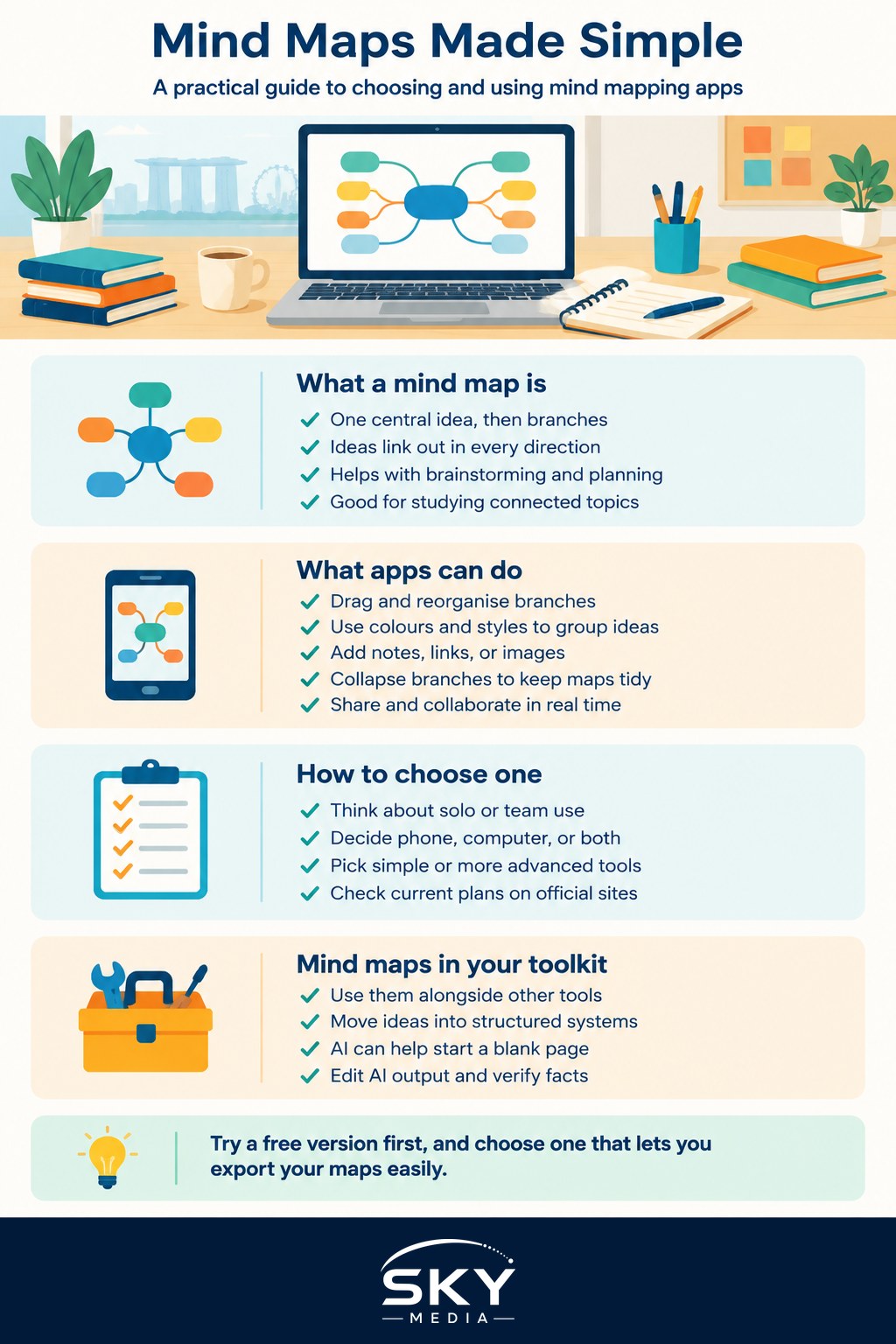
What a mind map is and why it works
A mind map is a diagram that starts with one central idea in the middle, then branches outward into related sub-ideas, which branch again into details. Instead of reading top to bottom, your eye follows connections in every direction.
This mirrors how many people naturally think. When you are brainstorming a trip, planning an event, or breaking down a big project, ideas rarely come in order. A mind map lets you capture them as they arrive and organise the connections later. It is also a strong study tool, helping students see how topics link together rather than memorising isolated facts.
You can absolutely mind map on paper, and for a quick session that is often the fastest option. Apps become useful when you want to rearrange branches easily, add links and images, collaborate with others, or keep your maps neatly stored and searchable.
What mind mapping apps can do
Most mind mapping apps share a common set of features. Understanding them helps you judge whether a particular tool is worth your time:
- A central topic with branches you can add, drag and reorganise freely.
- Colours and styles to group related ideas visually.
- The ability to attach notes, links, or images to a branch.
- Collapsing and expanding branches so a big map stays manageable.
- Export options, so you can turn a map into an outline, an image, or a document.
- Sharing and real-time collaboration for group brainstorming.
Some apps lean simple and clean, which is great for beginners. Others pack in advanced project features, which suit power users but can feel heavy if you just want to think. Match the tool to your actual needs rather than the longest feature list.
Choosing the right one for you
There are many well-known mind mapping tools available, both free and paid, on the web and on mobile. Rather than chasing a single “best” app, which does not really exist, ask yourself a few questions:
- Do I want quick solo brainstorming, or shared maps with a team?
- Do I need it mainly on my phone, my computer, or both?
- Do I prefer a minimal look, or lots of formatting control?
- Will I mostly export maps into other documents, or keep them inside the app?
Try the free version of one or two options before paying for anything. Prices, plans and features change often, so check current details on the official site rather than trusting an old recommendation. And be a little cautious about pouring years of thinking into a single service. Choose one that lets you export your maps, so your ideas are never trapped if you switch later.
A quick word on privacy too. Many of these apps store your maps in the cloud. Avoid putting confidential work information or personal data into a free tool without checking how it handles your content, and at work, follow your employer’s policy on which apps are allowed.
How mind mapping fits your wider toolkit
Mind mapping is one thinking tool among several, and it works best alongside others rather than replacing them. Once your map has helped you shape a plan, you often want to move those branches into a more structured system. Our guide to task and project management apps is a natural next step for turning ideas into action.
If you prefer to keep everything in one flexible workspace, you might sketch out ideas and then organise them in Notion, and our piece on getting started with Notion walks through that. For general capture and quick jottings, our note-taking apps guide covers lighter options that pair well with occasional mind mapping.
Some people also use AI to kick-start a map when they are stuck, asking a chatbot to suggest branches for a topic. That can break a blank-page freeze, but treat the output as raw material to edit, not a finished answer, and verify anything factual, since AI can be confidently wrong.
Getting started in five minutes
You do not need a course to begin. Try this:
- Open your chosen app and type your main topic in the centre.
- Add the first big sub-ideas that come to mind, without judging them.
- Branch each one into a few details.
- Rearrange and colour-code once the ideas are down.
- Collapse branches you are done with, so you can focus.
The goal of a first session is momentum, not a perfect diagram. Messy is fine. You can always tidy the structure once your thinking is out of your head and on the screen.
The takeaway
Mind mapping apps turn scattered thoughts into a clear, connected picture, which makes them brilliant for brainstorming, planning and studying. Pick a simple tool that lets you export your work, protect any sensitive information, and use maps as a starting point that feeds your calendar, notes and project tools. Do that, and a tangle of ideas becomes a plan you can actually follow.