
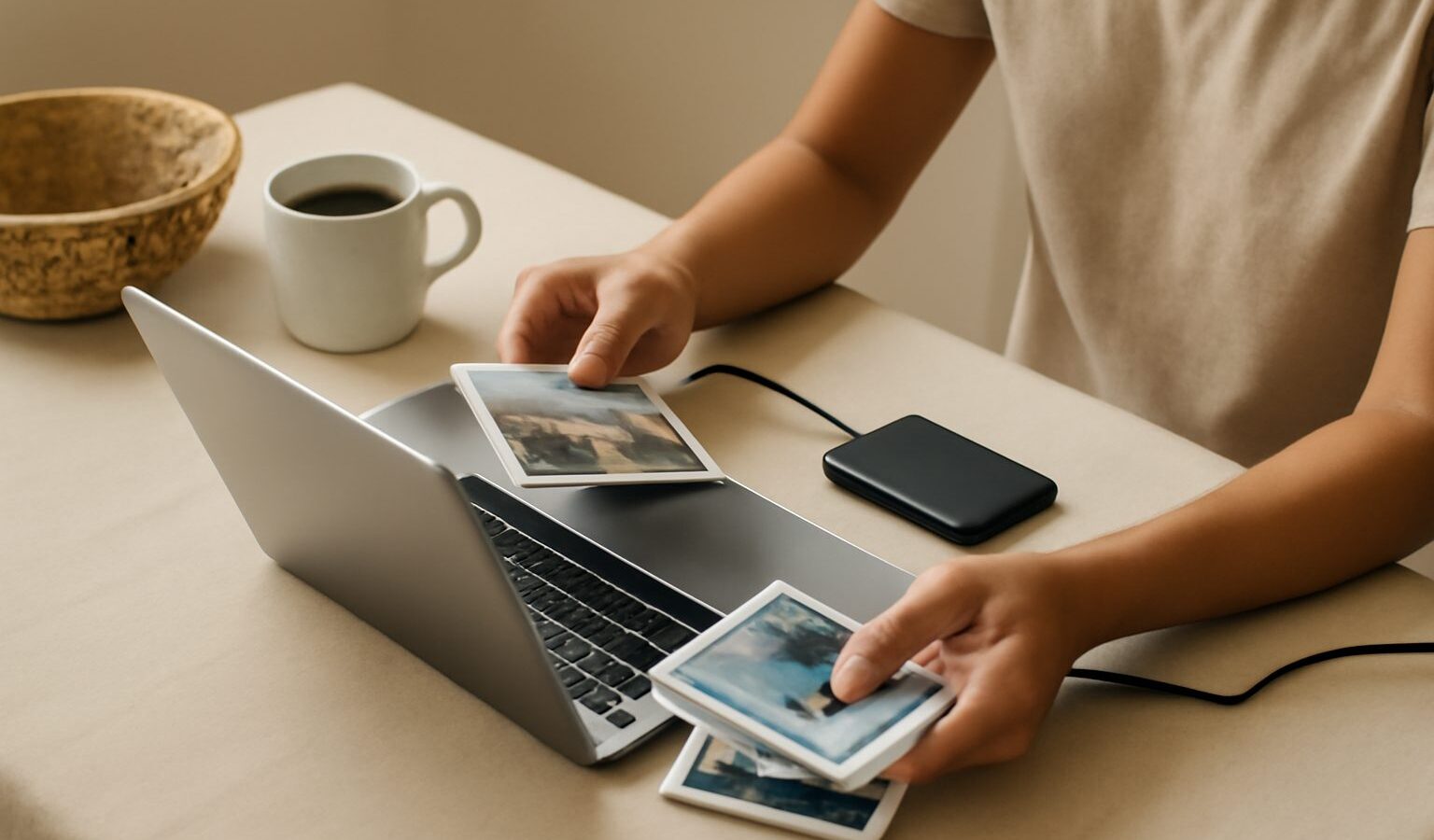
Most of us carry thousands of photos in our pockets, yet very few of us have a real plan for keeping them safe. Backing up photos is one of those tasks that feels boring until the day a phone is lost, dropped in a hawker centre drink, or simply stops turning on. By then it is too late. The good news is that protecting your memories is not hard once you set up a simple routine. This guide explains how to organise your growing library and how to back it up properly, in plain language for beginners in Singapore.
Why Backups Matter More Than You Think
Phones and memory cards fail, get stolen, or fill up at the worst moment. Our tropical humidity is not kind to electronics either, and a single accident can wipe out years of family photos, travel snaps and once-in-a-lifetime moments that no amount of money can recover.
The guiding idea photographers rely on is simple: if a photo exists in only one place, it is not really safe. A well-known rule of thumb is to keep three copies of anything you care about, on two different types of storage, with one copy kept somewhere else. You do not need to follow it perfectly, but the spirit of it, more than one copy in more than one place, is what keeps your memories alive when something goes wrong.
Organise Before You Back Up
A tidy library is far easier to protect and to enjoy, so it is worth spending a little time here first. You do not need special software to start.
- Delete the obvious junk. Blurry shots, accidental screenshots and near-duplicates add up fast. Clearing them saves space and makes everything else easier to find.
- Use albums or folders. Group photos by year, event or trip. A simple structure like “2026 Chinese New Year” or “Sentosa Day Out” beats one giant pile.
- Favourite your best shots. Most phones let you tag favourites with a heart. This makes your standout photos easy to find later.
- Add a few keywords. Some apps let you search by place or people. A little tagging now saves hours of scrolling later.
- Do it in small batches. Ten minutes while waiting for the MRT is enough. Trying to sort everything in one sitting is how people give up.
Once your library is reasonably tidy, backing it up becomes quicker and the copies you keep are actually worth keeping.
Your Main Backup Options
There are three common ways to back up photos, and the best approach usually combines two of them. Here is how they compare.
| Method | Best for | Keep in mind |
|---|---|---|
| Cloud storage | Automatic, off-site copies | Ongoing subscription, needs internet, check privacy |
| External drive | Large libraries, one-off cost | Can fail or be lost, keep it dry |
| Phone to computer | Full control, no monthly fee | Manual effort, computer also needs its own backup |
Cloud storage services copy your photos automatically over the internet to servers elsewhere, so even if your phone is lost, the photos are safe. Free tiers are usually small, and larger storage means a monthly or yearly fee. The big advantage is that it happens in the background and the copy is off-site, which protects you from theft, fire or flood at home.
An external drive, such as a portable hard drive or SSD, gives you a large local copy for a single upfront cost and no subscription. The catch is that drives can fail without warning or be misplaced, and in our humid climate you should store them somewhere dry and cool. Treat a drive as one copy, not your only copy.
Copying phone to computer puts you fully in control. You plug in your phone, drag the photos across, and keep them in clearly named folders. It costs nothing beyond the computer you already own, but it takes effort and, importantly, your computer then needs its own backup too, ideally to a drive or the cloud.
A Simple Routine You Will Actually Follow
The best backup plan is the one you stick to. Aim for something low-effort and automatic where possible.
- Turn on automatic cloud backup on your phone so new photos are copied without you thinking about it.
- Once a month, copy everything to an external drive as a second, offline copy you control.
- Every few months, check that a backup actually works by opening a few photos from it. A backup you have never tested is a guess, not a safety net.
- Before wiping or selling a phone, confirm the photos are safely in at least two places first.
This gives you copies in more than one place and more than one form, which is exactly what you want. Set a recurring reminder so the monthly step does not slip.
Keep Personal Photos Private
Your photo library is deeply personal, so privacy deserves real thought alongside safety. Family photos, documents you snapped, and pictures of children all deserve care about who can see them.
- Secure your accounts. Use a strong, unique password and switch on two-factor authentication for any cloud service holding your photos.
- Check sharing settings. Shared albums and links can stay open longer than you intend. Review who has access from time to time.
- Read the privacy terms. Before trusting a service, understand how it stores and handles your images, and whether the plan suits sensitive personal photos.
- Be careful with sensitive shots. Photos of identity documents or bank details are best kept out of auto-syncing albums, or stored somewhere you have locked down.
- Encrypt where you can. Some drives and services offer password protection or encryption, which is worth using for private memories.
Safety and privacy go hand in hand. A backup protects your photos from loss, and good privacy habits protect them from the wrong eyes.
Start Small, Stay Consistent
You do not need the perfect system on day one. Turn on one automatic backup this week, tidy a single album while you wait for the bus, and add a second copy when you can. Backing up photos is a habit, not a one-time chore, and even a basic routine puts you far ahead of most people. Your future self, looking back on these memories years from now, will be very glad you started.
Explore more
Now that your library is safe, put those photos to good use with our guide to the best free photo editing apps and our tips on shooting and editing photos for Instagram. If you are still building your collection, our smartphone photography tips for Singapore will help you capture shots worth keeping.