
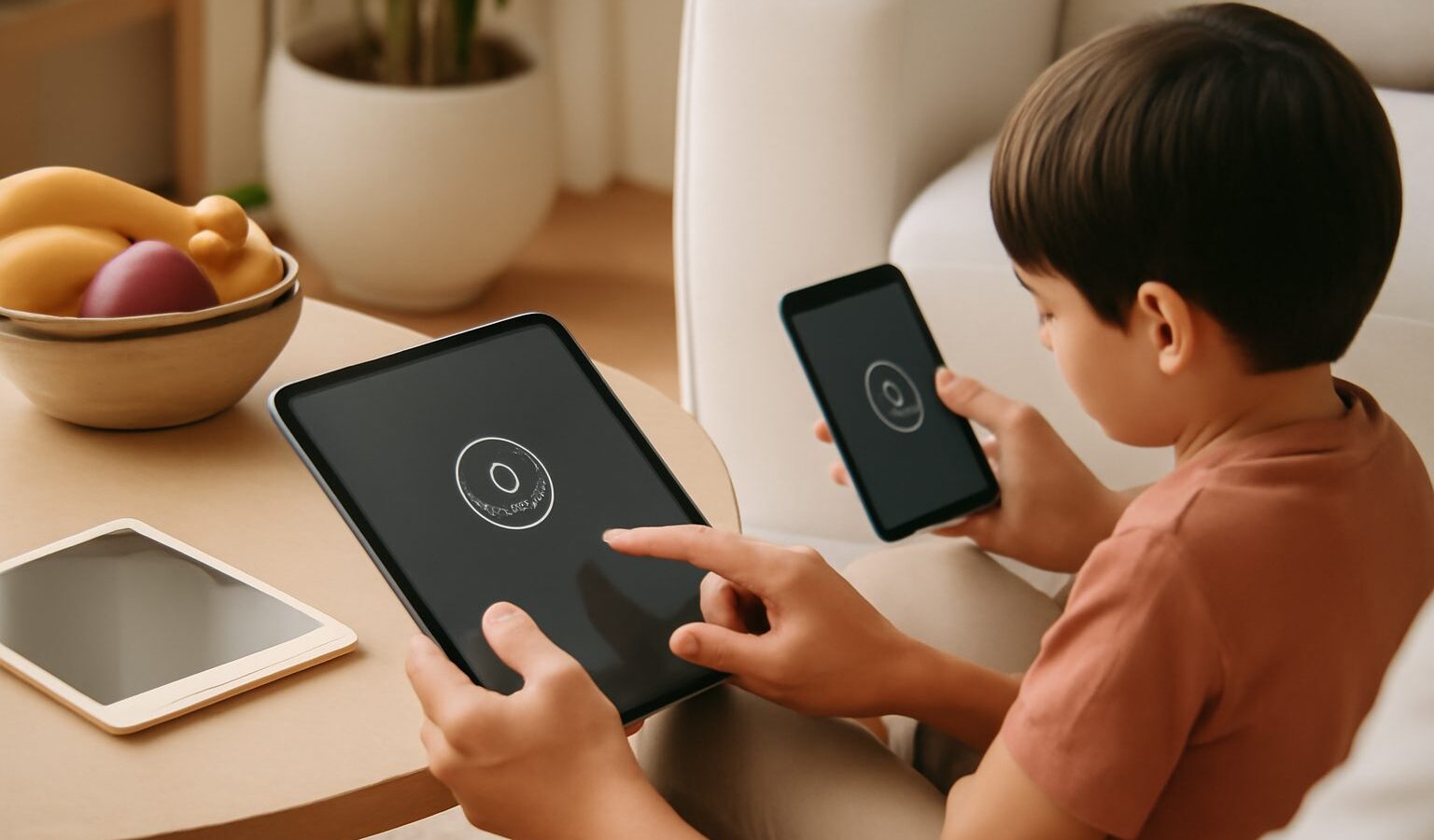
Many Singapore households share devices. The family tablet gets passed around at the dinner table, the smart TV in the living room is fair game for everyone, and a spare phone often becomes the children’s YouTube machine. Setting up guest and kids profiles in Singapore is one of the simplest ways to keep your own accounts private, give children a safer space, and stop a curious guest from stumbling into your email or banking apps. This guide walks you through the why and the how in plain terms.
A profile is basically a separate space on the same device. Each profile can have its own apps, its own login, its own home screen, and its own limits. When you switch profiles, you are not handing over your whole digital life, you are handing over a clean, controlled corner of it.
Why Separate Profiles Matter
The most obvious benefit is privacy. If you lend your tablet to a friend to look up a recipe, a guest profile means they never see your photos, chat history, or logged-in accounts. This matters more than people think, because so much of our lives now sits behind a single unlocked screen.
For children, the goals are different but just as important. A kids profile lets you set age-appropriate content, limit screen time, and block purchases so a tap does not turn into an unexpected charge. It also keeps their activity separate from yours, so recommendations and search history do not get mixed up. If you want a fuller picture of the family side of things, our guide on how to set up parental controls on devices goes deeper into content filtering and time limits.
There is a practical angle too. Separate profiles reduce accidental damage. A child cannot delete your work files or reply to your messages if they are in their own walled-off space. And when several people share one login, you lose the ability to tell who did what. Profiles restore that clarity.
Setting Up a Guest Profile
On most Android phones and tablets, guest mode lives in the settings under users or a similar heading. You switch it on, and the device offers a stripped-back session with no access to your apps or data. When the guest is done, you delete the session and everything from it disappears. It is ideal for a one-off lend.
On a shared computer, both Windows and Mac support proper separate user accounts, which is a stronger version of the same idea. Each person logs in with their own password and sees only their own desktop and files. This is worth setting up for any family PC.
Smart TVs and streaming boxes handle this differently. Many streaming services let you create individual viewer profiles inside one account, including a dedicated kids profile that only shows child-friendly titles. That is separate from the device login, so it is worth setting up both. If your household leans heavily on streaming, our overview of streaming services explains how profiles work across the main platforms.
One thing to remember with guest sessions is that they are temporary by design. Do not store anything important in one, because it may be wiped the moment the session ends.
Making a Kids Profile Age-Appropriate
Setting up a kids profile is where a little thought pays off. Start with content. Choose an age band that matches your child, and review what it actually allows rather than trusting the label blindly. The right settings for a six-year-old are very different from those for a young teen.
Next, handle purchases and downloads. Turn on password approval for any app install or in-app purchase, so nothing gets bought without you knowing. Set screen time limits and a downtime schedule, especially around bedtime and school hours. Many parents in Singapore find that a hard cut-off at night does more good than any single content filter.
Think about privacy for the child too. Limit location sharing, be cautious with cameras and microphones, and talk about what is fine to share online. Younger children in particular should not be signing up for random apps. Our broader guide to kids online safety covers those conversations and the habits that stick.
Finally, keep communication open. Controls are a tool, not a substitute for talking with your child about what they are doing on the device. Review the settings together as they grow, and loosen the limits as trust builds.
A Simple Wrap-Up
You do not need to do all of this at once. Set up a guest session on the device you lend most often, create one proper kids profile on the family tablet, and add separate logins on any shared computer. Those three steps alone will make your shared devices noticeably safer and more private. Revisit the settings every few months, because both your family and the software will keep changing, and a quick check keeps everything working the way you intended.