
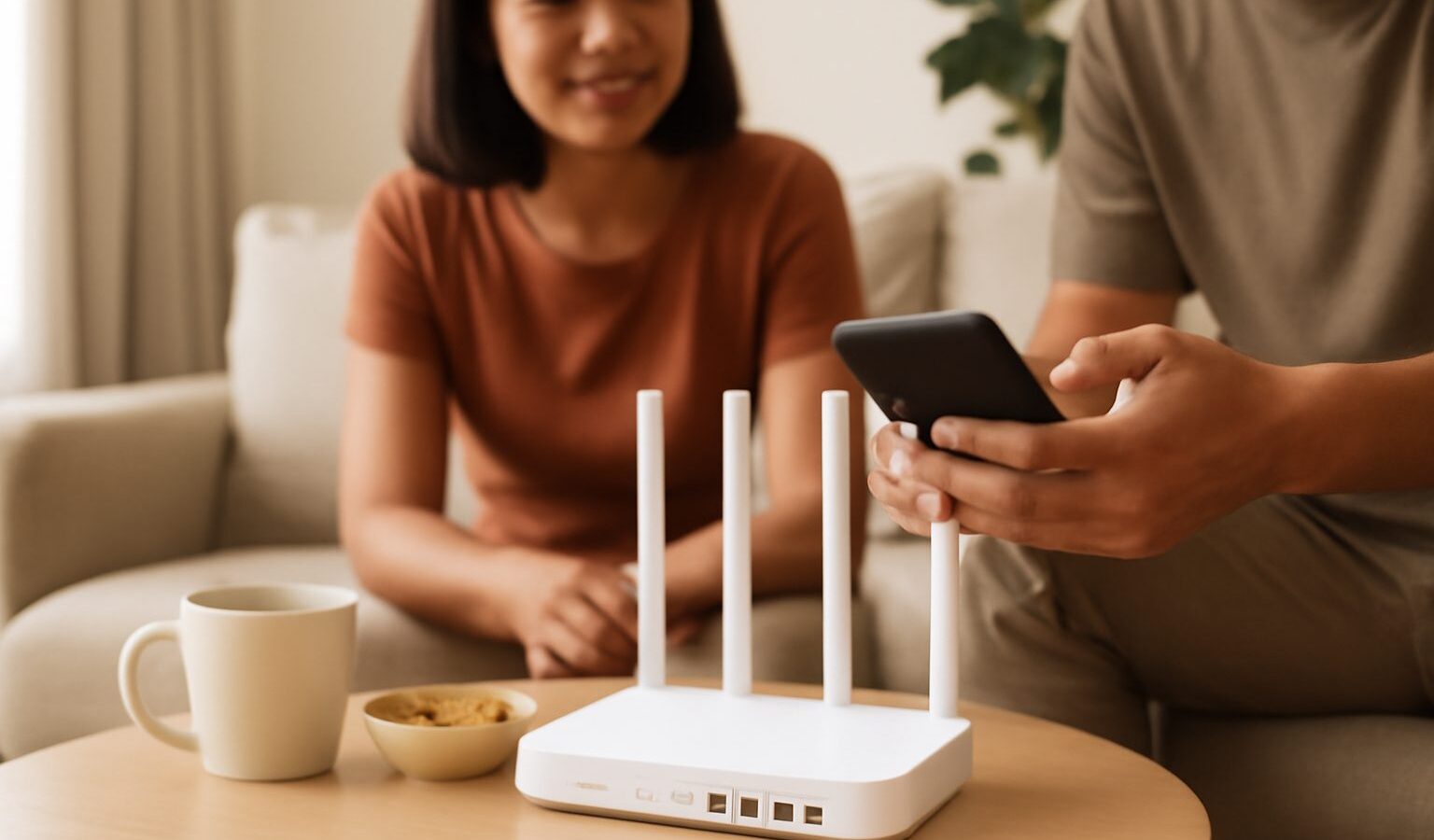
Most home routers can broadcast more than one wireless network at a time, yet many of us never use that feature. Setting up a guest WiFi network in Singapore takes only a few minutes and gives you a tidy way to keep visitors, and increasingly your smart gadgets, off your main network. It is one of those small changes that quietly improves both your security and your peace of mind.
This guide explains why a guest network is worth having, how it helps you isolate smart home and other connected devices, and the general steps for switching it on through your router. The exact menus differ from brand to brand, but the idea is the same everywhere.
Why Bother With a Guest Network
Your main WiFi network is where your important things live. Your laptop with work files, your phone with banking apps, your network storage with family photos, all of them sit on the same network and can often see one another. That is convenient, and for your own trusted devices it is usually fine.
The trouble starts when you hand your main password to everyone who visits. A friend’s phone might be carrying malware without them knowing. A contractor might need internet access for an afternoon. A relative staying over may connect three devices you have never seen before. Every time you share your main password, you widen the circle of who is on your trusted network, and you make it harder to change that password later without reconnecting everything you own.
A guest network solves this neatly. It gives visitors a separate name and password that leads only to the internet, not to the rest of your home. Guests get online, you keep your private devices walled off, and when the visitors leave you can change or disable the guest password without disturbing your own gear.
The Smart Home Angle
There is a second, more modern reason to run a guest network, and it has nothing to do with human visitors. It is your growing pile of smart home devices.
Smart bulbs, plugs, cameras, robot vacuums, speakers and the like are collectively known as IoT devices, short for Internet of Things. They are handy, but many of them are cheaply made, rarely updated, and not built with strong security in mind. If one of these devices has a weakness, you do not want it sitting on the same network as your laptop and your phone.
Putting your IoT devices on a separate network, whether that is a dedicated guest network or a purpose built IoT network, contains the risk. If a dodgy smart plug is ever compromised, the damage is limited to that isolated network rather than reaching your personal files. This idea of keeping different types of devices apart is one of the simplest and most effective home security habits going.
A few things to weigh up before you move every gadget across:
- Some smart home devices need to be on the same network as your phone during setup, so pair them first, then check they still work once isolated.
- Casting to a smart TV or speaker can fail if the sender and receiver are on different networks, so test the things you use most.
- Devices that only need internet access, such as cameras that upload to the cloud, usually work perfectly on a separate network.
How to Set It Up on Your Router
The steps below are general, since every router brand names things a little differently. If you use a mesh system or a router from your internet provider, the same options usually live in the accompanying app rather than a web page.
First, log in to your router. On many routers you open a web browser and type an address such as 192.168.1.1 or the address printed on a sticker on the device. Others, especially mesh systems, are managed entirely through a mobile app. Sign in with the admin username and password, which is not the same as your WiFi password.
Next, find the guest network option. It usually sits under a heading like Wireless, Guest Network or Guest Access. Switch it on. You will be asked to give it a network name, sometimes called an SSID. Pick something clear such as your household name followed by the word Guest, so visitors know which one to choose.
Now set a strong, separate password. Do not reuse your main WiFi password here, since the whole point is to keep the two apart. A long passphrase of a few unrelated words is easy to share and hard to crack.
Look for a setting that controls whether guests can see other devices on the network. It may be called client isolation, access intranet, or allow guests to see each other. For a true guest or IoT network, you generally want devices kept from reaching your main network. Enabling isolation is what makes the separation meaningful.
Finally, save your changes. The router may restart briefly. Then test by connecting a phone to the new guest network and checking that you can browse the internet but cannot reach, say, a shared drive on your main network.
Here is a quick checklist to keep beside you:
| Step | What to do | Why it matters |
|---|---|---|
| Log in | Open the router page or app as admin | You need admin access to change settings |
| Enable guest network | Turn on the guest or IoT option | Creates the separate network |
| Name it clearly | Add a name like Home Guest | Visitors and devices pick the right one |
| Set a strong password | Use a fresh passphrase, not your main one | Keeps the two networks truly separate |
| Turn on isolation | Enable client isolation if available | Stops devices reaching your private gear |
Good Habits Once It Is Running
A guest network is not set and forget, but it needs very little attention. Change the guest password now and then, especially after a big gathering or once a contractor’s job is done. Keep an eye on how many devices are connected through your router app, and if you spot something you do not recognise, remove it and change the password.
If your router supports scheduling, you can even switch the guest network off overnight or when you know no visitors are around, then flip it back on when needed. It is a small touch, but it shrinks the window during which anyone could try to connect.
Setting up a guest WiFi network in Singapore is one of the highest value, lowest effort things you can do for a safer home network. It keeps visitors happy, keeps your smart gadgets contained, and keeps your private devices to yourself, all from a few minutes of tapping through your router settings.
Explore more
Home WiFi and Mesh Networking
How to Choose a WiFi Router
Smart Home Setup
Matter and Thread Smart Home Standards Explained