
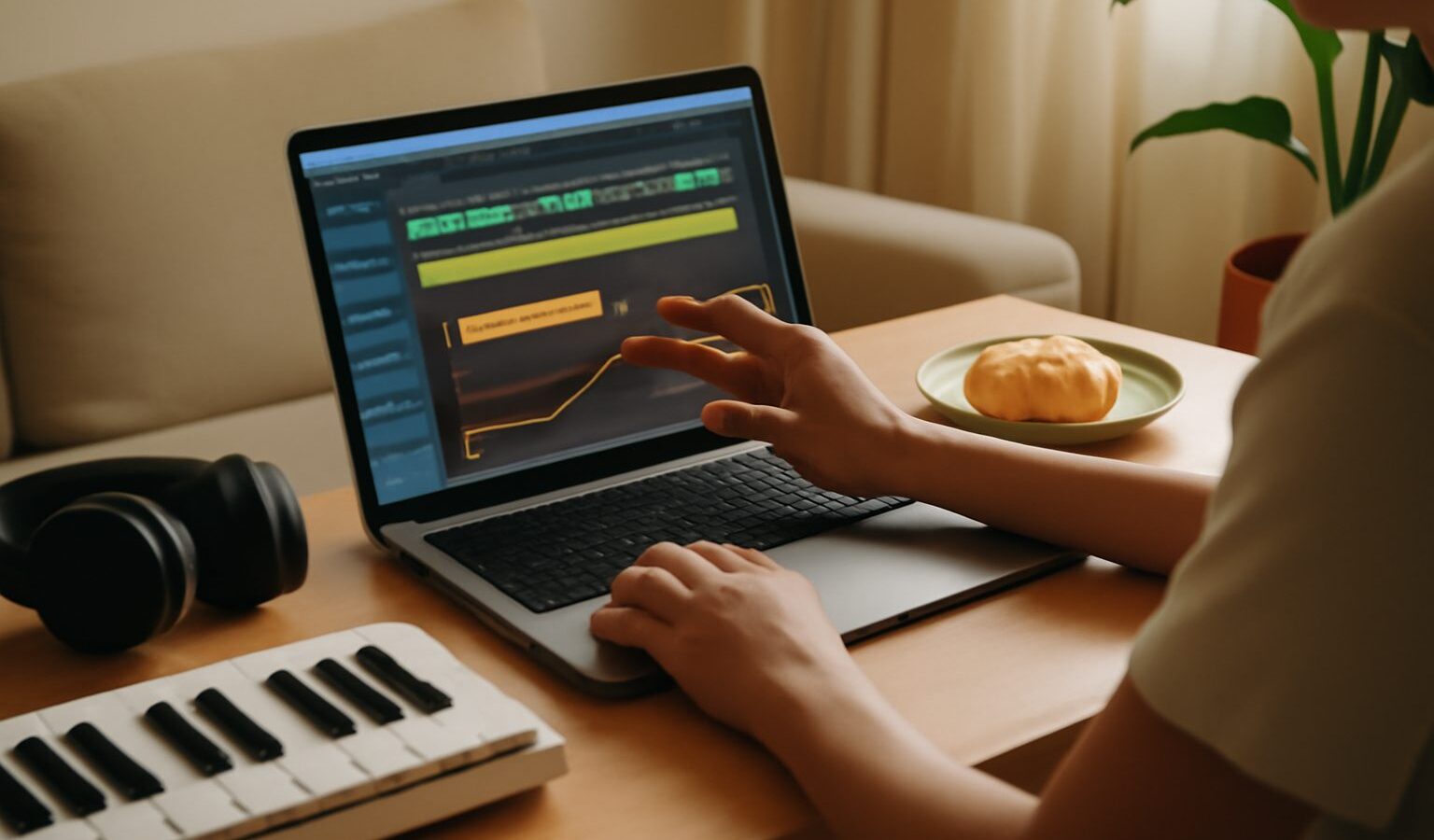
DAW automation is simply the art of changing a parameter over time instead of leaving it fixed. A static mix can sound flat and lifeless, but with automation you can make a vocal ride perfectly through a busy chorus, sweep a filter across a build-up, or fade a reverb in and out. This guide explains what automation is and how to use it with confidence.

What Automation Actually Means
Every control in your DAW has a value: a fader sits at a certain level, a pan knob points somewhere, a filter has a cutoff. Normally that value stays put for the whole song. Automation records a series of instructions that tell the DAW to move the value automatically as playback progresses. You are, in effect, giving your project a set of moving hands so those adjustments happen the same way on every playthrough.
Almost anything can be automated: volume, panning, plugin parameters, send levels, mute states, and instrument controls. If you can click it or turn it, you can usually automate it.
Where Automation Lives: Lanes and Points
Automation is drawn on a lane, which is a strip attached to a track that shows a line representing the parameter’s value over time. The line runs left to right along with the song. You place points, sometimes called nodes or breakpoints, and the line connects them. A flat line means no change; a rising line means the value is increasing.
- A point marks a specific value at a specific moment.
- A ramp is the sloped line between two points, giving a smooth transition.
- A step is a sudden vertical jump for an instant change, such as a hard mute.
Two Ways to Create Automation
You have two main routes, and most producers use both depending on the task.
Drawing it in by hand
You open the automation lane and click to add points, then drag them into the shape you want. This is precise and repeatable, ideal for planned moves like a clean volume dip under a spoken line or a gradual filter sweep across eight bars.
Recording it live
You put the track into a write mode, press play, and move the fader or knob in real time. The DAW captures your movements as automation points. This feels musical and natural, perfect for performance-style rides where timing and feel matter more than precision. You can always tidy the recorded points afterwards.
Understanding Automation Modes
Most DAWs offer several modes that control how automation is read and written. The names vary slightly between programs, but the behaviour is broadly the same.
| Mode | What it does | When to use it |
|---|---|---|
| Read | Plays existing automation, ignores your moves | Normal playback and mixing |
| Write | Records everything you touch, overwriting old data | Laying down a first pass |
| Touch | Records only while you hold a control, then returns | Fixing a small section |
| Latch | Records from the moment you touch until you stop | Longer live rides |
| Off | Ignores automation entirely | Auditioning without moves |
A common workflow is to write your moves in a write or latch mode, then switch back to read so playback follows what you recorded without capturing anything new by accident.
Practical Uses That Make a Difference
Automation is not only for dramatic effects. Its quiet, everyday uses often matter most.
- Vocal level rides: nudge quiet words up and loud words down so every syllable sits clearly in the mix.
- Build-ups and drops: sweep a filter cutoff, raise a reverb send, or open up the volume across a section to create tension and release.
- Panning movement: slowly move a background element across the stereo field for interest.
- Effect throws: send a single word to a long delay, then pull the send back so only that word echoes.
- Fades and transitions: create smooth fade-outs or blend one section into the next.
Tips for Clean, Musical Automation
- Automate after the static mix is close. Get faders roughly balanced first, then use automation for the moving details.
- Less is more. Small, well-placed moves beat constant wild swings. If the automation is obvious to the listener, it is probably overdone.
- Watch your timing. Line up automation changes with bar lines or transients so the moves feel intentional rather than random.
- Use snapping wisely. Snapping points to the grid keeps rhythmic moves tight; turning it off lets you place gentle curves freely.
- Keep it tidy. Delete stray points and simplify busy lanes so you can read and edit them later.
A Simple First Exercise
Take a finished vocal and its instrumental. Open the vocal’s volume automation lane, play the song, and in a write mode gently ride the fader so no word disappears and none jumps out. Switch back to read and listen. That single pass will teach you more about DAW automation than any amount of reading, because you will hear the mix suddenly feel controlled and professional.
Keep Building the Habit
DAW automation is the difference between a mix that sits still and one that breathes. Start with volume, add a filter sweep, then explore whatever parameters your tracks need. Every move you learn to shape over time gives you more control over the emotion of your music, and it soon becomes second nature.
Explore more: Understanding DAWs and Music Software · Recording Vocals at Home · Using Virtual Instruments in Singapore
Frequently Asked Questions
Does automation work the same way in every DAW? The ideas are the same, but menus, names and shortcuts differ between programs. Lanes, points and modes like read, write, touch and latch appear in most. Check your own DAW’s manual for the exact steps and keep practising on a short section.
When should I automate volume instead of using a compressor? Use a compressor for general control of level jumps, and automation for specific words or moments that need a precise lift or dip. Many mixers use both, with automation first for obvious problems. If a word still disappears, ride it by hand.
Will too much automation make my project slow or messy? A very busy lane can be hard to edit and a few programs may struggle with huge amounts of data. Keep lanes simple, remove stray points and use fewer, smoother moves. Fewer deliberate moves are almost always clearer than many tiny ones.
Can I automate the tempo or key of a song? Most DAWs let you automate tempo with a tempo track, so a song can speed up or slow down. Changing key is usually done by editing notes or using a pitch tool rather than automation. Check your DAW’s documentation for what it supports.
How do I fix automation I recorded by mistake? Use undo straight away if you can. Otherwise open the lane and delete or reshape the unwanted points, or re-record that section in touch mode. Keep a saved copy of the project before big automation passes so you can go back.