

You clicked a link that looked like a parcel delivery notice. Or you gave a one-time password to a “bank officer” on the phone. Or your banking app shows a transfer you never made. In those first few minutes, the most useful thing you can do is freeze your accounts, and that is exactly what a bank kill switch in Singapore is designed for.
Major retail banks in Singapore, including DBS/POSB, OCBC and UOB, offer an emergency self-service feature, usually called a kill switch, that lets you lock your accounts and cards yourself, around the clock, without waiting for a call centre. This guide explains when to use it, how to activate it quickly, what happens next and how to get your accounts working again. It is general information, not financial advice. Exact menus and steps vary by bank and change over time, so check your bank’s official website or app.
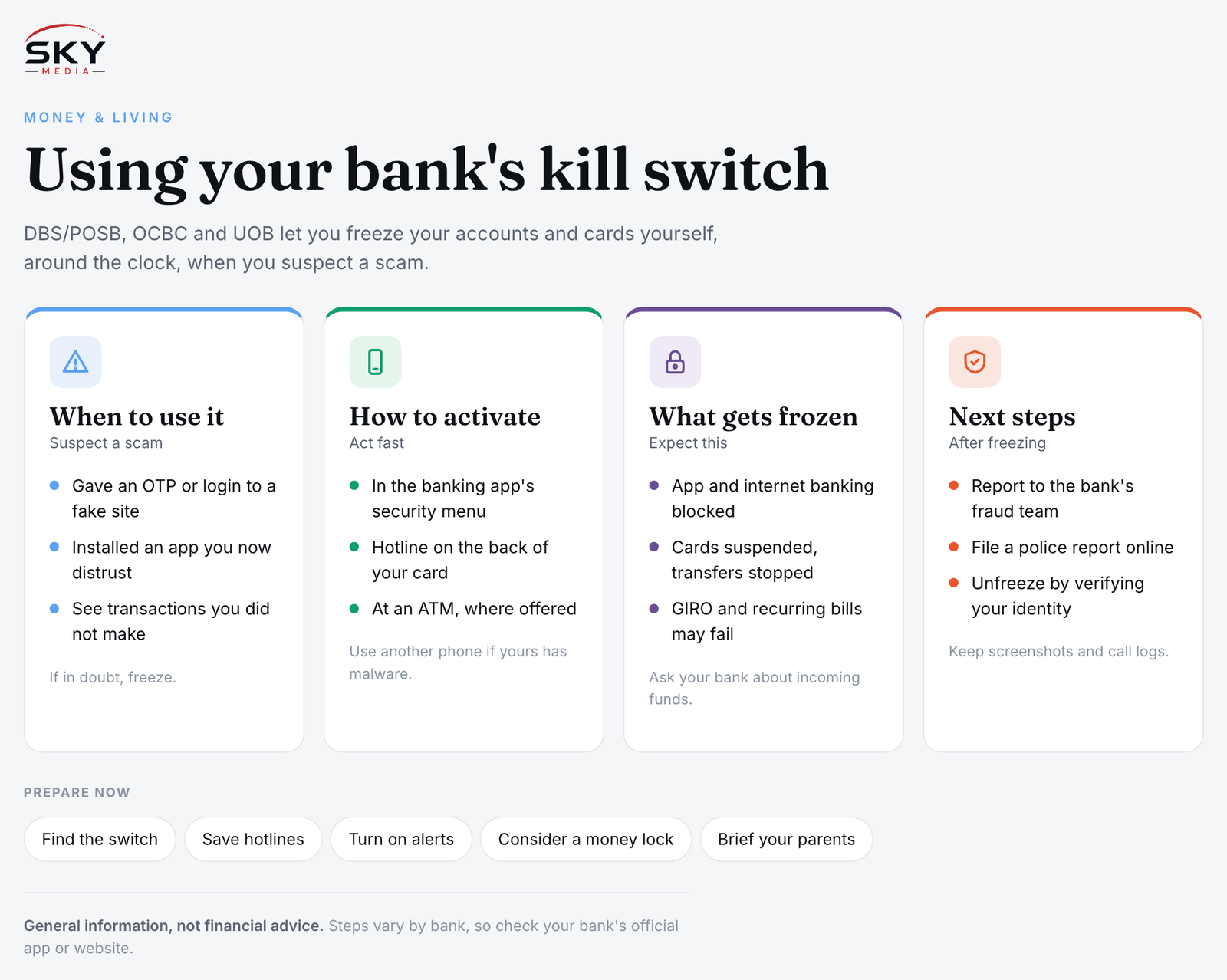
When to Hit the Kill Switch
The kill switch is for emergencies, not for routine card blocks. Use it if you suspect someone else has, or may soon have, access to your money:
- You entered banking login details or a one-time password on a site you now think was fake.
- You installed an app from a link or message and now suspect it was malware.
- You see transactions, new payees or changed settings that you did not make.
- Someone on the phone pressured you to transfer money or “secure” your account, and you now realise it was a scam.
- Your phone was stolen while unlocked and it has your banking app on it.
If in doubt, freeze. A frozen account is inconvenient for a day or two. Money sent to a scammer may never come back.
How to Activate It Fast
Banks usually offer more than one route, so you can still act if your phone is compromised:
- In the banking app. Look for an option such as “Security”, “Card and account controls” or a clearly marked emergency lock. You will be asked to confirm, sometimes more than once, because the action is serious.
- By calling the bank’s hotline. The official number is printed on the back of your card and listed on the bank’s website. Many banks have a dedicated option in the phone menu for reporting fraud or activating the kill switch. Never use a number from an SMS, email or search ad.
- At an ATM, where the bank offers it. Some banks let you lock accounts at their ATMs using your card and PIN. Check whether your bank supports this.
If you suspect malware on your phone, switch to aeroplane mode or turn the phone off, then use another phone or a landline to call the bank. Do not keep using the infected device to do your banking.
What Happens When You Freeze
The kill switch typically freezes access across the bank, not just one card. While details depend on your bank, expect:
- Digital banking blocked. You cannot log in to the app or internet banking.
- Cards suspended. Debit and often credit cards linked to you stop working, including for contactless and online payments.
- Outgoing transfers stopped. Including PayNow, FAST transfers and payments to new payees.
- Some scheduled payments affected. GIRO deductions, standing instructions and recurring card charges may fail while the freeze is on. Note the bills that might bounce, such as utilities, insurance premiums or school fees.
- Incoming funds. Whether you can still receive money varies; ask your bank.
| Tool | When you use it | What it does | How you reverse it |
|---|---|---|---|
| Emergency kill switch | Right after a suspected scam or compromise | Freezes accounts, cards and digital access across the bank | Usually by verifying your identity with the bank, often in person or by phone |
| Card lock or block in the app | A lost card or suspicious card charge | Locks one card only | Unlock in the app if temporary, or order a replacement |
| Money lock or locked savings | In advance, as prevention | Ring-fences a portion of savings so it cannot be moved digitally | Unlock through stricter checks, sometimes in person |
| Changing passwords and logging out devices | Alongside a freeze, once safe | Cuts off stolen credentials | Not needed; you keep the new password |
What to Do Right After Freezing
Freezing stops further losses. These steps help recover what you can and protect you going forward:
- Report to the bank’s fraud team. List the suspicious transactions and when they happened. Ask for a reference number.
- File a police report. You can do this online through the Singapore Police Force e-services. Banks often need the report number for their investigation.
- Call the ScamShield Helpline for advice if you are unsure what happened. Details are on the official ScamShield website.
- Check other banks and apps. Scammers who got your details may try other accounts, e-wallets or card-linked apps such as ride-hailing and shopping platforms. Freeze or secure those too.
- Secure your phone and email. Uninstall suspicious apps, change your email password, and turn on extra security. Get the phone checked if you suspect malware.
- Keep records. Screenshots of messages, call logs and transaction alerts help the bank and police.
Under the Shared Responsibility Framework introduced by MAS (Monetary Authority of Singapore) and IMDA, banks and telcos have certain duties in phishing cases. Whether any losses are shared depends on the facts of your case, and acting quickly and honestly matters. Ask your bank how it will assess your claim.
How to Unfreeze Your Accounts
Unfreezing is deliberately harder than freezing, so a scammer cannot simply reverse it. Typically:
- You must contact the bank yourself, by phone or at a branch, and verify your identity. Bring your NRIC, passport or pass card if you go in person.
- The bank may review your account before lifting the freeze, especially if fraud is confirmed.
- You may need new cards, since old card numbers might be compromised.
- You will reset your digital banking credentials and may need to re-register your device and digital token.
- Re-check your payees and settings. Remove any unknown payees, and review transfer limits and alert settings.
Plan around the gap. If your salary goes into the frozen account or bills are due, call the billing organisations and your employer to explain. Keeping a small emergency fund at a second bank helps here, an idea covered in our guide on organising your bank accounts for budgeting.
Prepare Now, Before You Ever Need It
A few minutes today can save you in a panic:
- Find the kill switch in your app now. Open your banking app and locate the emergency option so you are not searching menus under stress.
- Save the official hotline numbers from the back of your cards into your contacts, clearly labelled.
- Turn on transaction alerts and set sensible daily transfer limits.
- Consider a money lock for savings you rarely touch, as extra protection.
- Talk to elderly parents and walk them through the kill switch. Scammers often target older family members.
If you have accounts across several banks, the steps differ slightly for each one. Newcomers setting up their first local account can check our guide to opening a bank account in Singapore, and if you later decide to move your money elsewhere, see how to switch banks in Singapore.
Official sources: Monetary Authority of Singapore (MAS)
Further reading: Moving Your Bank Digital Token to a New Phone in Singapore