
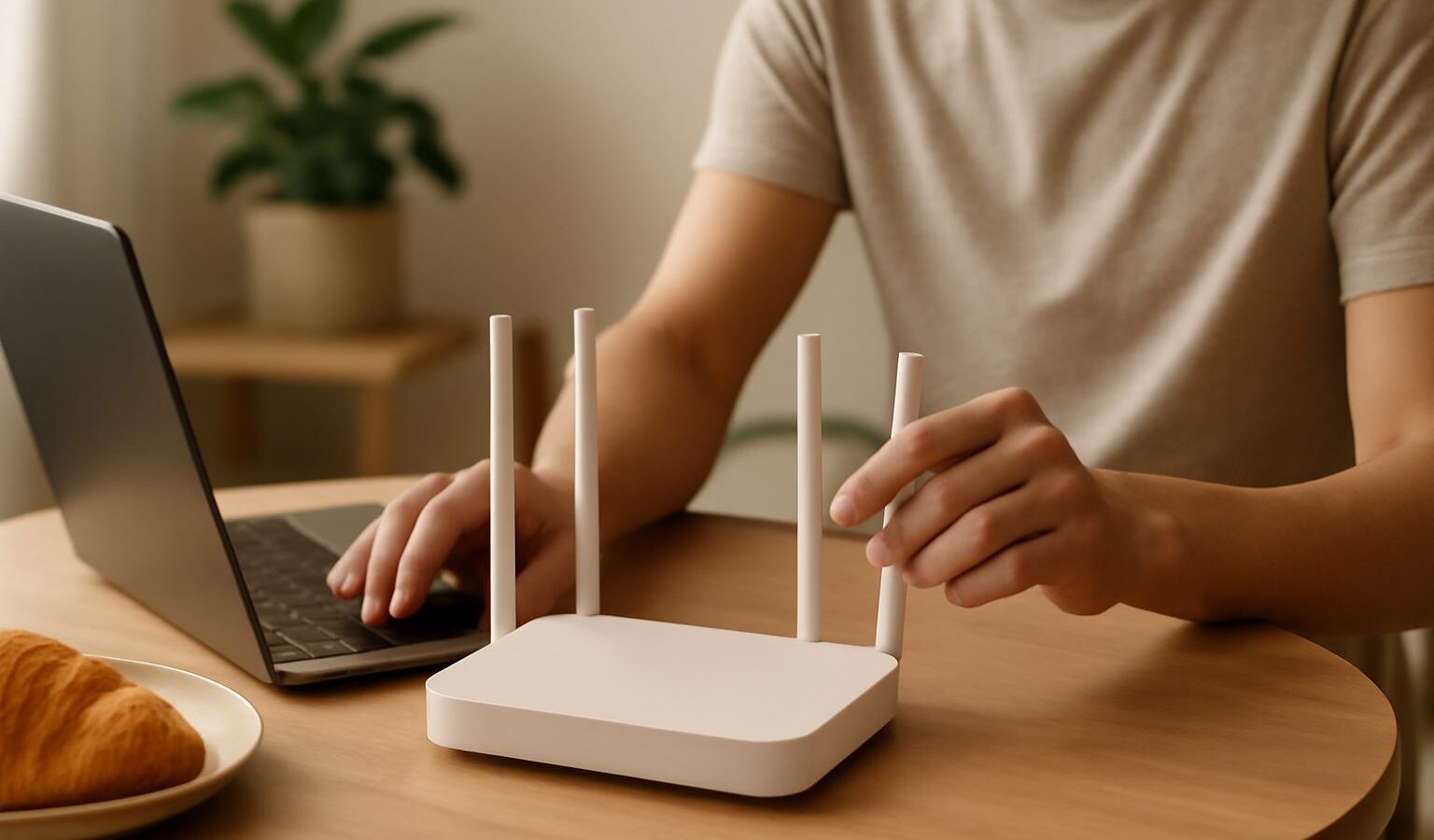
Your home router is the small box that shares your internet connection with every phone, laptop, and smart device in the house. Most people plug it in once and never touch it again, but there are good reasons to open up your router settings singapore homes depend on, from improving Wi-Fi to closing security gaps. The catch is that a wrong change can knock your whole home offline or leave your network exposed. This guide shows you how to make changes safely, step by step, with plenty of room to undo mistakes.

Before You Change Anything
The golden rule is simple. Write down the current settings before you change them. If a new setting causes a problem, you can put things back exactly as they were.
Here is a sensible way to prepare:
- Note the defaults. Take a photo or write down the current Wi-Fi name, password, and any setting you plan to touch. Many routers also print the factory login on a sticker underneath.
- Know how to reach the admin page. You usually type an address like 192.168.1.1 into a web browser, or use your router maker’s app. The address is often printed on the router itself.
- Pick a calm time. Do not start when someone is on an important video call or when you urgently need the internet.
- Have a backup connection ready. Your phone’s mobile data is handy if the Wi-Fi goes down while you work.
If your router was supplied by your broadband provider, remember that some settings are managed by them. When in doubt, it is perfectly fine to call your provider first. Understanding the difference between the two boxes some homes have can help too, so see understanding modems vs routers if you are unsure what you are looking at.
The Most Important Change: The Admin Password
Every router has an admin account that controls all its settings. Many still ship with a default password like “admin” or “password”, which is public knowledge. If you never changed it, anyone who gets onto your network, or in some cases from outside, could take control.
So the single most important thing you can do is change the default router admin password to something long and unique. This is different from your Wi-Fi password, which is the one you give guests. The admin password guards the control panel itself.
While you are in there, a few other safe and worthwhile changes include:
- Rename your Wi-Fi network to something that does not reveal your name, unit number, or router brand.
- Set a strong Wi-Fi password using a long passphrase. A password manager makes this painless, and the choosing a password manager guide can help.
- Turn on the latest security type, usually labelled WPA3 or WPA2, so your traffic is encrypted.
- Keep the router firmware updated, which fixes security holes. Many routers can do this automatically.
Change one setting at a time and test that everything still connects before moving on. That way, if something breaks, you know exactly which change caused it.
Do Not Expose Your Network
Some router settings are powerful and best left alone unless you truly know why you need them. Being careful here keeps your home from being exposed to the wider internet.
- Avoid opening ports or setting up port forwarding unless a specific device genuinely needs it. Each open port is a potential doorway for outsiders.
- Leave remote management switched off unless you have a clear reason to control the router from outside your home. If it is on, use a very strong password.
- Be cautious with features like UPnP and DMZ. These can open your network more than you expect. If you do not understand a setting, the safest choice is to leave it at its default.
- Set up a separate guest network for visitors and smart gadgets, which keeps them away from your main devices. See setting up a guest Wi-Fi network for how.
For a broader look at locking things down, securing your home network pulls the key habits together in one place.
When to Get Help
There is no shame in stopping if a setting looks confusing. Home networking has plenty of jargon, and one wrong toggle can cause hours of frustration. If you are unsure what a setting does, or your internet stops working and you cannot fix it, contact your broadband provider or a trusted professional. Your provider’s helpline knows your exact plan and equipment, and can often reset things remotely.
Putting It All Together
Changing your router settings is well within reach for an everyday user, as long as you go slowly and keep an escape route. Note down the defaults first, change the admin password before anything else, adjust one thing at a time, and avoid settings that expose your network to the outside world. If you get stuck, put things back to how they were or call your ISP. Handled this way, tuning your router settings in Singapore is a safe and rewarding way to get faster, more secure Wi-Fi at home.
Frequently Asked Questions
How do I reset my router if I get locked out? Most routers have a small reset button that you hold down for several seconds, which returns settings to factory defaults. That will erase your Wi-Fi name and password, and may remove settings your provider set up. Contact your broadband provider first if it was supplied by them.
How do I find my router’s admin address and login? Check the sticker on the router or its manual, which often lists the admin address and default login. Otherwise use your router maker’s app. If you changed the details earlier and forgot them, you may need a factory reset.
What is the difference between WPA2 and WPA3? Both encrypt your Wi-Fi traffic, and WPA3 is the newer, stronger standard. Not all devices support it, so older gadgets may fail to connect. If something drops off the network, try WPA2 or a mixed mode, rather than leaving Wi-Fi unprotected.
Should I turn off WPS on my router? Many security guides suggest disabling it, because the push-button or PIN shortcut can be a weak point. It is not essential since you can connect devices with the password. Note your current setting before you change it, and test your devices afterwards.
Is it safe to change settings on a router supplied by my internet provider? You can change many basics such as the Wi-Fi name and password, but some settings are managed by the provider and changing them may disrupt your service. Check with your provider if unsure. Write down the current settings first so you can restore them.
Further reading: Understanding DNS and Changing It