

Open the graphics menu of almost any recent PC game and you will find a cluster of confusing options: DLSS, FSR, XeSS, quality modes, frame generation, sharpening sliders. They promise more frames per second for free, and in many cases they deliver. But the right choice depends on your graphics card, your screen and the kind of game you play. This guide explains DLSS vs FSR vs XeSS in plain language, how upscaling and frame generation actually work, and which settings make sense for most players. If you are still choosing hardware, read our explainer on GPUs and graphics cards and our guide to choosing a gaming monitor.
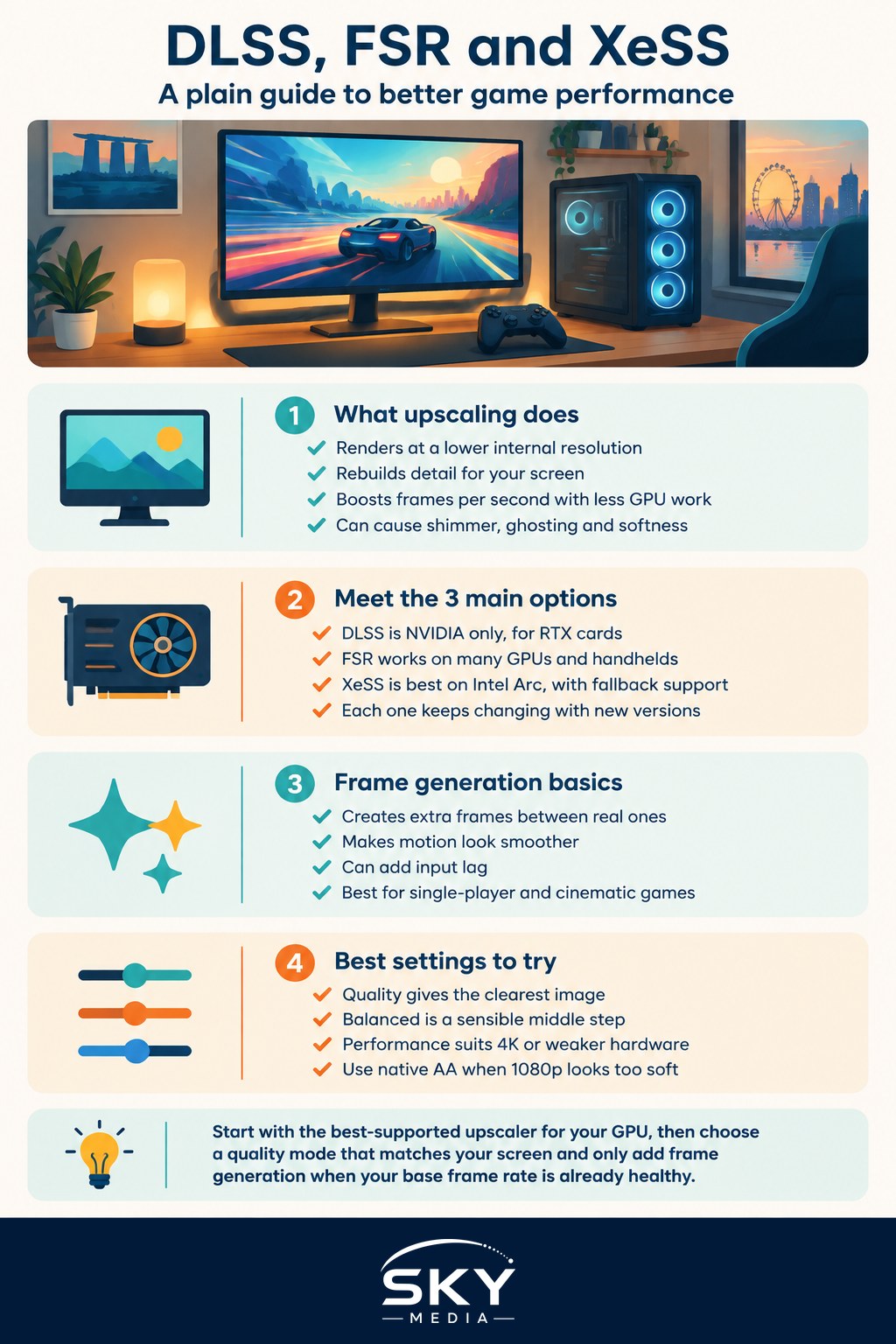
What Upscaling Actually Does
Every frame a game shows has to be rendered by your graphics card (GPU). Rendering at a higher resolution, such as 1440p or 4K, means far more pixels to calculate, which lowers your frame rate.
Upscaling works around this. The game renders each frame at a lower internal resolution, then a smart algorithm rebuilds it to your screen’s full resolution. Because the GPU does less work per frame, you get more frames per second, and a good upscaler makes the result look close to, and sometimes sharper than, native resolution.
Modern upscalers are “temporal”, meaning they use information from previous frames as well as the current one. The game feeds them motion vectors (data about how each object is moving) so the upscaler can line up detail from earlier frames and fill in the gaps. This is why they can look much better than simply stretching a small image.
The trade-offs are visual artefacts: shimmering on fine details like fences and hair, smearing or “ghosting” trails behind moving objects, and softness in some scenes. How visible these are depends on the upscaler, the version and the game.
The Three Main Upscalers
DLSS (Deep Learning Super Sampling) is NVIDIA’s technology. It uses a neural network trained by NVIDIA and runs on dedicated AI hardware (Tensor cores) in NVIDIA RTX graphics cards. It generally has a reputation for strong image quality, but it only works on RTX cards.
FSR (FidelityFX Super Resolution) is AMD’s technology. Earlier versions were hand-tuned algorithms rather than AI models, and they run on a wide range of GPUs from different brands, including older cards and many handheld gaming PCs. Newer versions have added machine learning features, some of which need recent AMD hardware. Its biggest advantage has been broad compatibility.
XeSS (Xe Super Sampling) is Intel’s technology. It uses AI and runs best on Intel Arc graphics, but also offers a version that works on other brands’ GPUs, with somewhat different quality and performance.
All three keep evolving, and each new version can change how they compare. Check the release notes from NVIDIA, AMD or Intel, and recent reviews of the specific game, rather than relying on old comparisons.
| Feature | DLSS | FSR | XeSS |
|---|---|---|---|
| Made by | NVIDIA | AMD | Intel |
| GPU support | NVIDIA RTX cards only | Broad, many brands (newest features may need recent AMD cards) | Best on Intel Arc, fallback mode on others |
| Approach | AI model on dedicated hardware | Algorithmic, with newer AI-based versions | AI model, with a cross-vendor version |
| Typical strength | Image quality and stability | Compatibility, handhelds, older cards | Good middle ground on Intel hardware |
Frame Generation: Extra Frames, With a Catch
Frame generation is a separate feature that often sits next to upscaling in the menu. Instead of making each frame cheaper to render, it creates entirely new frames in between the real ones. The GPU looks at two rendered frames and generates an intermediate image, which can greatly increase the frame rate number you see.
The catch is input latency, the delay between pressing a button and seeing the result. Generated frames make motion look smoother, but they do not respond to your input, and the technique needs to hold back a rendered frame to work, which can add delay. Vendors pair frame generation with latency-reduction tools (such as NVIDIA Reflex or AMD Anti-Lag) to offset this.
Practical rules of thumb:
- Frame generation works best when your base frame rate is already reasonably high. Turning a choppy game into a “high” frame rate this way often feels laggy and shows more artefacts.
- It suits slower single-player games, open worlds and cinematic titles more than fast competitive shooters.
- Always enable the paired latency-reduction option if the game offers it.
Which Quality Mode Should You Pick?
Upscalers offer presets that set the internal render resolution. Names vary slightly, but the common ones are:
- Quality: highest internal resolution, best image, smallest performance gain.
- Balanced: a middle step.
- Performance: lower internal resolution, bigger gain, softer image.
- Ultra Performance: very low internal resolution, mainly intended for very high output resolutions like 8K or for struggling hardware.
- Native AA (DLAA or FSR Native AA): renders at full resolution and uses the upscaler only as anti-aliasing, for better image quality with no performance gain.
Your screen resolution matters a lot. At 4K, the upscaler has plenty of pixels to work with, so even Performance mode can look good. At 1080p, the internal resolution becomes small and the image softens quickly, so stick to Quality or try native anti-aliasing instead.
A reasonable starting point:
- 1080p screen: Quality mode, or native resolution with DLAA or Native AA if your GPU can manage it.
- 1440p screen: Quality or Balanced.
- 4K screen or TV: Balanced or Performance.
- Handheld gaming PC: FSR or XeSS at Balanced or Performance to stretch battery life and keep frame rates steady.
Practical Setup Tips for Your PC
- Update your drivers. NVIDIA, AMD and Intel regularly improve upscaling through driver and app updates.
- Turn off motion blur and adjust sharpening. Some players find upscaled images soft; a light sharpening setting helps, but too much creates halos.
- Test with what you actually play. Walk through a busy scene with foliage, rain or particle effects and compare modes. Your eyes are the final judge.
- Watch for ghosting in competitive games. If you see trails behind fast-moving enemies, try a higher quality mode or a different upscaler.
- Do not combine with dynamic resolution blindly. Some games offer both; using them together can cause inconsistent sharpness.
- Keep the heat in mind. In Singapore’s warm rooms, upscaling can also reduce GPU load and fan noise, which is a nice side benefit for long sessions.
The same principles of reconstructing detail from less data also apply outside gaming. If you are curious about AI enhancement for still images, see our guide on how to upscale and enlarge your photos.
When to Switch Upscaling Off
Upscaling is not always the answer. If your GPU already runs a game comfortably at native resolution and your target frame rate, native rendering with good anti-aliasing will usually give the cleanest image. Older or lighter games, many esports titles and pixel-art indie games rarely need it. And if you notice artefacts that bother you more than a slightly lower frame rate would, trust that instinct.
In short, the DLSS vs FSR question usually answers itself: use DLSS if you have an RTX card and the game supports it, FSR or XeSS if you do not, then pick a quality mode that matches your screen and add frame generation only when your base frame rate is already healthy.