
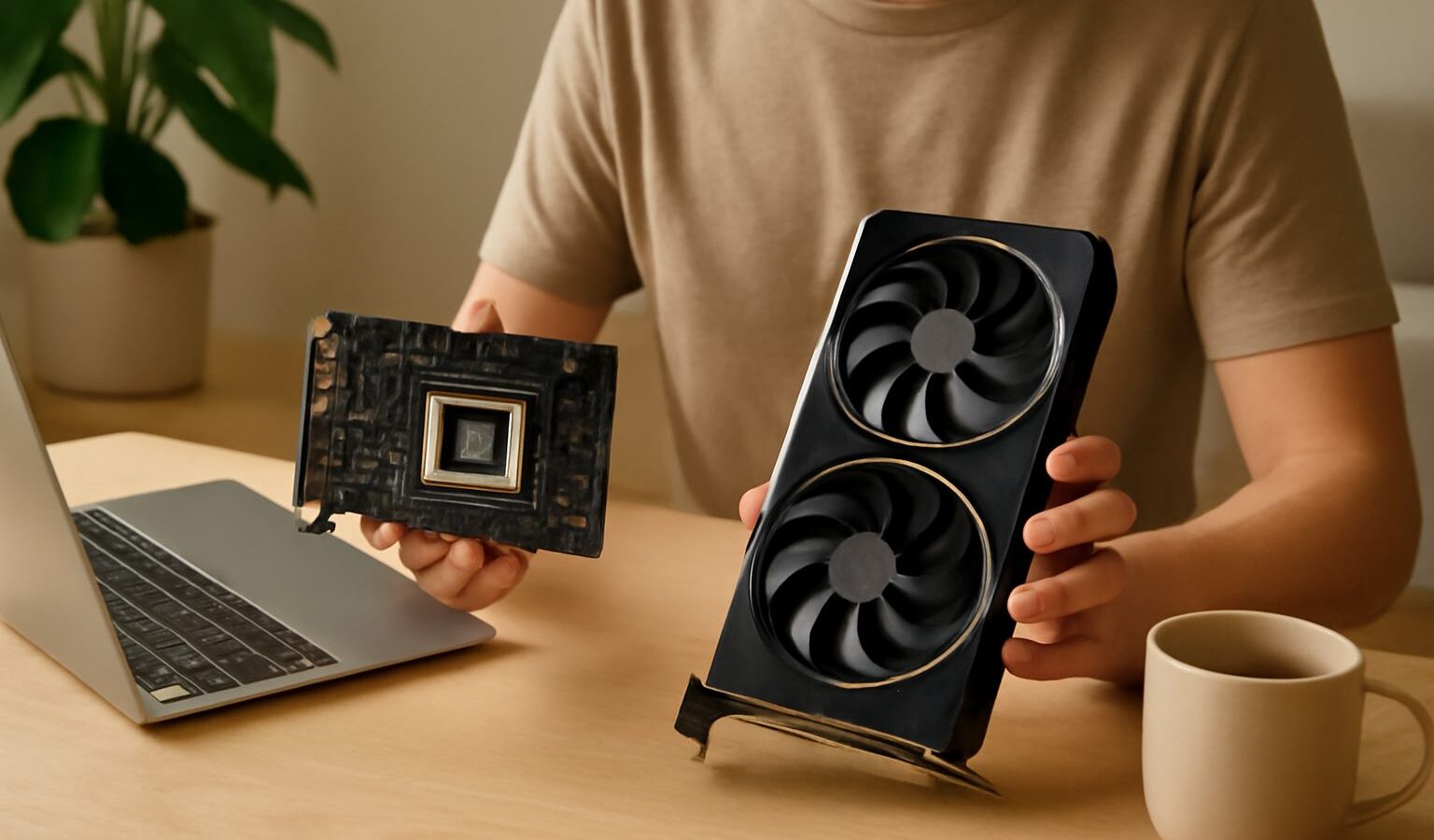
Understanding GPUs is the fastest way to make sense of gaming performance, because the graphics card is the single component that most directly decides how smoothly your games run. This guide explains what a GPU does, how the tiers are structured, and how to match one to the resolution and frame rate you actually want. It is brand-neutral, so the reasoning applies whichever make you eventually choose.

What a GPU actually does
A GPU, or graphics processing unit, is a highly parallel processor built to draw the millions of pixels in every frame of a game. While a CPU handles a few complex tasks quickly, a GPU handles thousands of simple calculations at once, which is exactly what rendering demands. When people say a game runs at a certain frame rate, the GPU is usually the part doing the heavy lifting to produce those frames.
The graphics card is the physical board that houses the GPU chip, its own dedicated memory, a cooler and the power connectors. In a laptop the same job is done by a mobile GPU soldered onto the mainboard, tuned to a set power limit.
How GPU tiers work
Graphics cards are sold in clear performance tiers, and understanding them saves you from overspending or underbuying.
- Budget tier: Aimed at 1080p gaming at moderate settings and esports titles at high frame rates. A sensible choice for casual players and tight budgets.
- Mid-range tier: The sweet spot for most people. Comfortable 1080p at high settings and capable 1440p play. This is where price and performance meet.
- High-end tier: Built for 1440p at high frame rates and entry-level 4K. Worth it if you own a fast, high-resolution monitor.
- Premium tier: For 4K gaming, heavy ray tracing and future-proofing. Expensive, and only justified if the rest of your system and screen can keep up.
Within each generation, higher numbers in a model name usually mean more power, but numbers do not compare cleanly across generations or brands. Always look at independent performance results rather than the name alone.
VRAM, resolution and settings
A graphics card has its own memory, called VRAM, which stores textures, frame buffers and other visual data. Higher resolutions and higher texture settings need more VRAM. If a card runs short, you see stutters and sudden frame-rate drops as it swaps data in and out.
The right amount depends on how you play.
| Play target | Typical GPU tier | Comfortable VRAM | Notes |
|---|---|---|---|
| 1080p esports | Budget | Lower | High frame rates matter more than VRAM |
| 1080p high settings | Mid-range | Moderate | The mainstream sweet spot |
| 1440p high settings | High-end | Higher | Pair with a fast 1440p monitor |
| 4K and ray tracing | Premium | Highest | Demands a strong CPU and PSU too |
Resolution has the biggest effect on how hard the GPU works. Every step up multiplies the pixels it must draw, so a card that flies at 1080p may struggle at 4K.
Ray tracing and upscaling
Ray tracing simulates how light bounces to produce more realistic reflections and shadows. It looks stunning but is demanding, so only mid-range and above handle it well. Upscaling technologies render the game at a lower resolution and intelligently rebuild it to look sharper, recovering frame rate. These features are useful, but treat them as bonuses rather than the main reason to buy a card.
Frame generation is a newer twist on the same idea. Instead of rendering every frame traditionally, the card inserts generated frames between real ones to make motion look smoother. It works best when your base frame rate is already reasonable, and it can add a little input lag, so competitive players often leave it off. As with upscaling, it is a helpful extra rather than a substitute for genuine hardware power.
Matching the GPU to the rest of your system
A powerful GPU cannot shine alone. Three things commonly hold it back.
The monitor
There is no point buying a premium card to feed a slow 1080p screen. Match the GPU tier to your monitor’s resolution and refresh rate so neither wastes the other.
The CPU
At lower resolutions the processor feeds the GPU with data, and a weak CPU can become a bottleneck that caps frame rates. The pairing matters, which is covered in our CPU guide.
Power and cooling
High-end cards draw significant power and generate real heat. Confirm your power supply has the capacity and the right connectors, and that your case has room and airflow for the card’s cooler.
How to choose without overthinking
- Start from your monitor. Its resolution and refresh rate set the target the GPU must hit.
- Pick the tier that matches that target, then check independent performance results for the specific model.
- Confirm the supporting cast: a capable CPU, enough VRAM for your resolution, and a power supply with headroom.
- Leave a little room to grow if you plan to upgrade your screen soon, but do not pay a premium for performance you cannot yet use.
Buying one tier above your current monitor is a reasonable way to future-proof. Buying three tiers above is usually money left on the table.
It also pays to check independent, up to date reviews rather than trusting the number in a model name. Manufacturers release many variants, and two cards with similar names can differ in memory, power and cooling. A few minutes reading performance results for the exact model you are considering will tell you far more than the box ever could, and it protects you from paying premium money for a card that only performs like a mid-range one.
A confident closing
Once you see the GPU as the engine that draws every frame, the rest of the decision becomes logical. Choose the tier that matches your screen, give it a capable CPU and enough power, and you will get smooth, reliable performance without overspending. Understanding graphics cards this way turns a confusing purchase into a simple, satisfying one.
Explore more: Understanding CPUs for Gaming · Choosing a Gaming Monitor · Building Your First Gaming PC
Frequently Asked Questions
How much VRAM do I need for gaming? It depends on your resolution and texture settings. Higher resolutions and textures need more, and a card that runs short shows stutters and sudden frame-rate drops. Check independent reviews for the games you play at your screen’s resolution.
Are upscaling and frame generation worth using? They are useful extras. Upscaling renders at a lower resolution and rebuilds the image to regain frame rate, while frame generation inserts extra frames for smoother motion. Frame generation can add input lag, so competitive players often switch it off.
Can a GPU be limited by my CPU? Yes. At lower resolutions a weak processor can become a bottleneck that caps frame rates, so the pair matters. Match the two sensibly, and check reviews that test your intended GPU with a similar CPU before buying.
Do I need to upgrade my power supply when buying a new graphics card? Possibly. High-end cards draw significant power and need the right connectors. Check the card’s recommended power supply capacity and your current wattage and connectors before buying, and make sure your case has room and airflow.
Is it worth buying a GPU tier above what my monitor needs? One tier above your current monitor is a reasonable way to leave room for an upgrade. Three tiers above is usually money left on the table, because the extra performance goes unused. Match the card to your screen’s resolution and refresh rate.
Further reading: Overclocking Your CPU and GPU Safely · DLSS, FSR and XeSS Upscaling Explained