
A wireless printer is wonderfully convenient once it is set up. No cables trailing across the room, and you can print from your phone, tablet, or laptop anywhere in the house. The setup itself puts a lot of people off, though, because it feels more fiddly than plugging in a cable. It really does not have to be. To connect printer wifi singapore homes can do this in a few clear steps, and this guide takes you through it calmly, plus what to check when it stubbornly refuses to connect.
The exact buttons vary between printer brands, but the overall process is the same for almost all of them. Let us go through it.
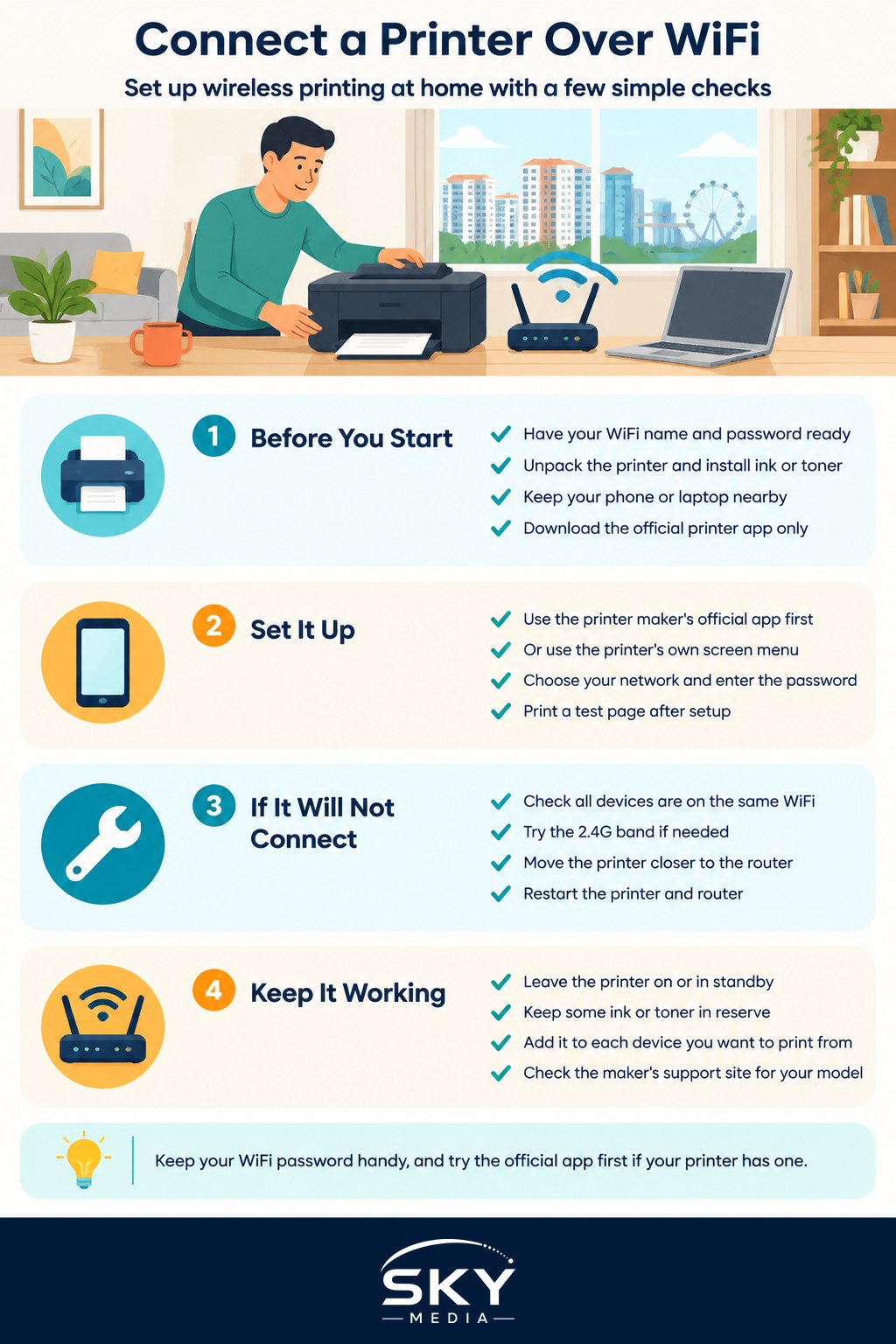
Before You Start: What You Need
A little preparation makes the whole thing smoother. Gather these things first so you are not hunting for them halfway through.
- Your home WiFi name and password. You will need to type the password into the printer or an app, so have it ready. It is usually on a sticker on your router if you have never changed it.
- The printer, unpacked, with any tape and protective bits removed, and ink or toner installed.
- Your phone or laptop nearby, on the same WiFi network you want the printer to join.
- The printer’s app if it has one. Most major brands offer a free official app that makes setup much easier. Only download it from the official app store, never from a random link.
One thing that trips people up in HDB flats and condos: many homes run WiFi on two bands, often labelled with “2.4G” and “5G” in the network name. Some printers, especially older ones, only connect to the 2.4G band. If your printer cannot find your network, this is a common reason, and we will come back to it. If your WiFi itself is patchy, our guide on how to fix slow home WiFi may help before you even start.
Connecting the Printer, Step by Step
There are usually two ways to get a printer onto your WiFi. The easy way uses the printer’s own app, and the manual way uses the printer’s screen. Try the app first if your printer has one.
Using the official app, which is the simplest route:
- Install the printer maker’s app on your phone and open it.
- Choose to add or set up a new printer, and follow the on-screen prompts.
- The app finds the printer, asks for your WiFi password, and does the connecting for you.
- Once done, print a test page from the app to confirm it works.
Using the printer’s own screen, if it has a small touchscreen or menu:
- On the printer, find the wireless or network setup menu.
- Choose your home WiFi network from the list it shows.
- Type in your WiFi password using the printer’s buttons or screen. Take care, as this can be fiddly.
- Wait for it to confirm it is connected, usually with a light that stops blinking and stays steady.
Some printers also have a quick-connect button that pairs with a matching button on your router. If both your printer and router support it, this can skip typing the password altogether. Check your printer’s quick-start leaflet to see if yours does.
Once the printer is on the network, add it to your devices. On a phone, most modern printers appear automatically when you tap print in any app. On a laptop, go to the printer settings, choose to add a printer, and select yours from the list. After that, printing is as easy as choosing print and picking your printer.
When It Will Not Connect: Safe Fixes
Do not worry if it does not work first time. Wireless printers are famous for the occasional sulk, and the fixes are simple and safe. Work through these in order.
- Check both devices are on the same WiFi. Your phone or laptop and the printer must be on the same network. If you have a guest network or two WiFi bands, make sure everything is on the same one.
- Try the 2.4G band. If your printer cannot see your network, connect your phone to the 2.4G band during setup, as many printers only work on that band. Our guide on understanding WiFi 6 and WiFi 7 explains these bands in plain words.
- Move the printer closer to the router. A weak signal in a far bedroom can stop the connection from holding. If distance is the issue, our guide on how to extend your WiFi range at home covers ways to reach further.
- Restart everything. Switch the printer off and on, and restart your router too. This clears a surprising number of connection glitches.
- Update the printer software. Outdated printer software can cause connection problems, so check the app or the maker’s official site for an update.
If none of that works, connect the printer to your laptop with a USB cable just to confirm the printer itself is fine, then try the wireless setup again. And always look up your exact model on the maker’s official support site, since the menu wording differs from brand to brand.
Getting the Most From a Wireless Printer
Once connected, a WiFi printer opens up handy options. You can print a boarding pass from your phone without touching a computer, scan a document straight to your email if the printer has a scanner, and let everyone in the household print from their own devices.
A few habits keep it reliable. Leave the printer switched on or in standby so it stays on the network, since some printers drop off WiFi when fully powered down. Keep a little ink or toner in reserve, as running dry mid-print is a common frustration. And when the printer eventually reaches the end of its life, do not bin it with the rubbish. Take it to a proper collection point through the national e-waste scheme, as covered in our guide on e-waste recycling.
To wrap up, connecting a printer over WiFi is far less daunting than it looks. Have your WiFi password ready, use the official app where you can, and remember the 2.4G band trick if the printer cannot find your network. Work through the simple fixes calmly if it resists, and you will soon be printing from anywhere in your home without a single cable.
Frequently Asked Questions
Can I print from my phone to a WiFi printer when I’m out of the house? Usually not by default, since most printers only accept jobs from devices on the same home network. Some brands offer cloud or email printing through their official app, which lets you send documents remotely. Check your printer’s app or support page for this option.
Do I need to reconnect the printer after changing my WiFi password or router? Yes. The printer remembers the old network details, so a new password or router means it must join again. Use the printer’s app or its network menu to pick your network and enter the new password, as you did during first setup.
Is a WiFi printer safe from hackers? Printers on your home network can be a weak point if left with default settings. Set a strong WiFi password, change any default printer password, and keep its software updated through the maker’s official channels. Do not expose it to the internet unnecessarily.
Why does my printer show offline even though it is switched on? The printer has probably dropped off your WiFi, or your phone or laptop is on a different network. Check that both are on the same network, restart the printer and router, and make sure the printer is selected as the active one in your settings.
Should I buy a WiFi printer or a USB-only one for home? A WiFi printer suits households where several people print from phones and laptops, while a USB-only model can be simpler and cheaper for one computer. Think about how many devices need access and where the printer will sit before deciding.
Further reading: Choosing a Label Printer for Home · Choosing a 3D Printer for Beginners