

Wireless@SG is Singapore’s free public WiFi programme, available in many public places such as libraries, community centres, shopping malls and government buildings. It is useful when your mobile data is running low, when you are a visitor waiting for a local SIM card, or when you simply want a steadier connection while studying or working outside. The programme is overseen by the Infocomm Media Development Authority (IMDA) and delivered through partner telecom operators.
This guide focuses on getting connected: the different network names, how to register, how to set up automatic login, and what to do when it does not work. If you want advice on protecting yourself while using any public network, see our separate guide to staying safe on public WiFi.
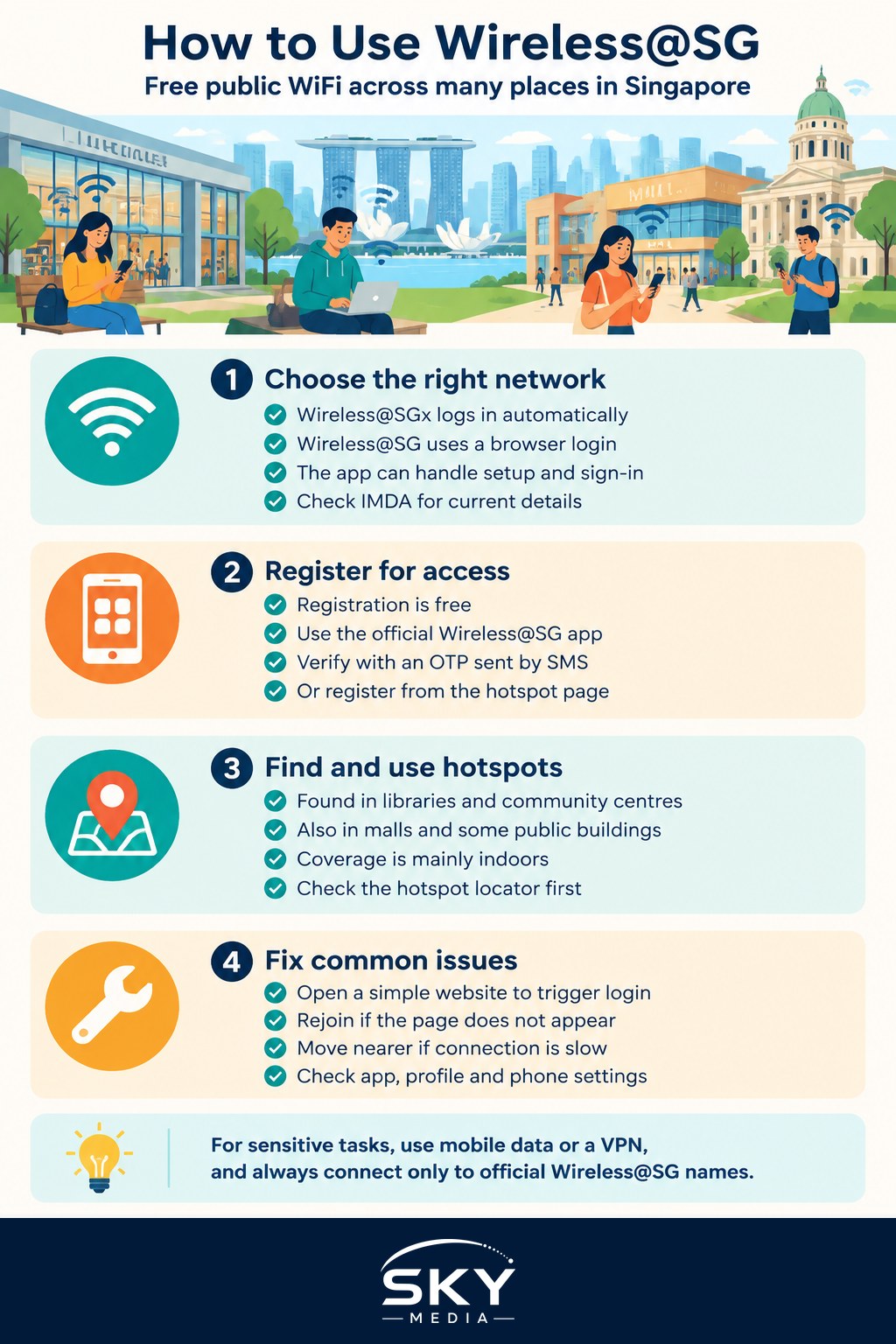
Wireless@SG vs Wireless@SGx: Which Network to Choose
When you scan for networks at a hotspot, you may see more than one Wireless@SG option. The names refer to different ways of logging in.
| Network name | How you log in | Security | Best for |
|---|---|---|---|
| Wireless@SGx | Automatic login using your SIM card or saved credentials set up through the app | Encrypted connection | Regular users who want seamless access |
| Wireless@SG | Log in through a web page with a username and password, or via the app | Login page; check current IMDA guidance on encryption | Occasional users and devices without SIM login |
| Wireless@SG with app | The official app handles registration and login for you | Depends on network used | First-time setup, visitors |
For most people, Wireless@SGx is the better choice. Once set up, your phone connects automatically whenever you are in range, and the connection is encrypted. Network names and login methods can be updated over time, so check IMDA’s Wireless@SG page for the current details.
How to Register for Wireless@SG
You need an account before you can use the network. Registration is free. The usual routes are:
Through the official app
- Download the Wireless@SG app from your phone’s app store. Make sure it is the official app listed on IMDA’s website.
- Open the app and choose to register or create an account.
- Enter your mobile number and verify it using the one-time password (OTP) sent by SMS.
- Follow the prompts to save the network profile on your phone, so it can connect to Wireless@SGx automatically.
Through a hotspot login page
- Connect to the Wireless@SG network at a hotspot.
- A login page should open in your browser. If it does not, open any website to trigger it.
- Choose the option to register, select a service provider if asked, and enter your mobile number.
- Use the OTP or the login details sent to you to sign in.
Using SIM-based login
Many local mobile plans support automatic Wireless@SGx login using the SIM card. On some phones, this works with little or no setup. If it does not, check your telco’s help pages or the Wireless@SG app.
Registration requirements, such as whether a local mobile number is needed, can change. Visitors without a local number should check IMDA’s site for the current options before relying on Wireless@SG.
Finding Wireless@SG Hotspots
Wireless@SG covers a wide range of public locations. Commonly listed venue types include:
- Public libraries and community centres
- Shopping malls and some food and beverage outlets
- Government service centres and some public buildings
- Hospitals and polyclinics in certain areas
- Selected transport hubs and tourist attractions
Coverage is concentrated in indoor public areas rather than homes or open streets. The most reliable way to check a specific place is the hotspot locator on IMDA’s website or in the official app. Venue lists change as operators add or remove hotspots, so check before you depend on it for something important, such as an online meeting.
Getting the Best Experience
Wireless@SG is designed for everyday browsing, messaging and light work. A few habits help:
- Stay near the access point. Signal can weaken in corners, stairwells or outdoor seating.
- Keep the network profile updated. If you change phones or reset network settings, you may need to set up Wireless@SGx again through the app.
- Avoid large downloads. Shared public networks slow down at busy times. Save big updates for home, where you can control the router. Our guide on how to fix slow home WiFi helps if your home network is the bottleneck.
- Turn off auto-join for lookalike networks. Only connect to networks whose names match the official ones. Fake hotspots sometimes use similar names.
- Use a VPN or secure sites for sensitive tasks. For banking or work logins, many people prefer mobile data or a VPN even on encrypted networks.
Troubleshooting Common Problems
If Wireless@SG will not connect, work through these steps.
The login page does not appear
- Open a browser and visit a simple website without “https” at the start, which can trigger the login page.
- Turn WiFi off and on again, or forget the network and reconnect.
- Disable any private DNS or VPN temporarily, as these can block the login page.
Wireless@SGx will not auto-connect
- Check that the Wireless@SGx profile is saved in your WiFi settings.
- Reinstall or reopen the official app and repeat the setup.
- Check that your phone’s date and time are set to automatic, since wrong settings can cause certificate errors.
Connected but no internet
- Move closer to the access point, or try another part of the venue.
- Check whether the hotspot has temporary maintenance. The app or venue staff may know.
- Restart your phone.
Your account or password is not accepted
- Request a new OTP or reset your login through the app.
- Make sure you are entering your mobile number in the correct format.
If none of this works, contact the support channel listed on IMDA’s Wireless@SG page or in the app.
Using Wireless@SG on Laptops and Other Devices
Laptops and tablets without a SIM card can still use Wireless@SG. Usually, you connect to the network and log in through the web page, or use credentials generated through the app. Some laptops can also save a Wireless@SGx profile using the details provided during registration.
Older desktops without built-in WiFi need an adapter first. Our guide on choosing a WiFi adapter for an older desktop explains the options. Once connected, the same login steps apply.
Wireless@SG is a handy safety net for staying online around Singapore. Spend a few minutes setting up Wireless@SGx on your phone, and you will have free, automatic access in many of the places you visit most.
Frequently Asked Questions
Can tourists use Wireless@SG without a local number? It depends on the current registration rules, which can change, including whether a local mobile number is needed. Visitors without a local number should check IMDA’s Wireless@SG page for the current options before relying on it as their main connection.
Is Wireless@SG safe enough for online banking? For banking or work logins, many people prefer mobile data or a VPN even on an encrypted network. Wireless@SGx is encrypted, but it is still a shared public network. Connect only to names that match the official ones, since fake hotspots sometimes use lookalike names.
Will Wireless@SG handle a video call or large download? It is designed for everyday browsing, messaging and light work. Shared networks slow down at busy times, so save big downloads and updates for home. Check the venue’s hotspot status before depending on it for an important online meeting.
Why does the login page never appear on my phone? Try opening a simple website without https at the start to trigger it, turn WiFi off and on or forget the network and reconnect, and temporarily switch off any private DNS or VPN, which can block the login page.
Do I have to set up Wireless@SGx again after changing phones? Yes, you may need to. If you change phones or reset network settings, repeat the setup through the official app so the profile is saved again. Also make sure date and time are set to automatic, as wrong settings can cause certificate errors.