
We have all sent one: a looping clip of a cat falling off a sofa, or a photo with bold white text that sums up exactly how you feel about Monday. Making a GIF or meme in Singapore is easier than most people think, costs nothing, and is a fun way to add personality to your group chats and social posts. A GIF is a short, silent, looping animation, usually a few seconds long, while a meme is typically an image with a punchy caption. This guide walks you through both in plain steps, whether you are on a phone or a computer, and it flags a couple of things worth being careful about before you hit send.
What a GIF Is and Where to Find Them
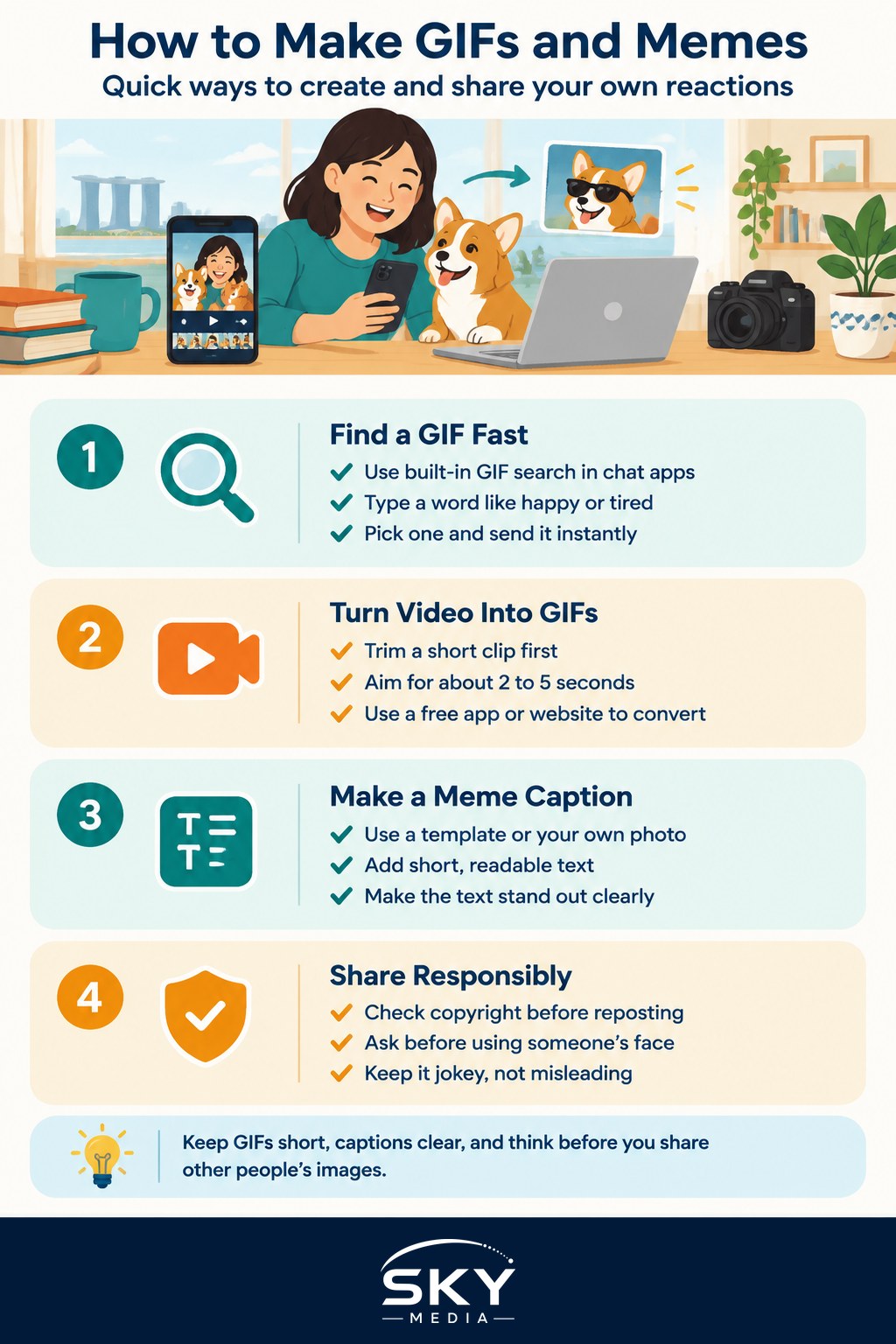
A GIF plays a short clip on repeat with no sound. You have seen thousands of them in WhatsApp, Telegram, and social feeds. The easiest way to use one is to not make it at all. Most messaging apps have a built in GIF search, usually a button marked GIF near where you pick stickers or emoji. Type a word such as “happy” or “tired”, pick one, and send. This pulls from huge public libraries and is perfect when you just want to react quickly.
Sometimes, though, you want a GIF from your own video, such as a funny moment from a family gathering or a clip of your pet. That is where making your own comes in.
Turning a Video Clip Into a GIF
The simplest route on a phone is to use a free GIF maker app or a built in feature. On many phones you can trim a video first, then convert a short section into a GIF. Keep it short, ideally two to five seconds, because GIFs balloon in file size quickly and a long one becomes a big, laggy file that is slow to send.
Here is the general flow, which is similar across most tools:
- Pick or record a short video clip.
- Trim it down to just the moment you want, cutting the boring lead in and tail.
- Convert it to a GIF using the app’s export or share option.
- Save it to your phone, then send it like any photo.
On a computer, plenty of free websites let you upload a clip, choose start and end points, and download a GIF. If you would rather record your screen first, for example to turn a short bit of a game or a how to into a GIF, our guide to screen recording tools covers free options. For clips you plan to post to social media rather than loop as a GIF, a regular short video format is usually a better fit than a GIF.
Making a Meme With a Caption
A meme is usually just a photo or a still frame with text on it. You have two easy paths. The first is a meme generator, which is a free website or app with popular template images ready to caption. You type your top and bottom lines, and it produces the classic bold white text with a dark outline. The second path gives you more control: use a photo editing or design app, drop in your own image, and add a text box.
Design apps are great here because they let you pick fonts, colours, and layout, and you can start from a template so you are not staring at a blank canvas. If you want a gentle introduction, our beginner walkthrough of getting started with Canva shows how to add text over an image in minutes. Keep captions short and readable, use a clear font, and make sure the text stands out against the background, because a meme nobody can read at a glance is a meme that falls flat.
If you are captioning a photo you took on your phone, you can often do it without any extra app at all, and our guide to editing photos on your phone explains the built in tools for adding text and cropping.
Sharing Responsibly and Staying Out of Trouble
Memes and GIFs are meant to be light hearted, but a few common sense points keep the fun from going wrong.
First, think about copyright. Reusing a popular meme template in a group chat is generally harmless, but taking someone’s photo, a still from a film, or a stranger’s video and reposting it publicly, or using it for anything commercial such as promoting a business, can cross a line. When in doubt, use images you took yourself or clearly free to use templates.
Second, be careful with other people’s faces. Turning a friend’s embarrassing moment into a meme and blasting it to a big group, or worse, posting it publicly, can hurt feelings or worse. Get a quick “you okay if I share this?” before you do. This matters even more with photos of children.
Third, watch out for manipulated images being passed off as real. It is easy to caption a photo to imply something that never happened, and doing that with a real person can spread misinformation or even amount to harassment. Keep your memes clearly jokey rather than deceptive.
Finally, be a little wary of random meme apps that demand broad permissions, such as full access to your photos, contacts, or location, for what should be a simple task. Stick to well known apps and websites. If you want to understand what those permission requests actually mean, our explainer on app permissions and privacy is a helpful read.
Wrapping Up
Making a GIF or meme is one of the more joyful corners of everyday tech. Start with the built in GIF search in your chat app for instant reactions, use a free GIF maker when you want to loop your own clip, and reach for a meme generator or a design app when you want to add a caption. Keep GIFs short so they send quickly, keep captions clear, and keep other people’s feelings and privacy in mind before you share. Once you have made a couple, it becomes second nature, and your group chats will never be quite the same again.
Frequently Asked Questions
What is the difference between a GIF and a short video clip? A GIF is a silent, looping animation, while a short video can include sound and usually has better quality at a smaller file size. Many platforms convert GIFs to video anyway, so for posting, a short video is often the better choice.
Why is my GIF blurry or so large that it will not send? GIFs store many frames, so long or high-resolution clips become heavy and low quality. Trim it to a few seconds, reduce the size and frame rate in your maker, or crop to the part that matters before exporting.
Can I turn a Live Photo or burst photo into a GIF? Many phones can convert a Live Photo or a sequence of photos into a looping animation through the Photos app or a free GIF maker. The exact steps vary by phone model and software version, so check your device’s help pages.
Is it okay to make memes of public figures or celebrities? Light-hearted parody is common, but be careful not to imply something false or defamatory. Do not pass off edited images as real, and avoid using a person’s likeness to promote a business. When in doubt, keep it clearly jokey or skip it.
What fonts and layouts make a meme easy to read? Use a bold, clear font in a strong colour, usually white with a dark outline, placed over a plain area of the image. Keep the text short, and check it on a small phone screen. If it takes effort to read, simplify it.
Further reading: How to Make a Cinemagraph