

Your phone can do a surprising amount of work for you without any extra apps. It can silence itself during meetings, remind you to leave for an appointment, dim the screen at bedtime, and even switch on Wi-Fi when you reach home. Phone automation in Singapore is not just for tech enthusiasts. Once you set up a few simple routines, your phone quietly handles the small, repetitive tasks so you can stop thinking about them.
The best part is that both iPhone and Android come with these tools built in. You do not need to download anything or pay for a subscription. You just need to know where to look and start with one or two useful routines.
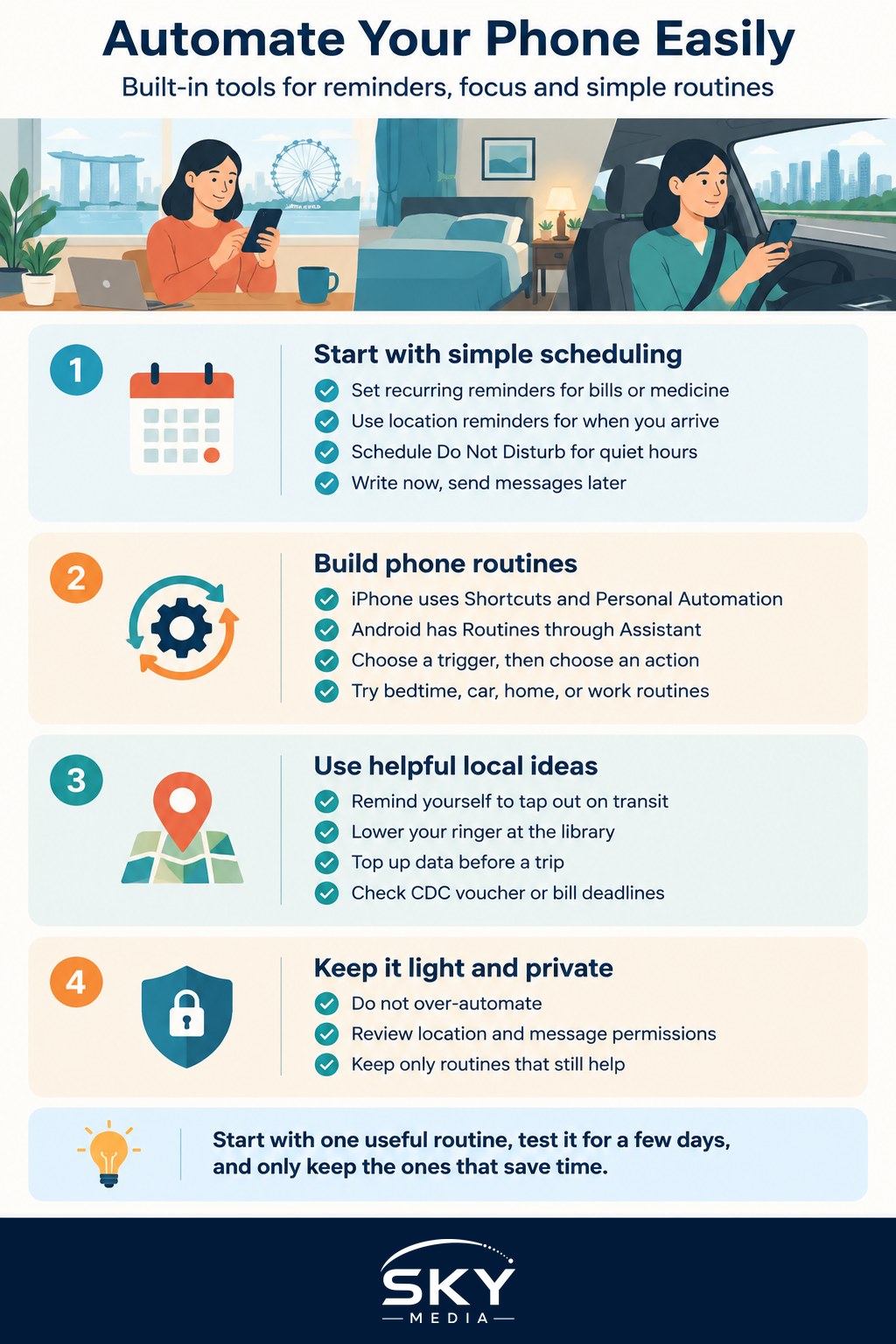
Start with scheduling the basics
Before diving into full automation, get comfortable with the simple scheduling features you probably already have. These are the everyday wins that make the biggest difference.
- Reminders and alarms: set recurring reminders for things like paying bills, taking medicine, or bringing the recycling down. Time-based and even location-based reminders are built in, so your phone can nudge you “when I arrive at the office”.
- Do Not Disturb and Focus modes: schedule quiet hours overnight, or a work focus that hides social apps during office time. This is one of the easiest ways to protect your attention.
- Scheduled messages: both major platforms let you write a message now and have it send later, handy for birthday wishes across time zones or a reminder to a family member.
- Bedtime and wind-down: schedule the screen to warm and dim in the evening, and a wake-up routine in the morning.
If staying focused is your main goal, these features pair nicely with the ideas in our guide to managing notifications and staying focused. Setting a calendar properly also helps, and our overview of calendar and scheduling apps is a good place to start.
Build simple automations on iPhone and Android
Once the basics feel natural, you can move on to true automation, where the phone does something automatically when a trigger happens.
On iPhone, the tool is called Shortcuts, and it includes a Personal Automation section. On Android, you will find similar features in Google’s Routines through the Assistant, and many phone brands like Samsung include their own automation app such as Modes and Routines. The idea is the same across all of them: choose a trigger, then choose an action.
A trigger is the “when”, such as a time of day, arriving at a location, connecting to a Bluetooth device, or opening an app. The action is the “what should happen”. Here are a few beginner-friendly examples worth trying:
- When it is 10pm on weeknights, turn on Do Not Disturb and lower screen brightness.
- When you connect to your car’s Bluetooth, open your maps app and read out messages.
- When you arrive home, switch on Wi-Fi and set the ringer to loud.
- When you leave the office, send a quick “on my way” message to family.
- When your alarm goes off in the morning, show the weather and your calendar for the day.
Start with just one. Set it up, live with it for a few days, and adjust the timing until it feels right. Automation is meant to reduce friction, so if a routine annoys you, change it or switch it off.
Handy Singapore-specific ideas
You can tailor these to local life. Set a location reminder to tap out with your transit card, or a routine that lowers your ringer when you reach the library. Schedule a reminder to top up your data before a trip, or to check for CDC voucher or bill deadlines. If you rely on smart home gear at home, phone automations can tie in nicely, and our guide to creating smart home automations and routines shows how the two worlds connect.
Keep automations useful, private, and light
A few sensible habits keep automation working for you rather than against you.
First, do not over-automate. It is tempting to build a dozen routines at once, but too many can conflict or leave you confused about why your phone did something. Add them slowly.
Second, mind your permissions. Automations that use your location or read messages need access to sensitive data. Grant only what a routine truly needs, and review these settings now and then. Our guide to understanding app permissions and privacy explains how to keep this tidy.
Third, remember the goal. Good automation should save time and mental effort, not become a hobby that eats your evenings. If a routine no longer helps, delete it without guilt.
Wrapping up
Phone automation in Singapore is one of those small upgrades that quietly improves daily life. Begin with scheduled reminders and a bedtime focus, then graduate to one or two simple “when this, do that” automations using the built-in tools on your iPhone or Android. Keep them few, mind your permissions, and adjust as you go. Before long, your phone will be handling the little chores in the background, leaving you free to get on with the things that actually matter.
Further reading: Automating Tasks With IFTTT and Shortcuts