

Microsoft Copilot is the AI assistant built into Windows and Microsoft 365 apps such as Word, Excel, PowerPoint and Outlook. If you have opened a document recently and noticed a Copilot icon, or found a Copilot key on a new laptop keyboard, you have probably wondered what it is actually good for. This guide explains how to use Microsoft Copilot for real everyday tasks, where it helps and where it falls short, and how the different plans compare.
Microsoft updates Copilot features, names and plans often, and availability varies by country, device and account type. Treat this as a general guide and check Microsoft’s official Copilot and Microsoft 365 pages, or your company’s IT team, for what your account includes.
The Different “Copilots” Explained
The name Copilot covers several related products, which causes confusion:
- The Copilot app on Windows, the web and mobile is a general AI chat assistant. You can ask questions, draft text, summarise content and generate images.
- Copilot in Microsoft 365 apps works inside Word, Excel, PowerPoint, Outlook and other apps, using the document or email you have open.
- Microsoft 365 Copilot for work is a business version that can draw on your organisation’s emails, files, chats and meetings, subject to permissions your IT team controls.
- Copilot Chat for work accounts is a chat experience with enterprise data protection for people signing in with a work or school account.
Which one you see depends on how you sign in (personal Microsoft account or work account) and what subscription you have.
Getting Started on Windows
On a Windows PC, you can open Copilot in a few ways:
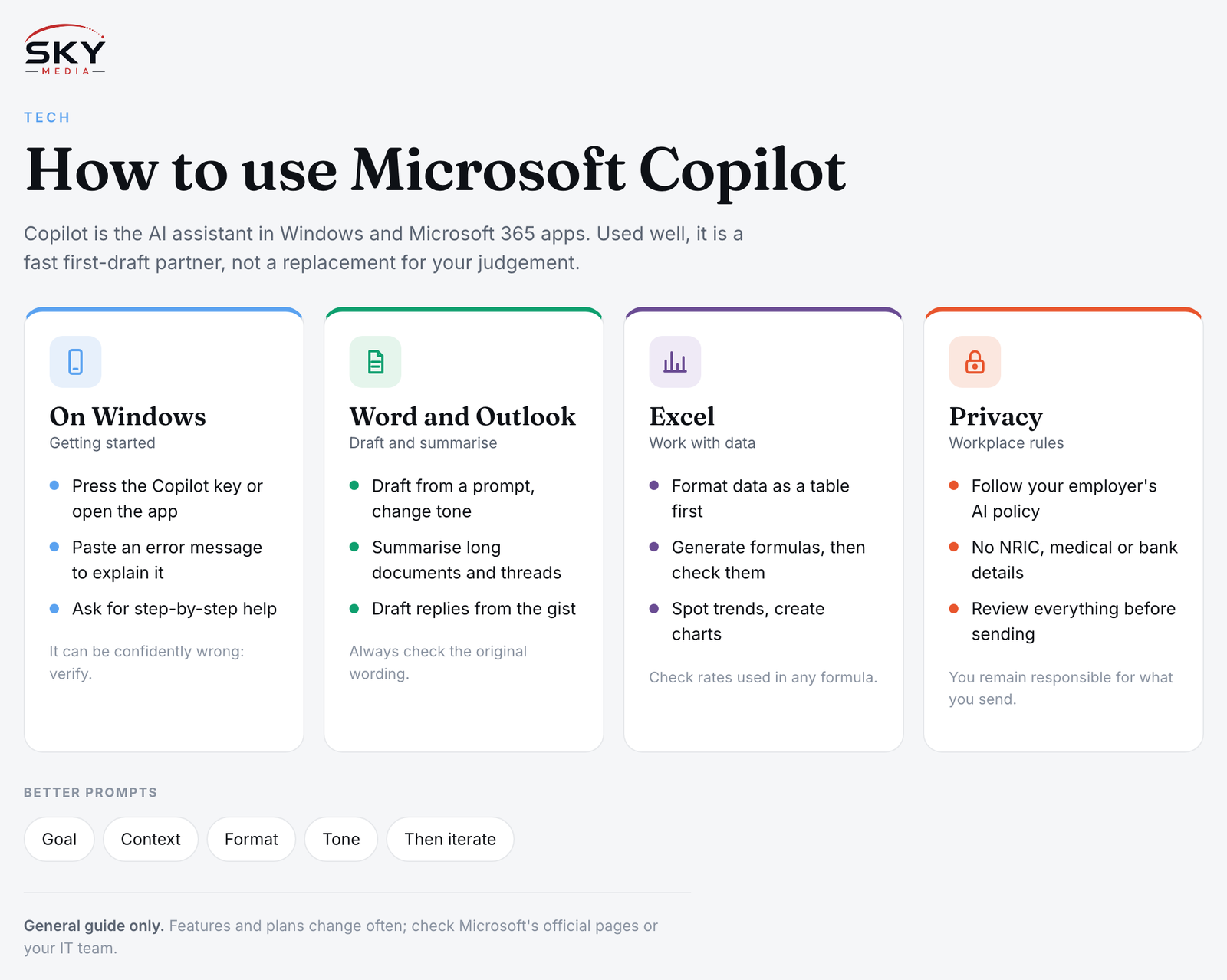
- Press the Copilot key if your keyboard has one, or open the Copilot app from the Start menu or taskbar.
- Sign in with your Microsoft account for a more personalised experience and saved conversations.
- Type or speak your request. Voice input is handy for quick questions.
Useful things to try in Windows:
- Explain something on screen. Paste in an error message and ask what it means and what to try.
- Draft quick messages. “Write a polite message to my landlord asking when the aircon servicing will be scheduled.”
- Plan and summarise. Paste a long article and ask for five key points.
- Get step-by-step help. “How do I change my default browser in Windows?”
Copilot can be confidently wrong, especially about local rules, prices or opening hours. For anything that matters, such as tax, CPF or government procedures, verify with the official source.
Copilot in Word, Excel and Outlook: Practical Tasks
Here is where Copilot saves real time once you know what to ask.
Word
- Draft from a prompt. “Draft a one-page proposal for a weekend coding class for primary school children, with sections for schedule, pricing placeholders and safety.”
- Rewrite or change tone. Highlight a paragraph and ask for it to be more formal, more concise or easier to read.
- Summarise a long document. Ask for a summary, the key decisions or a list of action items.
- Ask questions about the file. “What does this contract say about termination notice?” Always check the original wording yourself.
Excel
- Format data as a table first. Copilot works best when your data is in a proper Excel table with clear headers.
- Generate formulas. “Add a column that calculates GST-inclusive price from column C.” Check the result and the rate used.
- Spot trends. “Which month had the highest sales, and what changed compared with the month before?”
- Create charts and summaries. Ask for a PivotTable or chart, then refine it.
Outlook
- Summarise long threads. Catch up on a 30-message email chain in seconds.
- Draft replies. Give Copilot the gist (“decline politely, suggest next Tuesday afternoon”) and edit the draft.
- Coaching. Some versions offer feedback on tone and clarity before you hit send.
PowerPoint
- Create a draft deck from a prompt or a Word document, then adjust design and content.
- Summarise a presentation someone has shared with you.
Free vs Paid: How the Plans Differ
Plan names and inclusions change, so confirm on Microsoft’s site. Broadly:
| Plan type | Where Copilot works | Typical user | Key point |
|---|---|---|---|
| Free Copilot app | Windows, web and mobile chat | Anyone with a Microsoft account | General chat, drafting and image tools, with usage limits |
| Microsoft 365 Personal or Family | Copilot features inside Word, Excel, PowerPoint, Outlook | Home users and families | AI features may come with usage limits or credits; check current terms |
| Premium consumer tiers | Higher limits and earlier access to new features | Heavy personal users | Extra cost on top of or bundled with Microsoft 365 |
| Microsoft 365 Copilot for business | Apps plus organisation data such as Teams, SharePoint and email | Companies and SMEs | Paid add-on licence; IT controls access and data permissions |
For small business owners weighing up their wider software setup, our comparison of Microsoft 365 vs Google Workspace covers the bigger picture, and if you only need basic document tools, see free alternatives to Microsoft Office.
Writing Prompts That Get Better Results
Good prompts make a big difference. A simple formula is goal, context, format and tone:
- Goal: what you want (“Draft an email…”).
- Context: who it is for and what they need to know (“…to parents in my child’s class about a class outing next Friday…”).
- Format: length or structure (“…under 150 words with a bullet list of what to bring”).
- Tone: “friendly but clear”.
Then iterate. Ask Copilot to shorten, add a point, or rewrite for a different reader. Treat the first draft as a starting point, not the final version.
Privacy, Accuracy and Workplace Rules
- Check your workplace policy. Many employers allow only approved AI tools on work data. A work account with enterprise data protection is different from pasting confidential files into a personal account.
- Do not paste sensitive personal data such as NRIC numbers, medical details or bank information into AI chats unless your organisation has approved it.
- Review everything. Copilot can invent figures, misread tables or miss nuance. You remain responsible for what you send.
- Credit and copyright. Be careful with generated images and text for commercial use; read Microsoft’s terms.
- Turn features off if you prefer. Settings in Windows and Microsoft 365 apps let you manage some Copilot features. Your IT team may control these on work devices.
Used thoughtfully, Copilot is less a replacement for your skills and more a fast first-draft partner. Start with one or two tasks you do every week, such as summarising emails or tidying spreadsheets, and build from there.