

Most of what we need to print now lives on our phones: a school consent form, a boarding pass, a tenancy agreement sent over WhatsApp, a PDF from a government portal. Yet the moment you try to print from phone to the printer sitting two metres away, it often refuses to appear. The trick is knowing which of the few printing methods your phone and printer share, and setting it up once properly.
This guide assumes your printer already works and is connected to your home network. It focuses on getting the job from your phone to the paper.
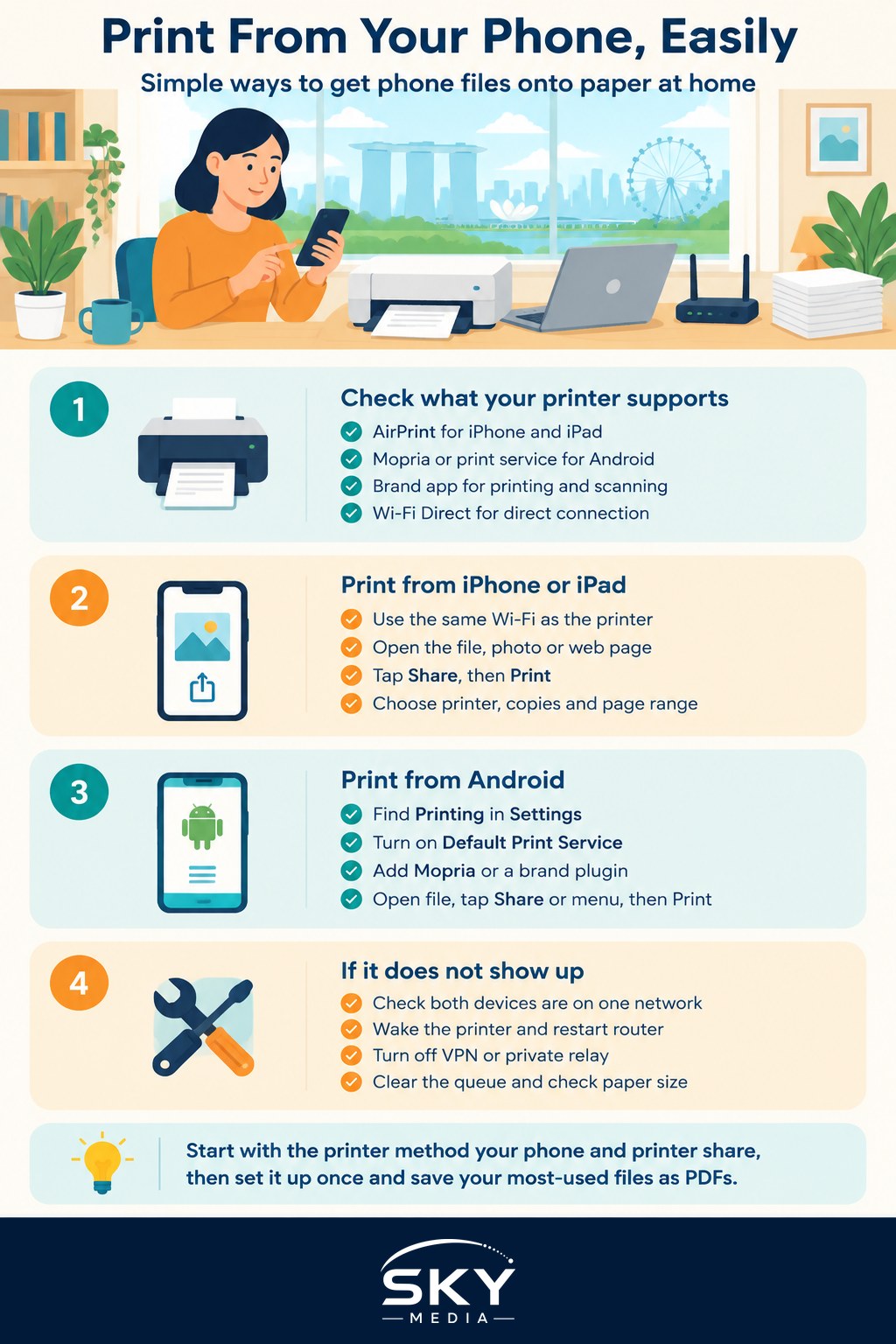
Know Which Printing Method Your Printer Supports
Phones do not talk to printers in one universal way. There are four common routes, and most printers support at least two of them.
- AirPrint (iPhone and iPad). Apple’s built-in printing system. If your printer supports AirPrint, there is nothing to install. It just appears in the Print menu when both devices are on the same Wi-Fi network.
- Mopria and the default print service (Android). Most Android phones include a built-in print service, often based on the Mopria standard, which works with a wide range of brands without a separate app.
- The manufacturer’s app. Most major printer brands have their own app for iOS and Android. These apps handle printing, scanning, ink levels and sometimes setup.
- Wi-Fi Direct. The printer creates its own small wireless network that your phone joins directly, useful when the printer is not on your home Wi-Fi or the router is causing trouble.
Check the printer’s box, manual or the manufacturer’s support page for the words “AirPrint”, “Mopria” or “Wi-Fi Direct”. Older printers that only connect by USB cable can still be used, but usually only through a computer that shares them.
Comparing the Main Ways to Print From a Phone
| Method | Works with | Setup needed | Best for |
|---|---|---|---|
| AirPrint | iPhone, iPad | None if printer supports it | Quick everyday printing on Apple devices |
| Android print service (Mopria) | Most Android phones | Turn on the service once | Android users who want to skip extra apps |
| Manufacturer’s app | iPhone and Android | Install app, add printer | Scanning, ink alerts, printer settings |
| Wi-Fi Direct | Most phones | Connect phone to printer’s network | Printers off the home network or guests |
| Email to printer | Any phone with email | Register printer for cloud printing | Printing when you are away from home |
Printing From an iPhone or iPad
If your printer supports AirPrint, the steps are short.
- Make sure your iPhone and the printer are on the same Wi-Fi network. Many homes have separate 2.4GHz and 5GHz networks, or a guest network, and devices on different ones may not see each other.
- Open the document, photo or web page you want to print.
- Tap the Share button (the square with an arrow pointing up), then scroll down and tap Print. In some apps, Print sits under a “…” menu instead.
- Tap Printer and choose yours from the list.
- Set the number of copies, page range, and colour or black and white, then tap Print.
If Print is missing for a file received on a chat app, save it to the Files app and print from there.
If your printer does not support AirPrint, install the manufacturer’s app and print from inside it instead.
Printing From an Android Phone
Android menus vary by brand, so the names below may differ slightly on your phone.
- Go to Settings, then search for “Printing” or look under Connected devices or Connection preferences.
- Make sure Default Print Service is switched on. If your printer is not found, tap Add service to install the Mopria Print Service or your printer brand’s plugin from the app store.
- Open the file you want to print, tap the three-dot menu or Share, then Print.
- At the top of the preview, tap the printer dropdown and pick your printer. You may need to tap All printers to see it.
- Adjust copies, paper size and colour, then tap the print icon.
Some phones sold in mainland China ship without Google services, which can mean the usual print plugins are missing from the built-in store. In that case the printer manufacturer’s own app, installed from its official site or your phone brand’s app store, is usually the simplest fix. Our guide to using a China phone without Google services covers how to find trustworthy app sources safely.
Using the Printer App and Wi-Fi Direct
The manufacturer’s app is worth installing even if built-in printing works, because it often shows ink or toner levels, lets you scan to your phone, and walks you through reconnecting the printer after a router change. When setting it up, let it find the printer on your network rather than typing an IP address, and accept the permissions it asks for, such as local network access on iPhone. Without that permission, the app simply cannot see the printer.
Wi-Fi Direct is handy when a visiting relative needs to print and you would rather not hand over your home Wi-Fi password, or when the printer sits too far from the router. Turn Wi-Fi Direct on from the printer’s control panel or settings page, note the network name and password it shows, and connect your phone to that network. While connected, your phone may lose internet access, so download the file first, print, then switch back to your home Wi-Fi.
Printing When You Are Not at Home
Many newer printers offer a cloud or email printing feature through the manufacturer’s account. You register the printer, receive a dedicated email address for it, and anything you send to that address prints at home. This is useful if you want a document waiting for you, though it relies on the printer being on and connected. Treat the printer’s email address like a password, and turn on any sender allow list the service offers so that strangers cannot send print jobs to your home.
Fixing the Most Common Phone Printing Problems
When the printer does not show up, work through these in order before blaming the hardware.
- Same network. Confirm the phone and printer are on the same network name. Mesh systems and guest networks are the usual culprits.
- Wake the printer. Printers in deep sleep mode sometimes drop off the network. Press a button on it or switch it off and on.
- Restart the router. If the printer’s IP address changed, a restart of the router, then the printer, then the phone often clears it.
- VPN and private relay. Turn off any VPN on the phone. Some VPNs hide devices on your local network.
- Wrong paper size. If the page prints cut off or tiny, set the paper size to A4 in the print options. Some apps default to US Letter.
- Stuck queue. Clear old jobs in the printer app or the phone’s print notification, then try again.
- Firmware. Check the manufacturer’s app for printer firmware updates, which often fix phone compatibility after an iOS or Android update.
If a printer is very old and supports none of these methods, the honest answer may be to print through a computer, or to consider whether a newer model is worth it. For other ways to give an old gadget a second life at home, see how to set up an old phone as a home security camera.
Small Habits That Make Phone Printing Smoother
- Save documents you print often, like forms or checklists, as PDFs in one folder on your phone.
- Use the print preview to choose only the pages you need. Government and bank PDFs often have blank or cover pages.
- Print in black and white unless colour matters. It saves ink and is often faster.
Once you have printed from your phone successfully the first time, it tends to keep working, and the printer becomes far more useful than when everything had to go through a laptop.