

Forgot your password, changed phone numbers, or entered the wrong code one time too many? Getting shut out of your phone’s main account is stressful, because it holds your photos, contacts, app purchases and backups. This guide explains how to recover a locked Apple ID (Apple now calls it an Apple Account) or a Google account when you have forgotten your login details. It focuses on legitimate recovery, not hacked accounts. If you think someone else has taken over your account, treat it as a security incident and follow each company’s compromised account steps instead.
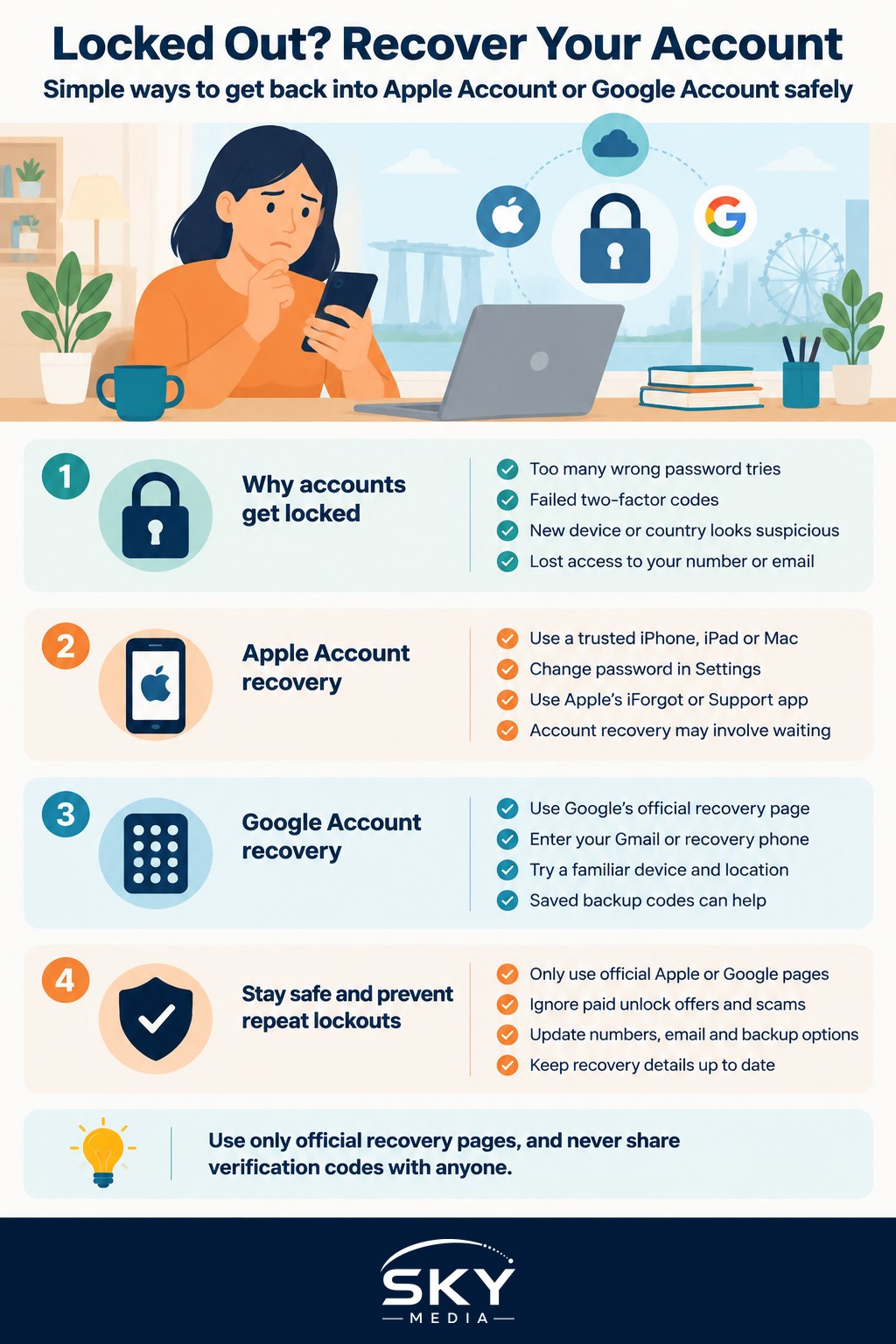
Why Accounts Get Locked
Both Apple and Google lock or restrict accounts to protect you. Common triggers include:
- Too many wrong password or passcode attempts.
- Failed two-factor authentication codes.
- Signing in from a new device or country, which can look suspicious.
- Losing access to the phone number or email used for verification, for example after changing your Singapore mobile number or moving from China.
- Security checks after unusual activity.
The fix depends on what you still have: a trusted device, a trusted phone number, a recovery email, a recovery key or backup codes.
Recovering an Apple Account
Apple’s official recovery tools are on its support website (iforgot.apple.com) and in the Settings app on trusted devices. Always use these official routes.
If you still have a trusted device
The fastest way is from an iPhone, iPad or Mac that is already signed in to your account.
- Open Settings, tap your name, then go to Sign-In & Security.
- Choose Change Password.
- Enter the device passcode when prompted, then set a new password.
Because the device itself is trusted, this often works immediately.
If you have no trusted device
Use the iForgot page on Apple’s website or the Apple Support app on a family member’s device. You will usually be asked for your account email or phone number and to verify your trusted phone number. Apple may then reset your password straight away if it can verify you.
Account recovery and the waiting period
If Apple cannot verify you quickly, it starts account recovery. This is an automatic process with a waiting period that can last days or longer, depending on how much information Apple can confirm. During this time:
- Apple sends updates by text or call to the number you provide.
- Avoid using other devices still signed in to the account, as this can cancel the request.
- Apple Support staff cannot speed it up, so be wary of anyone who claims they can.
Recovery contacts and recovery keys
If you set up a recovery contact (a trusted friend or relative with an Apple device) in advance, they can generate a code to help you back in. A recovery key is a 28-character code that gives stronger protection but means you must keep it safe. If you turned on a recovery key and lose both it and your trusted devices, you may not be able to regain access at all.
Recovering a Google Account
Google’s recovery tool is at its official account recovery page, reached from the “Forgot password?” link on the Google sign-in screen.
- Enter your Gmail address or recovery phone number.
- Answer the prompts as best you can. Google may ask for the last password you remember, send a code to your recovery phone or email, or ask you to confirm on a phone already signed in.
- Use a device and location you have signed in from before, such as your home Wi-Fi, if possible. This helps Google recognise you.
- If offered, enter one of your saved backup codes.
If Google cannot verify you, try again later from a familiar device, and give as much accurate detail as you can. Google, like Apple, does not let support staff bypass recovery for consumer accounts, so automated recovery is usually the only path.
Comparing the Recovery Options
| Recovery method | Apple Account | Google Account |
|---|---|---|
| Trusted device already signed in | Change password from Settings using your passcode | Approve a sign-in prompt on a phone already signed in |
| Phone number or email | Trusted phone number receives a verification code | Recovery phone or recovery email receives a code |
| Backup option you set up earlier | Recovery contact or recovery key | Backup codes |
| Last resort | Account recovery with a waiting period | Recovery form, answered from a familiar device and location |
Avoiding Scams While You Are Locked Out
Being locked out makes you a target. Scammers advertise “unlock services” and pose as tech support.
- Only use apple.com, Apple’s Support app, or Google’s official sign-in and recovery pages.
- Never share your verification codes with anyone, including people claiming to be from Apple, Google or a telco.
- Ignore messages offering to unlock your account for a fee.
- If you need hands-on help, visit an official Apple Store or an authorised service provider. For Google, rely on the official help centre.
If you think you have shared a code or password with a scammer, act quickly to secure the account and contact your bank if payment details are linked. The government’s ScamShield resources offer guidance on spotting scams.
Tips for Newcomers With Overseas Numbers
Many newcomers, including those from mainland China, set up their Apple Account or Google account with an old home number. When that number expires, recovery codes stop arriving.
- Before you cancel your old SIM, add your Singapore mobile number as a trusted or recovery number.
- Keep a roaming or low-cost plan on your old number for a few months if you can.
- If you use separate China and Singapore Apple Accounts, label which number and email belongs to which. Our guide on managing China and Singapore Apple IDs explains how people handle two accounts.
Preventing a Lockout Next Time
Once you are back in, spend ten minutes making recovery easier.
- Update your phone numbers and recovery email in account settings.
- Add a second trusted device or phone number where possible.
- Set up a recovery contact on Apple, or save backup codes for Google in a safe place, such as a printed copy at home.
- Use a password manager so you are not relying on memory.
- Review your security settings regularly. Our guide to securing your Google account covers the main settings to check.
- Set up family access thoughtfully. Family sharing groups help parents manage children’s accounts; see setting up Apple Family Sharing and Google Family Groups.
When to Seek Further Help
If automated recovery fails repeatedly, check the official help pages for account-specific advice. For Apple, an in-person visit to an Apple Store or authorised service provider can help if your problem relates to a device, though staff still cannot bypass recovery. Keep proof of purchase for your devices in a safe place, as this sometimes helps with device-related issues.
Patience is often the key. Learning how to recover a locked Apple ID or Google account calmly, through official channels, is far safer than rushing to a third party who promises a quick fix.