
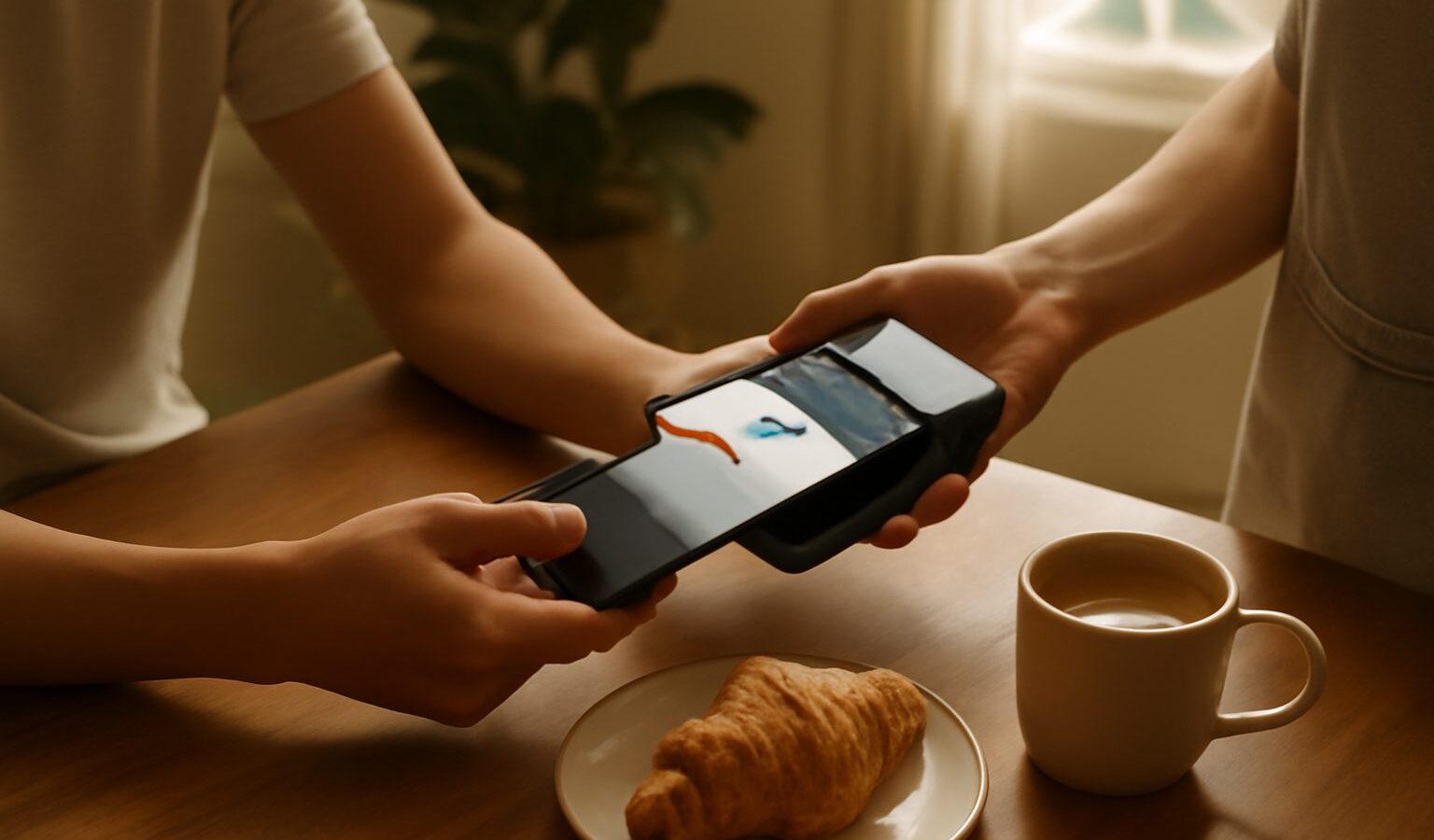
Tapping your phone or watch to pay has quietly become normal at checkouts across the island. If you have held back because it feels unfamiliar or you worry about security, this guide is for you. Using Apple Pay and Google Pay in Singapore is straightforward, and in several ways it is actually safer than handing over a physical card. Here is how they work and how to use them with confidence.
Both services turn a phone, and often a smartwatch, into a contactless card. Apple Pay runs on iPhones and Apple Watches, while Google Pay, which appears as Google Wallet on many phones, runs on Android devices. The underlying idea is the same for both, so the advice here applies whichever camp you are in.
How They Actually Work
At its heart, Apple Pay and Google Pay let you store a digital version of your existing bank or credit card on your device, then pay by holding it near a contactless terminal. The magic that makes this secure is a technique called tokenisation.
When you add a card, your real card number is not stored on the phone and is not shared with the shop. Instead, the system creates a substitute number, often called a token or a device account number, that stands in for your real card. When you tap to pay, the terminal receives this token plus a one time code, never your actual card details. Even if a dishonest merchant or a hacked terminal tried to capture the data, the token is useless for anything else.
On top of that, every payment is authorised by you on the device. On a phone you confirm with your face, your fingerprint or your passcode. On a watch you typically double press a button after unlocking it on your wrist. That means a lost phone cannot simply be tapped at a till by a stranger, because the payment will not go through without your biometric or passcode.
The tap itself uses a short range wireless technology called NFC, the same thing that makes contactless cards work. You do not need to open an app or connect to the internet at the terminal. Just wake the device, hold it to the reader, and confirm.
Setting It Up
Adding a card takes a couple of minutes and happens in the wallet app that comes with your device.
On an iPhone, open the Wallet app and tap the add button, then follow the prompts to add a card. On an Android phone, open Google Wallet and choose to add a payment card. In both cases you can usually snap a photo of your card or type the details in, after which your bank verifies it, sometimes by sending you a one time code.
A few pointers for a smooth setup:
- Check that your bank participates before you start, since not every card from every bank is supported.
- Make sure your device lock is switched on, as these services require a passcode, fingerprint or face unlock to function.
- Add your most used card first and set it as the default, so paying is a single tap.
- You can store several cards and switch between them at the terminal when needed.
Once a card is added, you are ready to pay in shops, and often within apps and on websites that show an Apple Pay or Google Pay button.
Paying in Shops
At the checkout, look for the contactless symbol on the terminal, the little curved waves. To pay with a phone, wake it and hold the top or back near the reader, then confirm with your face, fingerprint or passcode. With a watch, ready it as your device requires, then hold the face near the reader.
You do not need to tell the cashier which card you are using or unlock a banking app. The payment behaves like an ordinary contactless card tap from the terminal’s point of view. If a payment does not go through, it is often because the device was not unlocked or authorised, so try again and make sure you confirm.
Here is how the pieces compare at a glance:
| Feature | What it means | Why it helps you |
|---|---|---|
| Tokenisation | A substitute number replaces your real card | Merchants never see your actual card details |
| Biometric approval | Face, fingerprint or passcode confirms each pay | A lost device cannot be used by a stranger |
| NFC tap | Short range wireless at the terminal | Fast, no app or internet needed at the till |
| Device wallet | Cards stored in Apple Wallet or Google Wallet | One place to manage and switch cards |
Staying Secure
The security built into these services is genuinely strong, but you still play a part. The device itself is now a key to your money, so protecting it protects your payments.
Keep these habits:
- Set a strong device passcode and turn on face or fingerprint unlock. This is the lock on the whole system.
- Never share your device passcode, your card’s one time password, or your banking login with anyone. No real bank or shop will ask for these.
- Turn on the find my device feature for your phone. If it is ever lost or stolen, you can lock it or wipe it remotely, and you can suspend the cards in the wallet through your bank or the device maker.
- Be cautious about who adds a card to your device. During setup your bank may send a one time code to confirm the card is really yours. Never pass that code to someone else who claims they need it.
- Watch out for scams that try to trick you into adding your card to a fraudster’s device, or into approving something you did not initiate. If a message or caller pressures you to act fast around your card or codes, stop and contact your bank directly using the number on your card.
If your device is lost, you are not helpless. Because the real card number was never on the device, you can freeze the digital card and carry on with your physical one, or vice versa, and your bank can guide you through the steps.
Worth the Switch
Using Apple Pay and Google Pay in Singapore combines everyday convenience with security that often beats a plastic card, thanks to tokenisation and the biometric approval on your device. Set your card up once, keep your device locked and your codes private, and tapping to pay becomes second nature. As always, your bank sets the final rules on which cards, limits and features apply, so check with them if you have specific questions.
Explore more
QR and E-Payments
Using NETS, GrabPay and Local E-Wallets
PayNow Explained
Understanding SGQR and Scan-to-Pay