

Video calls have quietly become part of everyday life, whether you are joining a work meeting from home, catching up with family overseas, speaking to a doctor, or attending an online class. Most of us have simply made do with whatever the laptop came with, and put up with dim faces, echoey audio, and the dreaded frozen screen. The good news is that a few small, cheap, or free changes make a real difference. These video call tips singapore readers can use apply whether you are on a work laptop, a tablet, or a phone, and none of them require you to be technical.
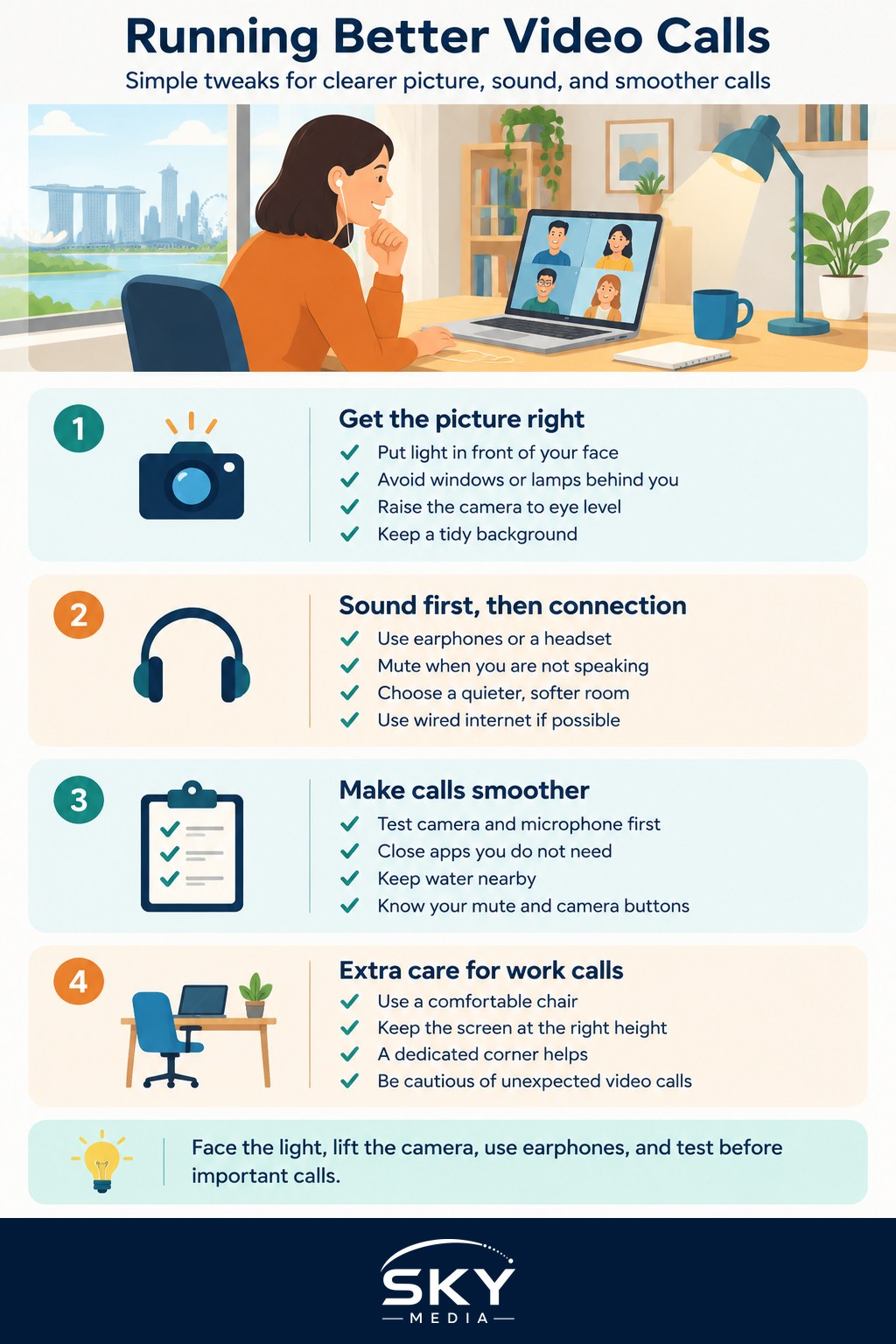
Getting the picture right
People notice a good picture without knowing why, and lighting is the biggest reason. Your camera needs light on your face, not behind you. The single most common mistake is sitting with a bright window or lamp behind you, which turns you into a dark silhouette. Turn around so the window or your main light is in front of you or off to one side, and your face instantly becomes clear. If the room is dim, even a simple desk lamp pointed at a wall near you, so the light bounces back softly, works better than a harsh light shining straight at you.
Camera position matters almost as much. A laptop sitting flat on a desk points its camera up at your chin and ceiling, which flatters no one. Raise the camera to roughly eye level by resting the laptop on a few books or a small box. Aim to have your eyes about a third of the way down the screen, with a little space above your head. Sit an arm’s length away rather than looming into the lens. When you want to look like you are making eye contact, glance at the camera itself now and then, not only at the faces on screen.
Tidy what the camera can see. You do not need a perfect background, just a reasonably clear one without clutter or laundry behind you. Background blur, built into most calling apps, helps when the room is busy, though it can look odd around glasses and stray hair, so use it lightly.
If you take a lot of calls and want a sharper image than a built-in webcam gives, a separate webcam is an easy upgrade. Our guide to webcams and video call gear walks through what is worth buying and what is not, so you do not overspend.
Sound, connection, and the room
Here is the part most people get wrong: sound matters more than picture. People will forgive a slightly soft image, but they will quietly give up on a call they cannot hear. The easiest fix is to use earphones or a headset with a microphone, even simple wired earbuds. This stops the echo that happens when your speakers feed back into your microphone, and it puts the microphone closer to your mouth. If you speak without a headset, sit closer to the device and choose a quieter, softer room, since bare tiled walls and hard floors bounce sound around and make you harder to understand.
Mute yourself when you are not speaking, especially in group calls or in a home with family noise, fans, or the kitchen nearby. It is the single kindest habit on any call. Just remember to unmute before you start talking, a mistake we all make.
A steady internet connection is what keeps the call from freezing. Video uses a fair amount of bandwidth, and it competes with everything else in the home. A few habits help. Sit closer to your router, or connect your computer to the router with a cable if you can, since a wired link is far more stable than Wi-Fi. Ask others in the household to hold off on large downloads or heavy streaming during an important call. If the connection struggles, turn your own camera off for a while, as sending video takes more than sending audio, and a clear voice beats a stuttering picture. When your Wi-Fi is a regular problem rather than a one-off, our guide on how to fix slow home Wi-Fi covers the real fixes, from router placement to mesh systems.
Small habits that make calls smoother
A little preparation removes most of the stress. Test your camera and microphone a few minutes before an important call, using the app’s built-in preview or a quick call to a friend. Close apps you do not need, since they can slow an older machine and eat into your connection. Have a glass of water nearby, and know where the mute and camera buttons are before you start.
For work calls, treat the setup as part of the job. A comfortable chair, a screen at the right height, and decent lighting pay off every single day, and a dedicated corner beats balancing a laptop on your knees. Our guide to a good home office setup covers the desk, chair, and screen choices that make long days of calls far kinder on your body.
If your meetings are the kind where you scramble to take notes while also trying to contribute, it may help to let a tool capture the discussion so you can focus on the conversation. Our overview of AI meeting assistants and note-takers explains how these work, and just as importantly, when it is polite and appropriate to use one, since you should let others know a call is being recorded or transcribed.
A quick word on safety, since video calls are sometimes used by scammers. Be cautious if a stranger, or someone claiming to be from a bank, government agency, or company, video calls unexpectedly and pressures you to act, share codes, or install anything. Genuine banks and government agencies will not ask you to share one-time passwords, passwords, or Singpass details over a call. If something feels off, hang up and check through official channels.
None of this needs to be perfect. Face the light, lift the camera, use earphones, steady your connection, and do a quick test beforehand. Those handful of habits will carry you through work meetings, classes, and long-distance family chats looking and sounding far better than before, with almost no money spent.
Frequently Asked Questions
Do I need a separate webcam for video calls? Not usually. A built-in webcam is fine for casual calls if you have good lighting and a sensible camera angle. A separate webcam helps if you take many calls and want a sharper, steadier picture, or if your laptop camera is poor in dim rooms.
Which video call app is best for family calls? The best app is the one your relatives already have and can use easily. Pick something that works on phones and laptops, needs no complicated sign-up and handles weak connections well. Try a short test call with them first.
How can I look more confident on camera? Look at the camera lens when you speak, sit upright and keep your hands visible but relaxed. Speak slightly slower than normal and pause rather than filling gaps. A short practice call with a friend helps you get used to seeing yourself.
Why does my voice sound robotic or cut out on calls? This is usually a weak or crowded connection dropping bits of your audio. Move closer to the router, pause large downloads, and close other apps. If it keeps happening, restarting the router or switching to a wired link often helps.
Is it safe to join a video call from a link someone sent me? Only if you know and expect the sender. Links from strangers or unexpected messages can lead to scams or fake login pages. Confirm with the person through another channel first, and never install software or share codes because a caller asks.
Further reading: How to Manage Time Zone Calls Between Singapore and China · How to Dress for Video Calls