
If you have ever seen the top and bottom halves of your game appear to slide out of line during fast movement, you have met screen tearing, and the fix usually involves vsync gsync freesync in one form or another. These three technologies all aim to keep your monitor and graphics card in step, but they work differently and suit different setups. This guide clears up the confusion.
Why screen tearing happens
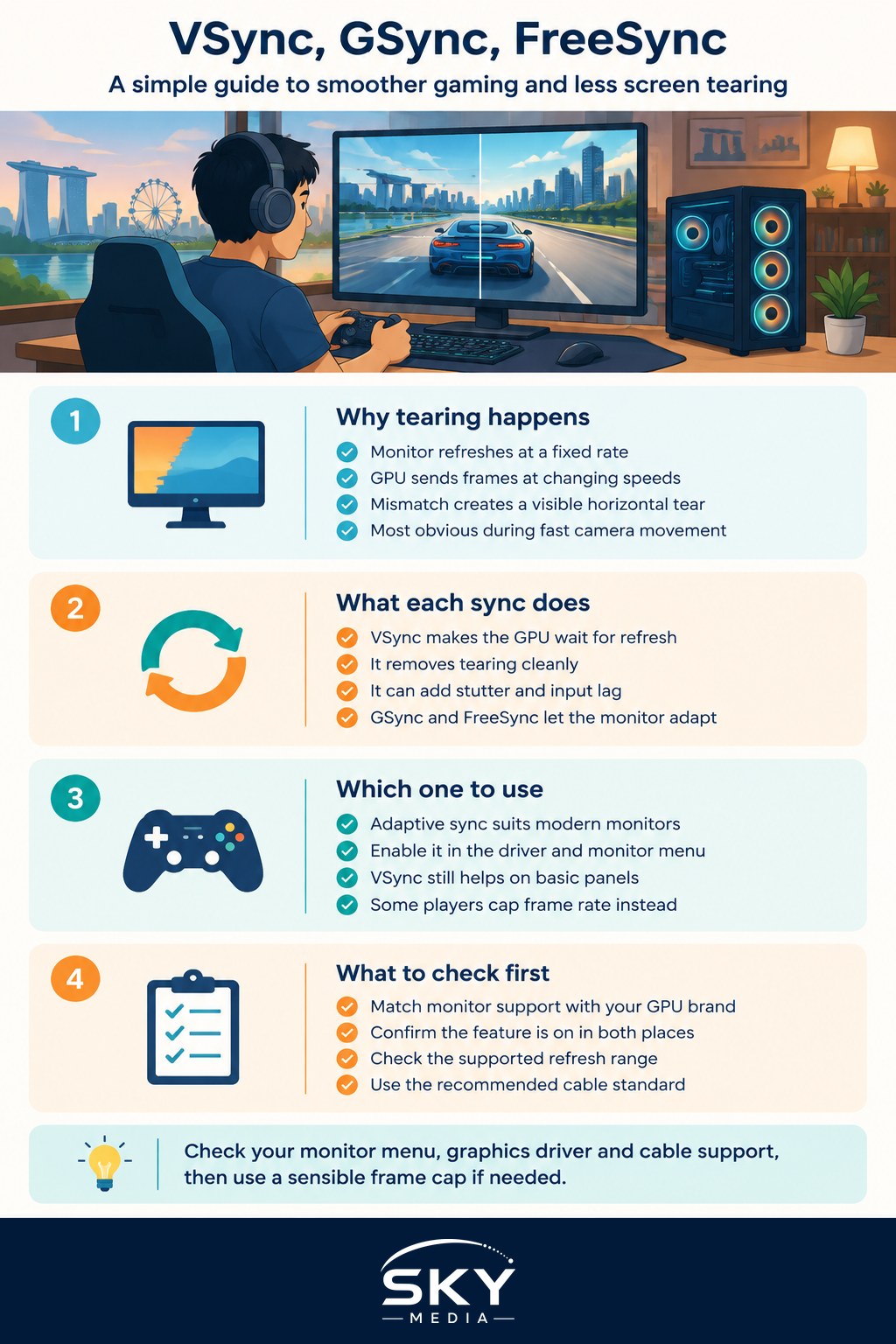
Your monitor refreshes its image a fixed number of times each second, measured in hertz. A 144Hz panel redraws 144 times a second. Your graphics card, meanwhile, produces frames at whatever rate it can manage, which changes constantly depending on what is happening on screen.
When the card sends a new frame partway through a monitor refresh, the display shows part of the old frame and part of the new one at the same time. The join between them looks like a horizontal tear, most obvious when you pan the camera quickly. The mismatch between the card’s output and the monitor’s refresh is the root cause.
What VSync does
VSync, or vertical sync, is the oldest solution. It tells the graphics card to hold each finished frame until the monitor is ready for it, so frames only ever arrive on a fresh refresh. This removes tearing cleanly.
The trade-off is timing. If your card cannot keep pace with the refresh rate, VSync makes it wait for the next cycle, which can cause noticeable stutter and adds input lag. That delay between your mouse movement and the on-screen result is the reason many competitive players switch VSync off, accepting some tearing in exchange for a more responsive feel.
What GSync and FreeSync do differently
GSync and FreeSync take the opposite approach. Instead of forcing the graphics card to match a fixed monitor speed, they make the monitor match the graphics card. This is called variable refresh rate or adaptive sync. The panel adjusts its refresh moment to moment so that each frame is displayed the instant it is ready.
The result is smooth motion with no tearing and none of the lag penalty that VSync brings, as long as your frame rate stays inside the monitor’s supported range. GSync is the technology associated with one graphics chip maker, while FreeSync is an open standard adopted widely, but in practice they solve the same problem. Many modern monitors now work with cards from more than one brand, so the old strict pairing has softened.
Comparing the three
| Technology | Tearing removed | Input lag | Needs special monitor | Best for |
|---|---|---|---|---|
| VSync | Yes | Higher | No | Older or basic monitors |
| GSync | Yes | Very low | Yes, compatible panel | Smooth variable frame rates |
| FreeSync | Yes | Very low | Yes, compatible panel | Wide, cost-friendly support |
How to choose for your setup
Start with the monitor you own or plan to buy. If it lists FreeSync or GSync support, that adaptive sync path is almost always the better experience, so enable it in your graphics driver and in the monitor’s own menu. Both usually need switching on in two places, and people often forget the menu setting.
If your monitor has no adaptive sync at all, VSync remains a valid tool for tidying up tearing in slower, more cinematic games where a little extra lag does not hurt. For fast shooters on a basic panel, many players simply leave sync off and cap their frame rate slightly below the refresh rate instead, which reduces tearing without the full VSync delay.
Matching card and monitor
- Check that your graphics card brand is supported by the monitor’s sync mode
- Confirm the sync feature is enabled in both the driver and the monitor menu
- Note the refresh range where variable sync operates, since it can stop working at very low frame rates
- Use the recommended cable standard, as some sync features need a specific connection
Common questions
Should I use VSync and adaptive sync together? In some cases yes. A common expert setup pairs adaptive sync with a frame rate cap set just under the refresh rate, which keeps tearing away while avoiding the lag spike that happens when frames exceed the sync range. Experiment and keep what feels best.
Will sync technology increase my frame rate? No. These tools smooth how frames are displayed, they do not create more of them. For raw performance you still need a capable graphics card and sensible in-game settings.
Does it help with input lag? Adaptive sync avoids the lag that VSync can add, but it is not a lag-reduction tool on its own. If responsiveness is your priority, look more broadly at your whole chain from mouse to display.
Which should I buy if I am building fresh? Look for a monitor that lists adaptive sync support and check that it works with your graphics card brand, which most modern panels now do. Beyond that, prioritise the refresh rate and panel quality you want, since the sync feature has become a near-standard bonus rather than a rare premium.
Why does my screen still tear after I turn on FreeSync or GSync? Sync usually has to be switched on in two places, the graphics driver software and the monitor’s own menu. Also check that your cable supports the mode and that your frame rate stays inside the monitor’s supported refresh range.
Is it okay to run FreeSync on a card from a different brand? Many modern monitors now work with cards from more than one brand, so the old strict pairing has softened. Check the monitor’s specifications and the graphics driver’s compatibility notes for your exact model before relying on it.
What is a frame rate cap and why set it just below the refresh rate? A cap stops the game producing frames faster than the monitor can show them. Setting it slightly under the refresh rate keeps you inside the sync range, reducing tearing without the full delay of VSync, which suits competitive players.
What happens when my frame rate drops very low with adaptive sync on? Variable sync works only within a supported refresh range, and it can stop working at very low frame rates. Look up your monitor’s range, and tune game settings so the frame rate rarely falls below it.
Getting the settings right
Even the best sync technology does nothing if it is switched off, and this is where many people stumble. The feature almost always needs enabling in two separate places. First, open your graphics card’s control software and turn on the variable refresh or adaptive sync option, choosing whether it applies in full screen only or windowed modes too. Second, dive into the monitor’s own on-screen menu, usually under a gaming or picture heading, and enable its matching setting.
Once both are on, confirm it is working. Some monitors show a small indicator, and many titles include a frame rate overlay you can use to check that motion looks clean during fast movement. If tearing persists, revisit both settings and make sure your cable supports the mode, because an older cable can quietly block the feature.
The bottom line
Screen tearing is a timing mismatch, and each solution tackles it from a different angle. VSync makes the card wait, while GSync and FreeSync make the monitor adapt. For most gamers in Singapore buying a modern monitor, adaptive sync is the clear winner, offering smooth, tear-free motion without the sluggish feel. Turn it on properly, pair it with a sensible frame cap, and your games will look and feel noticeably cleaner.
Explore more: Monitor Refresh Rate and Response Time · How to Reduce Input Lag · Choosing a Gaming Monitor for Your Setup
Further reading: DLSS, FSR and XeSS Upscaling Explained