
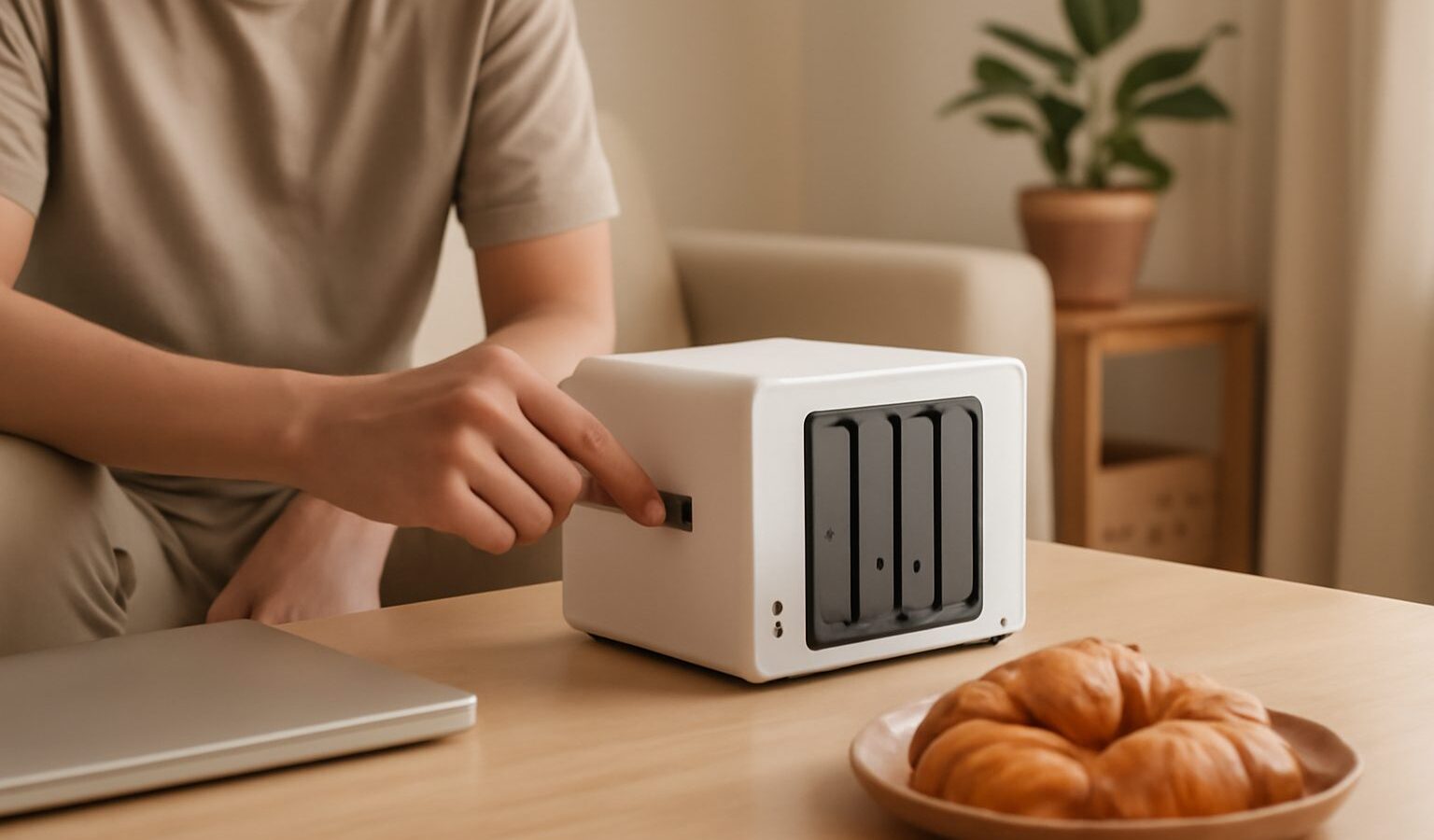
A NAS, short for network attached storage, is a small always on box that holds your files and shares them across every device in your flat. If you have been juggling full phone storage, scattered USB drives, and photos you are scared to lose, a home NAS Singapore setup gives you one private place for everything. Think of it as your own storage cupboard on the network, reachable from your laptop, TV, and phone without paying a monthly cloud fee.
This guide explains what a NAS actually does, who really needs one, the specs that matter, and the common mistakes to avoid. No hype, no model numbers, just the practical stuff.
What a NAS Is and Who Needs One
A NAS is a compact computer built for one job: storing files and serving them over your home network. You slot in one or more hard drives, connect it to your router, and it appears as a shared drive on your devices. Because it stays switched on, it can run in the background all day quietly doing useful work.
People usually buy a NAS for a few reasons. The first is backup. Phones, laptops, and cameras all fill up, and a NAS gives you a roomy central place to copy everything so a lost or stolen device does not mean lost memories. The second is media. Many households use a NAS as a home library for movies, shows, music, and photos, streamed to the living room TV or to phones on the couch. The third is sharing. Everyone in the home can reach the same files, which is handy for family photos, documents, and household records.
You probably do not need a NAS if you only keep a handful of files and are happy paying for cloud storage. But if you value privacy, want a one time hardware cost instead of a subscription, or simply have a lot of data to look after, a NAS earns its keep. Families with young children and thousands of photos are classic candidates.
Bays, Drives, and RAID Basics
The single most important spec is the number of drive bays. A bay is a slot that holds one hard drive. Entry level units have one or two bays, mid range units have two to four, and larger home or prosumer units go higher.
A one bay unit is the cheapest and simplest, but it has no safety net. If that single drive fails, your data is gone unless you have a separate backup. A two bay unit is the sweet spot for most homes because it lets you use RAID.
RAID is a way of combining drives so they work together. The two terms you will meet most often are RAID 1 and RAID 0. RAID 1 mirrors your data across two drives, so if one drive dies the other still has a full copy and you carry on. You lose half your total capacity to the mirror, but you gain peace of mind. RAID 0 stripes data across drives for more space and speed but gives you zero protection, so avoid it for anything precious. Many NAS units also offer their own flexible modes that behave much like RAID 1 while making it easier to mix drive sizes.
One thing to be clear about: RAID is not a backup. RAID protects you against a drive failing, but it does not protect against accidental deletion, ransomware, fire, or theft. Always keep a second copy of anything truly irreplaceable, whether on an external drive kept elsewhere or in a cloud account.
Drives are usually sold separately from the NAS. For a NAS you want drives rated for continuous operation, often labelled as NAS drives, rather than ordinary desktop drives. They are built to run all day and cope with the vibration of sitting next to other drives.
Specs to Compare Before You Buy
Beyond bays and drives, a few specs shape how pleasant the NAS is to live with.
| Tier | Bays | Best for | What to watch |
|---|---|---|---|
| Budget | 1 to 2 | Simple backups, light file sharing | Weaker processor, basic apps, may stutter with 4K media |
| Mid range | 2 to 4 | Family backups plus smooth media streaming | Check it can transcode video if you stream to older devices |
| Premium | 4 or more | Large libraries, many users, future growth | Costs more, uses more power, can be overkill for one household |
The processor and memory decide how many things the NAS can do at once and how well it streams video. If you plan to convert video on the fly for older phones or TVs, look for a unit that mentions hardware transcoding. Network speed matters too. Most homes are well served by a standard gigabit connection, which is plenty for backups and streaming. Faster networking exists but only helps if the rest of your home network supports it.
Also look at the software. The NAS operating system is what you will actually use every day for photos, backups, and remote access, so pick a brand with a friendly interface and mobile apps that get regular updates.
Singapore Specific Notes
A NAS runs constantly, so power and heat deserve a thought. Singapore runs on 230 volts at a three pin square plug, and reputable NAS units ship with a compatible power supply, so check the adapter suits our sockets before you buy from overseas sellers. Because the unit is always on, place it somewhere with airflow and out of direct sun. Our climate is warm and humid, so a shelf with breathing room beats a closed cabinet.
Buying locally through authorised channels gives you a proper local warranty and easier servicing, which matters for a device you expect to run for years. Consumer protection here means goods should match their description and work as promised, so keep your receipt and note the warranty period. Larger IT malls and mainstream online marketplaces both carry NAS units and NAS rated drives, and it is worth comparing a bundle of unit plus drives against buying each part on its own.
Finally, protect the box itself. A small uninterruptible power supply guards against sudden power cuts that can interrupt a write and unsettle the drives, and many NAS units can talk to one so they shut down cleanly.
Common Mistakes to Avoid
The biggest mistake is treating RAID as a backup and keeping only one copy of your files. The second is buying a single bay unit with no plan for redundancy or a second copy. The third is filling every bay to the brim on day one with no room to grow, then having to rebuild everything a year later. Leave yourself headroom.
People also underbuy on the processor, then wonder why 4K video stutters. If media is your main use, spend a little more on a capable mid range unit. And do not skip the software updates, since they keep your always on box secure against threats from the wider internet.
Start with a two bay unit, mirror your drives, add one extra backup copy for your most precious files, and you will have a calm, private, and roomy home storage setup that quietly does its job for years.